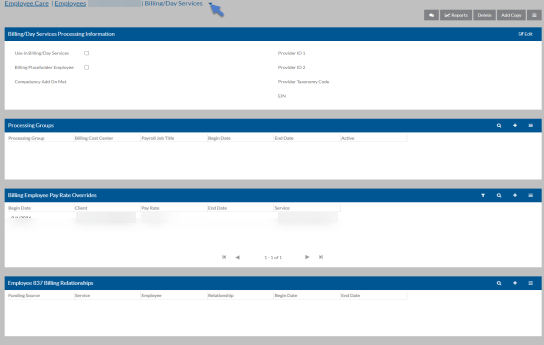
| Billing/Day Services Processing Information |
-
Use in Billing/Day Services
-
Billing Placeholder Employee: This employee is be used when an extra results transaction is created by Billing’s Process Data Entry Batches Wizard. The results transactions created for this employee is not included when running Billing’s Merge Time To Payroll Wizard.
-
Competency Add-On Met:(Ohio Billing Only) Whenever a DSP becomes eligible for the competency add-on, make sure to enter the date that they met the requirements. This date should ALWAYS be the Start Date of a pay period.
-
Provider ID1 and ID2: If the employee is being used in Billing and you need to include the rendering provider ID at the service line in the 837 electronic file, then enter the employee’s Provider ID 1 or 2 (Medicaid or National Provider ID). For details, refer to the Billing Guide.
-
Provider Taxonomy Code: If you are using Billing and the Use Rendering Provider Specialty Info check box is selected along with the Use Service Line Rendering Provider check box in the Funding Source Billing Code, then the Provider Taxonomy Code entered here is included in the 2420A loop of the service line in the 837P electronic file. For details, refer to the Billing Guide.
-
EIN: The employee’s employer identification number (EIN), if applicable. This number is used instead of the employee’s Social Security Number if filled out when processing W-2s.
-
User: If you are using the Day Services Staff Entry feature set, enter the user name of the user you want to link to this employee record for timesheet entry.
|
| Processing Group |
Processing Groups are used when entering Per Diem, Time or Unit Entries. You can use the employee’s billing processing groups to allocate cost for billing and payroll as well as to designate the appropriate job title.
-
Processing Group
-
Billing Cost Center
-
Payroll Job Title
-
Begin Date
-
End Date
-
Active
When finished click Accept to close the pop-up window or Accept & Add to continue adding processing groups for this employee and then click Save when finished.
|
| Billing Employee Pay Rate Overrides |
This is a reverse-reference to Employee Pay Rate Overrides.The grid only shows the Employee Pay Rate Override records associated with the employee record currently open. You can view the details of the employee’s Employee Pay Rate Overrides as well as add new Employee Pay Rate Overrides for the employee. However, you cannot delete an Employee Pay Rate Override record through the Employee screen. You must do this through the Employee Pay Rate Overrides transaction grid itself.
Complete the following information as appropriate for employees’s employee pay rate override:
-
Begin Date - The first date this pay rate override is in effect
-
End Date - The last date this pay rate override is used.
-
Pay Rate - The pay rate to use when an employee logs time with the selected time service for this client.
-
Employee - The employee this pay rate override applies to, prefills with the current employee’s name.
-
Client - The client this pay rate override applies to.
-
Service - The time service type this pay rate override applies to.
When finished click Save.
|
| Employee 837 Billing Relationships |
If a funding source requires an employee’s relationship with a client to be included in 2300 loop of the 837 file for a particular service and this employee has a relationship other than the default employee relationship set in the funding source service type with a client(s), define the relationships.
Complete this information:
-
Client - The code of the Client that this employee is be serving. Only clients that have Use in Billing/Day Services selected appear.
-
Funding Source: The code of the Funding Source that requires the employee relationship to appear in the 837 file. Only funding sources that have at least one Billing Service Type with Employee Relationship Required selected appear.
-
Service - The Billing Service Types that the employee is providing the client that requires the relationship to appear in the 837 file. Only billing services that a set up under the selected Funding Source with Employee Relationship Required selected appear.
-
Relationship -The relationship the selected employee has to the client. The options that appear come from the relationships set up in the selected Funding Source Billing Service Type that are NOT marked as the Default .
-
Begin Date - What Service Date to begin considering this relationship (Prior to this date, it either uses the another Relationship record or the Default relationship if another Relationship is not entered).
-
End Date - The final Service Date for this relationship (optional) (After this date, it either uses the another Relationship record or the Default relationship if another Relationship is not entered).
When finished click Accept to close the pop-up window or Accept & Add to continue adding employee relationships for this employee and then click Save when finished.
|