Employees Applicant Tracking Feature

The Application Tracking System allows you to have an external Form.io powered web application that applicants can complete without having to log in to DataPlus. Once the applicant completes the web application it is automatically available to you in Employee Care via the Application Tracking screen on the Original Application tab.
The Applicant Tracking System is a workflow, that enables you to:
-
Route the application to the hiring manager when changing statuses via tasks.
-
Run a report to determine where in the process the applicant was rejected or withdrew by including the previous state.
-
See immediately how many applications are in a particular status.
-
View the application history.
Some additional features of the Applicant Tracking System include the ability to:
-
Tie a requirement to an application (such as Background Check or a Drug Screen).
-
Create an Employee from a hired applicant.
Implementation Process
During the implementation process you have the opportunity to make some minor customizations to the standard application template such as adding your company logo and modifying the questions that appear on the Additional Information and Consents page of the web application.
As part of the implementation process, the web address for your company’s version of the web application is provided, allowing you to link it to your website or job postings.
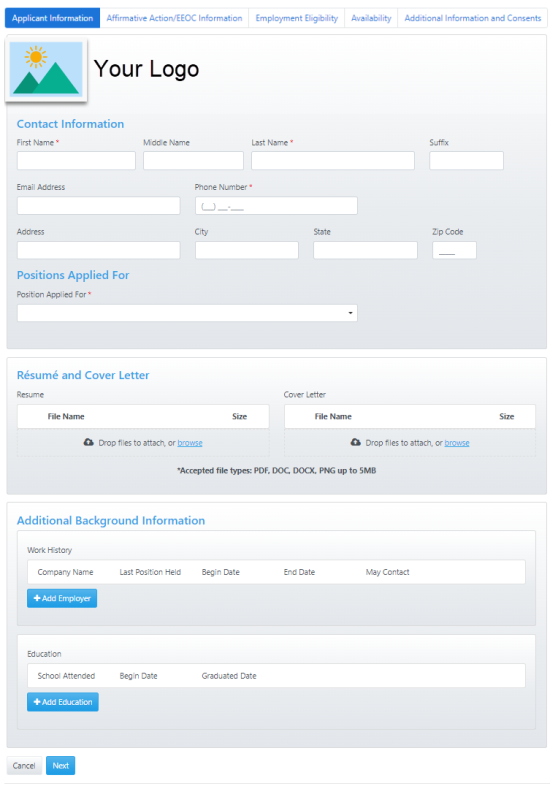
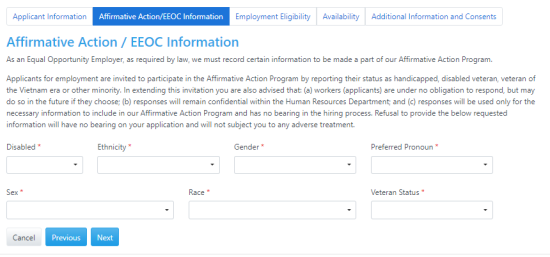
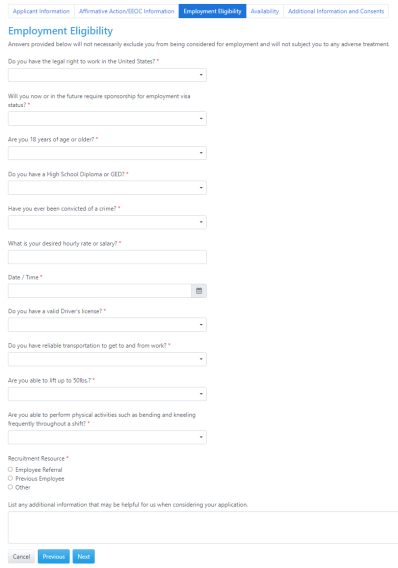
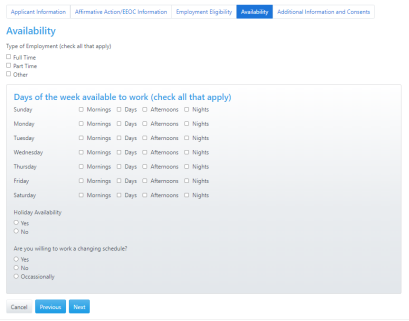
The images below show an example of the web application.
This is the Applicant Information page:
This is the Affirmative Action/EEOC Information page:
This is the Employment Eligibility page:
This is the Availability page:
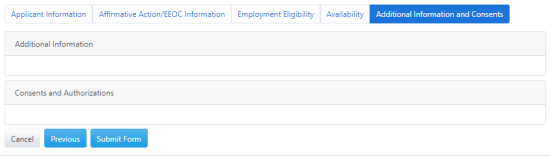
this is the Consents/Attestations page, which is customized:
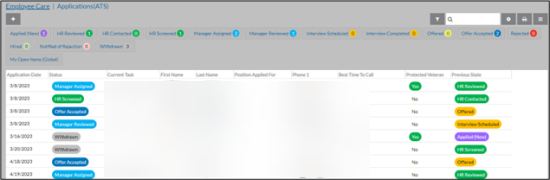
Once the applicant completes and submits the application it automatically appears as a new application within Employee Care . The Applications (ATS) screen lists all applications submitted using the link to the external form. From here you can search for, filter, or print a list of all applications, and add an applicant manually, if necessary. The columns and data on the screens can be customized and reordered using the configuration button.
Click on an application to open and view the information entered on the form, share the applicant’s record internally and manage interviewer information.
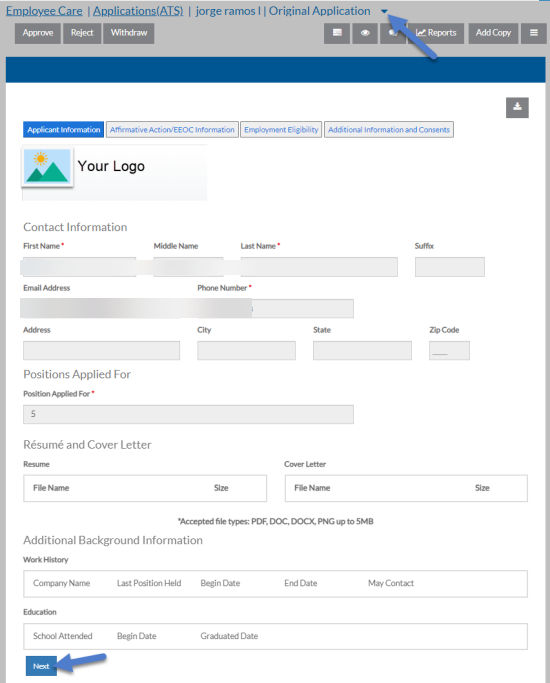
Once the application opens, you can see the information that the applicant completed by switching to the Original Application tab:
To use Application Tracking, you need to complete these setup items:
-
Create your web application with your customizations in Form.IO.
-
Sandata runs the Initialize ATS Settings wizard and configure your Form.IO Sync.
-
Make any modifications to the related Application Tracking setup lists as needed.
-
Sync your set up lists to your Form.IO web application.
-
Make sure your Application Workflow security permissions are set up and correct.
-
Include the link to your web application in your job postings. This is provided by Sandata.
To manage you application tracking setup lists:
-
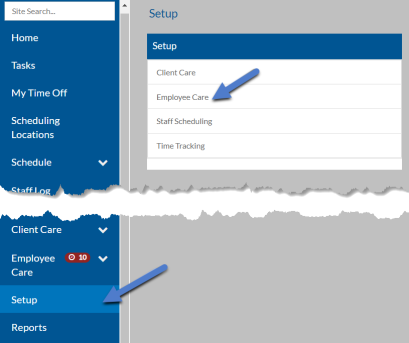
Select Setup from the navigation pane and then select Employee Care.
-
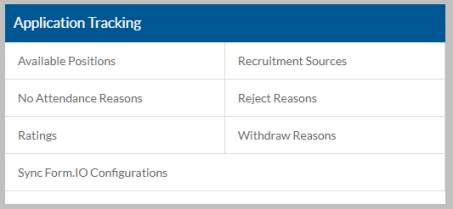
Scroll down to the Application Tracking card.
-
Select the Setup List you want to manage:
Setup List Description Available Positions The available position the candidate is applying for (This is a separate list from the list of positions in the Position tree). No Attendance Reasons The reason why the candidate did not attend an interview. Ratings A rating to assign to the applicant, such as good fit or not qualified, for filtering and reporting purposes. Recruitment Sources Where the candidate found out about the open position. This setup list is also used with the legacy applications and applicants. Reject Reasons The reason why the candidate was not selected. Withdraw Reasons The reason why the candidate withdrew their application. -
Click anywhere on an existing card to open, view and edit or select the + icon to add a new one.
-
Enter the Code and Description and select Save.
Application Tracking also uses these Employee Care setup lists:
-
Education Levels
-
Ethnicity
-
Genders
-
Job Titles
-
Phone Descriptions
-
Positions
-
Preferred Pronouns
-
Races
-
Once your set up lists are populated you can sync them to Form.io to appear as choices in your web application.
To do so:
-
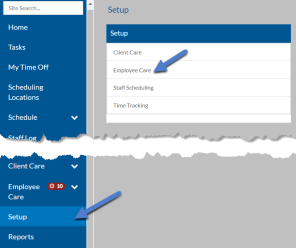
Select Setup from the navigation pane and then select Employee Care.
-
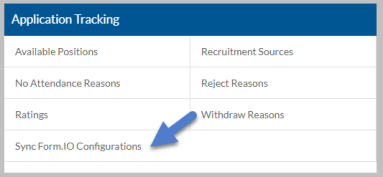
Scroll down to the Application Tracking card and select Sync Form.IO Configurations.
-
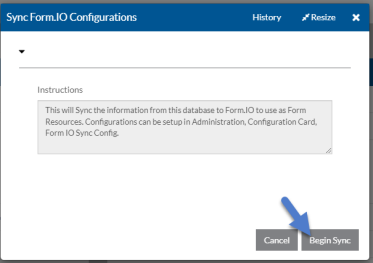
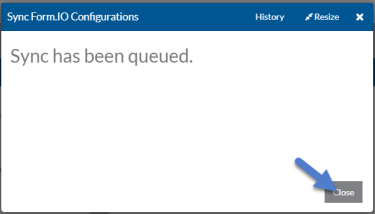
Select Begin Sync.
-
Select Close to exit the wizard.
If you have decided to hire an applicant and the Application is in the Offer Accepted status, you can automatically copy the information from the applicant profile to create an employee profile.
You need security permissions to create an employee from an application as well as security permissions to add an employee.
-
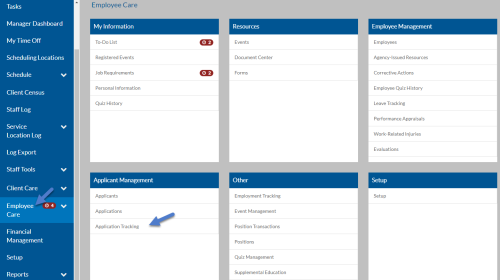
Select Employee Care from the menu and then select Application Tracking from the Applicant Management card.
-
Select the application of the applicant you want to hire.
-
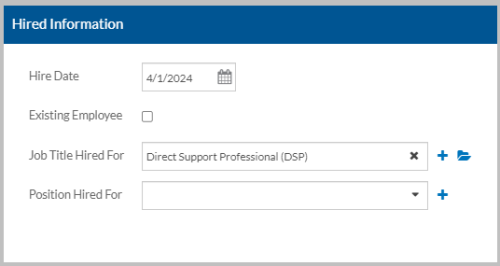
Complete the fields on the Hired Information card as desired.
-
Hire Date
-
Existing Employee: If this is a rehire do not create a new employee record.
-
Position Hired For: If this employee is filling a position in the Position tree, select the open position.
-
Job Title Hired For: The job title of the new employee.
If a position is selected above, the job title must also be selected in the position type associated with the position.
-
-
Click Save.
-
Make sure you have already selected Accepted Offer.
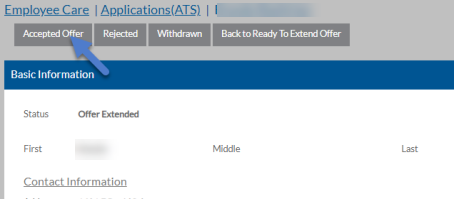
The Create Employee button appears when the Status is Offer Accepted.
-
Select Create Employee.
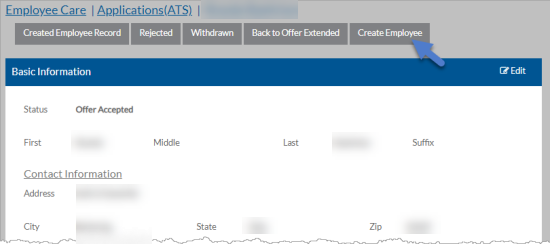
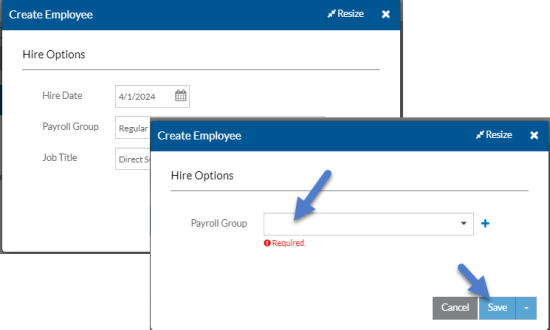
The Create Employee screen opens and is pre-filled with the job title and hire date (if not using Employment Tracking) you entered in the application.
-
Enter the Payroll Group and select Save.
If Employment Tracking is enabled, you are not prompted to enter a Job Title or Hire Date. The Job Title and Hire Date is entered when you run the Employment Tracking Wizard.
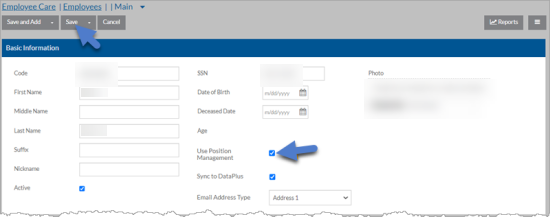
The Employee screen opens with information from the applicant prefilled:
-
Name (First, Middle, Last, Suffix, Nickname)
-
Address, City, State, Zip,
-
Phone Number
-
Email Address
-
SSN
-
Race
-
Ethnicity
-
Sex
-
Gender
-
Preferred Pronouns
-
Disability Status
-
Veteran Status
-
Protected Veteran
-
Education
-
Job Title (if not using Employment Tracking)
-
Hire Date (if not using Employment Tracking)
-
-
Complete any additional information needed about the employee and then select Save.
Make sure you select Use Position Management, if you want to run the Employment Tracking Wizard or use Basic Position Tracking for this employee.
Once an applicant completes the web application and it appears as an Application Tracking System in Employee Care you can begin managing the application.
To manage applications:
-
Select Employee Care from the menu and then select Application Tracking from the Applicant Management card.
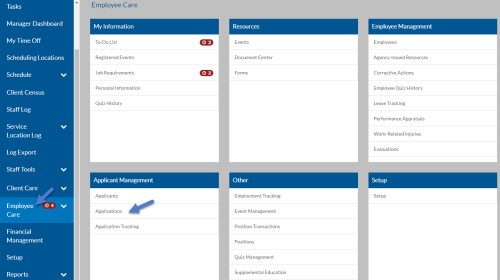
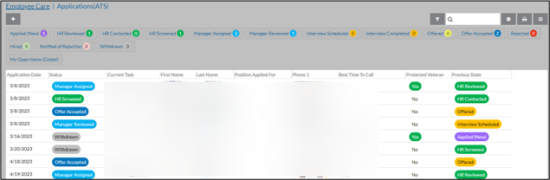
The applications grid appears.
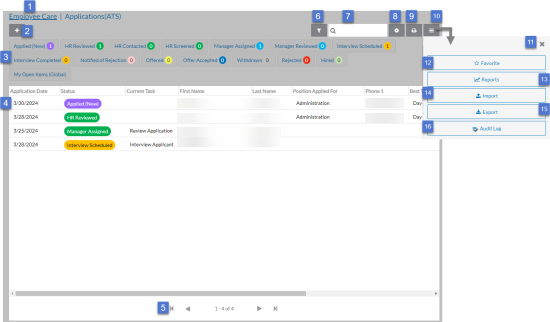
From here you can do multiple functions:
You may see a message similar to the one below. This message means additional applications match your filter settings, but there are too many to show. If this happens you either need to adjust your filters or use the search to find the one you are looking for.

On this Card Available Fields Basic Information -
Status
-
First, Middle, Last Name and Suffix
-
Address, City, State, Zip
-
Phone Number
-
Email Address
-
Best Time to Call
-
Social Security Number
Application Information -
Application Date
-
Position Applied for
-
Previous Employee
-
Withdraw Reason
-
Reject Reason
-
Previous State
-
Recruitment Source
-
Referred By
-
Referring Employee
Demographics -
Sex
-
Gender
-
Preferred Pronouns
-
Race
-
Ethnicity
-
Disabled
-
Veteran Status
Education One or more education records:
-
School Attended
-
Education Level
-
Course of Study
-
Degree
-
Begin Date
-
End Date
-
Expected Graduation Date
-
GPA
-
Graduated
-
Graduation Date
-
Verification Check
Interviews One or more interviews:
-
Date
-
Time
-
Primary Interviewer
-
Did Not Attend
-
No Attendance Reason
Hired Information -
Hire Date
-
Existing Employee
-
Position Hired For
-
-
Select an application to open or select the + icon to add a new one.
You can view the application information that you can complete or that was automatically pre-filled from the web application the applicant completed.
From here you can do these additional functions:
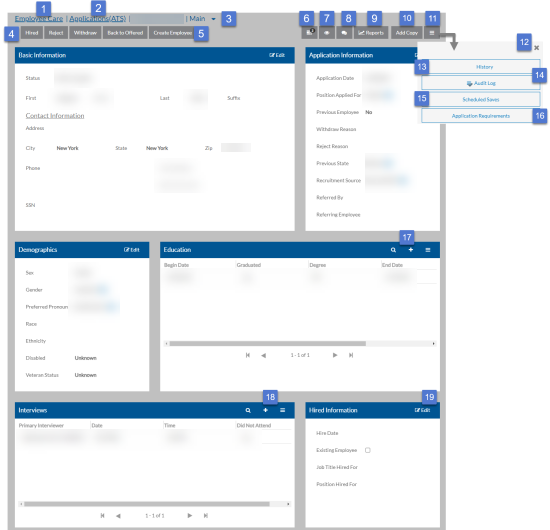
On this Card Functions 1 Return to the Employee Care navigation screen. 2 Return to the Applications grid. 3 Switch to the Original Application task to view the information the applicant entered from the web Form.io application. 4 Change the status of the application (if you have security permissions to do so). When you change the status you may also be prompted to enter notes, pick an assignee or select a withdraw or reject reason depending on which status you are moving it too. 5 Create an employee record from the application when the status is set to Accepted Offer if you have the security permissions to do so. 6 Add or view any related tasks. A black number badge indicates the number of tasks (both open and completed) associated with it. 7 Add, view or remove watchers. A black number badge indicates the number of watchers already associated with it. 8 View any notes related to the application., 9 Run a report. 10 Create a copy of the application. 11 Open the options tray. 12 Close the options tray. 13 View the status history of the application. 14 View the audit log for the application. 15 Review or cancel any scheduled changes for the application. 16 Review the status of any requirements associated with the application. 17 Manage any eduction records, including adding a new one, search for one, configuring grid settings, etc. 18 Manage any interview records, including adding a new one, search for one, configuring grid settings, etc. 19 Edit the application. When finished editing, select Save (or Cancel to discard changes).