Employee Care Feature

You can view and download documents that your company has posted such as employee policies. See Document Management for information on adding folders and uploading content.
To view documents and links in the document center:
-
Select Employee Care from the main menu and then select Document Center from the Resources card.
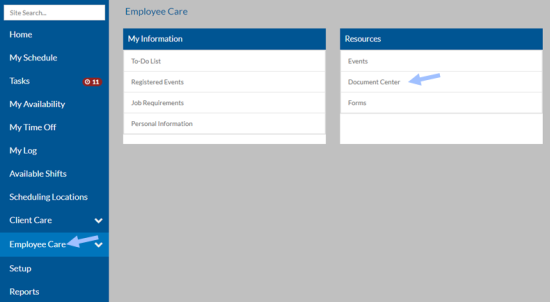
The list of documents appears.
-
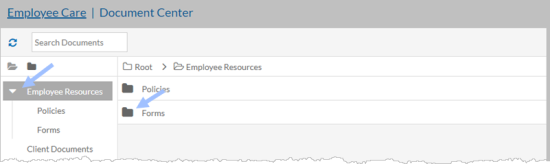
Select a Category on the left and then select a folder to view its contents.
-
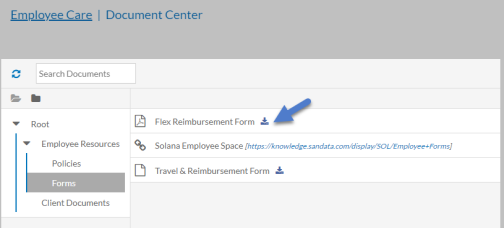
Select a Document or link to view or select the Download icon to download a document to your device.
You can view the upcoming events that are available for you to register for.
To view upcoming events:
-
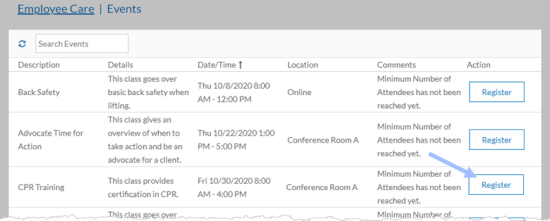
Select Employee Care from the main menu and then select Events from the Resources card.
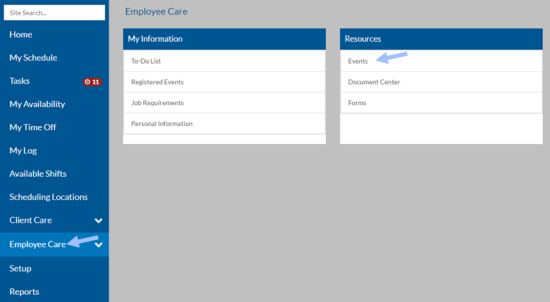
The list of event appears.
-
Select Register next to the event you want to attend.
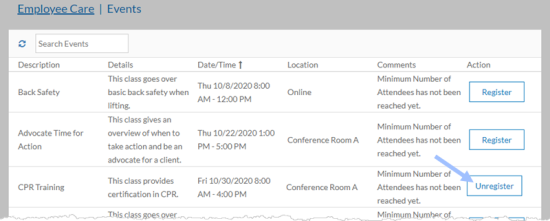
The button changes to Unregister. Select Unregister if you made a mistake or can no longer attend.
You can complete and submit forms that your company posted. The forms that appear vary based on your company's setup.
To complete a form:
-
Select Employee Care from the main menu and then select Forms from the Resources card.
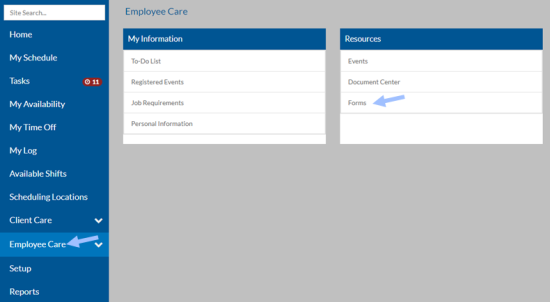
The list of forms appears.
-
Select a form to complete and then select Submit.
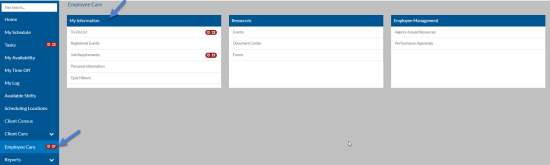
From the My Information card you can view your to-do list, view upcoming events that you are registered for, review your job requirements and view or update your personal information.
A job requirement refers to a task designated by your company that you must complete—such as attending a training session, signing a document, or submitting necessary paperwork. You can view your list of job requirements to check when each was last completed and when it’s due next. If an action is required, a button appears next to the corresponding item for you to complete it.
To view your job requirements:
-
Select Employee Care from the main menu and then select To-Do List from the My Information card.
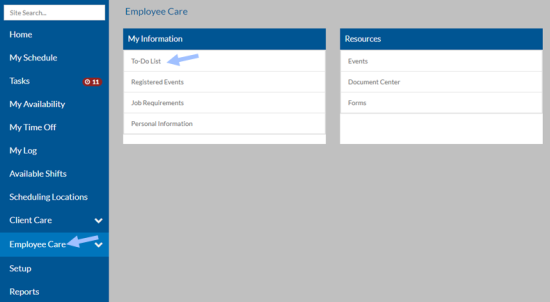
Your list of job requirements appear.
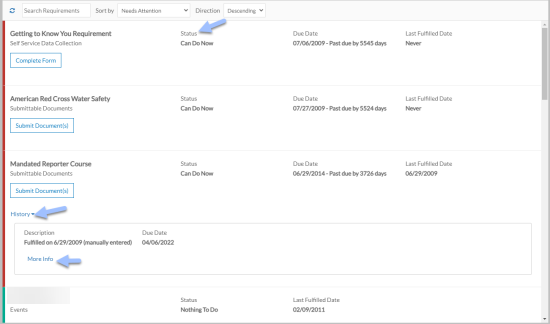
If the Status is Nothing To Do, then the Requirement is not due yet. If the Status is Not Required, then you are no longer required to complete this requirement although at some point in the past you were. Click on the History link to view when you completed the requirement in the past and select the More Info link to view additional information about what you submitted to complete the requirement.
-
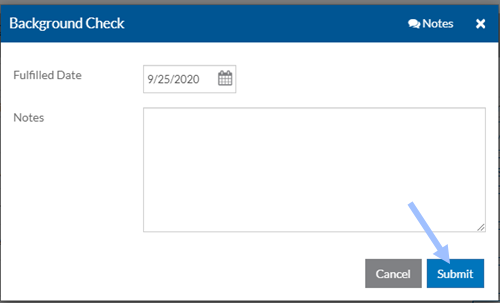
Select Mark as Done to complete an item that doesn't require additional information to complete the requirement.
A confirmation window opens. Enter the Fulfilled Date as well as number of Credit Hours and/or any Notes as prompted and click Submit.
-
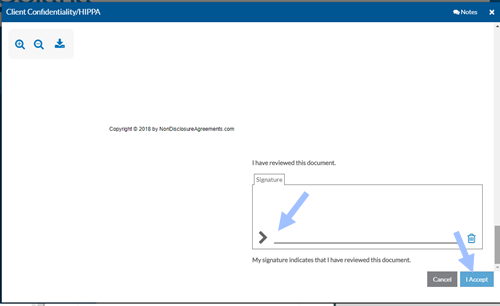
Select Sign Document to review a document and sign.
Scroll to the bottom of the document to review, using the controls in the upper right corner to zoom in, zoom out or download the document to your device.
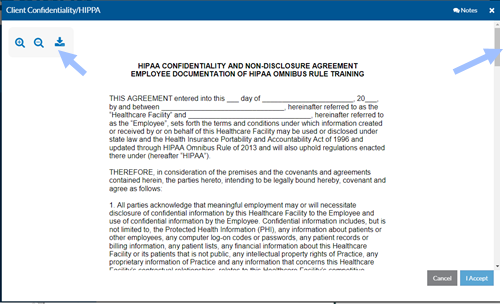
Sign the document using your mouse, stylus or finger (depending on your device), enter any credit hours and/or notes as required and click I Accept.
-
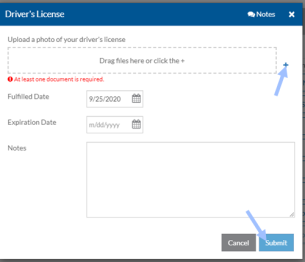
Select Submit Document to upload a document or photo that is associated with one of your job requirements to fulfill it.
Drag the file into the window or click the + icon to browse for the file, enter the Fulfilled date, Expiration date, Credit hours and/or any Notes as required and click Submit.
-
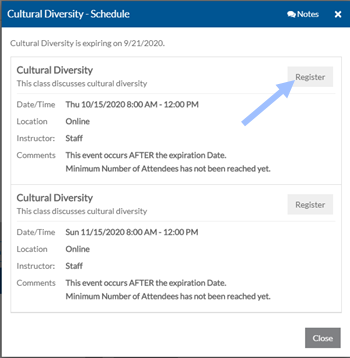
Select Schedule It to view a list of upcoming events that fulfill the associated job requirement.
Select Register next to the one you want to attend.
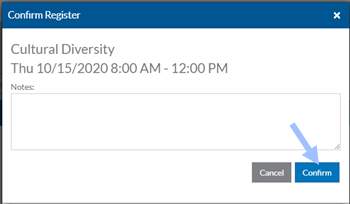
A confirmation window opens. Enter any notes as needed and click Confirm.
-
Select Open Quiz to take a quiz.
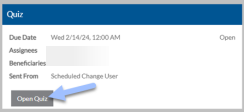
Click on the links to the learning materials to review the course materials.
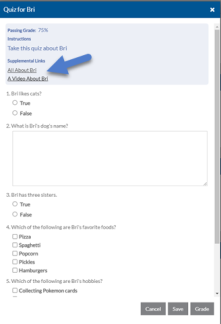
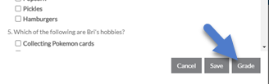
When you are ready, answer the questions. If you are interrupted or need more time you can click Save and come back and finish the quiz later. Otherwise, select Grade to auto-score the quiz in real time.
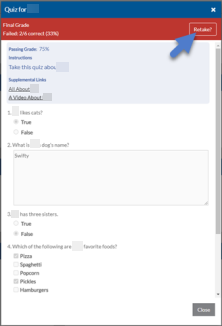
If you pass the quiz (based on the passing percentage set in the quiz setup), your requirement is marked fulfilled and in compliance for Time Tracking. If you fail the quiz, the requirement remains unfilled and remain out of compliance for Time Tracking until you pass the quiz. You can click Retake? at the top of the card at any time to try again.
You can view and request changes to your personal information such as address, basic demographic information, tax information, contacts/dependents, direct deposit information and paid time off balances. The items that you can view and request changes to varies depending on your agency's setup.
Personal information is not updated until Human Resources approves the submitted changes.
To view your personal information and optionally request a change:
-
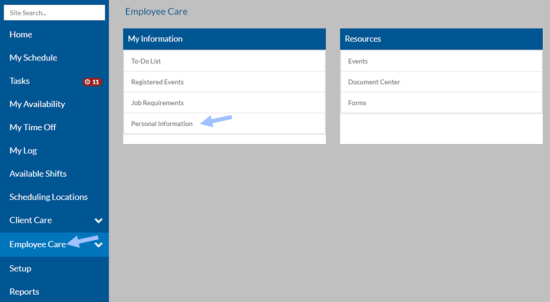
Select Employee Care from the main menu and then select Personal Information from the My Information card.
-
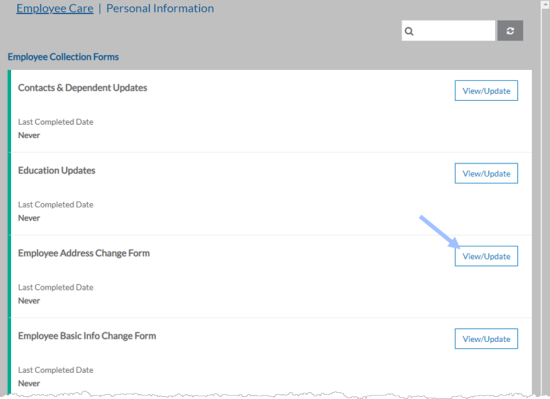
Select the View/Update button next to the one you want to view or change.
-
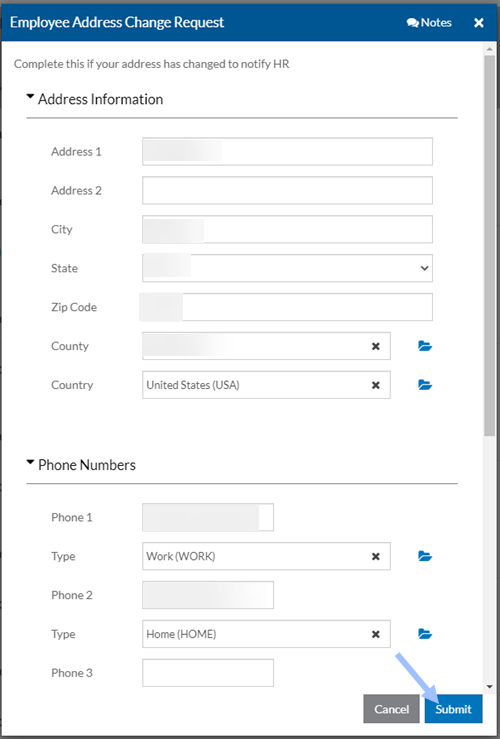
Make any changes as needed and select Submit.
The Submit button is not active unless you make a change to your information.
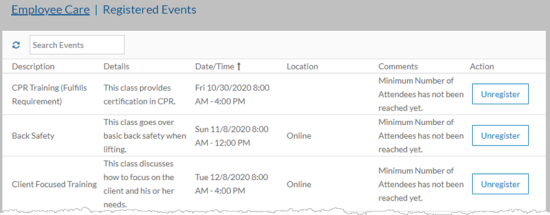
You can view the upcoming events that you have registered for as well as unregister if you are no longer able to attend.
To view the events that you have registered for:
-
Select Employee Care from the main menu and then select Registered Events from the My Information card.
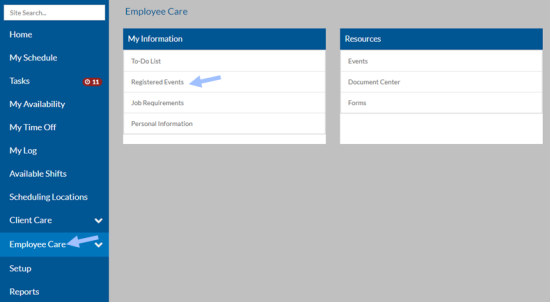
The list of event appears.
-
Select Unregister if you can no longer attend.
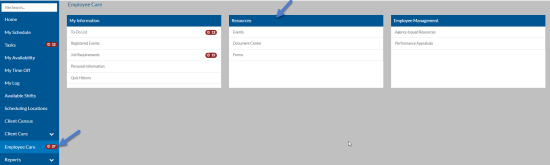
From the Resources card you can view upcoming events that you can register to attend as well as view company documents and complete company forms.
If your agency has licensed quizzes, you can view the history of any quizzes you have taken to fulfill a requirement:
-
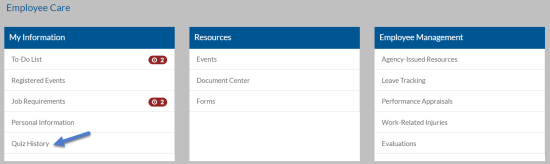
Select Employee Care from the main menu and then select Quiz History from the My Information card.
-
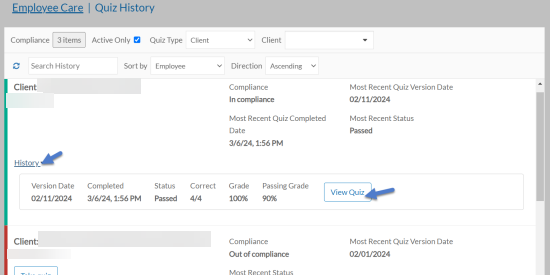
Select Take Quiz to take any quizzes that you have take yet or to retake any that you have failed.
-
Select the caret next to History to see the results and click View Quiz to see your responses.
As your job requirements come due, Tasks appear for you to complete for that job requirement. A job requirement is a training class, a document you need to sign, a document you need to submit or other item you need to complete.
-
You can view and complete the tasks (and thus fulfilling the job requirement) from your Employee To-Do List or from the Tasks dashboard. You can also complete job requirements from your list of job requirements.
-
When completing a requirement-related task you may be prompted to enter credit hours or notes. If you are completing the requirement yourself (the assignee of the task is set to beneficiary) then this field appears or is required based on the self setting in the requirement for all evidence types except events.
-
If someone else is completing the requirement on your behalf this field appears or is required based on the non-self setting in the requirement for all evidence types except events. Credit hours for events are set in the Event itself unless Allow External Events is set in the requirement and is turned on in addition to these settings. If so, the External Event check box was enabled, and/or be required to enter credit hours.
-
When an approver manually fulfills a requirement, the credit hours appear and are required based on the non-self setting as well for all evidence types including events.
-
In order for notes to appear, a Notebook must be added to Requirement Transactions first. If you are completing the requirement yourself (the assignee of the task is set to Beneficiary) then the notes field appears or is required based on the self setting in the requirement.
-
If someone else is completing the requirement on your behalf then this field appears or is required based on the non-self setting in the requirement. When an approver manually fulfills a requirement the notes field appears and is required based on the non-self setting as well.
To view and complete your tasks from the employee to-do list:
If you as a Watcher or Approver selects More Info under the History link of a Job Requirement, they can view the Notes entered when fulfilling the requirement and add additional notes to it.
-
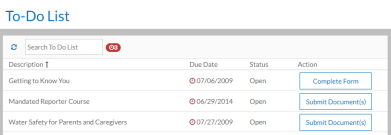
Select Employee Care from the main menu and then select To-Do List from the My Information card.
The list of requirements that are ready to be completed appear.
-
Select Mark as Done to complete an item that doesn't require additional information to complete the requirement.
A confirmation window opens. Enter the Fulfilled Date as well as number of Credit Hours and/or any Notes as prompted and click Submit.
-
Select Sign Document to review a document and sign.
Scroll to the bottom of the document to review, using the controls in the upper right corner to zoom in, zoom outor download the document to your device.
Sign the document using your mouse, stylus or finger (depending on your device), enter any credit hours and/or notes as required and click I Accept.
-
Select Submit Document to upload a document or photo that is associated with one of your job requirements to fulfill it.
Drag the file into the window or click the + icon to browse for the file, enter the Fulfilled date, Expiration date, Credit hours and/or any Notes as required and click Submit.
-
Select Schedule It to view a list of upcoming events that fulfill the associated job requirement.
Select Register next to the one you want to attend.
A confirmation window opens. Enter any notes as needed and click Confirm.
-
Select Open Quiz to take a quiz.
Click on the links to the learning materials to review the course materials.
When you are ready, answer the questions. If you are interrupted or need more time you can click Save and come back and finish the quiz later. Otherwise, select Grade to auto-score the quiz in real time.
If you pass the quiz (based on the passing percentage set in the quiz setup), your requirement is marked fulfilled and in compliance for Time Tracking. If you fail the quiz, the requirement remains unfilled and remain out of compliance for Time Tracking until you pass the quiz. You can click Retake? at the top of the card at any time to try again.