Update User Settings
User Settings allow you to designate your preferred contact method for notifications, scheduling locations and maximum and minimum number of hours per day and week, as well as set out of office settings.
To update your user settings:
-
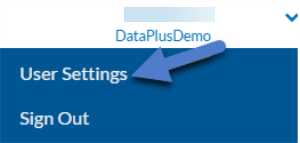
Click on the arrow next to your user name in the top right corner and select User Settings.
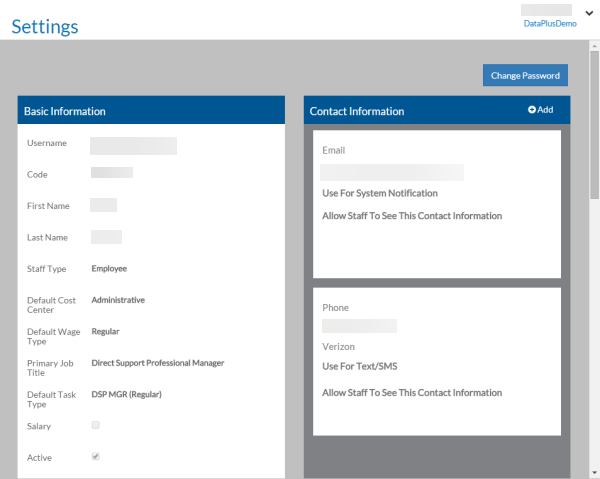
Basic Information, Contact Information, Staff Notification Settings, Out of Office Settings, Staff Hours Preferences, Approved Scheduling Locations and Qualifications cards are displayed. If you are a schedule manager, time tracking manager, staff manager or client manager, additional notification settings cards are also displayed.
-
Review the information on the Basic Information card. This information is read-only. Contact your manager or HR Department if this information is not correct.
-
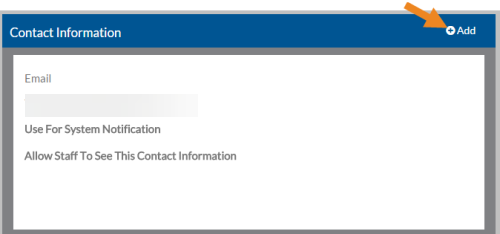
On the Contact Information card, click Add to add new contact information or select a card to edit your existing contact information.
-
The Contact Information card opens.
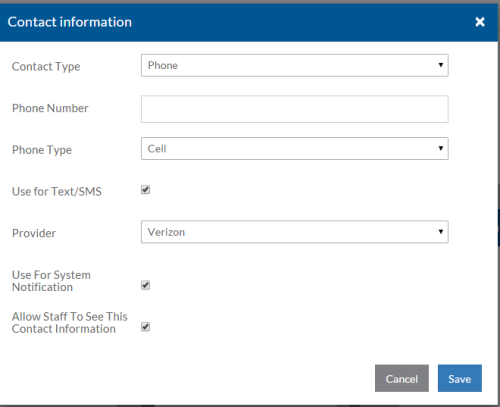
Fill out the form and click Save:
-
Contact Type: Email, Phone or Message
-
Phone Number or Email Address: Depending on the Contact Type selected, enter the corresponding Phone Number or Email Address.
-
Phone Type: If the Contact Type is Phone, select whether the phone number is Cell, Home or Work.
-
Use for Text/SMS: If the Contact Type is Phone, select the checkbox to receive your selected notifications via a text message. If you elect to receive a text message, you will only receive the text message if the event or flag occurs within 24 hours of the shift or within the time frame set by your Agency under Options.
-
Provider: If the Contact Type is Phone and Use for Text/SMS is selected, then select the cell phone service provider from the list (AT&T, Sprint, T-Mobile, Verizon, etc.)
-
Use for System Notification: Select to receive the selected system notifications to this contact type.
-
Allow Staff to See This Contact Information: Select to allow other staff (in addition to managers) to view your contact information when using the Find Substitute feature of a scheduled shift.
-
-
On the Staff Notification Settings card you can set your preferences for receiving notifications.
This is where you designate which notifications you want to receive to the email addresses and mobile phone numbers you set up above, or you can simply receive a secure message via My Messages.
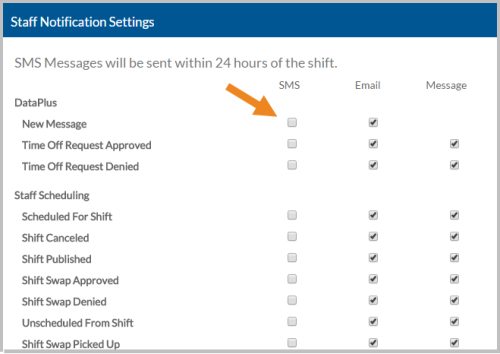
Managers see additional notification settings cards based on their security roles:
-
Staff Managers also see the Staff Manager Notification Settings card.
-
Client Managers see the Client Manager Notification Settings card.
-
Schedule Managers see the Schedule Manager Notification Settings card.
-
Review Log Managers and Approve Log Managers see the Time Tracking Manager Notification Settings card.
-
-
Out of Office Settings: If you are going to be out of the office and unable to check your messages, you can turn on your Out of Office Settings.
-
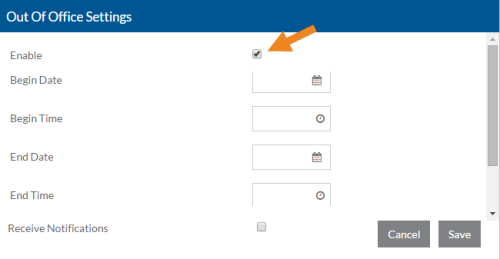
Select the Enable checkbox on the Out of Office Settings card.
-
Enter the Begin Date, Begin Time, End Date and End Time of when you will be Out of Office.
-
Select the Receive Notifications checkbox if you would like to get your email or text notifications while you are Out of Office.
-
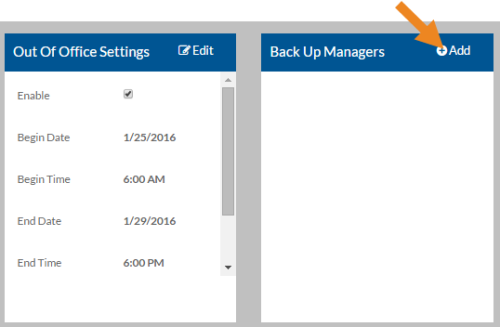
Click Save. If you are a manager, you will see the Back Up Managers card. This is where you can select another manager to cover your work load when you are out of the office.
-
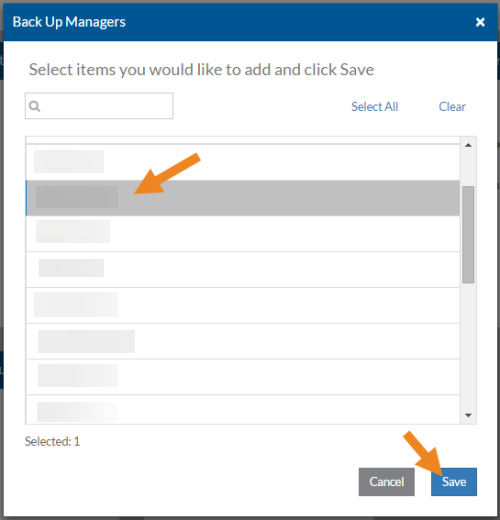
Select Add on the Back Up Managers card.
-
Select the manager that will be covering your workload and click Save.
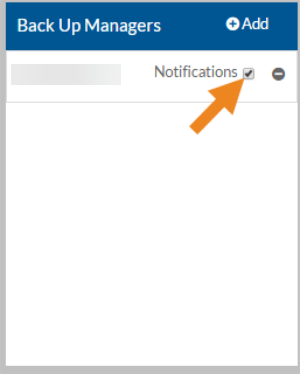
The selected manager appears on the Back Up Managers card. If the backup managers have their notifications set up in User Settings and the Notifications check box is selected on the Back Up Managers card, the back up manager will receive notifications for the manager they are covering.
-
-
Click Edit on the Staff Hours Preferences card and enter the minimum and maximum number of hours you prefer to work per week and the maximum number of hours you prefer to work in one day. The auto-scheduler uses these preferences to try to schedule you to work your preferred number of hours each day/week.
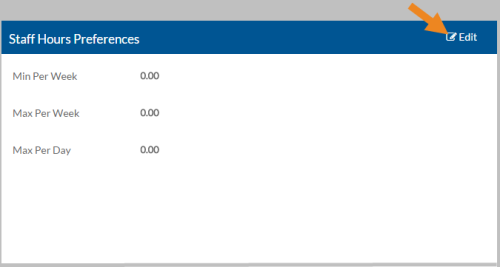
Your company may have hours preferences set that can override your preferences.
-
On the Approved Scheduling Locations card, mark the checkbox next to your Preferred location(s). The auto-scheduler uses these settings to try to schedule you at the locations you prefer.
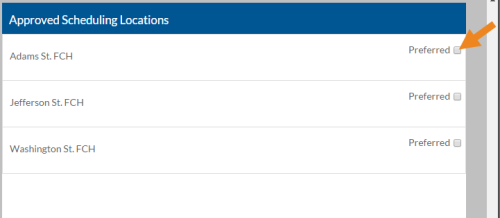
Your company may have scheduling location preferences set that can override your preferences.
-
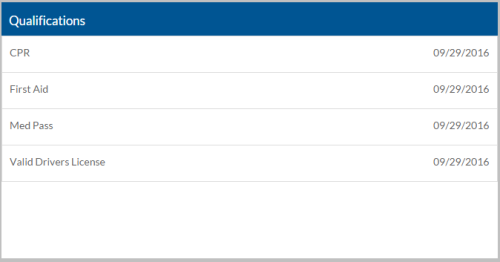
Review the information on the Qualifications card. This information is read-only. Contact your manager or HR Department if this information is not correct.