Tasks Dashboard
The Tasks dashboard shows all the tasks that you need to complete for yourself, as well as those you need to complete on behalf of another employee if you have licensed Employee Care. In addition, if you have licensed Client Care, you will see the tasks you need to complete on behalf of a client or placement if you are set to be the current caregiver. You are considered to be the caregiver when you have selected a placement and associated clients.
If you are a manager, you can add new tasks, approve any tasks that you are the approver for and view any tasks where you are the watcher.

-
Select Tasks from the main menu.
-
If you are working with clients, click the Set Placement button. Otherwise, skip to step 5.
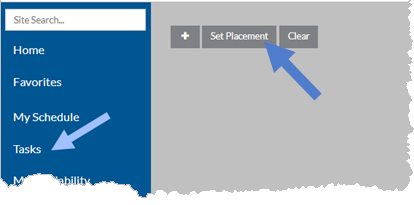
If a placement is already set, you can click the Clear button to remove the placement and select a different one.
-
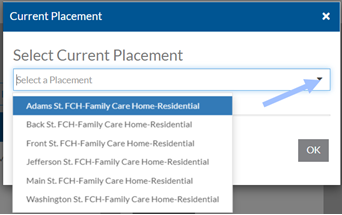
Select the placement location from the dropdown menu.
-
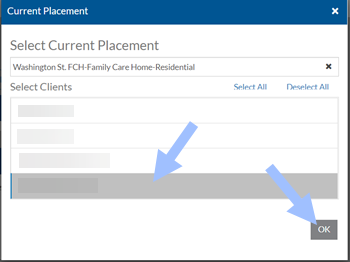
Select the client(s) you are working with and click the OK button.
-
The screen and the table below describe the various functions available from the Tasks Dashboard.
A task card is highlighted yellow if it is overdue.
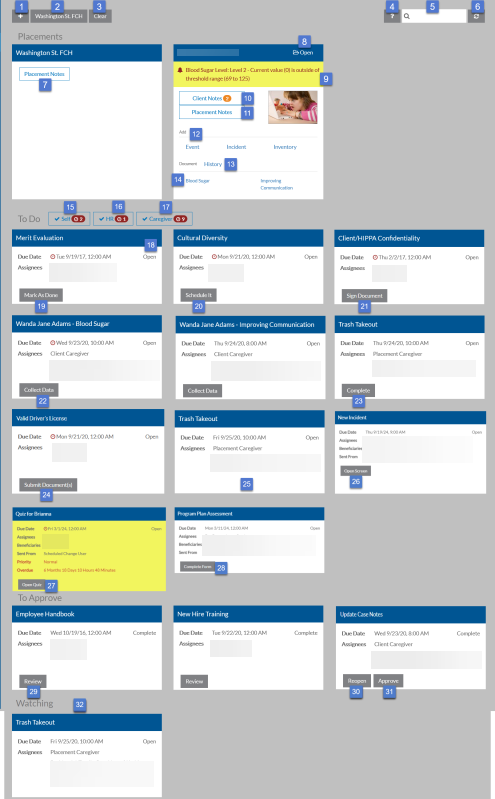
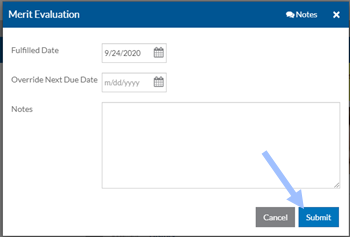
# Function 1 If you are a manager, select the + to add a new task. 2 If you are a client caregiver, select the placement name to add additional clients that you are working with or remove clients that you are no longer working with. 3 If you are a client caregiver, clear the set placement so that you can set a different placement or at the end of your shift. 4 View the help topic for this screen. 5 Search for a task. 6 Refresh the Tasks Dashboard. 7 If you are a client caregiver, view or enter notes and/or documents and photos for the placement location. 8 If you are a client caregiver, open the client. 9 If you are a client caregiver, a yellow banner appears at the top of the client's card if the data collected triggered an alarm. Click on the yellow banner to view the alarm history. 10 If you are a client caregiver, view or enter notes and/or documents and photos for the client. 11 If you are a client caregiver, view or enter notes and/or documents and photos for the client at the set placement. 12 If you are a client caregiver, add a new event, inventory item or incident for this client. 13 If you are a client caregiver, view the client's data collection (miscellaneous and program) history. 14 If you are a client caregiver, collect program and miscellaneous collection plan data for those plans that are unscheduled or can be completed at any time. When collecting the data, the collection date/time cannot be in the future. 15 Select the Self button to toggle on or off any tasks that are assigned directly to you such as job requirements coming due or a recurring task assigned directly to you. 16 If you are a manager, select the HR button to toggle on or off any tasks that are assigned to you to complete on behalf of another employee such as completing a performance appraisal for one of your employees. 17 If you are a client caregiver, select the Caregiver button to toggle on or off any tasks that are assigned to the caregiver to complete on behalf of the client(s) you are currently serving. 18 Open the task to view additional details about it. 19 Select Mark As Done to complete a requirement task that doesn't require additional evidence. In the pop-up window, enter the date you completed it, an override of the next due date (if applicable and you are completing this on behalf of another employee), number of credit hours and any notes as required and click Submit.
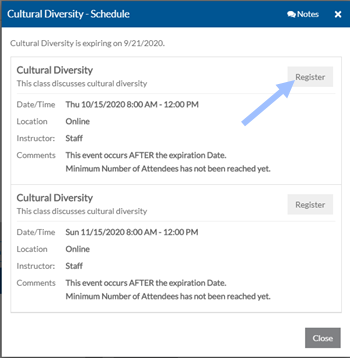
20 If you are using Employee Care, select Schedule It to view a list of upcoming events that will fulfill the associated job requirement and register for one. Select Register next to the event you want to attend.
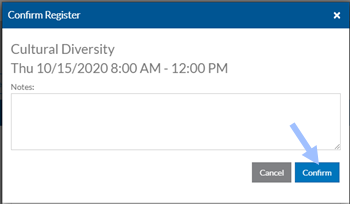
A confirmation window opens. Enter any notes and select Confirm.
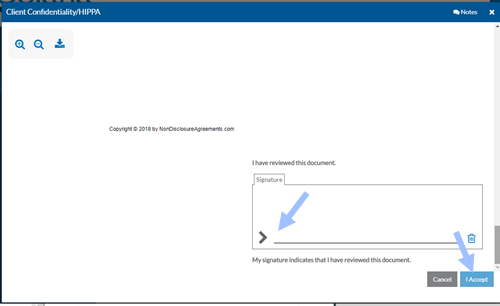
21 Select Sign Document to review a document and sign it. Scroll to the bottom of the document to review it.
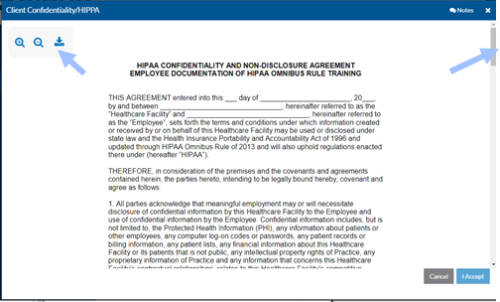
Sign the document using your mouse, stylus or finger (depending on your device), enter the date, credit hours and/or notes as required and click Submit.
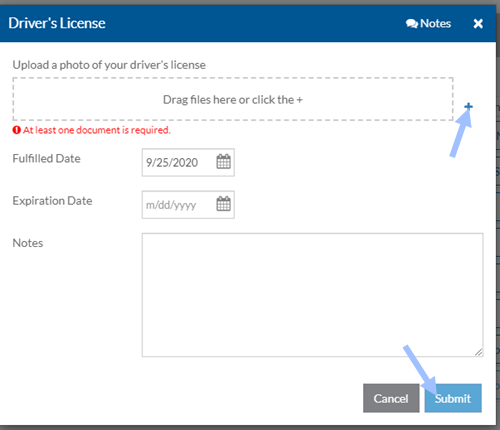
22 If you are a client caregiver, select Collect Data to collect program and miscellaneous collection plan data for those plans that are scheduled to occur at specific times. 23 Select Complete to mark a task or recurring task that is not related to data collection or a job requirement as complete. 24 Select Submit Document to upload a document or photo that is associated with a requirement to fulfill it. Drag the file into the window or click the + icon to browse for it, enter the fulfilled date, expiration date, credit hours and/or any notes as required and click Submit.
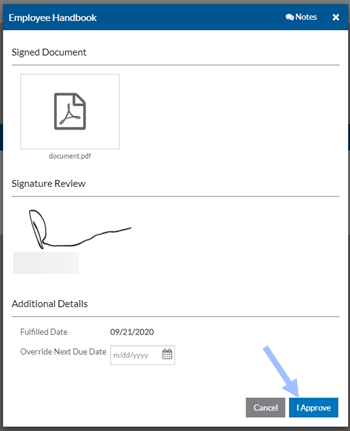
25 A task card that appears without an action button on it is not ready to be completed. Once the task is able to be completed, the button will automatically appear. 26 If another user assigns a task to you when they move a workflow from one status to the next, such as an incident or a performance review, you will see a task with an Open Screen button. Select Open Screen to open the workflow record. The task will disappear when you move the workflow to the another status. 27 If you are using Employee Care, select Open Quiz to review the learning materials and take the assoicated quiz. Once you pass the quiz, the task will disappear and the requirement is fulfilled. 28 Select Complete Form to open and complete the information as required for a requirement task that is tied to a screen. 29 If you are an approver for a task tied to a job requirement, select Review to view the associated evidence such as a signature, submitted document or event registration. From there you can then select I Approve.
30 If you are an approver of a task that is not tied to a job requirement, select Reopen to reset the task to appear for the assignee to complete again. 31 If you are an approver of a task that is not tied to a job requirement, select Approve to close the task and remove it from your list of tasks to approve. 32 Select a task card in the watchers area to view additional information about any tasks you are set to be a watcher on. If you added the task or are a task administrator, you can also make changes to the task itself.
Managers can add tasks from the Tasks Dashboard. To add a task:
-
Select Tasks from the menu.
-
Click the + button.
-
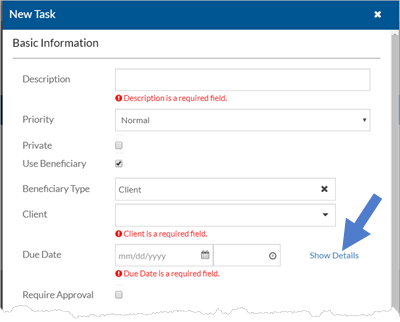
Complete the following under Basic Information:
-
Description
-
Priority: Normal, Low or High
-
Private (Future use)
-
Use Beneficiary: Select if the assignee is completing this task on behalf of someone else.
-
Beneficiary Type: If Use Beneficiary is selected, select who the task is on behalf of: Client, Client Placement, Placement or Employee
-
Client, Client Placement, Placement or Employee: If Use Beneficiary is selected, this field will change based on the Beneficiary Type selected.
-
Due Date
-
-
Click on Show Details.
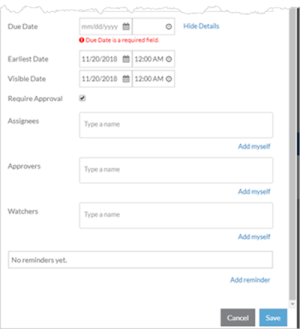
You can now set the earliest date and time the task can be completed before the due date and the date and time the task should become visible in the To Do list under Tasks for the assignees.
-
Select the Require Approval checkbox to select the users that should approve the completion if this task if desired. The Approvers section will then appear.
-
Select Add Myself to make yourself an assignee, or start typing a user's name to add assignees.

The options available depend on if Use Beneficiary is selected and if so the Beneficiary Type selected. If using a beneficiary of Client, Client Placement or Placement, then the assignee can be a staff-based relationship or a manager-based relationship. If using a beneficiary of employee, the assignee can be the beneficiary (employee) or the employee’s manager. The assignee can also be an employee group, position or a user.
Anyone selected as an assignee can complete this one task. It does not create a task for each assignee.
To remove an assignee from the task, click the X next to the assignee you want to remove.

-
If you selected Require Approval, then select Add Myself to make yourself an approver of this task, and/or start typing a user's name to add approvers.

The options available depend on if Use Beneficiary is selected and if so the Beneficiary Type selected. If using a beneficiary of Client, Client Placement or Placement, then the approver can be a manager-based relationship. If using a beneficiary of employee, the approver can be the employee’s manager. The approver can also be an employee group, position or a user.
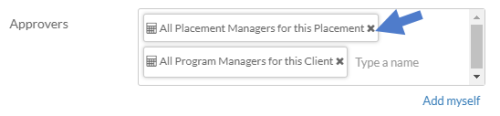
To remove an approver from the task, click the X next to the approver you want to remove.
-
To set up Watchers for the task, select Add Myself to make yourself a watcher, and/or start typing a user's name to add watchers to this task.

The options available depend on if Use Beneficiary is selected and if so the Beneficiary Type selected. If using a beneficiary type of Client, Client Placement or Placement, then the watchers can be a manager-based relationship. If using a beneficiary of employee, the watcher can be the employee’s manager. The watcher can also be an employee group, position or a user.
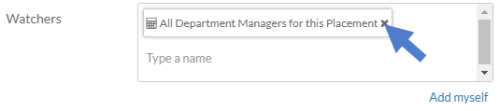
To remove a watcher from the task, click the X next to the watcher that you want to remove.
-
-
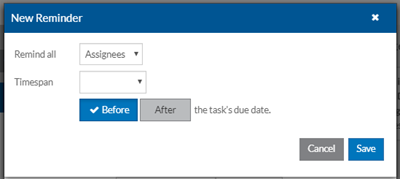
Click on Add reminder to create a reminder for this task. The reminder will pop up in the corner of the user's screen based on these reminder settings.
-
Select who should receive the reminder: Assignees, Approvers or Watchers.
-
Select the time span when the reminder should be sent.
-
Select if the reminder should be sent Before or After the task's due date and click the Save button.
-
To edit or remove a reminder, select the reminder and click the Edit icon or the Delete icon.

-
-
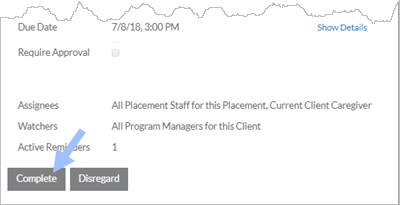
If you are an assignee, click the Complete button when you have finished the task or Disregard if it no longer applies.
-
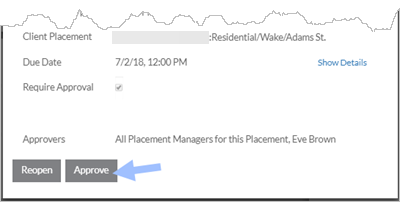
For task approvers: After the task has been marked Complete, click Approve if it was completed satisfactorily or Reopen if not.
The Task Management dashboard lets you disregard open Client Care tasks en masse. It also lets you look for and fix invalid tasks.
To access the Task Management Dashboard you need to have Override Security set in your user account or be assigned to the standard security group called Tasks Administrator Role (which is associated with the Task Administrators and System Administrators Feature Switches).
To access the Task Management dashboard:
-
Select Administration from the main menu and then select Task Management from the Administration card.
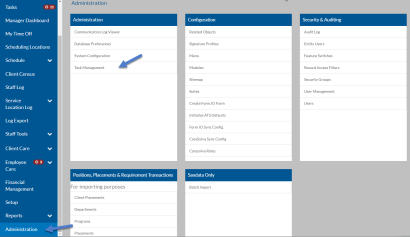
The Task Management dashboard opens.
-
Set a date range for the due date of when the tasks are due. Optionally, you can set the Status of the Task (Open or Closed, etc.) and the Beneficiary (Client, Placement, Client Placement, Employee, Program Plan or Application). You can also search for a task based on text.
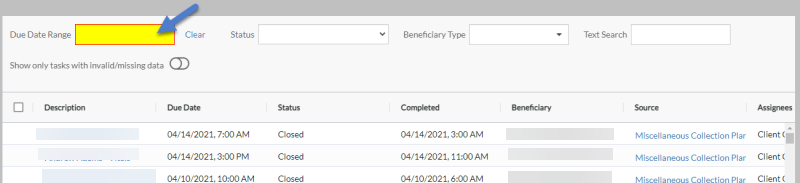
Toggle Show only tasks with invalid/missing data on to view those tasks missing assignees, due dates, etc.

You can click on the description to open it and update the task setup related information.
Select any tasks with a status of Open that you want to clear from the Tasks Dashboard and click the Disregard XXX Tasks button (XXX being the number of tasks selected).
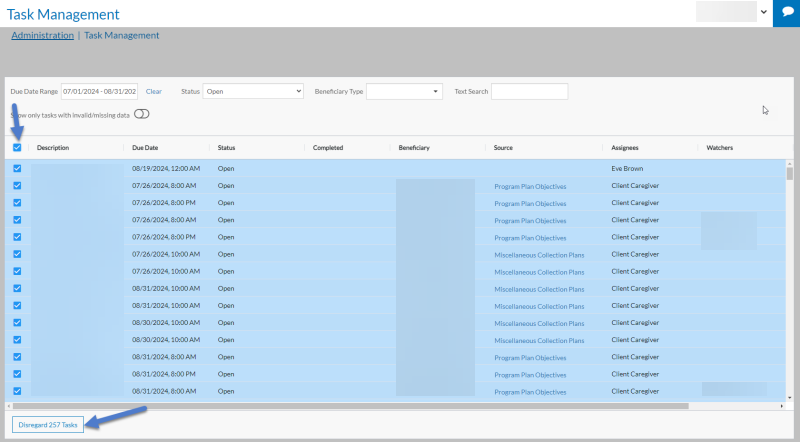
The Status of the Task will change to Disregarded and the task will no longer appear in the Task dashboard.
You cannot disregard tasks associated with requirements. Instead the approver either needs to mark them as complete, or change the criteria causing it to be required for the beneficiary (this could be something about the beneficiary or the requirement plan).
You can create a recurring task that is completed by yourself, a specific position, another user, or an employee group based on filtering criteria for the item you selected. The task appears under the Tasks Dashboard for the assignees based on a set frequency. You can also set up a recurring task to be completed on behalf of a beneficiary (client, client placement, placement or an employee).
To set up a recurring task:
-
Go to the item you want to create a recurring task for (such as clients, employees, inventory items, etc.).
-
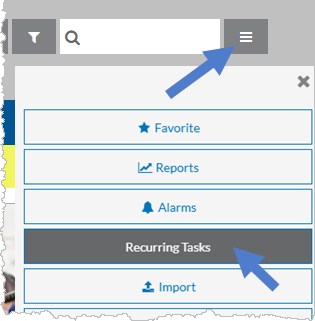
To manage recurring tasks for multiple items, click on the Options icon from the index screen, and then select Recurring Tasks from the dropdown menu.
To manage recurring tasks for a specific item, click on the index card to view the details, select the Options icon, and then select Recurring Tasks from the dropdown menu.
-
Select a recurring task to view or edit, or click the + icon to add a new one.
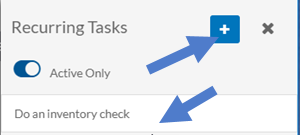
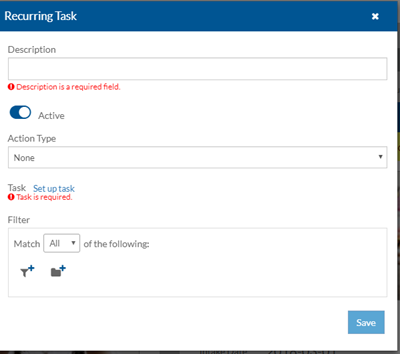
The Recurring Task opens in a pop-up:
-
Enter a Description for the recurring task.
-
Leave the Active switch on if this recurring task is in use now. If you turn off the Active switch, you can optionally enter a date in the future to automatically make it active again. This is useful if someone goes on vacation.
-
Leave Action Type set to None, unless you want to take the user to a particular screen, then select Open Screen instead.
-
Click on the Set up task (for new tasks) or View/modify task (for existing tasks) link.
-
Complete the recurring task fields.
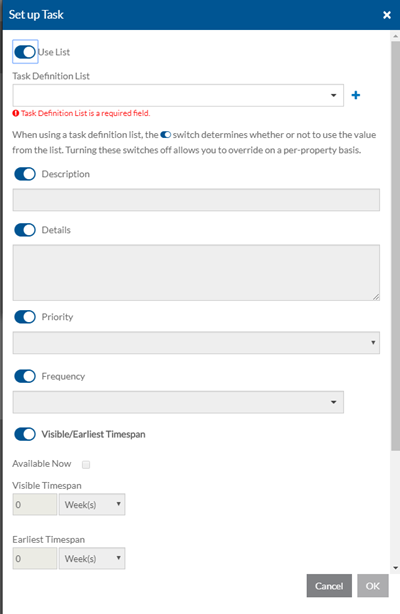
Field Description Use List Switch on to select a Task Definition List to quickly set up the task options. Task Definition List If Use List is on, select the Task Definition List you want to use. Only Task Definition Lists with a Type of Recurring Tasks and of the same Beneficiary Type will appear in the list. Description A Description for this recurring task. If using a list, you can use the description from the list or turn the switch off to enter your own description for the task. Details The details or instructions for the recurring task. If using a list, you can use the details from the list or turn the switch off to enter different details. Priority Normal, High or Low (Any associated messages/reminders are based on this priority). If using a list, you can use the priority from the list or turn the switch off to select a different priority. Frequency The frequency determines how often this task recurs. If using a list, you can use the frequency from the list or turn the switch off to select a different frequency. Visible Timespan If Available Now is not selected, the Visible Timespan determines when the task first appears under Tasks. If using a list, you can use the settings from the list or turn the Visible/Earliest Timespan switch off to select a different setting. Earliest Timespan If Available Now is not selected, the Earliest Timespan, determines when the data can be collected. It must be at the same time or after the Visible Timespan. If using a list, you can use the settings from the list or turn the Visible/Earliest Timespan switch off to select a different setting. Require Approval Turn on to require that the completion of the task be approved. If using a list, you can use the setting from the list or turn the Source/Reminders switch off to select a different setting. Assignees The staff-based relationships, manager-based relationships (if the task is on behalf of a benefciary such as clients, client placements, placements or employees), employee groups, positions and/or users who can complete this recurring task. If using a list, you can use the settings from the list or turn the Source/Reminders switch off to select different assignees. Approvers If Require Approval is on, the manager-based relationships (if the task is on behalf of a beneficiary such as clients, client placements, placements or employees), employee groups, positions and/or users that can approve the completed task. If using a list, you can use the settings from the list or turn the Source/Reminders switch off to select different approvers. Watchers The manager-based relationships (if the task is on behalf of a beneficiary such as clients, client placements, placements or employees), employee groups, positions and/or users that will watch this task. If using a list, you can use the settings from the list or turn the Source/Reminders switch off to select different watchers. Reminders The assignees, watchers or approvers can receive a reminder before or after the task is scheduled to be completed in relationship to the frequency and due date/time. If using a list, you can use the reminders from the list or turn the Source/Reminders switch off to set up different reminders.
A reminder will pop-up in the corner of the user's screen based on these settings. Users can also set up messaging preferences to receive an email or text message when they receive a reminder.
-
-
If you are setting this task up for multiple items, you can set a filter to specify which ones the tasks should be for. For example, all clients that have a guardian, or all employees with a job title of manager.
-
When finished, click the Save button.
A new task appears in the Task dashboard based on the recurring task setup for assignees to complete.