Spanish Language Support
Agencies can now request the Spanish language feature set to be turned on in their DataPlus databases. This feature allows Caregivers and Managers to toggle between English and Spanish in Time Tracking, Staff Scheduling, Employee Care and Client Care.
Only staff and manager-related screens have been translated into Spanish. Sandata does not recommend Administrators turn Spanish on.
This feature is activated by Sandata System Administration. Contact Client Care for details, setup, and guidance.

To change the language to Spanish:
-
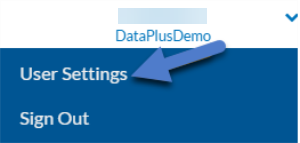
Click the arrow next to your user name in the top right corner and select User Settings.
-
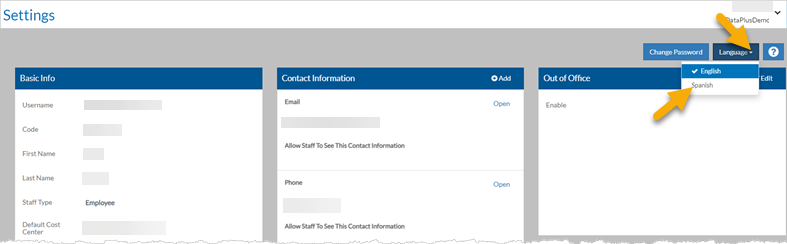
Select Spanish beneath the Language button in the upper right corner.
Spanish mode affects the following standard labels and captions:
-
Navigation Pane
-
Home screen cards
-
My Schedule
-
Tasks Dashboard
-
My Log
-
My Time Off
-
To-Do List
-
Registered Events
-
Job Requirements
-
Personal Information
-
Events
-
Forms
-
Manager Dashboard
-
Staff Log
-
Service Location Log
-
Available Shifts
-
Scheduling Locations
-
Shift Templates
-
Schedule
-
Clients
-
Incidents
-
Client Events
-
Client Inventory
-
Employees
-
Agency-Issued Resources
-
Corrective Actions
-
Leave Tracking
-
Performance Appraisals
-
Work-Related Injuries
-
Supplemental Education
-
Applicants/Applications
If your Agency changed the standard caption on a screen or added new fields of children to a screen, these captions will not be in Spanish, even if visible to staff.
The following screens that are not typically visible to Staff and Managers are not translated:
-
Positions, Event Management, Employment Tracking
-
Administrator screens (System Configuration, Setup Lists)
-
eLearnings and User Guides
-
Data (Text in fields and memos, notes in notebooks, items in setup lists, items in defined lists)
If your Agency would like time tracking and staff scheduling flags and data collection forms (picklist items and value type group items) to appear in Spanish, you can set up the Spanish translations yourself.
To translate flags:
-
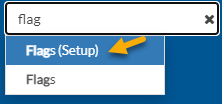
Enter Flags (Setup) in the Site Search box.
-
Select Translate from the options menu.
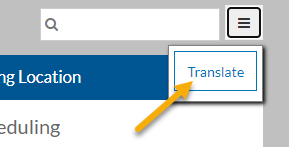
-
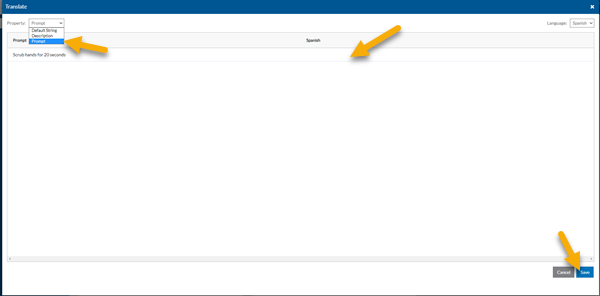
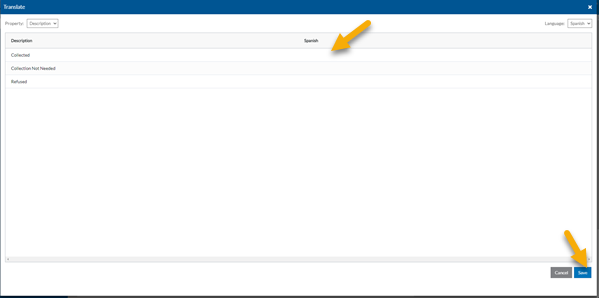
Enter the Spanish translation for each flag in the Spanish column and click Save when finished.
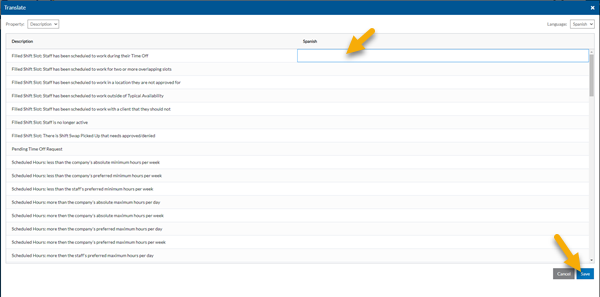
To translate picklist items:
-
Enter Picklists in the Site Search box.
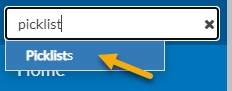
-
Select the picklist card of the picklist items you want to translate.
-
Click on Translate from the options menu on the Picklist Items card.
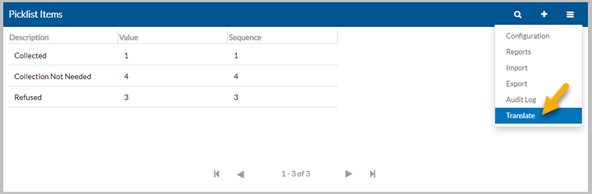
-
Enter the Spanish translation for each picklist item in the Spanish column and click Save when finished.
To translate value type group items:
-
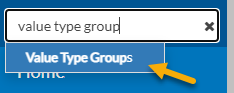
Enter Value Type Groups in the Site Search box.
-
Select the value type group card of the value type group items you want to translate.
-
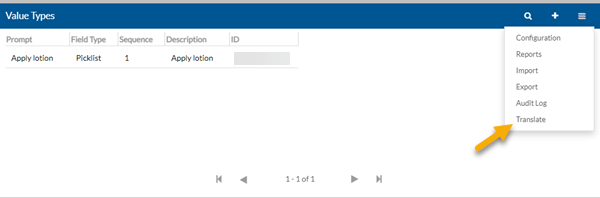
Click on Translate from the options menu on the Value Type Group Items card.
-
Select the property you want to translate and then enter the Spanish translation for each value type group item in the Spanish column. Click Save when finished.