Manage Notes and Documents in Notebooks
To view, enter or edit notes and documents in a notebook:
-
Open an individual record or entry.
-
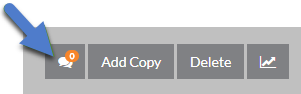
Click the notebooks icon in the upper right corner of your screen.
-
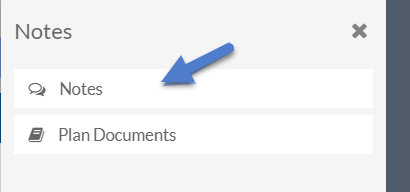
Select the notebook you want to manage. If the notebook has a book icon next to it, then it uses categories.
-
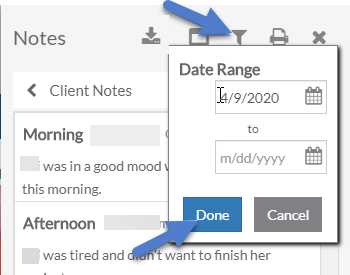
Click the filter icon and enter a date range to filter the notes.
-
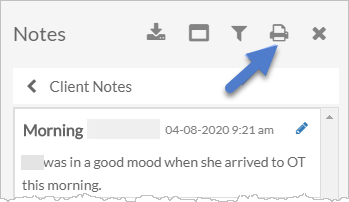
Click the Printer icon to run a report for the notebook for the filter settings.
-
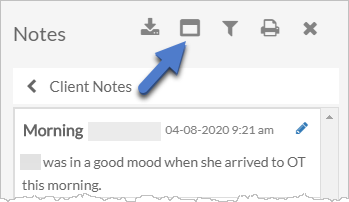
Click the square icon to collapse the notes to show only the subject lines.
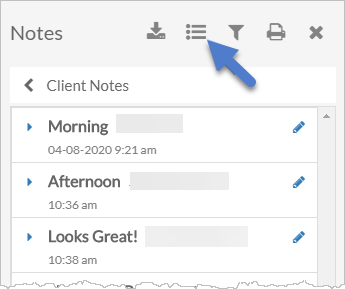
Select the bullet list icon to expand the notes again.
-
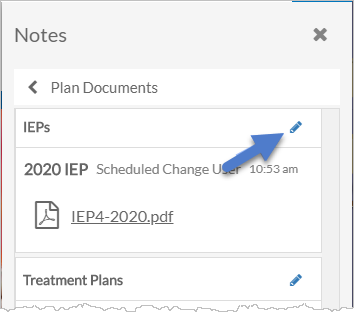
If you selected a category notebook, select the pencil icon to add a new note or file to a category.
-
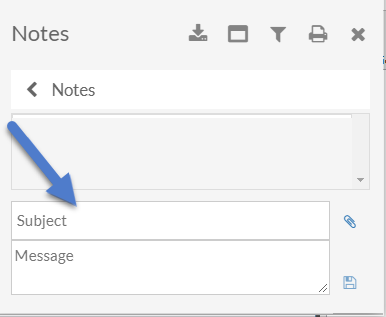
At the bottom of the screen, enter a Subject and the note text.
-
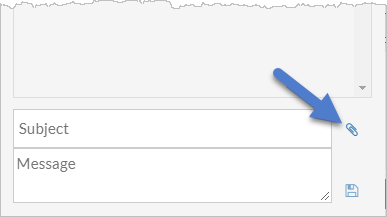
Click the paper clip icon to attach a document or a photo.
-
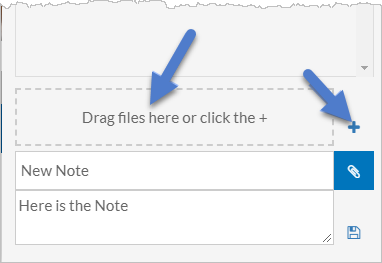
Drag the file to the Attachment area, or click the + button to browse for a file.
-
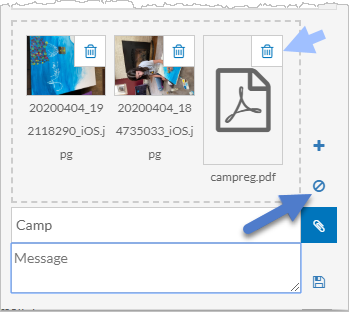
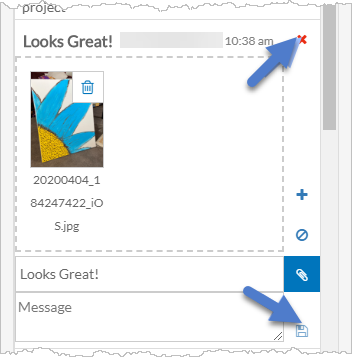
If you attached the wrong file, click the trash icon on an individual document, or the clear icon to remove all documents.
-
When finished, click the Save icon.
-
-
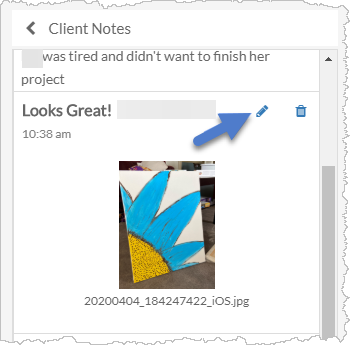
Click the pencil icon to edit an existing note and add or remove a document if you have permissions to do so.
Click the X to close without saving or the Save icon to save the changes.
-
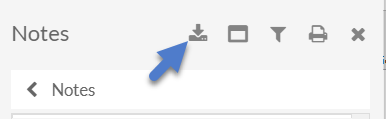
Click the download icon to export the documents attached to the notes in the date range selected to a zip file.
-
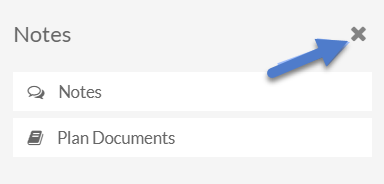
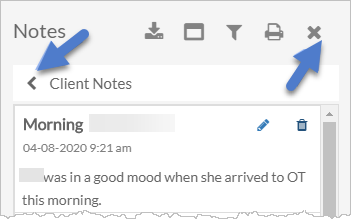
Click the arrow next to the notebook name to return to the list of notebooks or the X to close the notebook tray.
-
Click the X to close the notebooks tray.