DataPlus Messaging Feature
The Message Center is where you go to send and receive secure messages from other users. In addition, this is where you will find system-generated messages such as Client Care task reminders, alarm information and alerts as well as Time Tracking and Staff Scheduling system messages. You can set up your preferences to receive an email and/or a text notification when you have a new message based on the category and priority of the new message.

To access your messaging inbox:
-
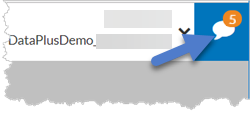
Click the Message Center icon next to your name in the upper right corner. The orange badge indicates how many unread messages you have.
-
The Messages inbox tray opens. Your inbox is broken into various message types. The badges indicate how many unread messages you have in each category, as well as the priority of the unread messages.
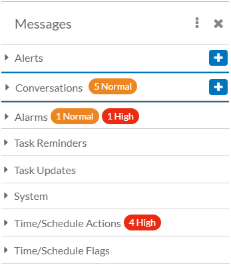
Message Category Description Alerts Alerts that are sent from your agency that you can view and acknowledge. Users with permissions to send alerts can also send them and review the read status of the alerts from here. Conversations Direct messages between you and another user or group of users. This is also where you go to start new conversations and reply to existing ones. Alarms Messages that are sent when a client alarm is triggered and set up to send a message to you.
Task Reminders Messages that are sent to remind you to complete a task you are assigned to if reminders were set up for it.
Task Updates Messages that are sent when a task that you are an assignee, watcher or approver on is either added or updated. System Messages that are sent when an action such as adding an incident is set up to send out a message. eMar Messages that are sent when the sync to Sandata eMar (CaraSolva) has completed. Position Control Messages that are sent when a position is filled, transferred or vacated or the Employment Tracking wizard has processed. Time/Schedule Actions If you use Staff Scheduling or Time Tracking, these are system-generated messages based on actions such as Time Off Request Needs Approved or Swift Swap Approved. Time/Schedule Flags If you use Staff Scheduling or Time Tracking, these are system-generated messages based on flags that are triggered such as Not Clocked In Yet or Shift Unscheduled.
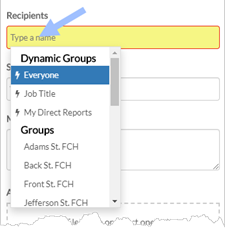
You can start a conversation with individual users, a group of users that you created, a global group of users defined by someone else at your agency, or if you have permissions, to a dynamic group.
To start a new conversation:
-
Click the Message Center icon next to your name in the upper right corner.
-
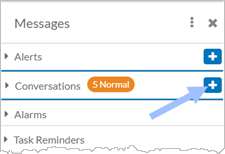
Click the + icon next to Conversations.
-
Start typing the name of the user, group or dynamic group that you want to include in the conversation, and then select them. Repeat for each user or group you want to include.
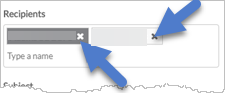
If you accidentally selected the wrong recipient(s), click the X next to their name to remove them.
-
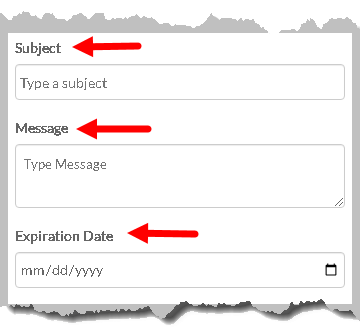
Enter a Subject for the conversation and enter the Message.
-
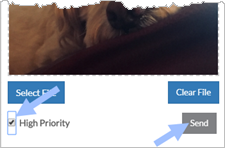
To add an attachment, drag the file to the Attachment area, or click the Select File button.
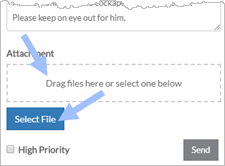
If you are using a mobile device, after you click Select File, you have the option to take a photo to attach to the message.
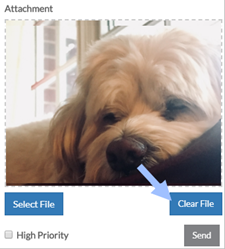
Click the Clear File button to remove the attachment.
-
Select the High Priority check box to set the priority of the message to high.
-
When finished, click the Send button.
-
Click the arrow at the top to return to the list of message categories.
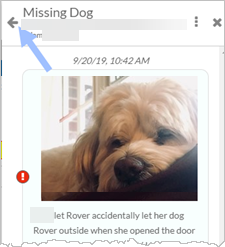
You can reply to Conversation and Alert message types only.
To respond to a message in a conversation:
-
Click the Message Center icon next to your name in the upper right corner.
-
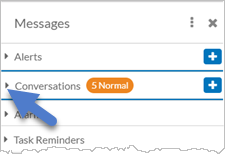
Click the arrow next to a message category to view its messages.
-
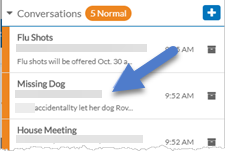
Click on the message where you want to reply.
-
Enter your response in the message box at the bottom of the screen.
-
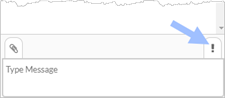
Click the ! icon to make the response a high priority.
-
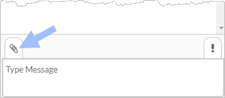
To add an attachment:
-
Click the paperclip icon.
-
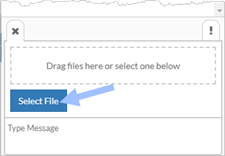
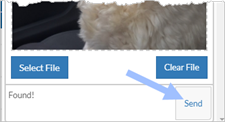
Drag the file to the Attachment area, or click the Select File button.
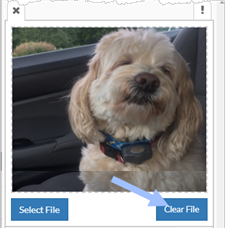
Click the Clear File button to remove the attachment.
-
-
When finished, click the Send button.
-
Click the arrow at the top to return to the list of message categories.
To add a recipient or a group of recipients to a conversation:
-
Click the Message Center icon next to your name in the upper right corner.
-
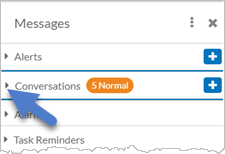
Click the arrow next to Conversations.
-
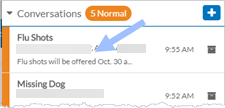
Click on the conversation where you want to add another recipient or group of recipients.
-
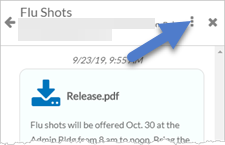
Click the Ellipsis.
-
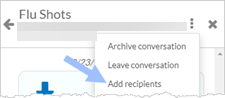
Select Add Recipients from the dropdown menu.
-
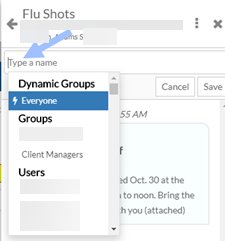
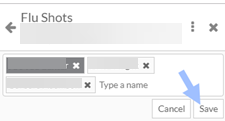
Start typing the name of the user, group or dynamic group that you want to include in the conversation, and then select them. Repeat for each user or group you want to include.
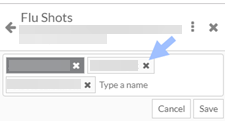
If you accidentally selected the wrong recipient(s), click the X next to their name to remove them.
-
Click the Save button.
-
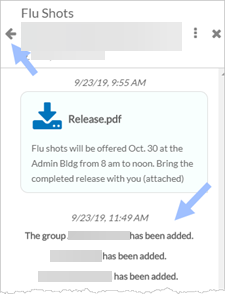
Click the arrow at the top to return to the list of conversations.
To leave a conversation:
-
Click the Message Center icon next to your name in the upper right corner.
-
Click the arrow next to Conversations.
-
Click on the conversation you want to leave.
-
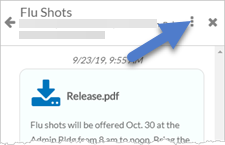
Click the Ellipsis at the top of the conversation.
-
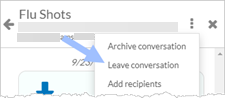
Select Leave Conversation from the dropdown menu.
-
Select Yes to confirm.
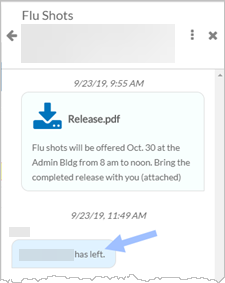
The conversation you left will no longer appear in the list of messages. The others in the conversation will see a message that you left.
-
Click the Message Center icon next to your name in the upper right corner.
-
Click the arrow next to the message category where you want to archive the message.
-
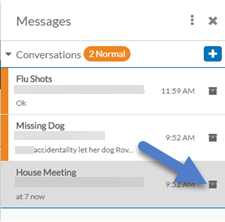
Click the Archive icon to the right of the message you would like to archive, OR
-
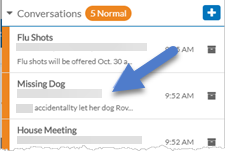
Click on the conversation to open it.
-
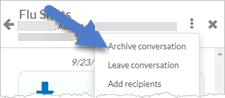
Click the Ellipsis at the top of the conversation.
-
Select Archive Conversation from the dropdown menu.
-
The conversation disappears from the list and move to the archives.
To archive multiple messages at once:
-
Click the Message Center icon next to your name in the upper right corner.
-
Click the arrow next to the message category where you want to archive the messages.
-
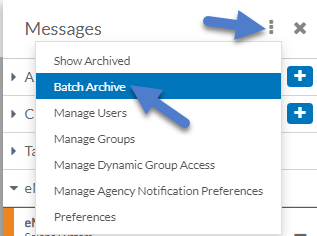
Click the Ellipsis next to Messages and select Batch Archive from the dropdown menu.
-
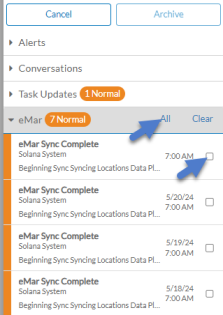
Select the checkbox next to the messages you want to archive, or select All in the category header.
-
Click the Archive button.
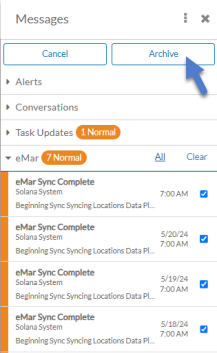
The selected messages disappears from the category and move to the archives. Other than the Conversations category, if there no messages left in a category, the category will also disappear until you receive a new message in that category.
To view archived messages:
-
Click the Message Center icon next to your name in the upper right corner.
-
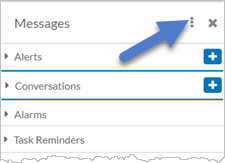
Click the Ellipsis next to Messages.
-
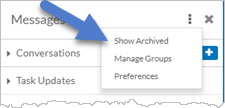
Select Show Archived from the dropdown menu.
-
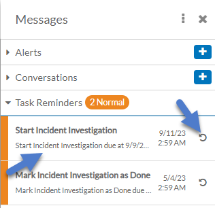
Click on the archived message you want to view, or click the reverse arrow to unarchive it.
-
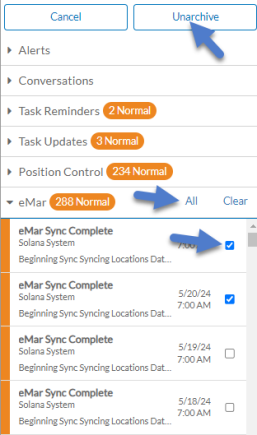
To unarchive multiple messages, click the Ellipsis next to Messages and select Batch Unarchive from the dropdown menu.
-
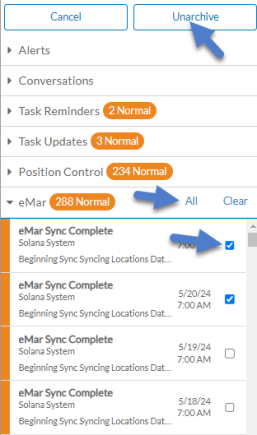
Select the checkbox next to the messages you want to unarchive, or select All in the category header. Click the Unarchive button.
-
-
To hide the archived messages from your inbox, click the Ellipsis next to Messages and select Hide Archived from the dropdown menu.
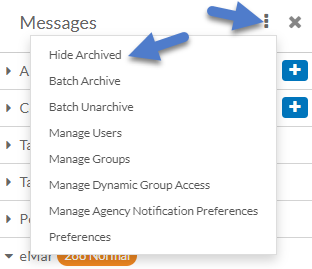
If you have permissions, you can send an alert to a user, a group, or a dynamic group. You can set the alert so that its recipients must acknowledge reading it. You can then track who has seen and acknowledged the alert. The recipients can respond to the alert if you allow it, but the response only goes to you, not to the entire group that received the alert.
To send an alert:
-
Click the Message Center icon next to your name in the upper right corner.
-
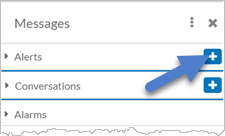
Click the + icon next to Alerts.
-
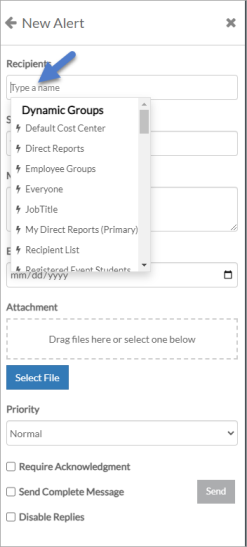
Start typing the name of the user, group or dynamic group that you want to send the alert to, and then select them. Repeat for each user or group you want to include.
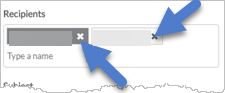
If you accidentally selected the wrong recipient(s), click the X next to their name to remove them.
-
Enter a Subject for the alert and enter the Message.
-
Enter an expiration date for the alert. Expired alerts will no longer appear in the Message Center for the recipients.
-
Select the alert priority to Normal, High or Urgent.
-
To add an attachment, drag the file to the Attachment area, or click the Select File button.
-
Select the Require Acknowledgment checkbox if you want to track who has seen and acknowledged the alert.
-
Select the Send Complete Message checkbox if you want the entire alert message to be included in email and text notifications sent to the recipients (based on their notification preferences). Otherwise, the user will just be notified that they have a new unread alert.
Because, the complete message text is visible on external devices, do not share any HIPPA/PHI-restricted information in the alert message.
-
Select the Disable Replies checkbox if you do not want recipients to reply back to the alert.
-
-
When finished, click the Send button.
When the recipient logs in, they see the alert in the lower right of their screen.
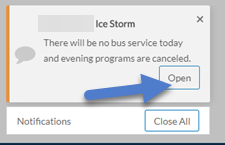
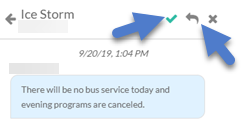
If the recipient click the Open button, they can then acknowledge the message by clicking the checkmark icon and/or respond to it by clicking the reply icon if Disable Replies was not selected.
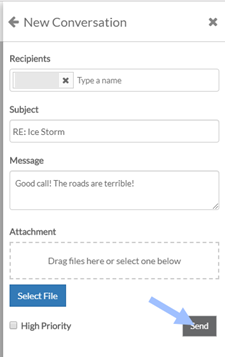
Replies to alerts work like replies to regular messages.
-
Review the status of which recipients have seen and acknowledged the alert beneath the alert text.
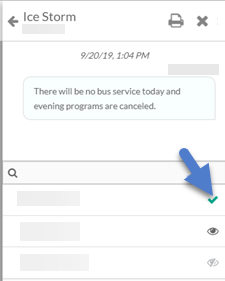
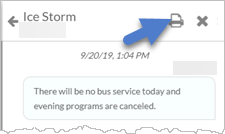
Click the printer icon to run a report that shows the status of who has read and acknowledged the alert.
You can add email and text message destinations to receive a notification when you have a new message based on the message category and priority.
To set up your messaging preferences to receive notifications for new messages:
-
Click the Message Center icon next to your name in the upper right corner.
-
Click the Ellipsis next to Messages.
-
Select Preferences from the dropdown menu.
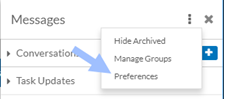
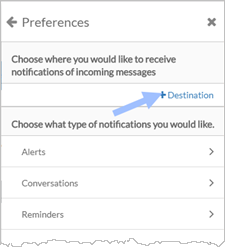
If your agency does not sync your contact information from ProviderPro Human Resources/Payroll, you need to set up your notification destinations. The destination for new message notifications can be an email address or mobile phone number. If an email address or mobile phone number syncs, you will not be able to edit or remove it. If you need to change a synced one, contact your HR representative.
-
Click on + Destination.
-
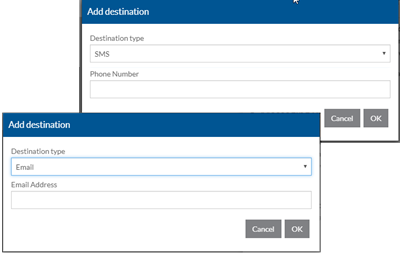
Select your destination type: SMS (Text Message), Email or Login Email.
-
If you selected SMS, enter your phone number.
-
If you selected Email, enter your email address.
-
-
Click the OK button.
-
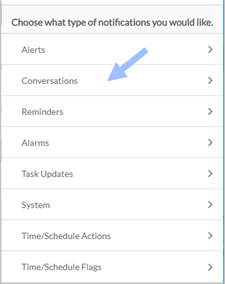
Next you will set up when and where you want to receive a notification of an incoming message based on message category and priority.
Select a message category.
-
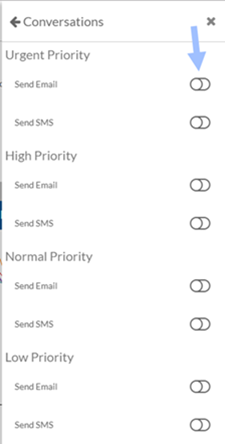
Toggle the switch next to Send Email and/or Send SMS under each priority level to receive new message notifications at the destinations set above.
-
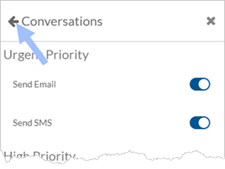
Click the left arrow to return to the list of message types.
-
Repeat steps 7-9 to set preferences for each category and priority of message.
You can create your own groups of users to send messages and alerts. If you have security permissions to do so, you can also create and manage groups that are global, meaning all or a subset of users can use them.
To manage your Message Center groups:
-
Click the Message Center icon next to your name in the upper right corner.
-
Click the Ellipsis next to Messages.
-
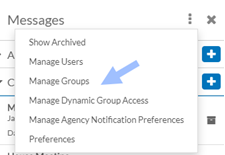
Select Manage Groups from the dropdown menu.
-
Click the + icon to create a new group, or click on a group to edit or delete it.
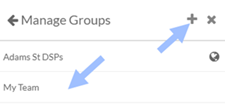
The globe icon indicates the group is global and can be used by all users or a subset of users. Only users with Manage Global Groups security permissions can add, modify or delete global groups. The Messaging Administrator can give users the Manage Global Groups security permissions.
-
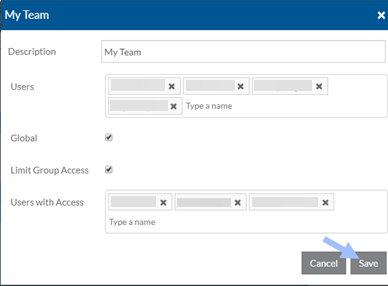
Enter a description for the group.
-
Type the names of the users to include in the group. If you need to remove a user from the group, click the X next to their name.
-
If you have permissions to Manage Global Groups, select the Global checkbox to make the group available to all users.
If Global is selected and not all users should have access to this group, select Limit Group Access and then enter the users that can use this global group .
-
When finished, click the Save button.
Messaging Center Administrators can manage which users have the ability to send messages and/or alerts to a dynamic group. The users included in a dynamic group are automatically calculated when you send the message. There multiple dynamic groups available:
| Dynamic Group Name | Sends To | Applicable Module |
|---|---|---|
| Everyone | All active employees | All |
| Job Title | Employees that have the selected job title as an active employee job title | Client Care and Employee Care |
| Direct Reports | Employees that report to the sender via Positions. The message will go to any employees assigned on the Managed Employee Groups card of the sender’s position as well as the employees that are filling any positions one level beneath the sender’s position. | Client Care and Employee Care |
| My Direct Reports (Primary) | Employees that report to the sender via Positions. The message will go to any employees assigned on the Direct Managed Employee Groups card of the sender’s position where the Employee Group is set to Employee Care Manager is Yes and the employee has it set as Primary, as well as the employees that are filling any positions one level beneath the sender’s position. | Client Care and Employee Care |
| Registered Events Students | Employees that are registered for the selected Employee Care Event. | Employee Care |
| Default Cost Center | Employees that have the selected payroll center set as their Default Payroll Cost Center | Payroll |
| Employee Group | Employees assigned to the selected employee group | Client Care and Employee Care |
| Recipent List | The employees (users), positions (if filled) and employee groups (employees assigned to them) assigned to the selected Recipient List. If the Recipient List is set to a Just In Time recipient (All Placement Caregivers, This Beneficiary, etc. it will not send a message) | Client Care and Employee Care |
| All Managers | Any employee who is filling a position that has the Manager checkbox marked | Employee Care and Client Care |
| All Directors | Any employee who is filling a position that has the Director checkbox marked | Employee Care and Client Care |
To manage who has access to send messages to these dynamic groups:
-
Click the Message Center icon next to your name in the upper right corner.
-
Click the Ellipsis next to Messages.
-
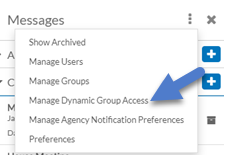
Select Manage Dynamic Group Access from the dropdown menu.
-
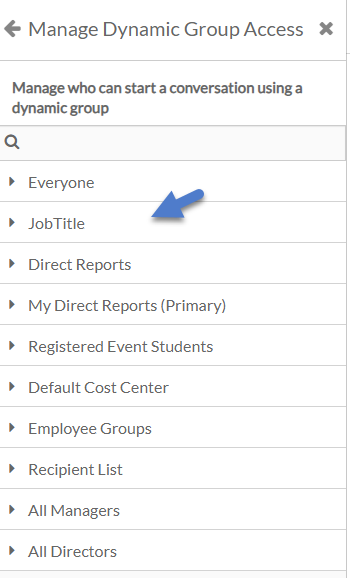
Click on the dynamic group that you want to manage access to.
-
Toggle on the users that can access the dynamic group.
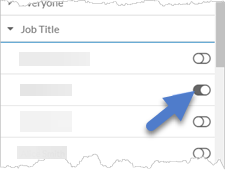
If you are a Message Center Administrator you can give other users the Manage Global Groups security permissions, give them access to dynamic groups, allow them to send alerts and make a user a Message Center Administrator.
To manage users:
-
Click the Message Center icon next to your name in the upper right corner.
-
Click the Ellipsis next to Messages.
-
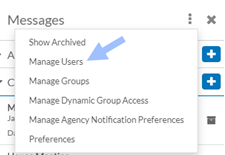
Select Manage Users from the dropdown menu. This option will only appear if you have Message Center Administrator security permissions.
-
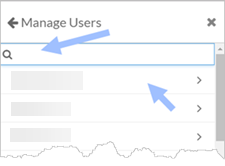
Search for the user you want to manage and click on the user’s name.
-
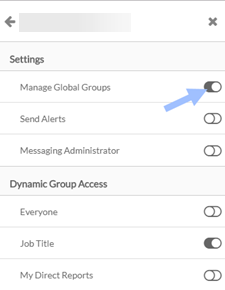
Toggle the switch on to grant permissions to the user.
-
Manage Global Groups allows the user to create, edit and delete groups that are marked global.
-
Send Alerts allows the user to send an alert to users.
-
Messaging Administrator allows the user to set Message Center security permissions for other users.
-
Dynamic Group Access allows the user to send messages and alerts to the selected dynamic groups.
-
The Message Center administrator can set agency-wide notification preferences for each message category and priority. Users can also set up their own notification preferences, but they also receive the notification that the agency set up.
To set up the agency preferences for notifications:
-
Click the Message Center icon next to your name in the upper right corner.
-
Click the Ellipsis next to Messages.
-
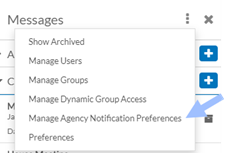
Select Manage Agency Notification Preferences from the dropdown menu.
-
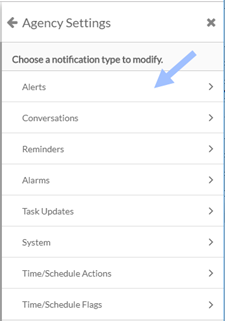
Click on the type of message category for which you want users to receive new message notifications.
-
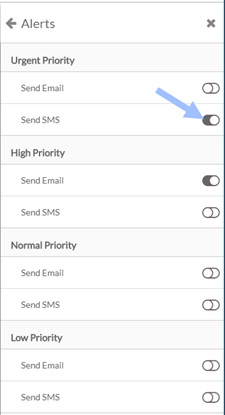
Toggle Send Email and/or Send SMS under each priority level where you want all users to receive new message notifications at their email and/or SMS destinations.
-
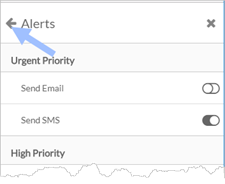
Click the left arrow to return to the list of message types.
Repeat steps 4-6 for each type of message you want to users to receive notifications for.