Log In to Data Plus
To log in:
-
Go to https://dataplus.solanapro.com/ in your web browser.
-
Enter your company-assigned user name (it will be an email address) and password.
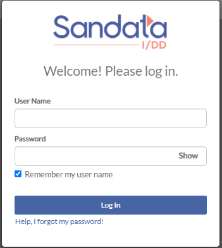
Select Show if you want to see your password as you type it.
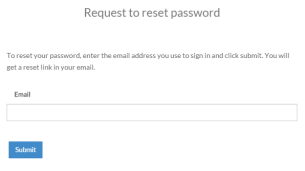
If you can't remember your password, click the Help, I forgot my password! link. In the window that opens, enter your email address and click Submit. A reset link is then emailed to you.
-
Select the Remember my user name checkbox if you want your user name to automatically pre-fill the next time you log in.
-
Click the Log In button.
-
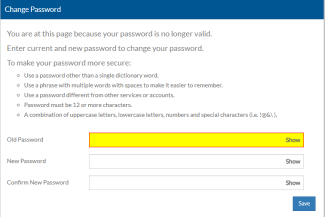
If this is the first time you are logging in, you will be prompted to change your password.
To do so:
-
Enter your initial password in the Old Password box.
-
Enter a new, unique password in the New Password box that is at least 12 characters and has a combination of uppercase letters, lowercase letters, numbers and special characters.
-
Enter the new password again the Confirm New Password box and select Save.
If you are using Multi-Factor Authentication (MFA), your password will expire every 90 days. When your password is about to expire, the system reminds you to change it.
-
-
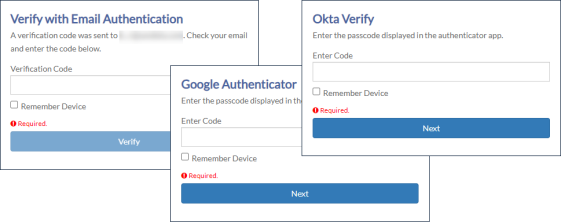
If applicable, enter your Multi-Factor Authentication code. Select Remember Device to skip Multi-Factor Authentication for 30 minutes if you need to log in again on the same device.
-
If this is the first time you are logging in after Multi-Factor Authentication is enabled, you will be prompted to set up your preferred authenticator.
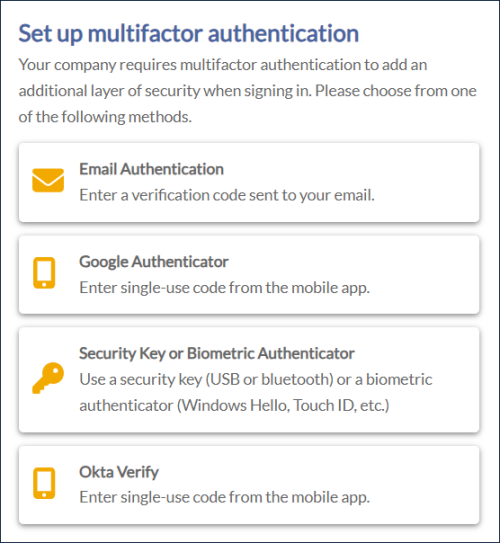
You must use your personal email address when using Multi-Factor Authentication.
-
Use one of the following options to set up Multi-Factor Authentication:
-
Email:
-
Select Email Authentication.
-
Click the Send me the code button.
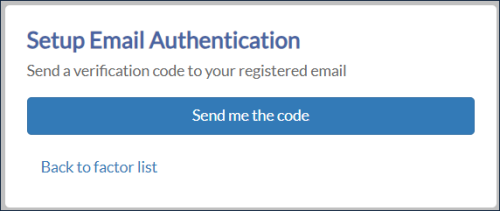
The code will be sent to the email address you use to log in to DataPlus and will come from the email address noreply@okta.com.
-
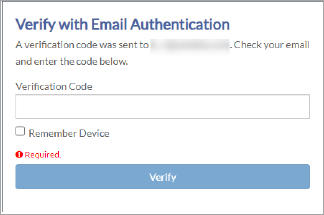
Enter the Verification Code from your email.
-
-
Click Verify/Next depending on the authentication method you used.
-
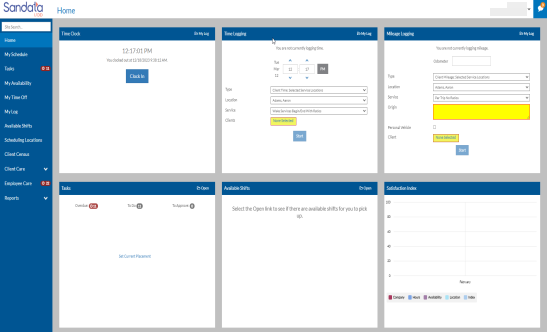
You are logged in and taken to the Home Screen.