Grids and Popups
Grids are found in various places throughout Client Care and Employee Care:
-
The index pages of transactions (e.g., Client Events, Supplemental Education) and workflows (e.g. Incidents, Corrective Actions).
-
The detail pages of any screen that has a child (e.g. Personal Contacts on Clients or Employees screen) or reverse reference (Program Plans on Clients screen or Performance Appraisals on Employees screen).
From the grid you can:
-
Drag and Drop columns to reorder them
-
Drag the arrow between headers or double click it to resize the columns.
-
Click the header to sort the grid on that column in ascending order. Click again to sort in descending order. Click one more time to remove the sort.
To select which columns appear in the grid:
-
If the grid is on an index screen, click the Gear icon next to the Search box.

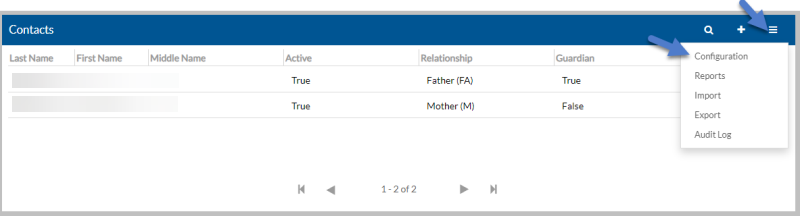
If the grid is on a detail screen, click the Options menu on the grid header and then select Configuration.
-
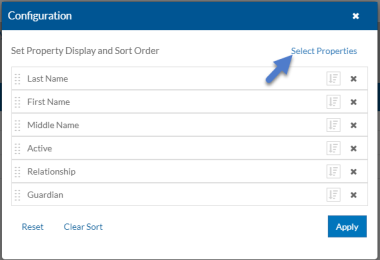
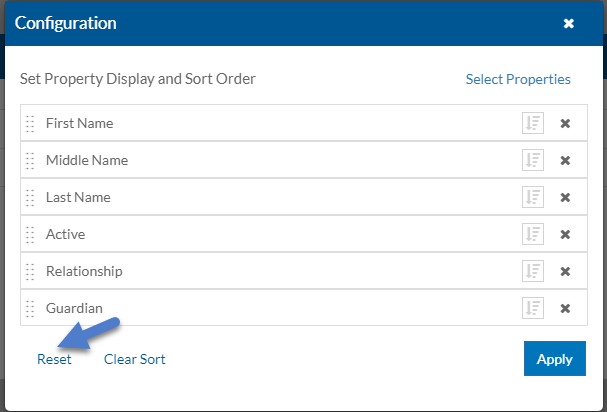
Click Select Properties to pick a new field to show as a column in the grid.
-
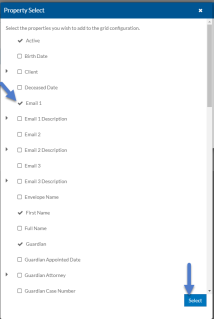
Mark or clear the properties you want to appear as columns and click Select.
- Select the handle next to the property name to reorder the columns. The properties will appear in the grid from left to right starting with the property at the top of the list.
-
Select the sort icon next to the property to sort the grid ascending on that property. Select the icon again to sort it in descending order.
Click Clear Sort at the bottom of the grid to clear the sort settings.
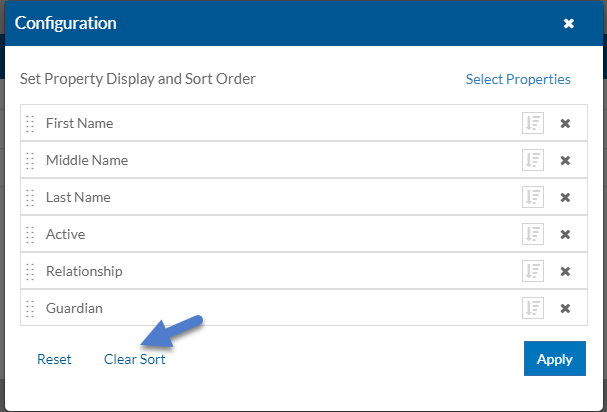
Click Reset to revert to the default grid settings.
-
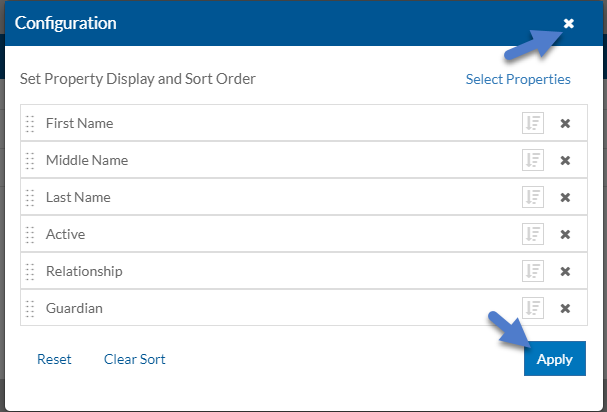
Click Apply to update your grid with your changes, or click the X to close without making any changes.
-
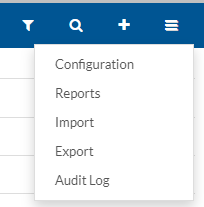
From the header of the grid on a detail screen:
-
Select the + to add a new item to the grid
- Select the magnifying glass to search for an item in the grid
- Select the filter icon to set filters to narrow the contents of the grid further
- Select the Options menu to:
Run a report
Import records
Export records
View the change history
If you are on an index screen the options above are available in the upper right corner:
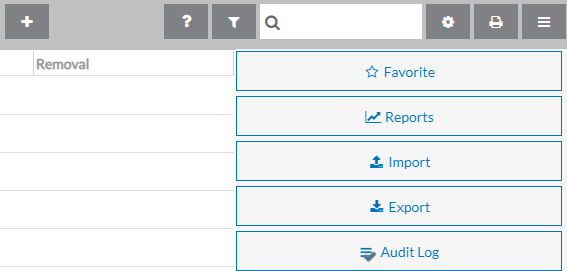
If you are on an index screen, you can also select the printer icon to quickly run a report that includes the contents of the grid.
-
-
Select a row in the grid to open it to view or edit. If the grid is on a detail screen, a pop-up window opens. Otherwise, it opens in place of the index screen.
From the pop-up window, you can:
-
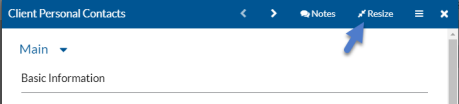
Resize the window to make it larger or smaller:
-
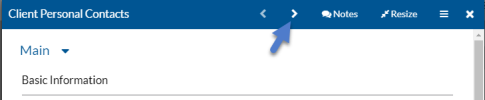
Move to the next or previous entry in the grid:
-
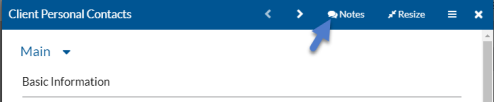
Enter notes in a notebook, if configured:
-
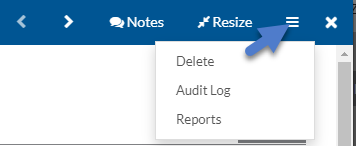
Select the Options menu to:
-
Delete the current entry.
-
View the change history of the current entry.
-
Run a report for the current entry.
-
-
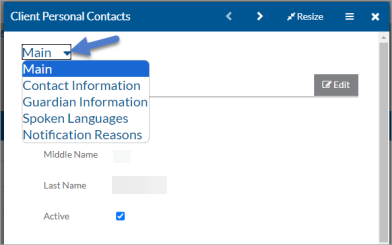
Select the down arrow to switch to another tab in the pop-up screen.
-
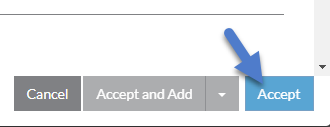
Click Accept or Accept and Add to accept the changes. Changes are saved when you save the main record unless the button in the pop-up says Save.
-
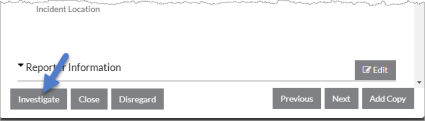
If the pop-up is a reverse reference to a workflow, you may also see buttons at the bottom of the screen to move the current entry to another status based on your workflow security settings.
-