Client Care Move Client Placements
When a client relocates, you can easily end their current placement and start the new one. You have the option to update existing program plans and miscellaneous collection plans to either transfer to the new placement or conclude with the previous one.

To update a client’s placement:
-
Select Client Care from the menu pane and then select Clients.
-
Select the client’s card on the Client Index screen.
-
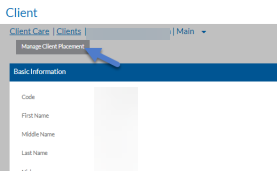
Select Manage Client Placement.
-
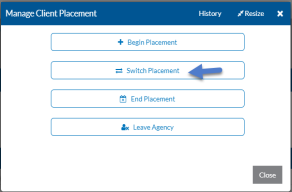
Select Switch Placement to end a client placement and add client to a placement.
-
Complete the following information and select Next.
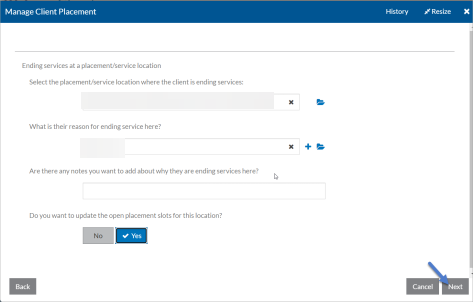
In this Field Enter this Information Select the placement/service location where the client is ending services: The placement or service location where the client is no longer receiving services from your agency. What is their reason for ending services here? The reason from the list of termination reasons why they are leaving this placement/service location. This is saved in the client placement. Are there any notes you want to add about why they are ending services here? Any notes or comments about why the client is leaving this placement. These notes are saved in the client placement. Do you want to update the open placement slots for this location? If answered Yes the open slot count for this placement is increased by one. Otherwise, it remains unchanged. -
Complete the following information and select Next.
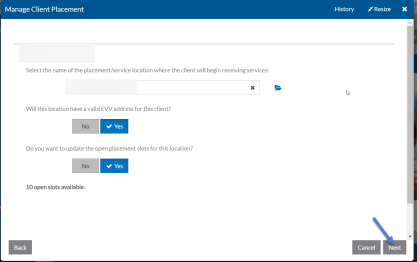
In this Field Enter this Information Select the name of the placement/service location where the client is to begin receiving services The placement or service location where the client is to begin receiving services. The placement must be tied to a global location to appear in this list. Does this location have a valid EVV address for this client? This question appears if the Client has the Use EVV check box selected. Select Yes if you want to mark this new location to Sync to DataPlus as an EVV address for this client. Work with Sandata to turn on this sync if it is not already set up for you. Do you want to update the open placement slofts for this location? Select Yes if this Placement has Placement Slots set up for it. The Open Slot count is reduced by one. -
Answer the following questions to update the client's billing defaults and data collection plans if needed and click Next.
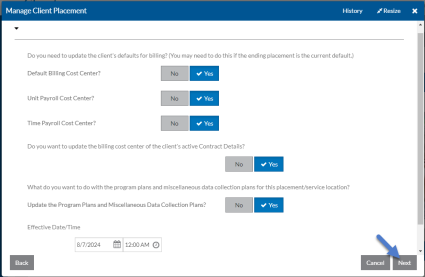
In this Field Enter this Information Default Billing Cost Center? Select Yes if you want the billing cost center tied to the new placement’s global location to be the default. This field is typically one of the triggers that determines which service location the client appears in for Time Tracking. Default Unit Payroll Cost Center? Select Yes if you want the payroll cost center tied to the new placement’s global location to be set as the client’s default payroll cost center for unit transactions (mileage). Default Time Payroll Cost Center? Select Yes if you want the payroll cost center tied to the new placement’s global location to be set as the client’s default payroll cost center for time transactions. Do you want to update the billing cost center of the client’s active Contract Details? If Yes, then update any active contract details that that have the billing cost center of the old placement’s global location to use the billing cost center of the new placement’s global location. Update the Program Plans and Miscellaneous Data Collection Plans? If Yes, update all of the active Program Plans and Miscellaneous Collection Plans that are set to the old placement to the new placement. Otherwise, if you select No the plans are updated to have an end date of the effective date set in the next step. End Program Plans and Miscellaneous Data Collection Plans? If Yes, set the end dates of the plans set to the old placement to the Effective Date. Otherwise, it is updated to use the new placement instead. Effective Date The date you want the old placement to end and the new placement to begin. In addition, if you selected to update the program plans, miscellaneous data collection plans, contract details or client billing defaults, this is the date those changes would be scheduled to happen. -
Select Close to exit the wizard or Start Over to begin again.
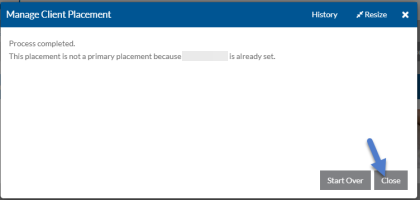
A new client placement is automatically set as the primary unless another placement of the same type (Residential, Vocational or Other) is currently designated for the client. In that case, a message appears indicating the new placement was not set as primary and identifies the current placement is set as primary.
To make the new placement the primary, uncheck the primary box in the existing primary placement, and then set it in the new placement.