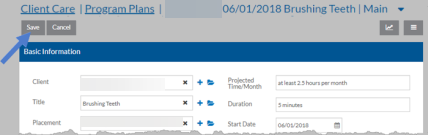
Client Care Manage Program Plans
Program Plans allow staff to track the goals and objectives a client has to learn new skills. Once the program plan is set up for a client, staff can track the client's progress from under Tasks.

To manage the program plans for multiple clients:
-
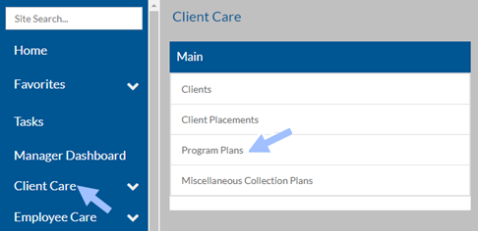
Select Client Care from the menu.
-
Select Program Plans from the Main menu.
To manage program plans for one client:
-
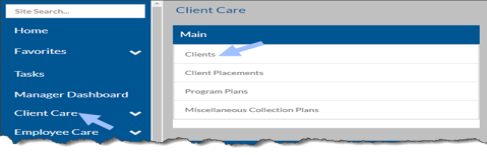
Select Client Care from the menu.
-
Select Clients from the Main menu.
-
Select anywhere on the Client card of the client to view program plans.
-
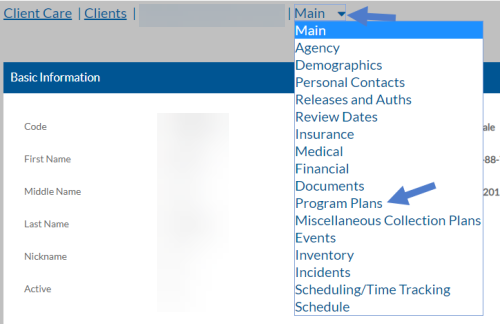
Switch to the Program Plans tab.
The Program Plans grid appears.
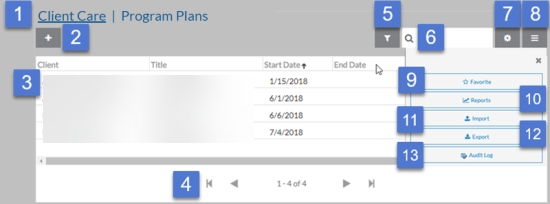
From here, multiple functions are available:
Number Description 1 Return to the Client Care Menu screen. 2 Add a new program plan. 3 Open a program plan. 4 Use the outer arrow to go to the first program plan or the last program plan in the grid. Use the inner arrows to go to the next or previous set of program plans. 5 Open the Filters tray to adjust filter settings. 6 Search for a program plan. 7 Add, remove and reorder columns in the grid. 8 Open the Options tray to view additional functions. 9 Add or remove the Program Plans grid from your Favorites menu. 10 Run a program plan report. 11 Import program plans from MS Excel. 12 Export program plans to MS Excel. 13 View the change history for all program plans. You may see a message similar to the one below. This message means additional program plans match your filter settings, but there are too many to show. If this happens you either need to adjust your filters or use the search to find the program plan you are looking for.

-
Select a Program Plan from the grid to open or select the + to add a new Plan.

From here, additional functions are available:
Number Description 1 Return to the Client Care Menu screen or Program Plans grid. 2 Switch to another tab to view additional program plan information. 3 Run a program plan report. 4 Delete a program plan. 5 Create a copy of a program plan. 6 Open the Options tray to access the Audit Log and view the change history of the selected program plan. 7 Edit the program plan. When you finish edits, select Save or Cancel to discard changes.