Client Care Manage Client Placements from the Placement Tree
You can add, edit and delete client placements from the client placements tree.
-
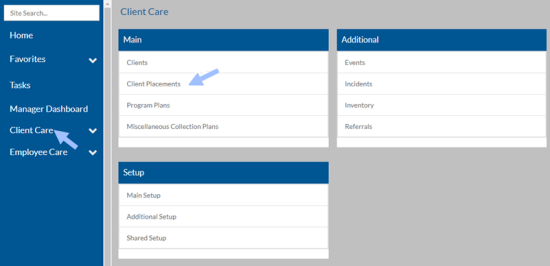
Select Client Care from the menu and then select Client Placements from the Main card.
-
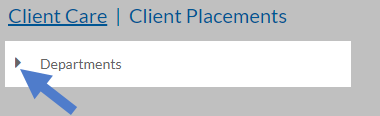
Select the arrow next to Departments to view the departments.
-
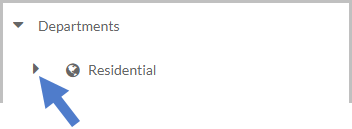
Select the arrow next to the Department to view the Programs collection.
-
Select the arrow next to Programs to view the programs.
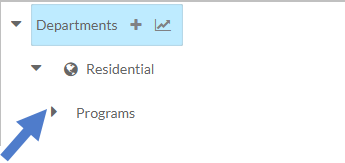
-
Select the arrow next to a Program to view the Placements collection.
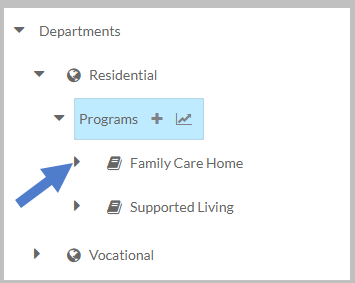
-
Select the arrow next to Placements to view the placements.
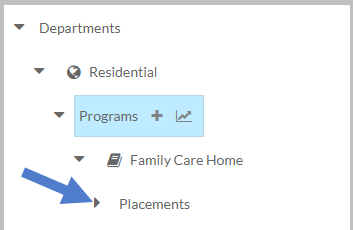
-
Select the arrow next to a Placement to view the Clients collection.
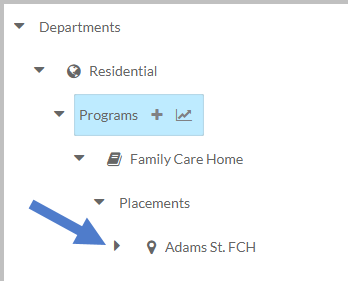
-
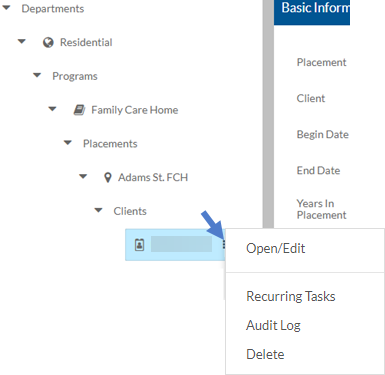
Select the + next to Clients to add a new client placement or select the arrow next to Clients and then select a client placement to edit.
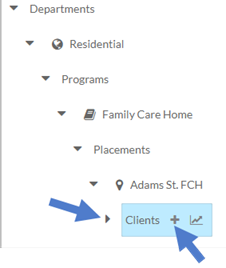
Select the Reports icon to run a Client Placements report.
-
Complete the information on the Basic Information card and click Save.
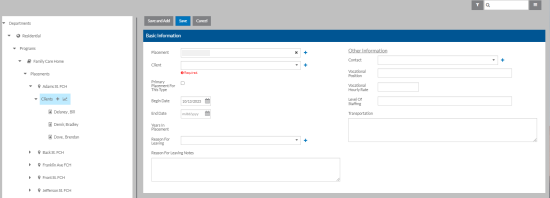
Card Information Basic Information -
Placement: This is read-only
-
Client
-
Primary Placement for this Type: Select this check box for the Primary Placement for each type of placement (Residential, Vocational and Other) even if they only have one of each. This field along with the Placement Type is used to calculate the Primary Residential, Vocational and Other Placement shown on the Agency tab of the client’s record. These fields are also used in reports and for filtering reports.
-
Begin Date
-
End Date
-
Years in Placement: This is calculated based on Begin Date and the Current Date or End Date.
-
Reason for Leaving
-
Reason for Leaving Notes
Other Information -
(Placement) Contact Name
-
Vocational Position
-
Vocational Hourly Rate
-
Level of Staffing
-
Transportation
-
-
Select the three dots next to the client to edit the client placement in a pop-up window, manage recurring tasks, view the audit log or delete the client placement.