Client Care End Client Placement
When a client no longer receives services at a particular Placement, you can easily end it along with its associated Program Plans and Miscellaneous Collection Plans.
In addition, you can optionally update the existing Program Plans and Miscellaneous Data Collection Plans to move to another existing Placement instead.

-
Select Client Care from the menu pane and then select Clients.
-
Select the client’s card on the Client Index screen.
-
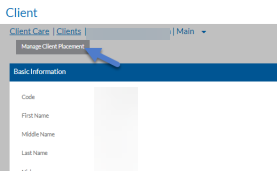
Select Manage Client Placement.
-
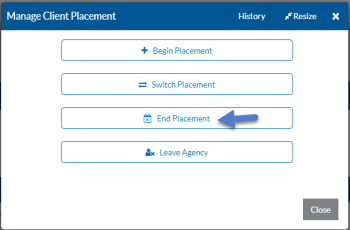
Select End Placement to add the client.
-
Complete the following information and select Next.
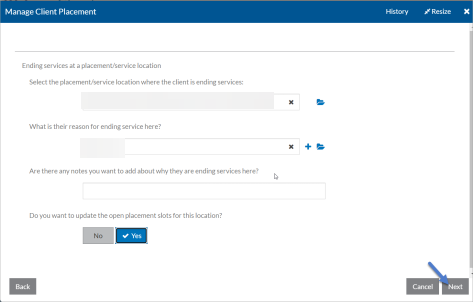
In this Field Enter this Information Select the placement/service location where the client is ending services The placement or service location where the client no longer receive services from your agency. Are there any notes you want to add about why they are ending services here? The reason from the list of termination reasons why they are leaving this placement/service location. This is saved in the client placement.
Do you want to update the open placement slots for this location? If answered Yes the open slot count for this placement increases by one. Otherwise, it remains unchanged.
-
Complete the following information and select Next.
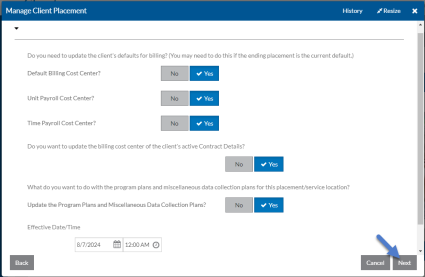
In this Field Enter this Information Default Billing Cost Center? If Yes, select the billing cost center that should be client’s default billing cost center. This field is typically one of the triggers that determines which location the client appears in for Time Tracking. Unit Payroll Cost Center? If Yes, select the payroll cost center that should be set as the client’s default payroll cost center for billing unit transactions.
Time Payroll Cost Center? If Yes, select the payroll cost center that should be set as the client’s default payroll cost center for billing time transactions.
Do you want to update the billing cost center of the client’s active Contract Details? If Yes, select the billing cost center to replace the one in any active contract details that have the same billing cost center tied to the global location of the placement that is ending. Update the Program Plans and Miscellaneous Data Collection Plans If Yes, select the Placement you want to use instead of the placement that is ending. End Program Plans and Miscellaneous Data Collection Plans If Yes, set the end dates to the effective date set below. Effective Date/Time The end date for the old placement and the date the client defaults, program plans, miscellaneous collection plans and contract details are updated (if applicable). -
Select Close to exit the wizard or Start Over to begin again.