Visit Maintenance

The Visit Maintenance feature is where all information related to visits is located. Sandata defines a visit as, at a minimum, a scheduled visit or single call. The maximum length of a visit in Sandata is 25 hours (24 hours with an extra hour to account for early or late calls). Use the Visit Maintenance feature to review detailed information for all visits as well as update visits and correct any exceptions.
Managing Exceptions
When you see the list of visits, you will check to see that the visits have all the required pieces of information. There are five items required to verify a visit: Client, Employee, location, call in and call out times, and date. Sometimes services and tasks are also required. When one of these items is missing, you will have exceptions. Missing and incorrect information are flagged by a red, orange, or gray dot on the Visit window.
To prepare visits for billing claims, the visit status should be listed as Verified.
Visit Window Dots
-
Red Dots: These are visits with missing or incorrect info that you must enter.
Examples: Missed call in or call out times, missing/unauthorized service, unknown client, and unknown employee.
-
Grey/Yellow Dots: These are visits with missing or incorrect info but you only need to acknowledge the exceptions.
Examples: Missing/incorrect location, skipped visit verification, missing Client signature.
The goal is to get visits to a verified state. This requires every exception to be fixed or acknowledged. When correcting an exception, the system will ask for a reason code and a resolution code before saving the change to the visit.
Here are the most common visit exceptions. Check the Visit Maintenance page daily to look for red dots, and fix the exceptions.
| Common Exceptions | Solution |
|---|---|
| Visits Without In-Calls or Out-Calls | A call in, call out, or both are missing. Manually create a call using the Call Log tab. |
| Missing Service | A service was not entered during the visit. Update the service in the General tab. |
| Missing Tasks | The required tasks were not entered during the visit. Update the tasks in the General tab. |
| Client Signature Verification | A written signature for the visit was not provided by the Client. This exception only applies to visits performed using Sandata Mobile Connect. Acknowledge this exception on the Exceptions page. |
| Unknown Client | The Client for the visit could not be matched to a known Client in the system. Update the Client for the visit in the General tab. |
| Exception | Description | Resolution |
|---|---|---|
|
Actual Hours more than Scheduled Hours
|
The calculated amount of time between the visit's call in and call out is more than the scheduled duration of the visit.
|
Update the Adjusted In and Adjusted Out fields on the Visit Details page to match the scheduled times. |
| Billing Hours less than Scheduled Hours | The total amount of time billed for the visit is less than the amount of time scheduled for the visit. | Update the bill hours to match the scheduled hours. |
|
Client Eligibility
|
The service entered for the visit was not included in the Client's authorization. | Update the service for the visit. |
| Client Signature Exception | A written signature for the visit was not provided by the Client. This exception only applies to visits performed using Sandata Mobile Connect. | Acknowledge this exception. |
| Client Speaker Verification Bypassed | The Client did not verify the visit information. | Acknowledge this exception. |
| Client Speaker Verification Exception | The Client did not provide a voice signature for the visit. | Acknowledge this exception. |
| Early Out Call |
The call out was received before the visit's scheduled end time.
|
Update the Adjusted Out time to match the schedule's end time. |
| Employee Replacement |
The Employee who performed the visit is different from the Employee who was originally scheduled to perform the visit.
|
Acknowledge this exception. |
| Employee Speaker Verification Exception |
The Employee’s voice did not match the voice on record
|
Acknowledge this exception. |
| Extraneous Calls |
Additional calls were received between the call in and the call out.
|
This exception is resolved by being acknowledged or by merging the extraneous calls using the Merge Calls tab of the Visit Details page. If your EVV system does not have the Merge Calls tab, you cannot merge calls. |
| GPS Distance Exception |
The GPS coordinates for the call in or call out of the visit are too far from the Client's address, based on a configurable limit.
|
Acknowledge this exception. |
| Late In-Call | The call in was received after the scheduled start time of the visit. | Update the Adjusted In field on the Visit Details page. |
| Location Required |
A location was not entered for the visit.
|
Update the Location field on the visit details screen. |
|
Missing Critical Tasks
|
Required critical tasks were not entered for the visit. | Add missing tasks. |
| Missing Service |
A service was not entered during the visit.
|
Update the service for the visit. |
| Missing Tasks |
Required tasks were not entered for the visit.
|
Update the tasks on the Visit Details page. |
| No Show Exception | An Employee did not call in for a scheduled visit. | Acknowledge this exception. |
| Pay Hours greater than Maximum Allowed Hours |
The total amount of time to be paid for the visit is more than the maximum payable time allowed by the authorization.
|
Update the Pay Hours fields on the Visit Details page. |
| Payroll Hours less than Scheduled Hours | The payroll hours are less than the visit's scheduled hours. | Update the Payroll Hours fields on the Visit Details page. |
| Service Verification Exception | The Client did not confirm the selected service. | Acknowledge this exception. |
| Task Mileage Exception |
The mileage entered for the visit does not match the mileage that was calculated.
|
Acknowledge this exception. |
| Time Entered in Tasks Exceeds Payroll Hours |
The total entered time for tasks is greater than the payroll hours for the visit.
|
Acknowledge this exception. |
| Time Entered in Tasks less than Scheduled Hours |
The total entered time for tasks is less than the scheduled hours for the visit.
|
Acknowledge this exception. |
| Unauthorized Service | The employee selected a service for the visit that does not match a service the Client is authorized to receive. | Update the service on the Visit Details page. |
| Unknown Clients |
The Client for the visit could not be matched to a known Client in Sandata.
|
Update the Client on the Visit Details page. |
| Unknown Employees | The Santrax ID entered on the phone during a EVV visit does not match to a known Employee in Sandata. | Update the Employee on the Visit Details page. |
| Unmatched Billing and Payroll Hours | The total number of hours billed for the visit does not match the visit’s total number of payroll hours. | Update the Bill Hours field on the Visit Details page. |
| Unmatched Billing and Scheduled Hours | The total amount of time billed does not match the total amount of time scheduled for the visit. |
Update the Bill Hours field.
|
| Unmatched Client ID/Phone | The Client ID was entered on a EVV call placed from a number not associated with that Client. |
Acknowledge this exception.
|
| Unmatched Payroll and Scheduled Hours | The total amount of time paid for the visit does not match the total amount of time scheduled for the visit. | Acknowledge this exception. |
|
Unscheduled Visits
|
The call-in or call-out that was received for the visit does not match to the schedule. | Acknowledge this exception. |
| Visit Verification Exception |
The Client did not verify the visit information.
|
Acknowledge this exception. |
| Visits without Any Calls |
No calls were made for a scheduled visit.
|
Create a call using the Call Log tab of the Visit Details page. |
|
Visits without In-Calls |
A call in was not received for the visit. | Manually create a call using the Call Log tab of the Visit Details page. |
|
Visits without Out-Calls |
A call out was not received for the visit. | Manually create a call using the Call Log tab of the Visit Details page. |
Use the Create Call feature when there are no calls for a visit. For example, if the Employee forgot to call in, you would create the call using the Create Call feature. Employees can still call out at the end of the visit, or you would add a call out using the Call Log.
To create a call:
-
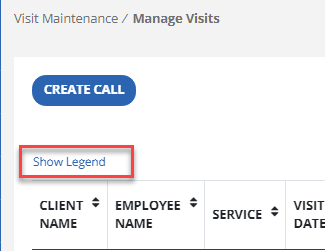
Go to the Visit Maintenance page and select the Create Call button.

-
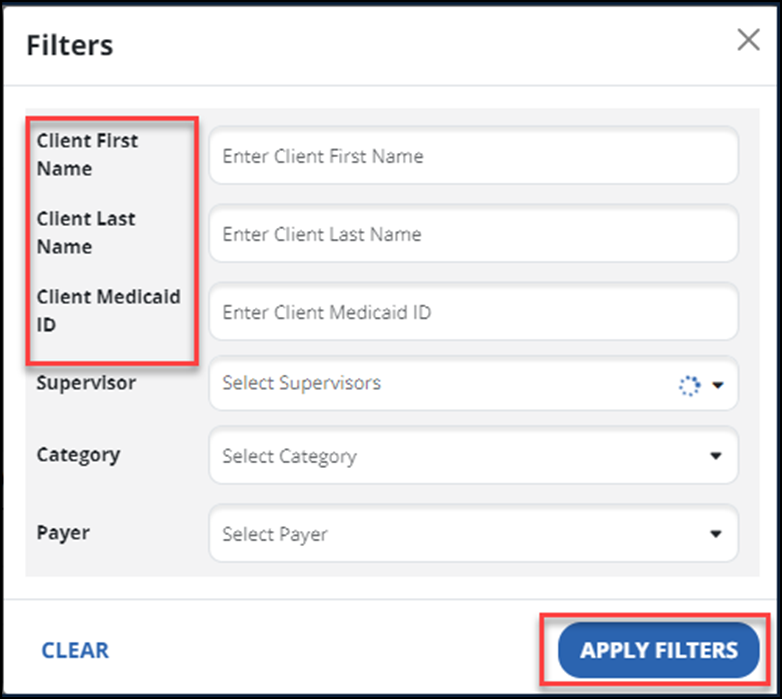
Use the Filters button to find the Client, then select the Apply Filters button.

-
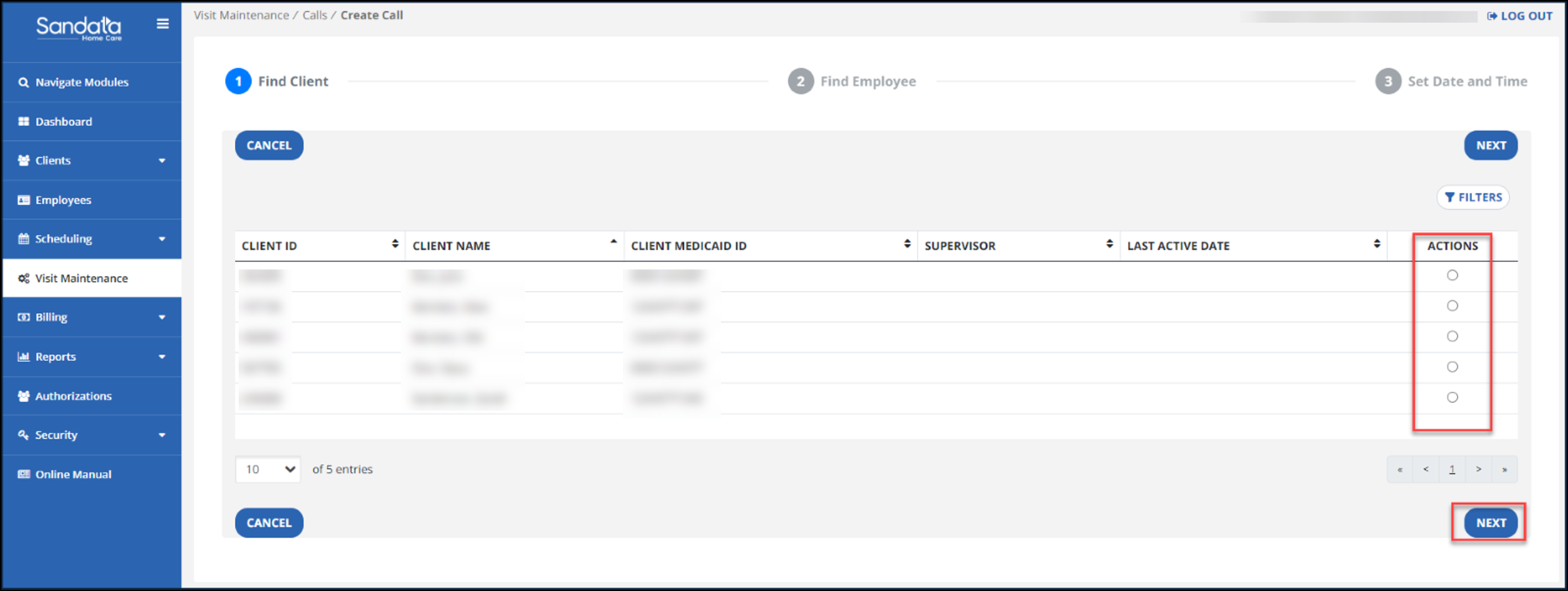
Using the Actions button, select the Client. Then select the Next button.
-
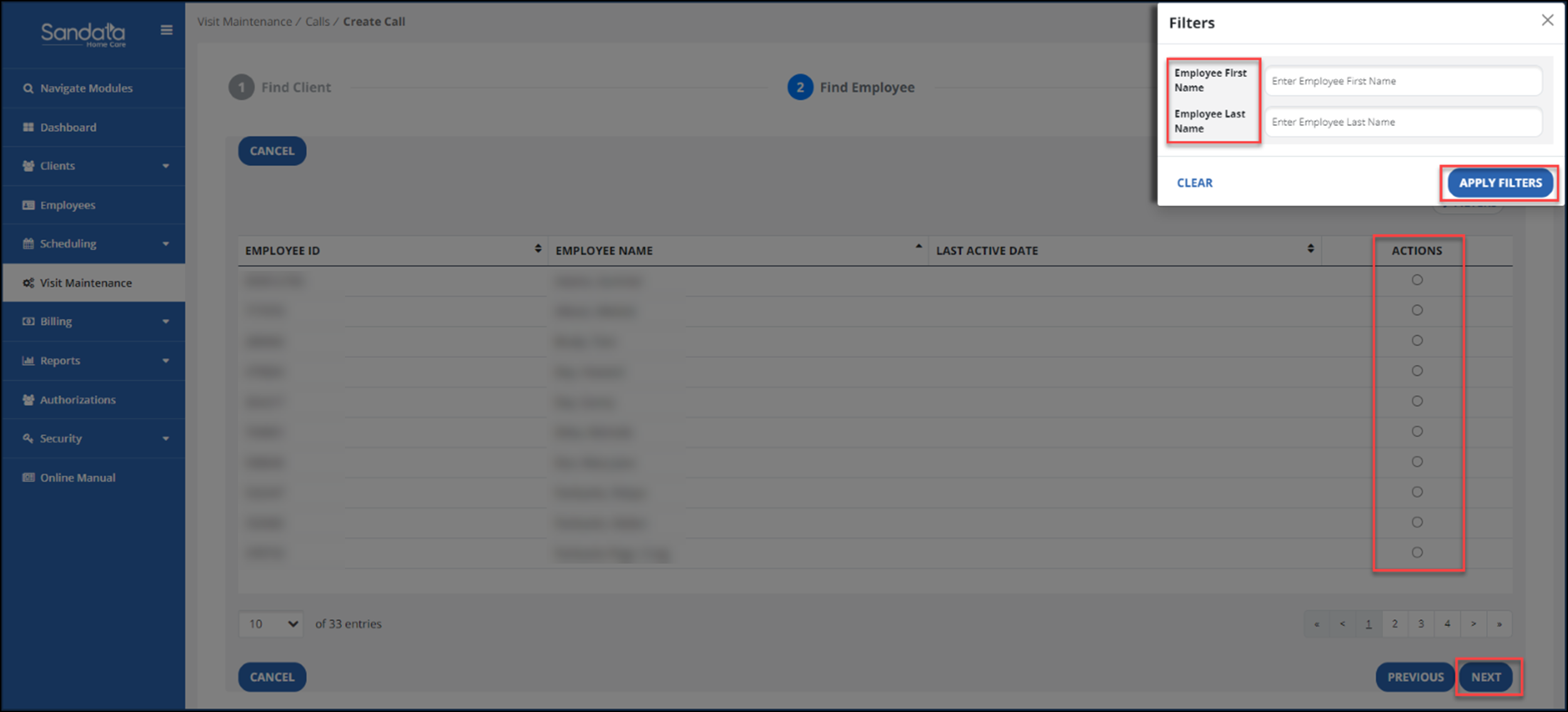
Next, search for the Employee using the Filters in the Select Employee section. Select the Apply Filters button. Select an Employee to add to the visit using the Actions button. Then, select the Next button.
-
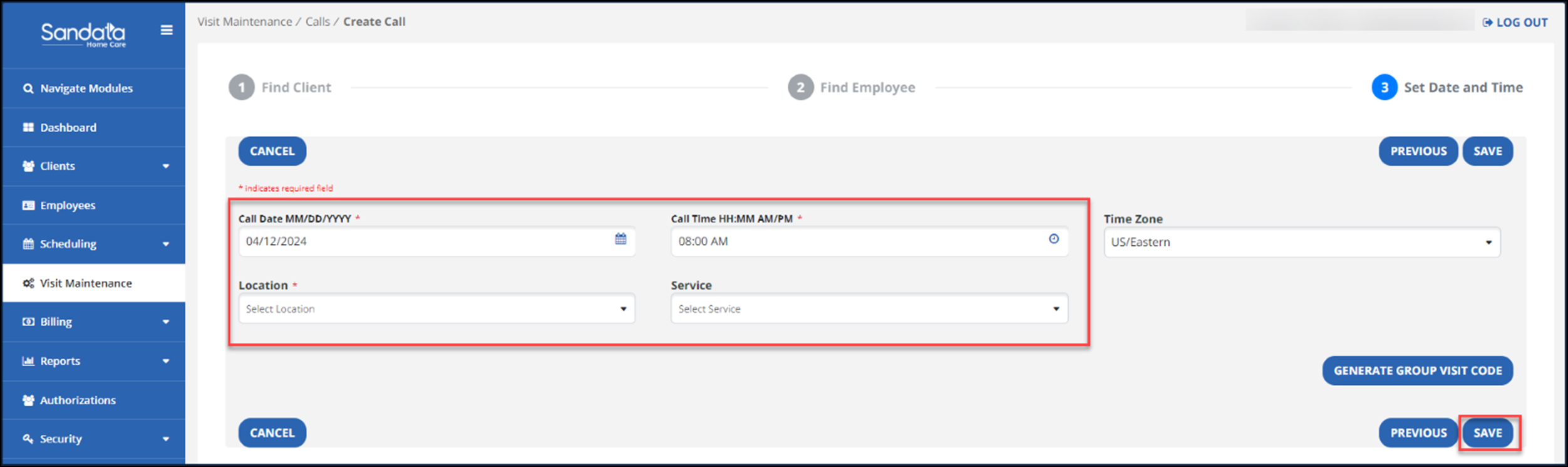
On the next screen, complete the Call Date and Call Time fields. Then enter the location and service (if available and your program uses the Service field, it is now required for creating manual visits).
-
Select the Save button. This will add the call in and create the visit.
If available, use the Create Visit feature when there are no calls or schedules for a visit that occurred. For example, if the Employee forgot to call in and out you would create the visit using the Create Visit feature. This feature is used to create visits that have happened and cannot be used to create visits in the future.
-
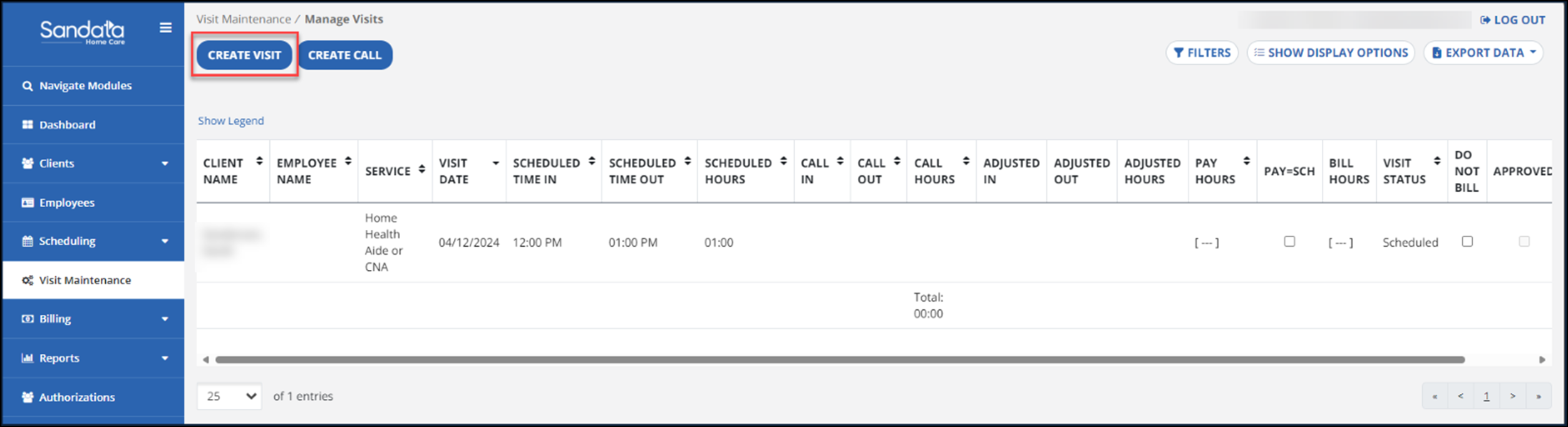
Go to Visit Maintenance and select the Create Visit button.
-
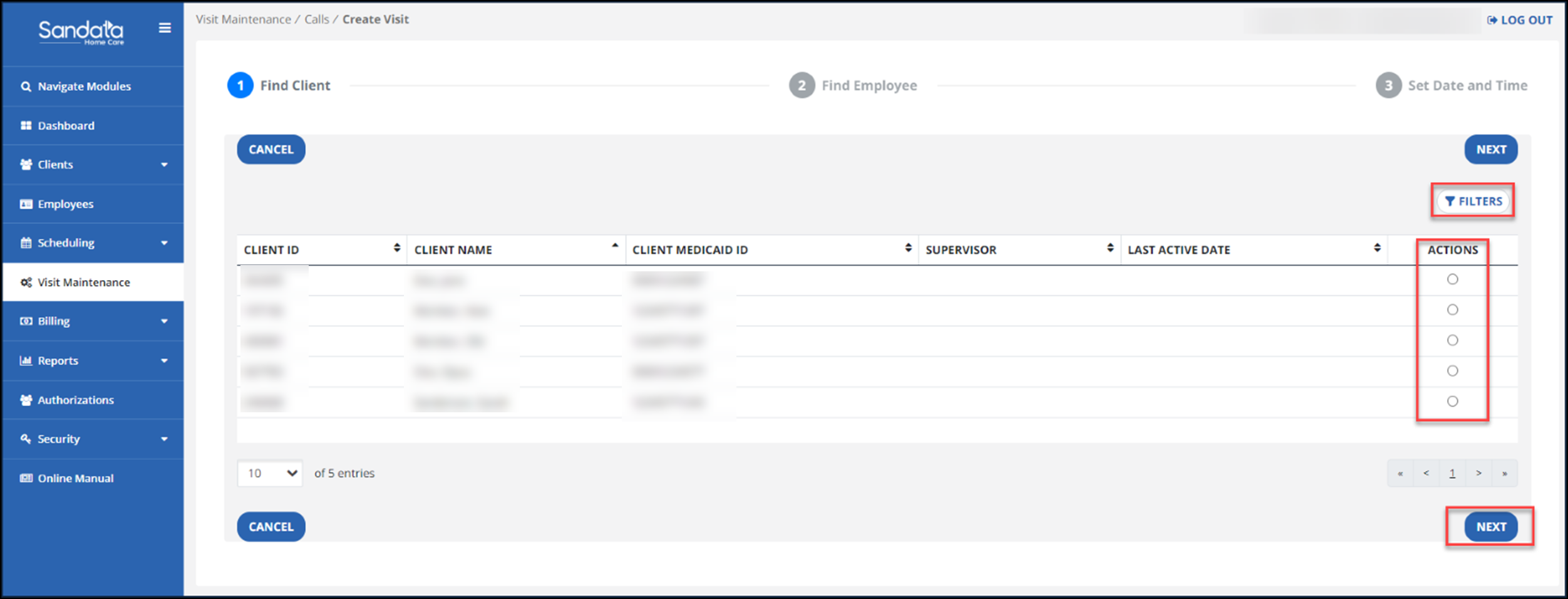
Use the Filters button to search for the Client. In the search results, select the button for that Client under the Actions column. Then select the Next button.
-
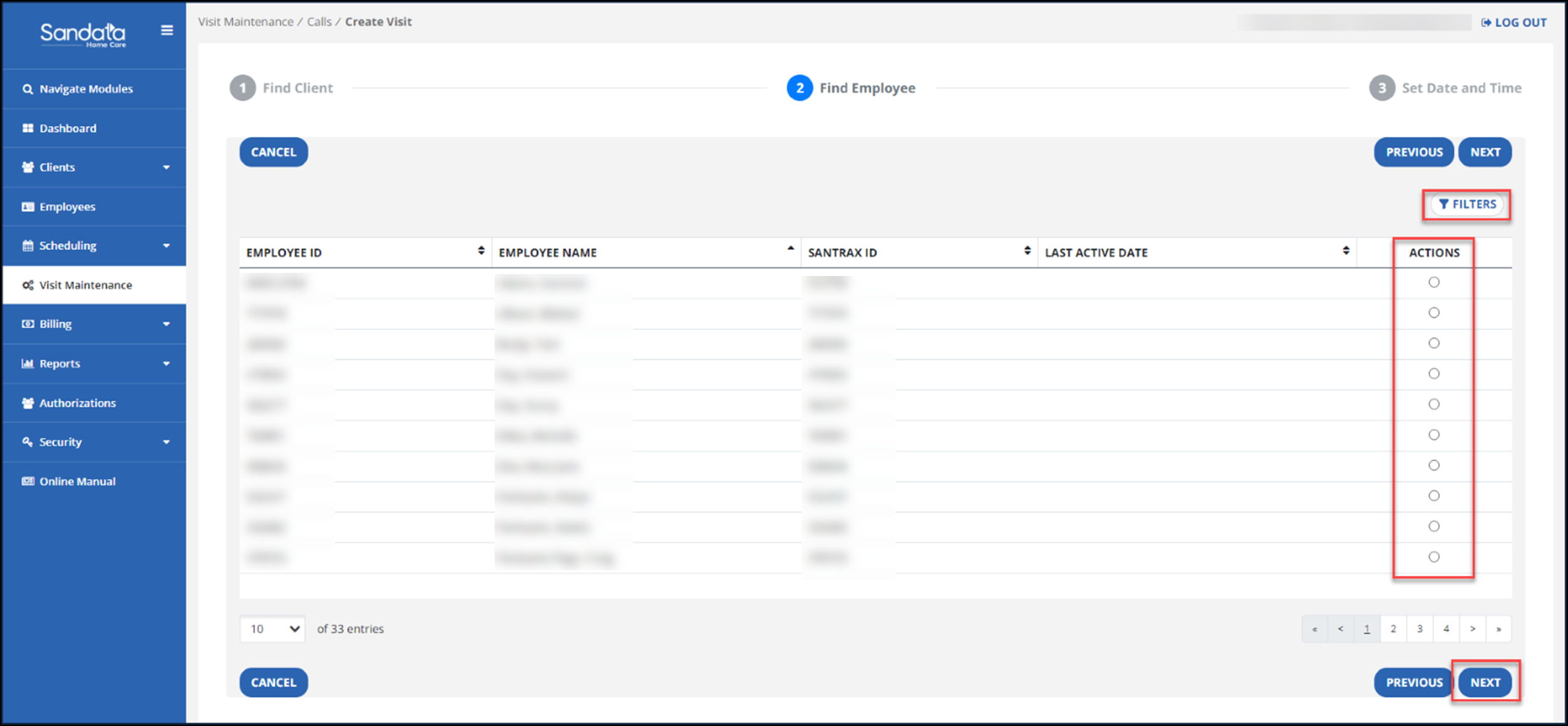
Next, Use the Filters button to search for an Employee. Under the Actions column, select the Employee then select the Next button.
-
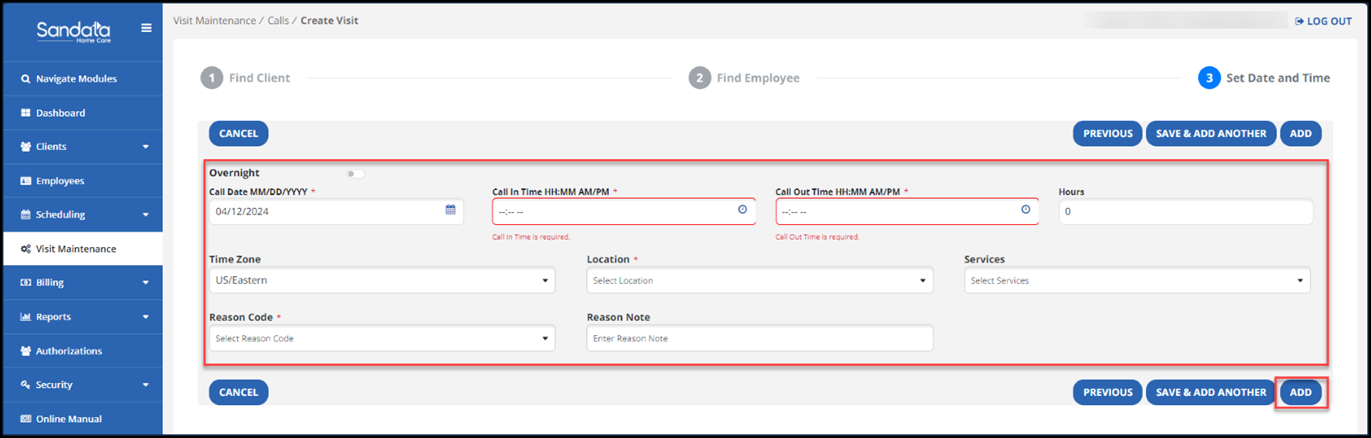
On the next screen, complete the Call Date and Call Time fields. Then enter the location and service (if available and your program uses the Service field, it is now required for creating manual visits).
-
Next enter the reason code and select the Add button.
For programs that use the Reason Note field, this field is limited to 256 characters.
A best practice is to check visits daily. This allows you to see visits that were logged through the mobile app, TVV, or entered manually. Looking for incomplete visits and getting them to a verified status is an important part of visit maintenance.
To search for visits:
-
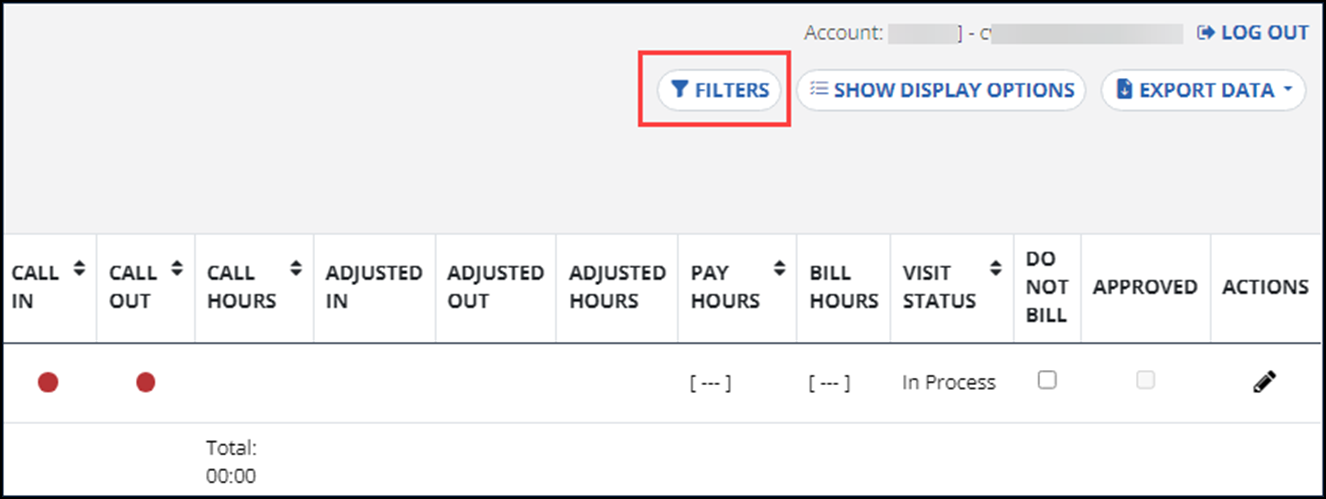
Start by selecting the Visit Maintenance feature. Today’s visits will load. Next, select the Filters button.
-
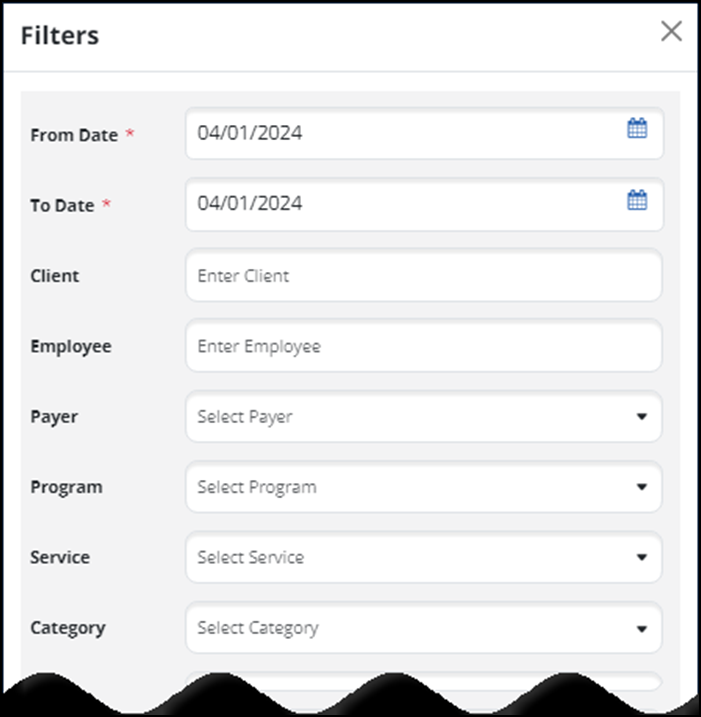
Use the filters to search by date range, client, or other features.
-
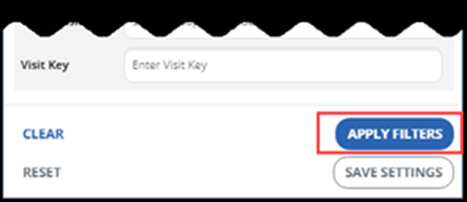
Scroll down and select the Apply Filters button to list the visits that fit this search. Choose the Save Settings button to save these filter settings for the session.
-
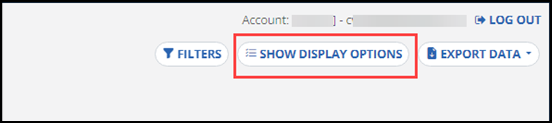
Use the Show Display Options button to edit the columns you see in the results.
If a visit has missing or incorrect dates or missing call in/out times, use the General tab on the Visit Details page to manually enter the adjusted dates or times.
Complete the following steps to adjust call times and dates.
-
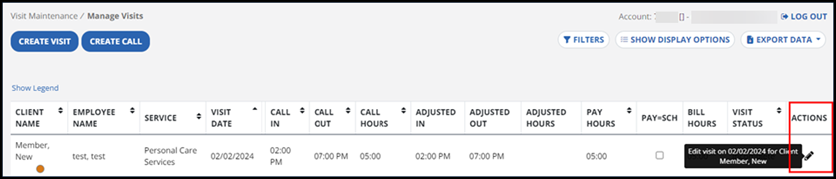
From the Visit Maintenance screen select the pencil icon from Actions column. This will take you to the Visit Details screen.
-
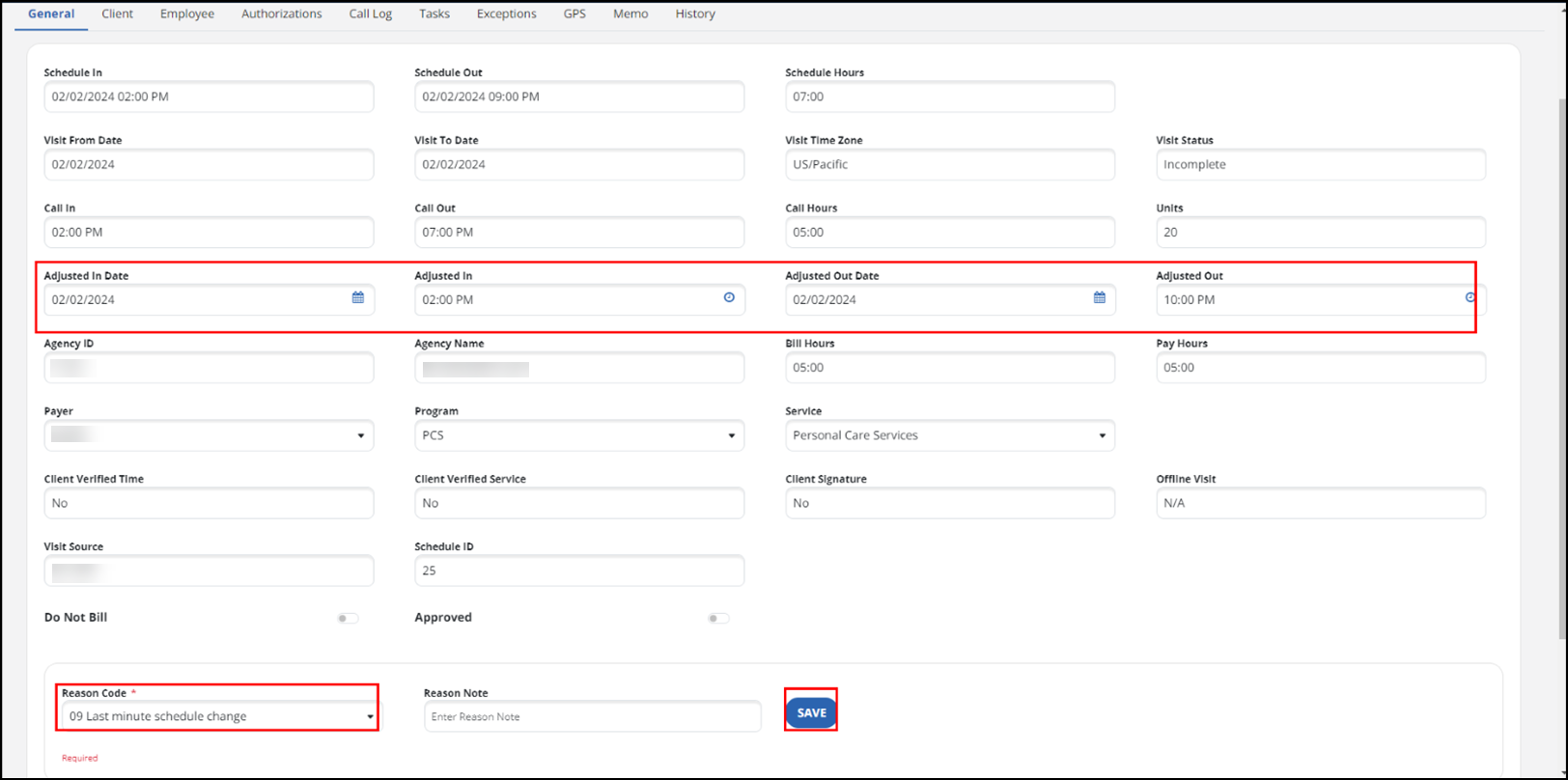
On the General tab, enter the adjusted dates and times into the Adjusted In Date, Adjusted In, Adjusted Out Date, and Adjusted Out fields.
-
Select the Reason Code for any exception updates. Use the Reason Note field to add additional information about the visit. Some reason codes require a reason note.
For programs that use Reason Note, the Reason Note field is limited to 256 characters.

-
Select the Save button. You now are able to see the adjusted date(s) and time(s) for the visit.

If a visit has missing or incorrect dates or call in/out times, use the Visit Maintenance page, to select the in or out call red  button. To save a visit that has been changed, users may be required to enter a reason code and resolution code.
To add a manual call to an existing visit:
-
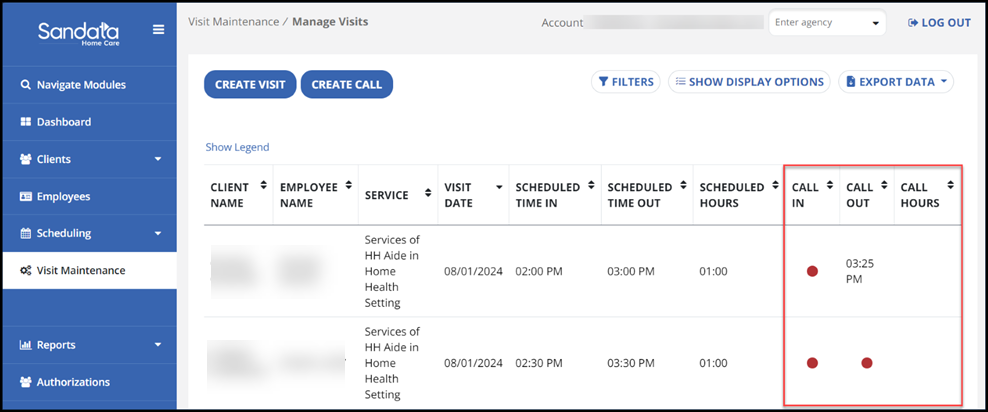
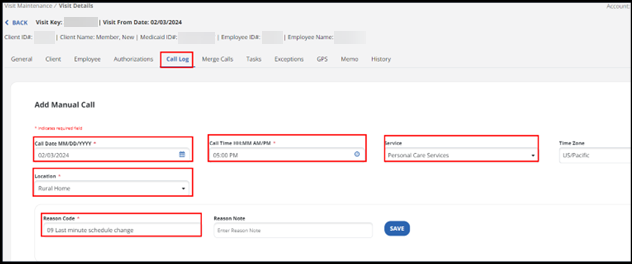
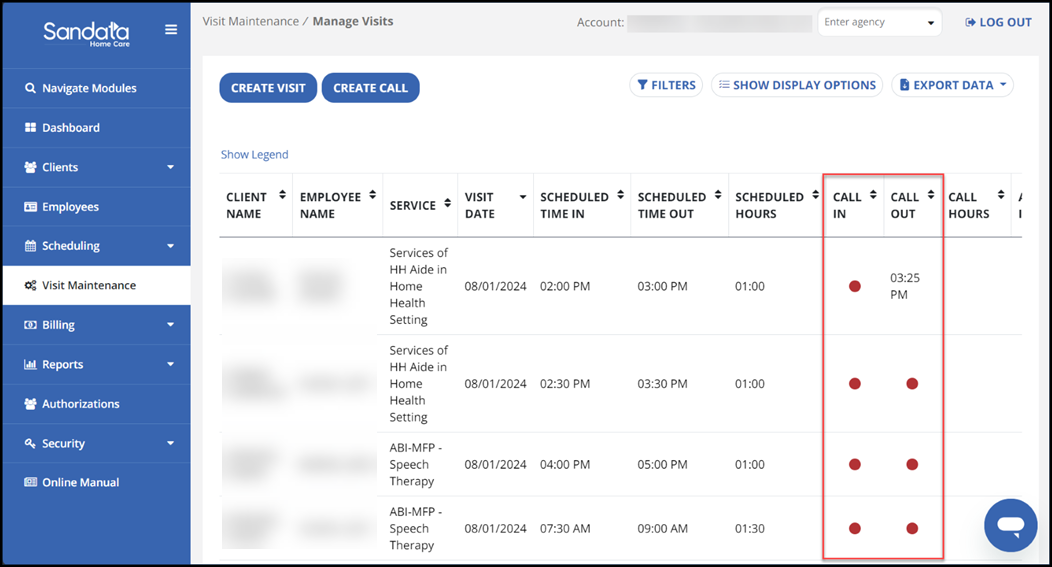
Select a red dot to go to the Visit Details Call Log tab. The red dot in the Call In or Call Out column shows a missing call exception. This can be in either one column or in both columns.
-
Fill in the required fields for the in or out call.
-
Complete the Location and Reason Code fields. Use the Reason Note field to add additional information about the visit. Some reason codes require a reason note.
For programs that use the Reason Note field, the field is limited to 256 Characters.
-
Select the Save button.
-
If both calls were missing, once the call in has been added and saved, you will receive additional prompts to add a manual call. This will be your call out. The call in will appear at the top of the window.
Calls manually added will display in Visit Maintenance as Adjusted In or Adjusted Out.

When a visit is recorded without an Employee name or ID, the visit will be flagged with an Unknown Employee exception. Visits with Unknown Employee exceptions need to have the Employee added to the visit to resolve the exception and make the visit billable.
To resolve an Unknown Employee exception:
-
Select a visit from the Manage Visits page.
-
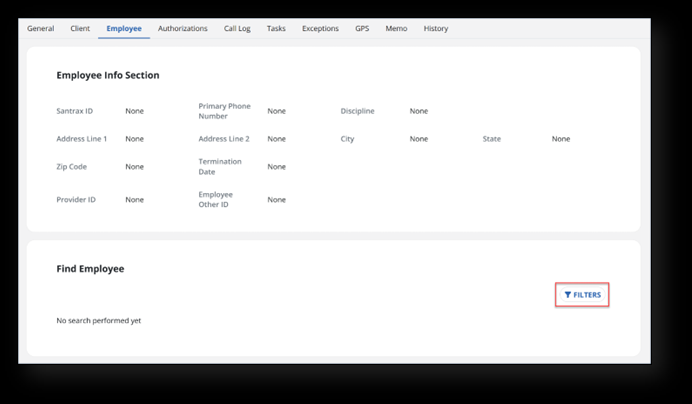
Next, go to the Employee tab.
If you select the exception indicator in the Employee Name column, you will be taken directly to the Employee tab.
-
Use the Filters button to open the Employee filters.
-
Complete the Employee First Name, Employee Last Name, Employee ID, and/or Santrax ID fields, then select the Apply Filters button.
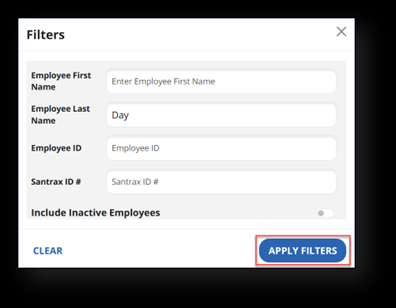
Turn on the Include Active Employees toggle to include Employees with a status of Inactive in the search results.
-
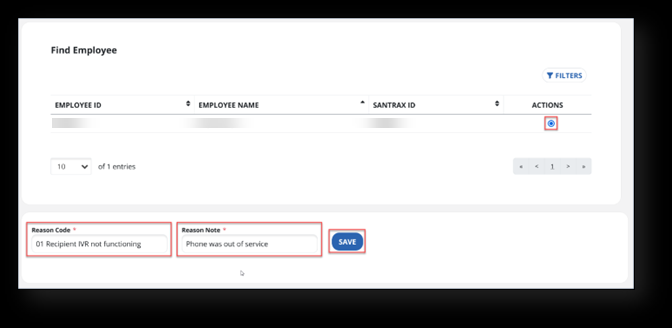
Select the matching employee under the Actions column. Then select the reason code and provide a reason note if required. Select the Save button to complete the update.
For programs that use the Reason Note field, the field is limited to 256 characters.
When a visit is recorded without a Client name or ID, the visit will be flagged with an Unknown Client exception. Visits with Unknown Client exceptions need to have the Client updated to resolve the exception and make the visit billable.
To resolve an Unknown Client exception:
-
Select a visit from the Manage Visits page.
-
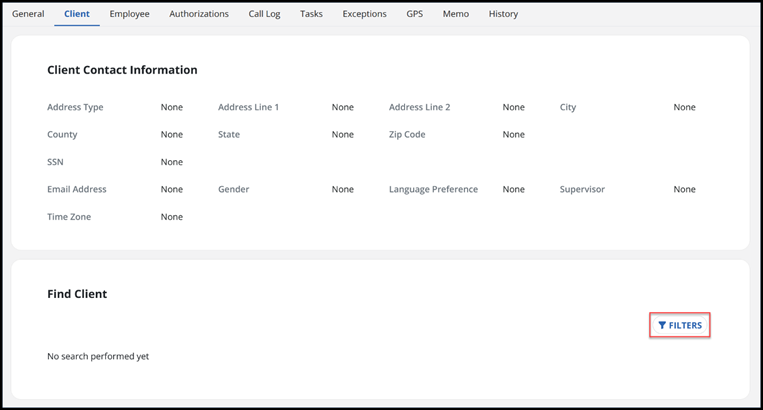
Next, go to the Client tab.
If you select the exception indicator in the Client Name column, you’ll be taken directly to the Client tab.
-
Use the Filters button to open the Client filters.
-
Enter the Client’s first or last name, Medicaid ID, or Client ID then select the Apply Filters button.
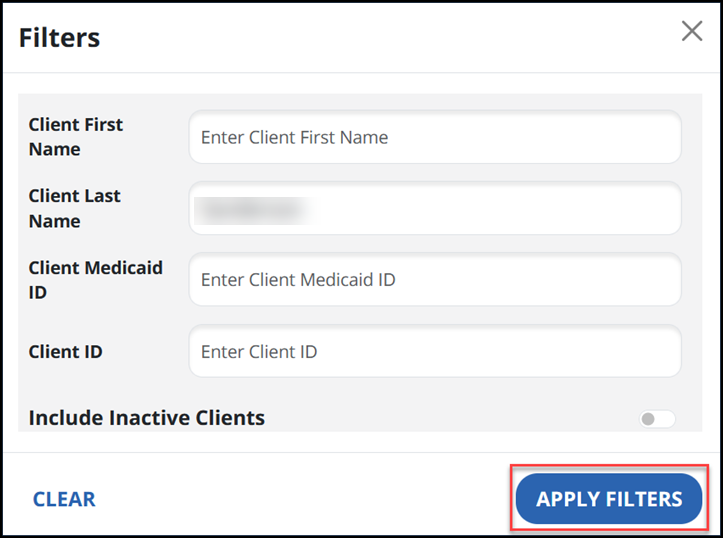
Turn on the Include Inactive Clients toggle if you need to include Clients with a status of Inactive in the search results.
-
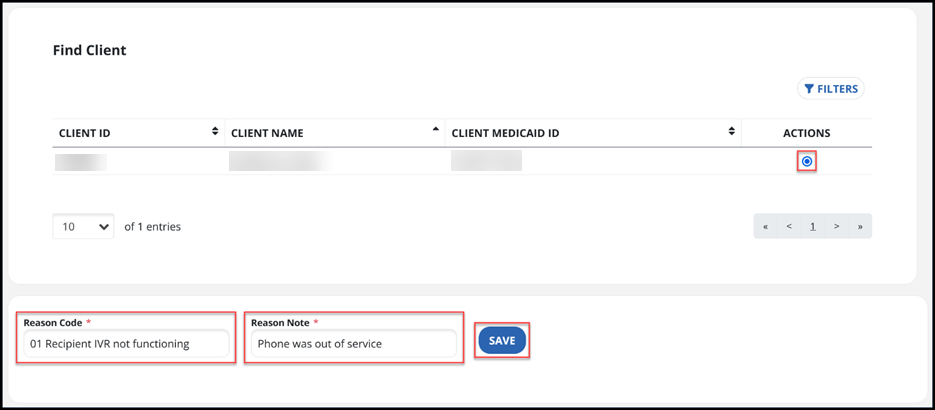
Select the Client under the Actions column. Then select the reason code and provide a reason note if required. Use the Save button to complete the update.
For programs that use the Reason Code field, this field is limited to 256 characters.
A service is the type of care provided to a client during a visit. Services are sourced from the authorization, the schedule, or the visit. Services entered on the visit should match the service to be billed, especially if EVV validation occurs during claims processing. If a visit is missing a service or has the wrong service, use this process to resolve the exception.
-
Select the red
button in the Service column. This is a display of a missing or incorrect service.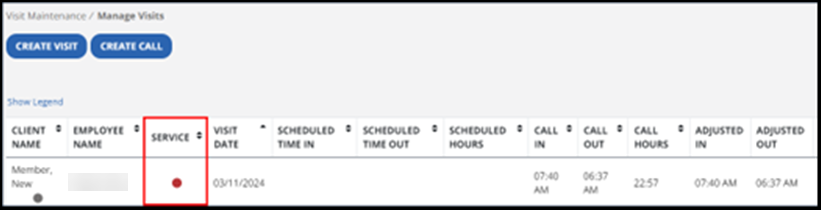
-
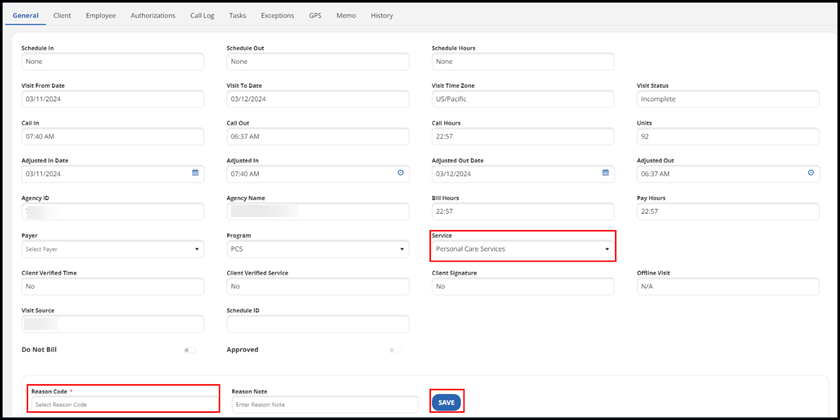
In the General tab of visit details, choose the correct Service for this client visit in the service dropdown field. For programs that use service, the service field is now required for creating manual visits.
-
Then select the Reason Code and enter a Reason Note, if it applies. Use the Reason Note field to add additional information about the visit. Some Reason Codes require a Reason Note.
For programs that use the Reason Code field, this field is limited to 256 characters.
-
Select the Save button. You can now view the service in the visit details.
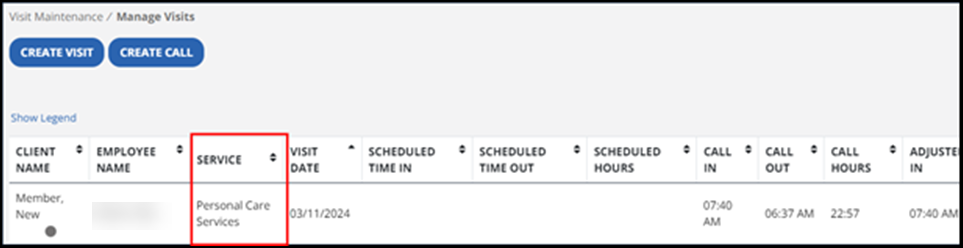
Depending on your set up, the service selected for the visit limits the tasks available to select.
-
Go to the Visit Maintenance feature and select the visit to view visit details.
-
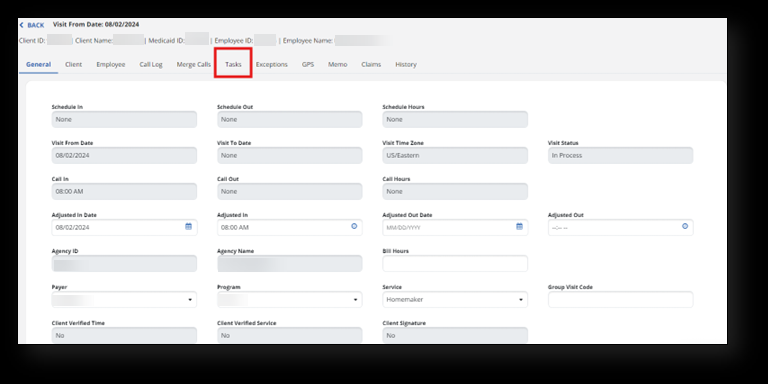
Next, select the Tasks tab inside visit details.
-
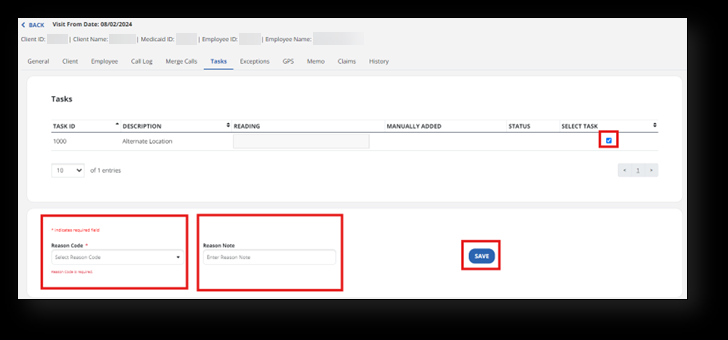
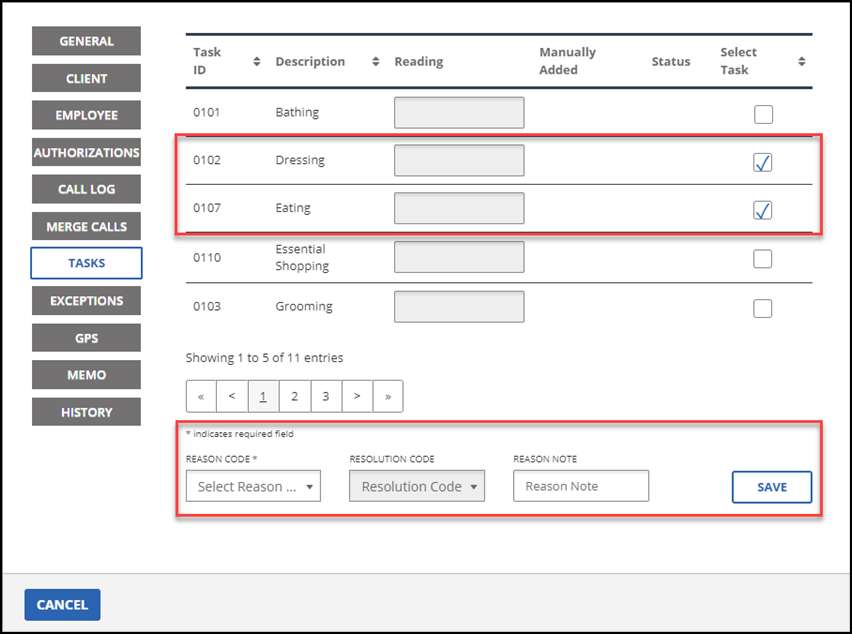
To add a task to a visit, select the checkboxes for each task that must be added to the visit. Select the correct reason code from the Reason Code dropdown menu and complete the Reason Note field.
For programs that use the Reason Code field, this field is limited to 256 characters.
-
Select the Save button.
-
To delete a task from a visit, deselect the checkboxes for each task.
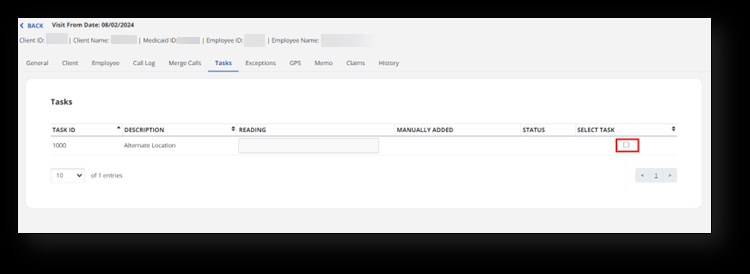
Multiple tasks can be selected and added to the visit using the same reason and resolution codes. If a reason is available for a task, it can be entered or dated here.
A message displays to confirm the action. The selected tasks are marked as complete and the Manually Added column displays “Yes” for any task you manually add to visits.
When an Employee calls in for a visit from an unknown Client number, or enters an invalid Client ID, the call will not link to a scheduled visit in the system. In this case, there may be a call in and call out for the same visit date with the same Employee, but one or both is missing the Client’s name. In this instance, the calls can be merged to resolve the exception.
-
From the Visit Maintenance page, select either the Call In or Call Out field.
-
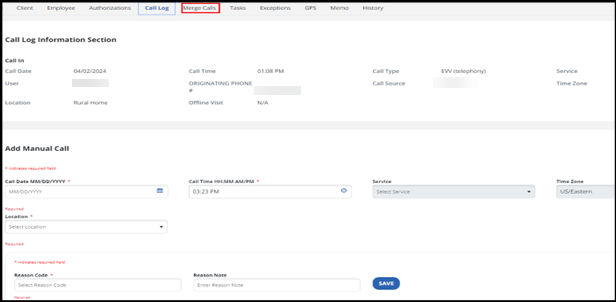
This will take you to the Call Log window. If the system detects separate calls that can be merged for a single visit, the Merge Calls tab displays. Select the Merge Calls tab.
-
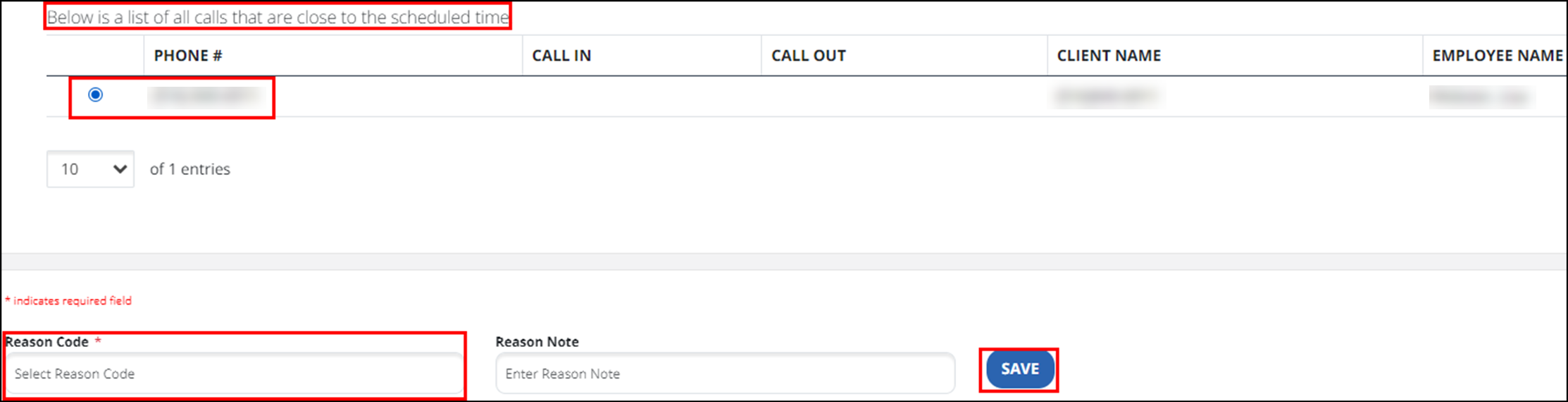
In the next window you will see a list of calls that are close to the scheduled time. Use the radio button to select the call to merge.
-
Next, select an option from the Reason Code field. Then complete the Reason Note field, if needed.
For programs that use the Reason Code field, this field is limited to 256 characters.
-
Select the Save button. You can now view the updated visit information in the Call Log.
The Create Call feature allows the user to create a call in Sandata EVV Enhanced for instances when a visit occurred, but the DCW/Employee did not call in or call out.
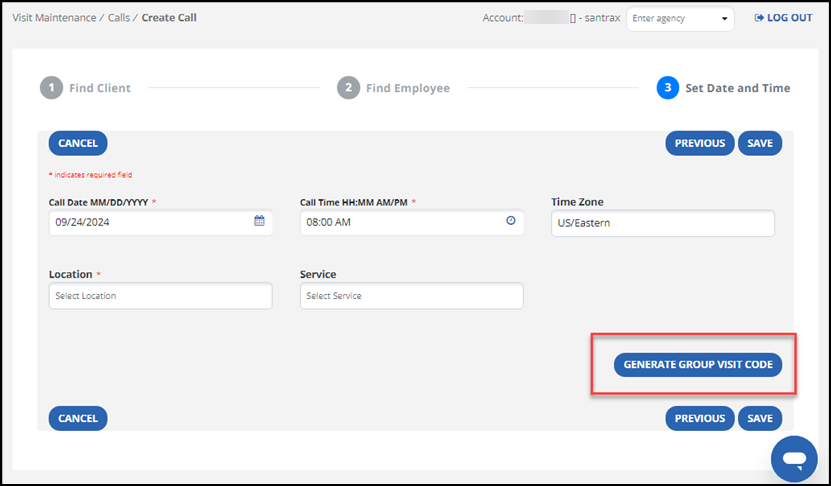
To create a group visit code:
-
Go to the Visit Maintenance feature, select the Generate Group Visit Code button to obtain a group visit number on the last step of the Create Call or Create Visit windows.
-
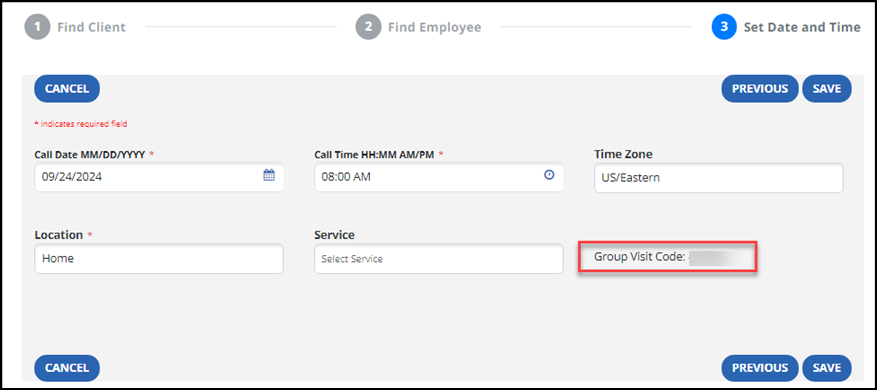
In the next screen of the Create Call window, the group visit code that was generated appears.
If a visit is linked to an incorrect group visit or was supposed to be part of an existing group visit, the group code can be edited.
To edit a group visit code:
-
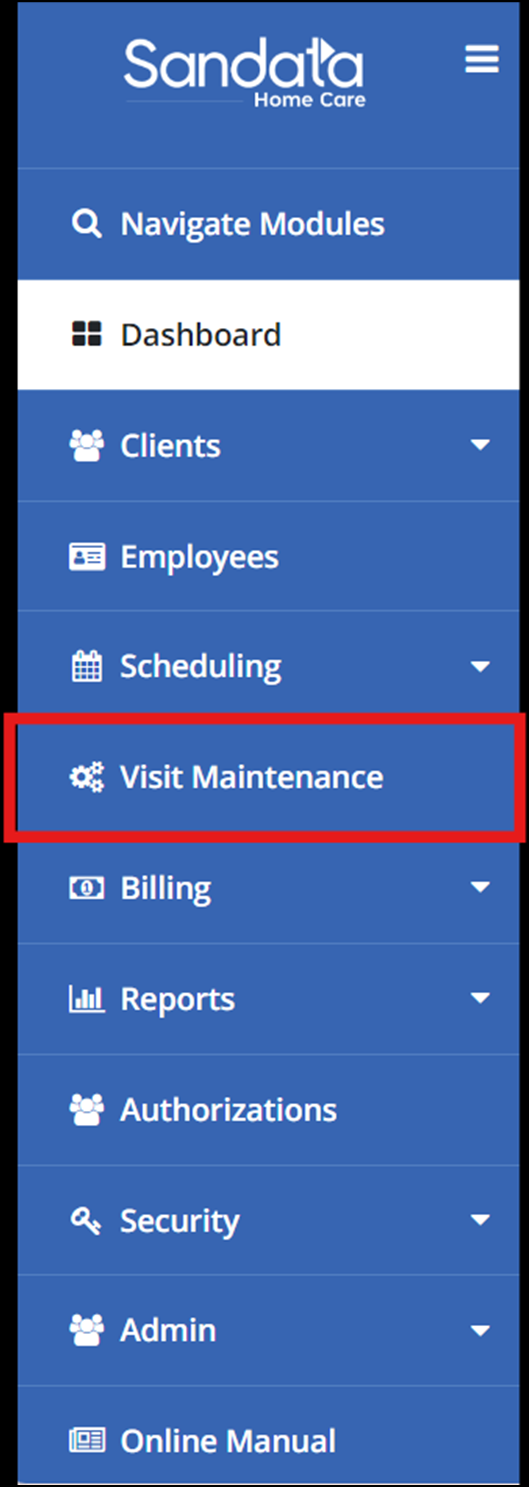
Go to the Visit Maintenance page.
-
Select the visit to view visit details.
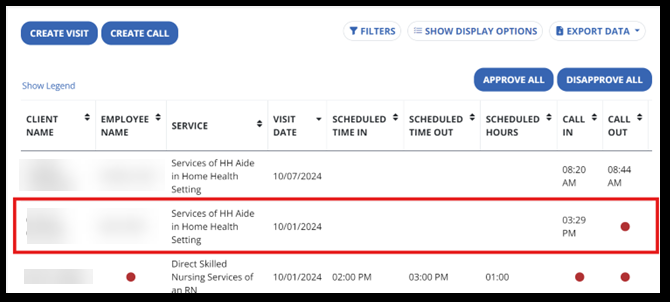
-
Find the group visit code on the General tab.
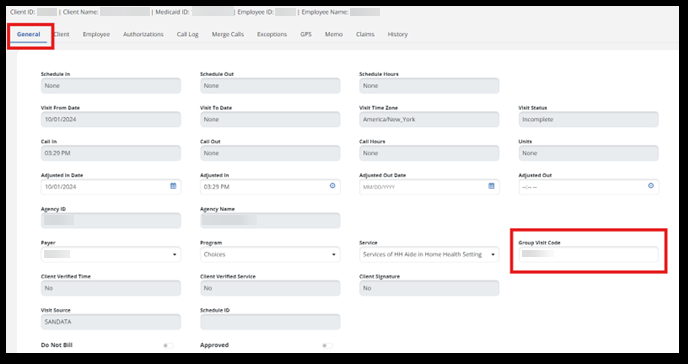
-
Enter the correct group visit code and select an option from the Reason Codedropdown menu.
For programs that use the Reason Code field, this field is limited to 256 characters.
-
Select the Save button.
By default, only certain information is displayed on the Manage Visits page under Visit Maintenance. To select which fields display:
-
Go to the Visit Maintenance page and select the Show Display Options button.
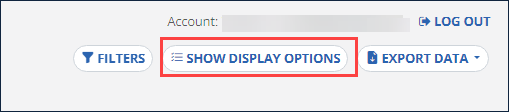
-
Next, choose from the display options shown, then select the Save button.
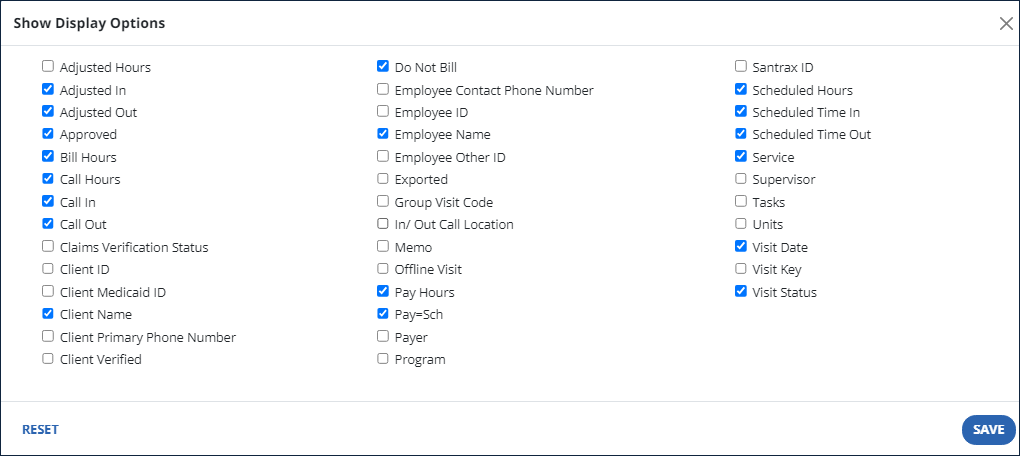
The available fields in the Manage Visits view are as follows:
Field Description Adjusted Hours The time elapsed between the adjusted in and out times. Adjusted In The manually entered call in time, when provided. Adjusted Out The manually entered call out time, when provided. Approved A checkbox indicating whether the visit was approved. Bill Hours The total bill time for the visit. This value is automatically calculated based on the call in/call out times. (Format HH:MM) Call Hours The time elapsed between the call in and out in minutes. Call In The call in time (Format: AM/PM). Call Out The call out time (Format: AM/PM). Claim Verification Status If the account is configured for claims validation and the visit was successfully returned to the claims adjudication engine at least once, this displays a ‘Y’. Otherwise, an ‘N’ is displayed. Client ID The assigned ID. Client Medicaid ID The client’s Medicaid ID. Client Name The Client’s name (Format: last name, first name). Client Primary Phone Number The Client’s primary phone number. Client Verified If the Client has fully verified the visit, including all configured confirmations (time, service, signature), this will show a ‘Y’. Otherwise, an ‘N’ is displayed. Do Not Bill Selecting this check box flags the visit as omitted. Visits with this status are not available for claims validation. Employee Contact Phone Number The Employee’s phone number. Employee ID The Employee’s ID. Hover over this item to view additional Employee information. Employee Name The Employee’s name (Format: last name, first name). Exported Displays an indicator that identifies whether a visit was exported. ‘Y’=the visit has been exported, ‘N’=the visit has not been exported. NOTE: This indicator does not display if the visit was exported via a data warehouse export. Group Visit Code Displays the code generated for a group visit. Memo Displays the first few characters of an entered memo on the Visit Details window to indicate there is a memo attached to the visit. The full memo is displayed on the Memo tab of the Visit Details window. Payer The Payer associated with the visit. Program The program associated with the visit. Santrax ID The Employee’s Santrax ID. Scheduled Hours The total number of scheduled hours for the visit. Scheduled Time In The scheduled start time of the visit. Scheduled Time Out The scheduled end time of the visit. Service The service selected or scheduled for the visit. Supervisor The Client’s assigned supervisor. Tasks Displays the number of tasks entered. Detailed task information is displayed on the Tasks tab of the Visit Details window. Units The number of units for the visit. Visit Date The date the visit started. Visit Status The status of the visit as scheduled, incomplete, in process, or verified. Red and Orange Dot Icons
The dots are used throughout the results list and indicate one or more exceptions for the related field. Select the dot to open the Visit Detail window to the appropriate tab. Hover over this field to show all currently applied exceptions related to this field.
NOTE: If the column related to the exception is hidden, users can only view that exception on the Exception tab of the the Visit Detail window. Red exceptions must be fixed. Orange exceptions must be acknowledged. Select Show Legend to learn more about the colors of these dots.
Blue Square Icon
This symbol is used throughout the results list and means the Client on this visit had an FVV device assigned to them when the visit was started. The serial number of the device is displayed on the Client tab of the the Visit Detail window. This information can be used to understand why the No Show status may be applied to a visit, as calls from an FVV device are generally logged by the system after the visit ends. Select the Show Legend link to learn more about reading the visit grid.