Scheduling

To ensure accurate visit records and a smooth experience for Caregivers and Clients, please follow these guidelines when using the Scheduling feature:
Do: Schedule Visits Accurately
-
Scheduling Caregivers in advance ensures the Client appears in the Sandata Mobile Connect app when the Caregiver is ready to clock in. This helps avoid the need to select the “Unknown Client” option, which can lead to errors or delays in visit verification.
-
Always schedule visits to reflect the Caregiver’s expected clock-in and clock-out times.
-
To learn how to create a repeating schedule, see the Create a New Schedule Create a New Schedule topic.
Don’t: Schedule 24-Hour Visits Unless Necessary
-
Avoid scheduling a visit for 24 hours a day unless the Caregiver is a live-in Provider.
-
For standard shifts, use the actual expected duration of the visit. Overstating the time can cause issues with visit verification and compliance.
You can create visit schedules for your Clients, either for one visit or for recurring visits. You can also add an employee to the schedule. When using the Sandata Mobile Connect app, Caregivers can simply clock in to a scheduled visit.
To create a new schedule:
-
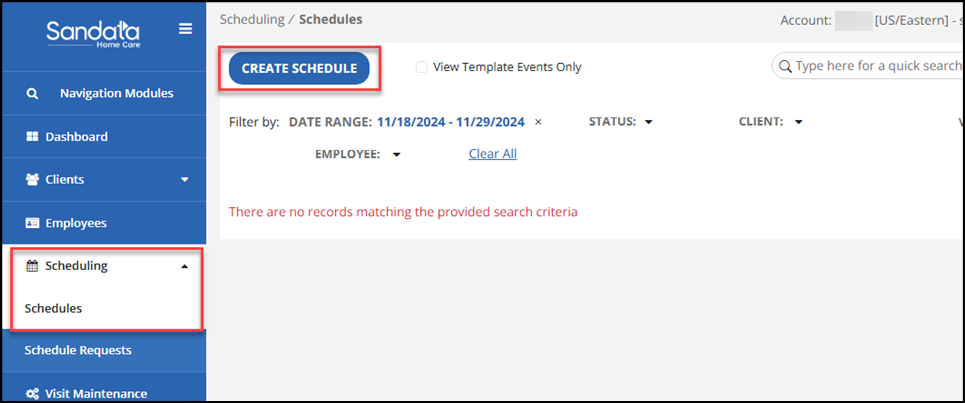
Go to the Scheduling feature, select the Create Schedule button.
-
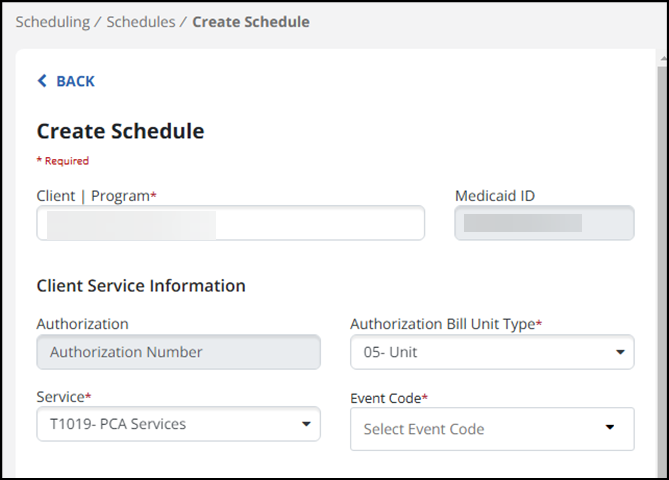
Once you start typing a Client’s name in the Client field, you can select that client and see their service and authorization information. Select a Bill Unit Type, Service and Event Code (required fields).
-
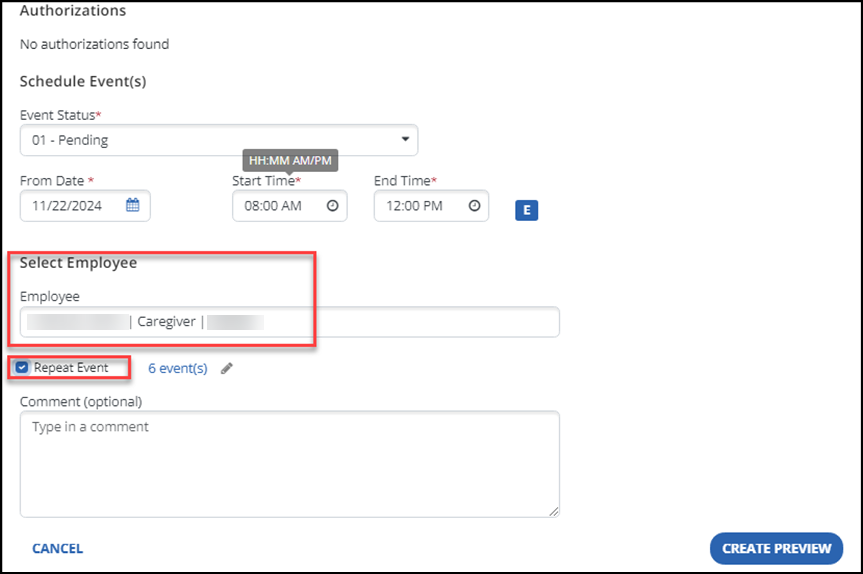
Enter the date, and start and end times. The event is in pending status until it occurs, and then the status updates to Confirmed.
-
Begin typing in the employee that is scheduled for this visit and select the employee name .
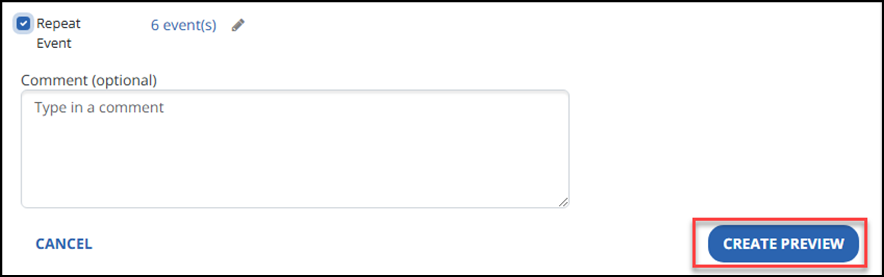
If this is a recurring event, check the Repeat Event checkbox.
-
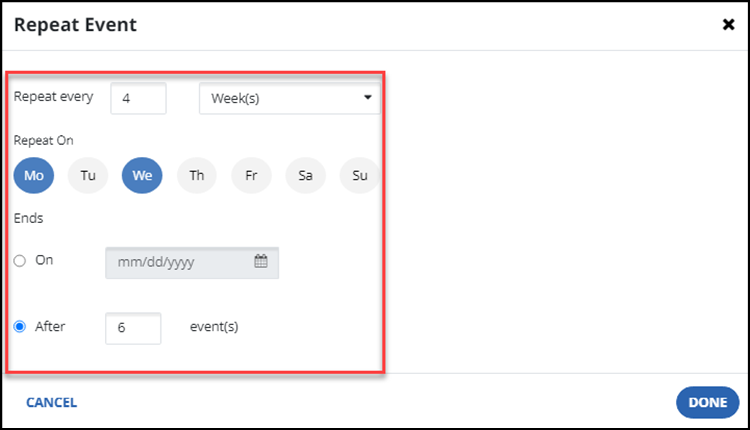
When you select the Repeat Event checkbox, the pop up window allows you to choose the recurrence and the days of the week the visits should occur. Once entered, choose the Done button.
-
Select the Create Preview button.
-
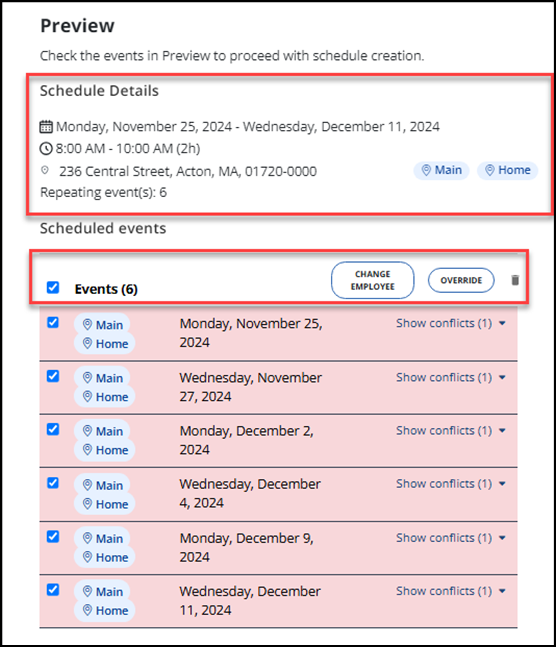
Preview the schedule details. Any scheduling conflicts will show, and you can change the employee or Override. Respond to any conflicts, and then save the changes. This creates all the schedules that are selected in the Schedule Review section.
-
To view or edit this schedule, go to the Schedule or Client page and select the Scheduling tab.
When rescheduling a Client visit, the schedule should be edited by updating the date, times, or employee. Complete the following steps to edit a schedule:
-
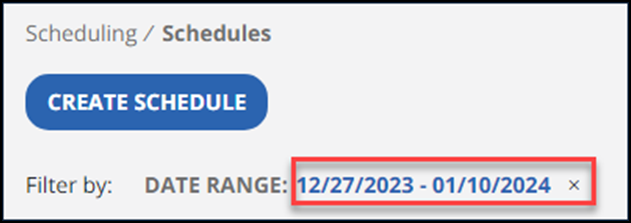
Go to the Scheduling page to find a list of all scheduled events. Select an event from the list or start by clicking on the Date Range option to filter by date. You can also filter by Client or Employee.
-
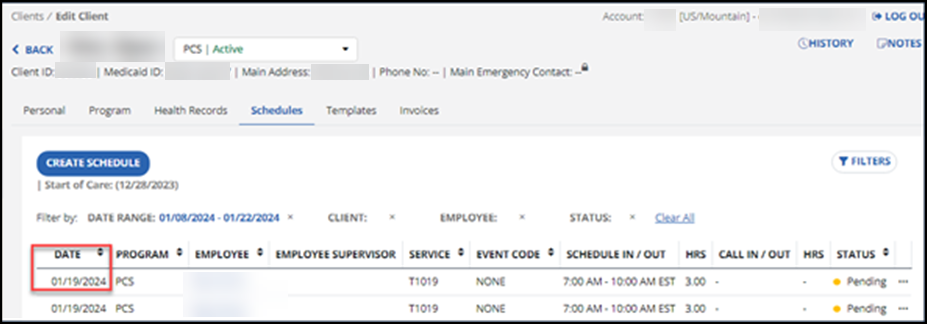
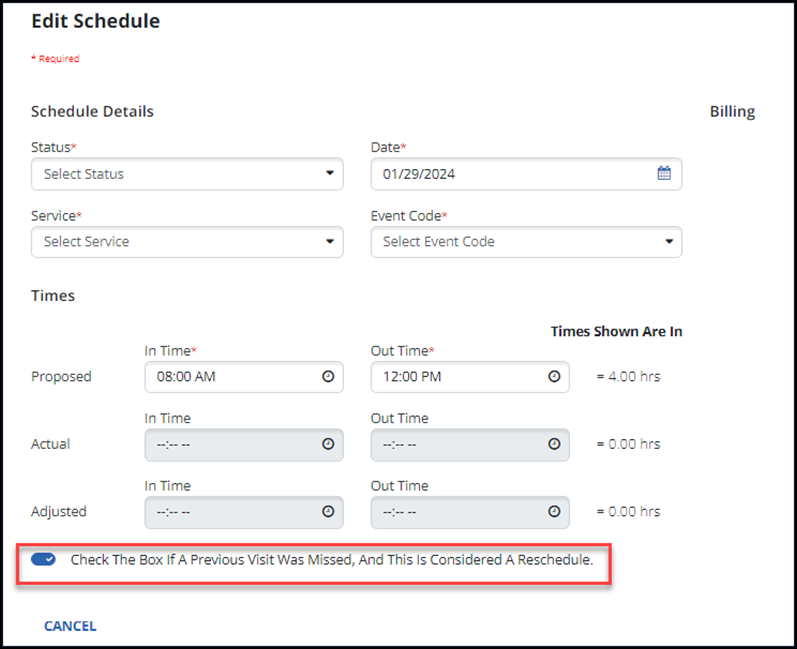
Next, select the date of the event to open the Edit Schedule window.
-
Then use the dropdown menus to update schedule details. Complete the Times section for the rescheduled event. Use the toggle if the previous visit was missed and this is considered a reschedule.
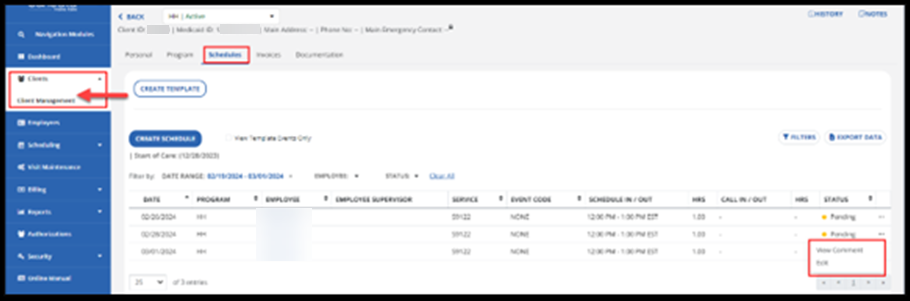
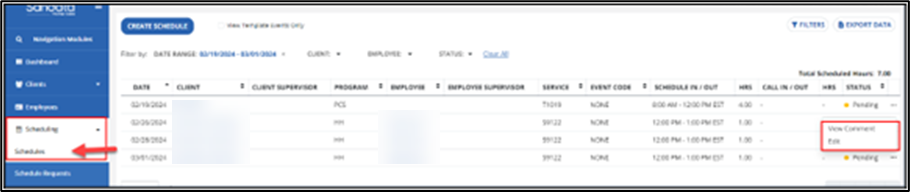
A schedule can be canceled using either the Client Management feature or the Scheduling feature. Complete the following steps to cancel a schedule.
-
Go to the Client Management or Scheduling page and use the 3 dots menu to choose the Edit option. You may also choose other fields (except for Employee or Client name) to edit the schedule.
-
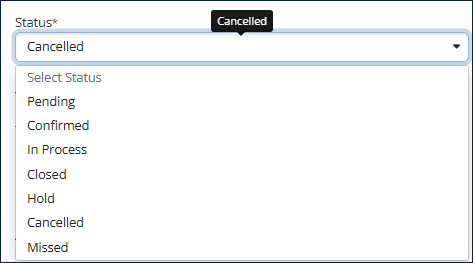
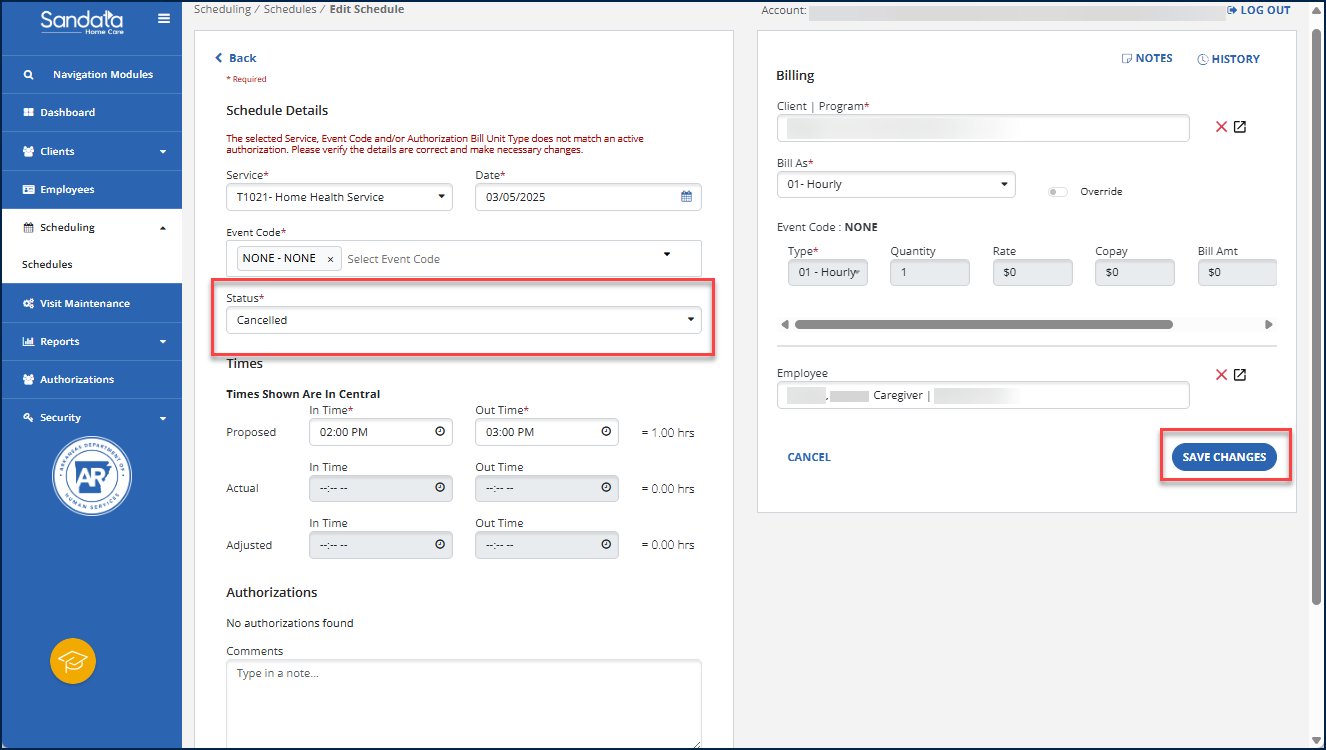
On the Edit Schedule window, select the Status dropdown menu.
-
Choose Cancelled from the Status dropdown menu then select the Save Changes button.
-
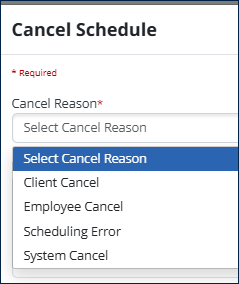
Next, on the Cancel Schedule window, choose a reason from the Cancel Reason dropdown menu.
-
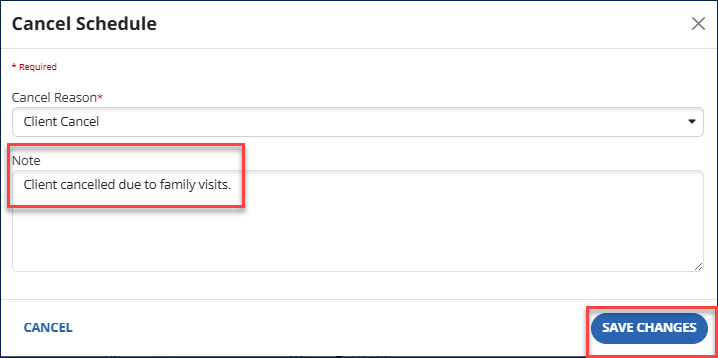
Enter an optional note about the cancel reason, then select the Save Changes button.
Edit multiple scheduled visits at once using the Batch Edit feature on the Scheduling page. This is helpful when an Employee or service needs to be changed on more than one scheduled visit. To edit multiple schedules in a match:
-
Go to the Scheduling page.
-
Use the quick filters to narrow the search for a Client’s schedule.
-
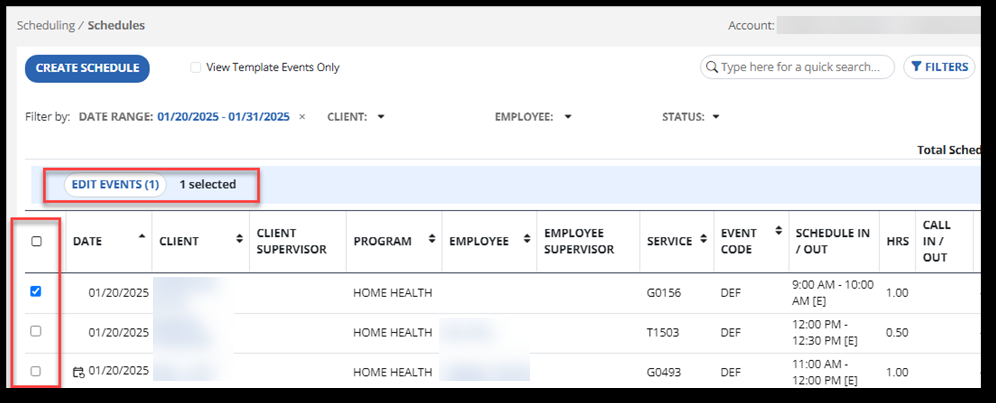
Select a schedule or schedules using the scheduled visit(s) checkboxes or select the box in the column header to select all visits in the display. The Edit Events button appears.
-
Next, select the Edit Events option. The number in parentheses shows how many events will be edited in this process.
-
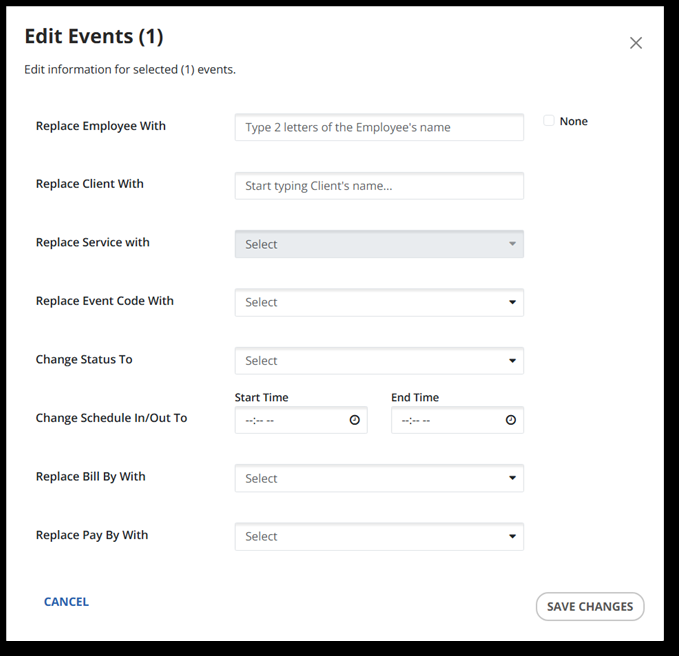
In the Edit Events window, edit the fields that need to be adjusted for the selected visits. Employee, Client, Service, and Start Timeand End time fields can be edited, among others.
-
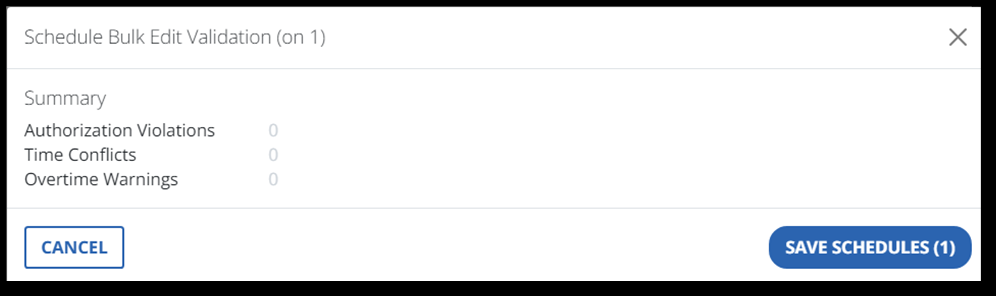
Select the Save Changes button. You will then see a notification with any conflicts caused by the change. No conflicts are indicated in the Summary window image below.
-
Next, review the Summary window and select the Save Schedules button to accept. The visit(s) now update with the new information. If there are conflicts to resolve, choose the Cancel button to make additional adjustments.
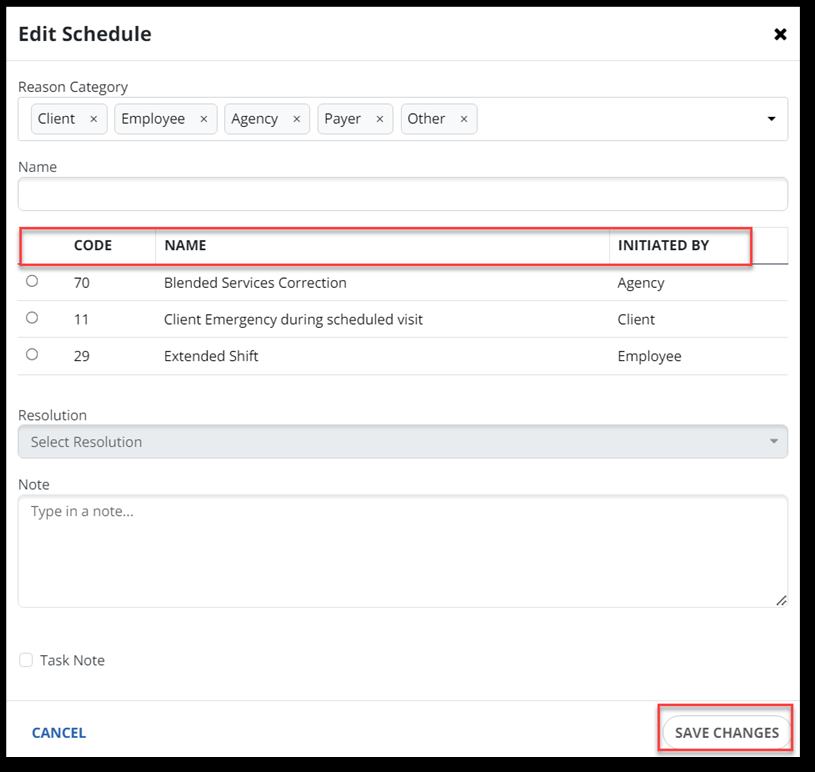
If your program requires a reason code for the schedule change, choose a reason category and the reason code for the change. Notice the Code, Name, and Initiated By columns when you select an option for Reason Code. If needed, choose the resolution reason and add notes, then select the Save Changes button.
You can set up recurring schedules by using the Templates tab in a Client profile. This will allow you to schedule each day of the week by time and by Employee. Using recurring schedule templates makes scheduling easy when there are Clients with a consistent schedule.
-
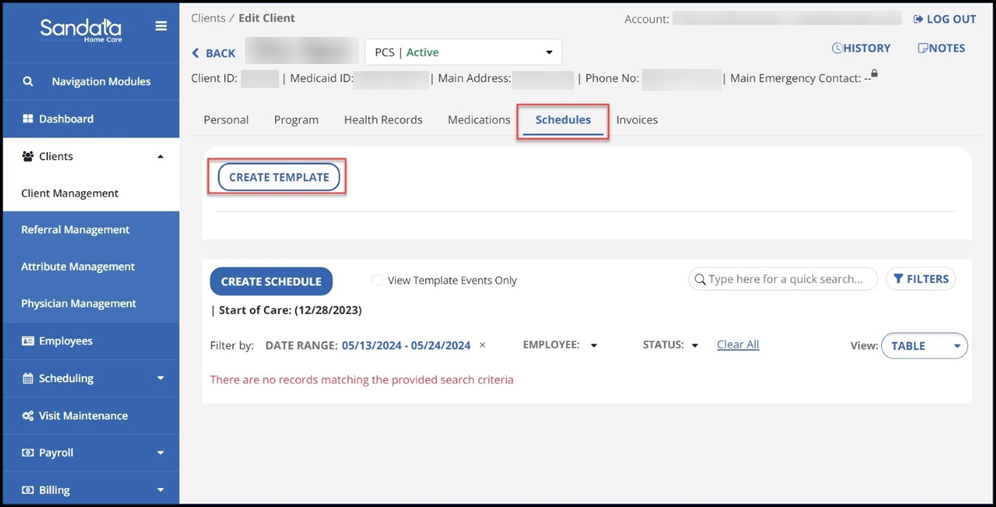
Go to the Client profile and select the Schedules tab.
-
Select the Create Template button.
-
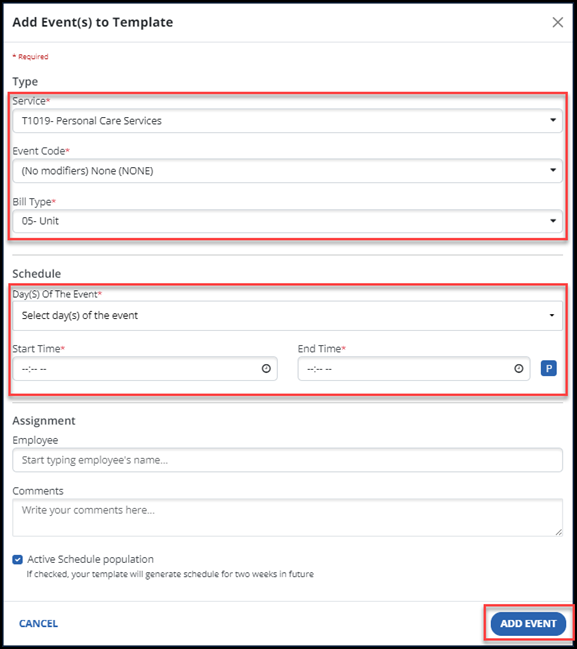
Choose the service to be provided during the visit, the event code, and bill type. Next, select the day(s) of the event and select the start time and end time. You may enter an Employee for this schedule, but an Employee is not required to create a template.
-
Select the Add Event button to generate the schedule template for two weeks into the future.
The schedules will be created for the following week and not the current week. For example, if you create a schedule template on Tuesday, the schedules will be created starting the following Monday.
-
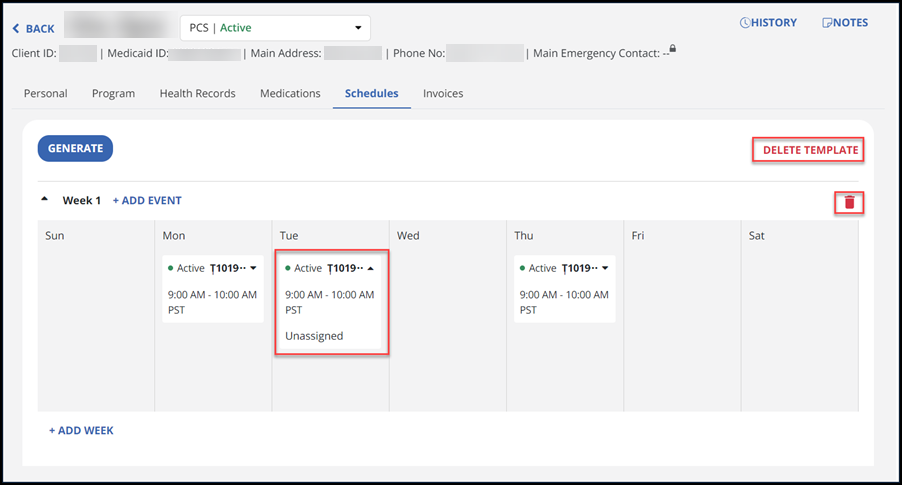
Your event has now been created as a template. If you would like to delete the entire template, select the Delete Template option. If you would like to delete a schedule you created for a week (i.e., week 1), select the trashcan
 icon. for that week.
 -
To expand a day’s schedule, select the arrow on the calendar date. Notice an employee was not assigned in the image below.
-
Select the Add Event option to add another service to be scheduled. Select the Add Week option to create another week in the template.
-
To repeat this schedule for following weeks, select the Generate button to begin creating weekly schedules for this Client.
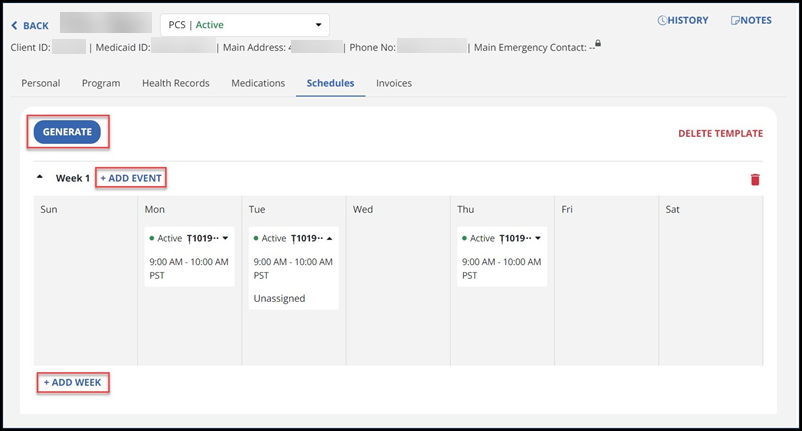
Then, choose the end date for this schedule template. Once the end date is chosen, select the Generate button.
Go to the Scheduling page to view and edit all schedules.