Sandata Run Reports

There are multiple reports available within Sandata. You have access to a set of reports based on your roles and permissions. When reports are generated, they can be saved in a variety of file formats.
To run a report:
-
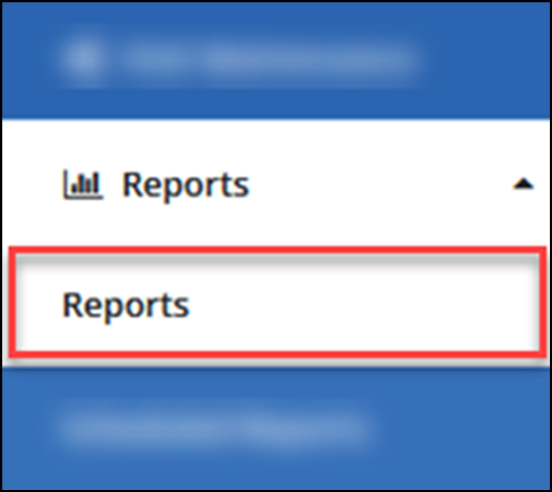
Select the Reports dropdown from the menu, then open the Reports feature.
-
Reports are organized into categories. Hover over the report you want to run.
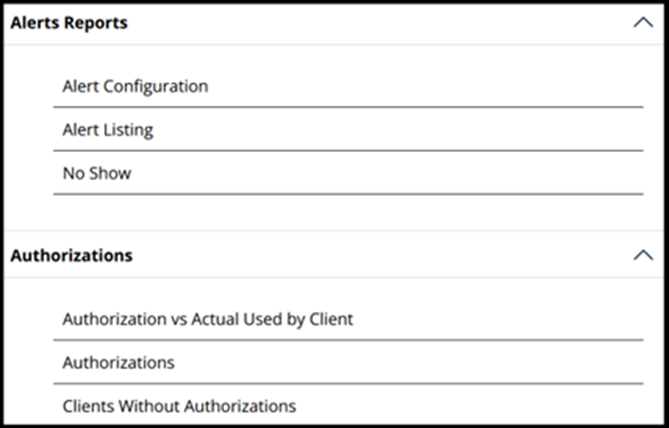
If needed, the list of reports can be collapsed into categories. Select the button to collapse the list. Select the category header to expand reports under that category.
-
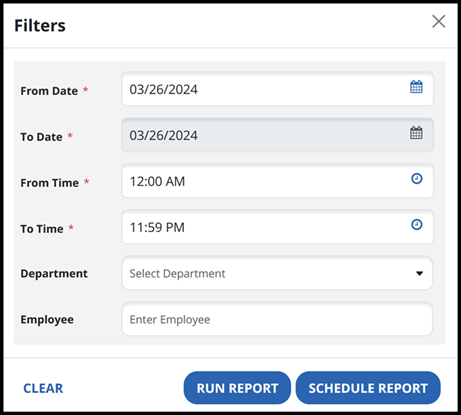
In the Filters window, enter info in the fields to provide specific reporting data.
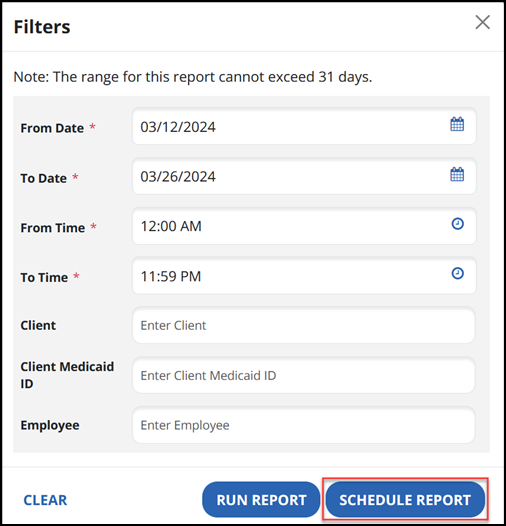
For reports that are for a single day, the default From Date is always the current day’s date and the To Date field is unavailable. For reports that allow a range of dates, the default To Date will be the current day’s date and both the From Date and To Date can be set to a date range.
-
Enter any additional filters for the report such as a Client, Program, or Employee. Each report has its own set of filters. Using filters will limit the report to matching results.
-
Select the Run Report button to preview the results.
-
If you want to review the results, you can look through the report with the page control buttons.

-
You can also search for a specific word using the search field. Enter your search term in the search field, then select Find to see the results. Select Next to proceed through the results.

-
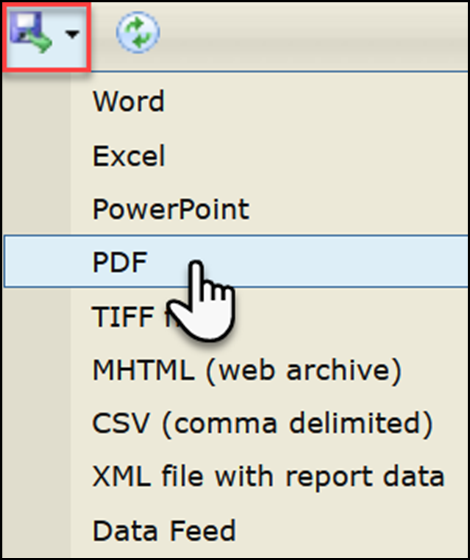
To export the results, easily export to an Excel spreadsheet with the Export to Excel button or use the Save button to select from a variety of file formats.
When scheduling reports a timeframe and any other filters are entered and the date and time the report will run is selected. After the report runs, an email notification is sent saying the report is ready to download.
To schedule a report:
-
Select the Reports dropdown from the menu, then open the Reports module.
-
Select a report to run.
-
Enter Filters for the report, including the timeframe. Select the Schedule Report button.
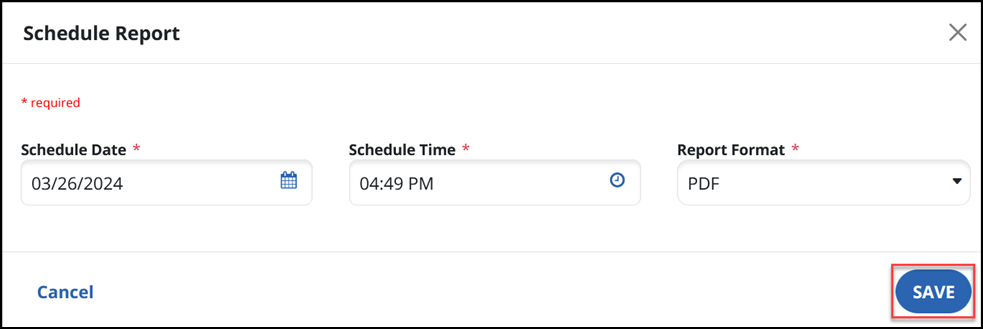
Enter the date and time when the report is being scheduled and select the format for the report. The format can be either an Adobe Acrobat (PDF) file, or an Excel spreadsheet. Use the Save button to continue.
-
After the report runs at its scheduled time, the results can be downloaded from Scheduled Reports.
-
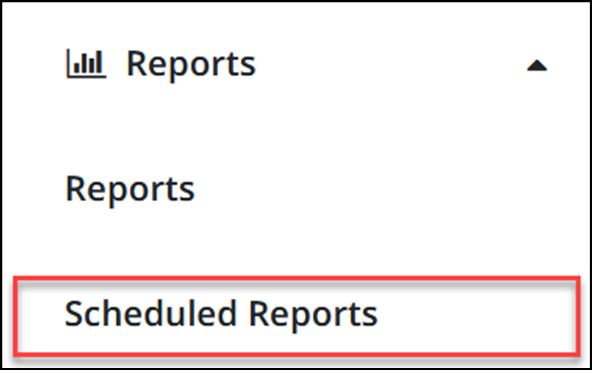
Open the Reports dropdown from the menu, then select Scheduled Reports.
-
If a scheduled report has been completed, a download icon
 appears in the Actions column on the line for the report. Select the download icon to download the results.
Some Sandata EVV features have an Export Data dropdown menu that can be used as a reporting method. After applying any needed filters, use the Export Data dropdown to quickly export search results such as client, employee, or visit maintenance information to a downloadable file.
-
Apply filters that you want to report on.
-
Open the Export Data dropdown menu.
-
Select the format to use for the export. The exported file will download to your browser.
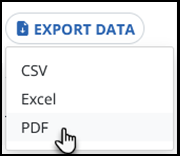
The formats available for export vary by module, and may include CSV, Excel, and Adobe Acrobat (PDF).