Plan of Care

A Client’s Plan of Care is set to integrate with the Sandata Mobile Connect app so that the Caregiver can see the services and tasks for the Client. If a Client does not already have a Plan of Care, a plan can be created as shown here.
Only one Plan of Care can be created per Client.
To create a Plan of Care:
-
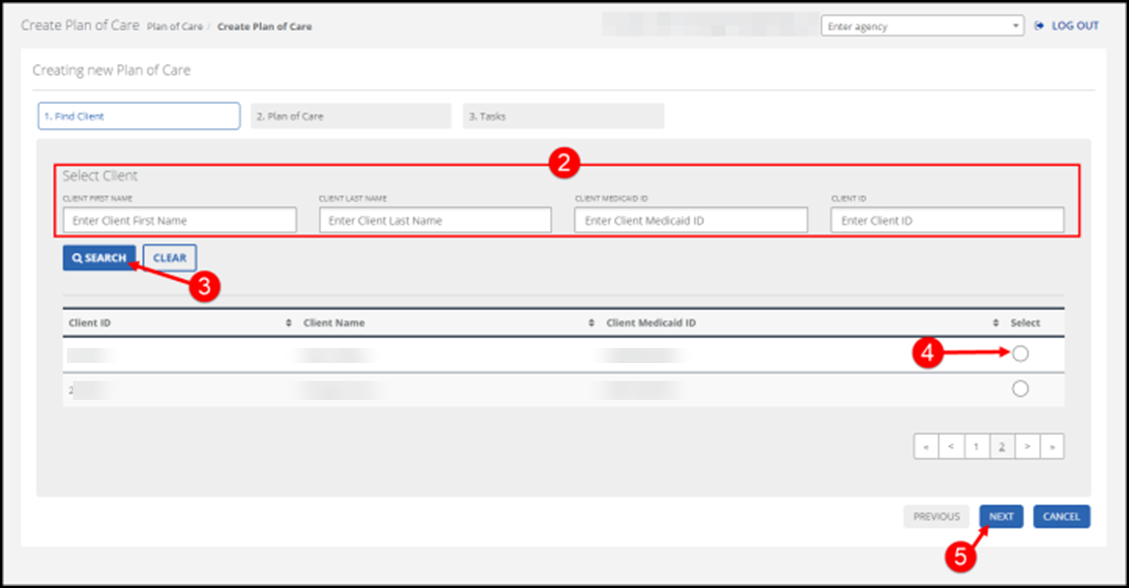
Go to the Creating New Plan of Care window under Plan of Care > Create Plan of Care.
-
Complete the search fields to find the Client and select the Search button.
-
Select the Client radio button in the Select column. Then select the Next button.
-
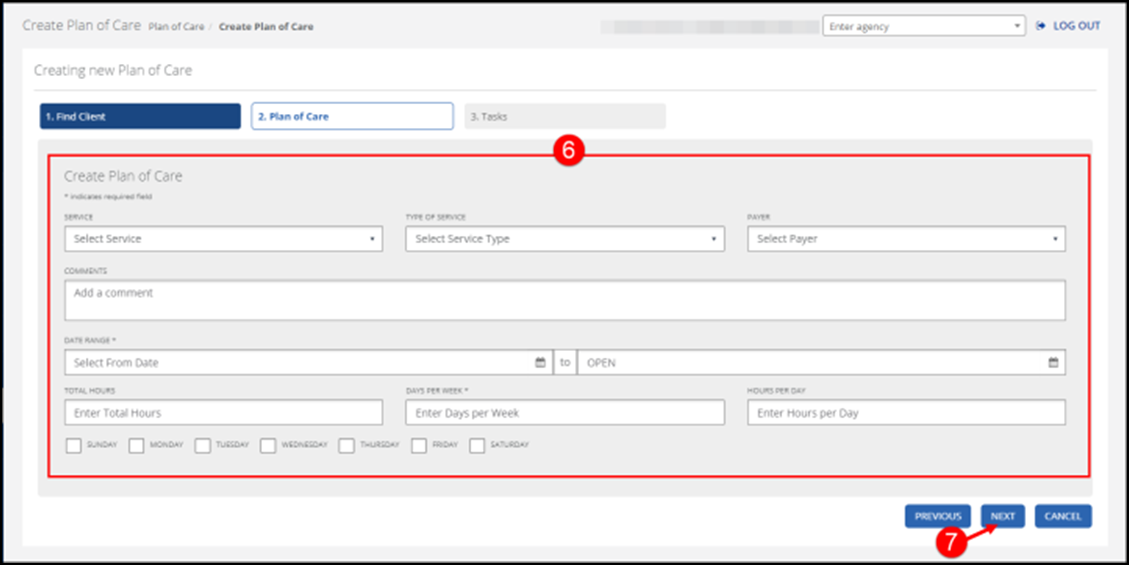
Complete all applicable fields on the Plan of Care tab.
The Days of the Week field will automatically populate based on the days of the week selected. The Total Hours field will automatically populate based on the Hours Per Day field and the days of the week selected. For example, 6 hours per day x 4 days selected = 24 total hours.
-
Next, select the Next button.
-
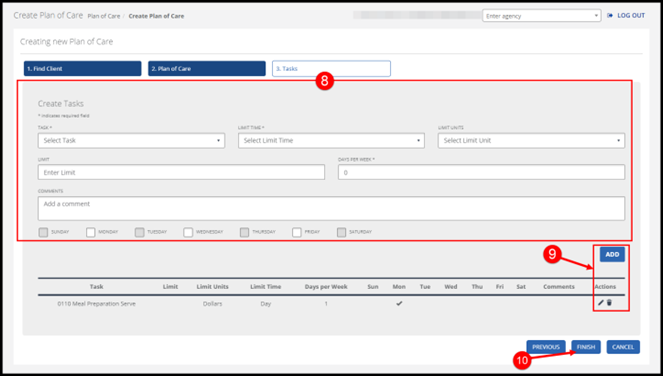
Complete all applicable fields on the Tasks tab.
-
Update tasks using the Add button, edit icon, or remove icon.
The Plan of Care can be saved with no tasks or limit time entered.
-
Select the Finish button.
Make sure a Client's Plan of Care is current in EVV is essential, by editing the service hours, the days of the week, or the date range.
To edit a Plan of Care:
-
Go to the Editing Plan of Care window under Plan of Care. Search for the Plan of Care and select the edit
 icon.
icon. -
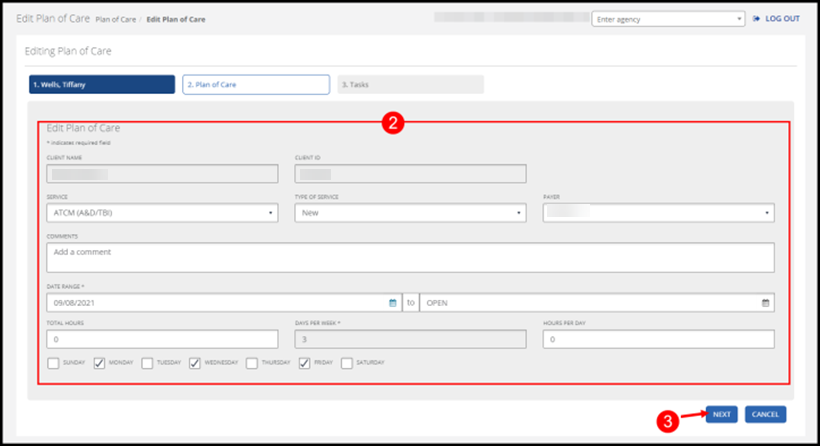
Change the desired fields on the Plan of Care tab.
The Client Name and Client ID fields cannot be changed.
-
Select the Next button.
-
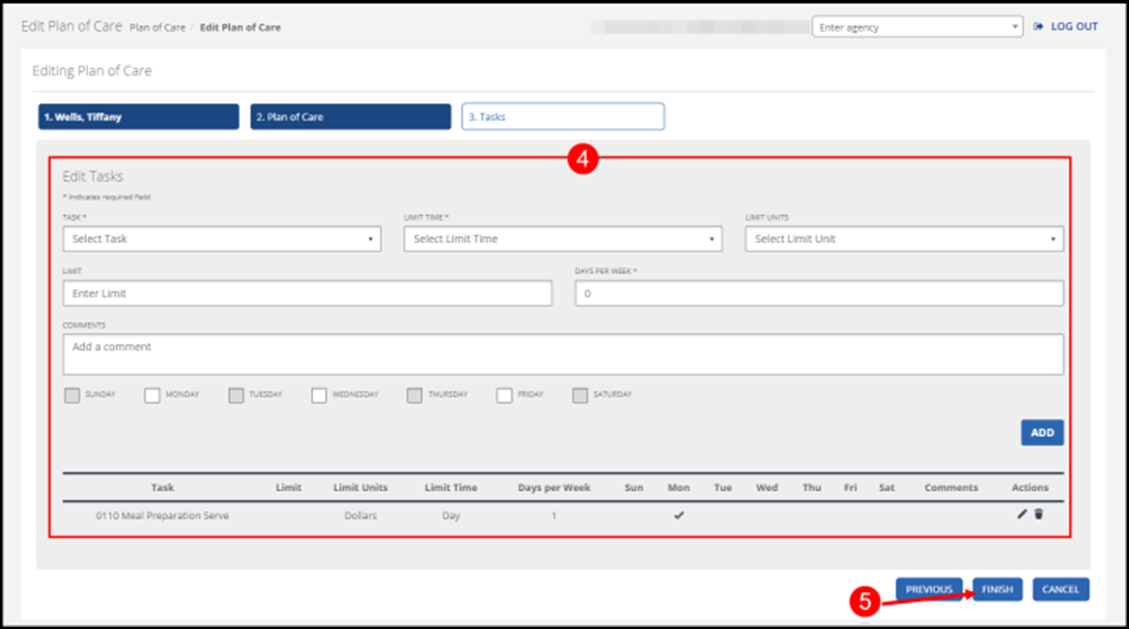
Select the Add button, edit icon, or trashcan icon to update tasks. The Plan of Care can be saved with no tasks or limit time entered.
-
Select the Finish button.
A Client’s Plan of Care is included in the Sandata Mobile Connect app so the Caregiver can see the services and tasks for the Client. Once the Plan of Care is found, it can be viewed, edited, or deleted.
-
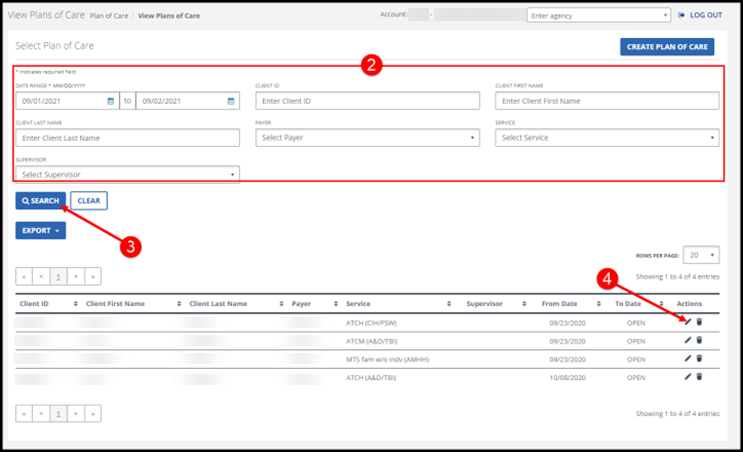
Go to the View Plans of Care page under Plan of Care.
-
Enter the search criteria and select the Search button.
-
Select the edit
icon to view the Creating New/Editing Plan of Care page.Searching with no criteria selected displays a complete list of all Plans of Care which are active for the selected date range.