Create a Visit
If available, use the Create Visit function when there are no calls or schedules for a visit that occurred. For example, if the employee forgot to call in and out you would create the visit using Create Visit. This feature is used to create visits that have happened and cannot be used to create visits in the future.
-
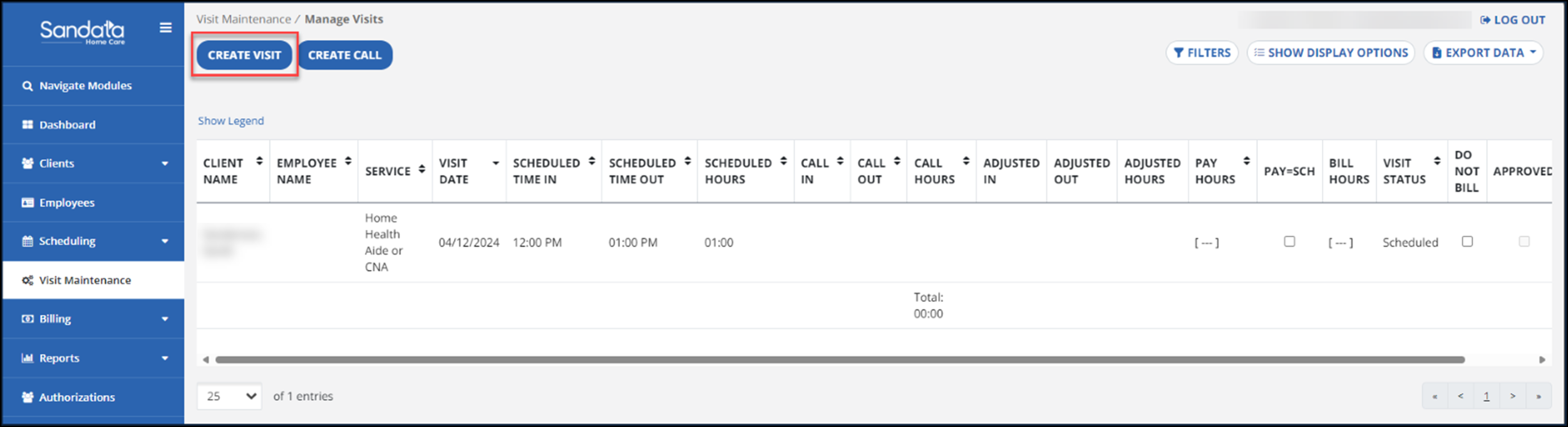
On the Visit Maintenance page, select the CREATE VISIT button.
-
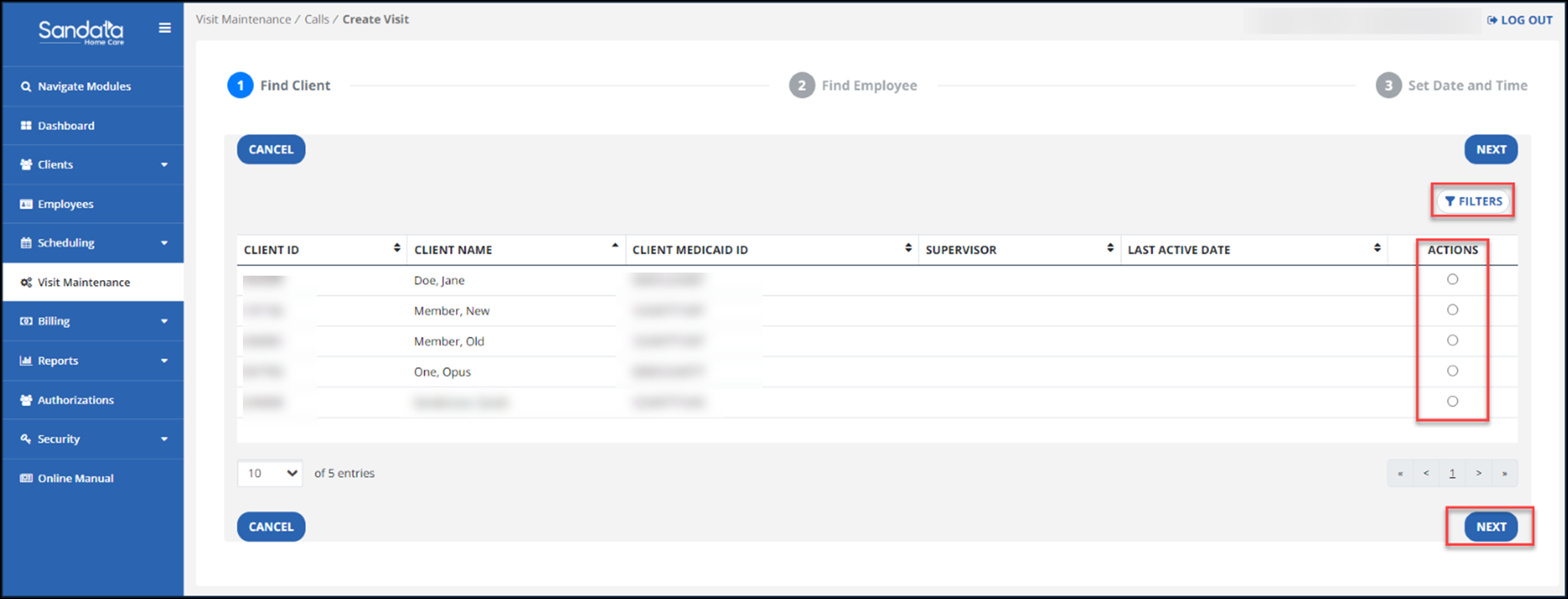
Use the column filters to search for the client. In the search results, select the button for that client under the ACTIONS column. Then select the NEXT button.
-
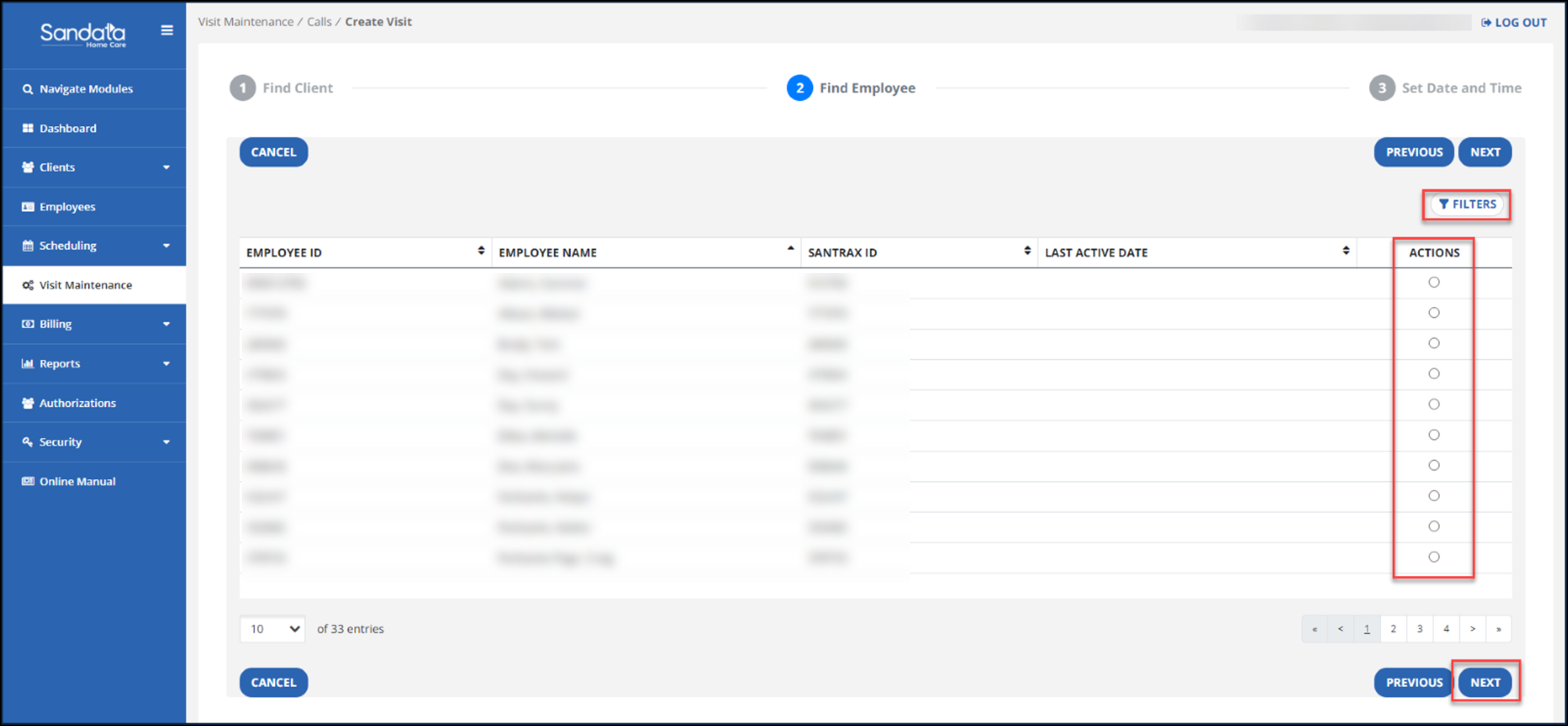
Next, use the column filters to search for an employee. Under the ACTIONS column, select the employee. Select the NEXT button.
-
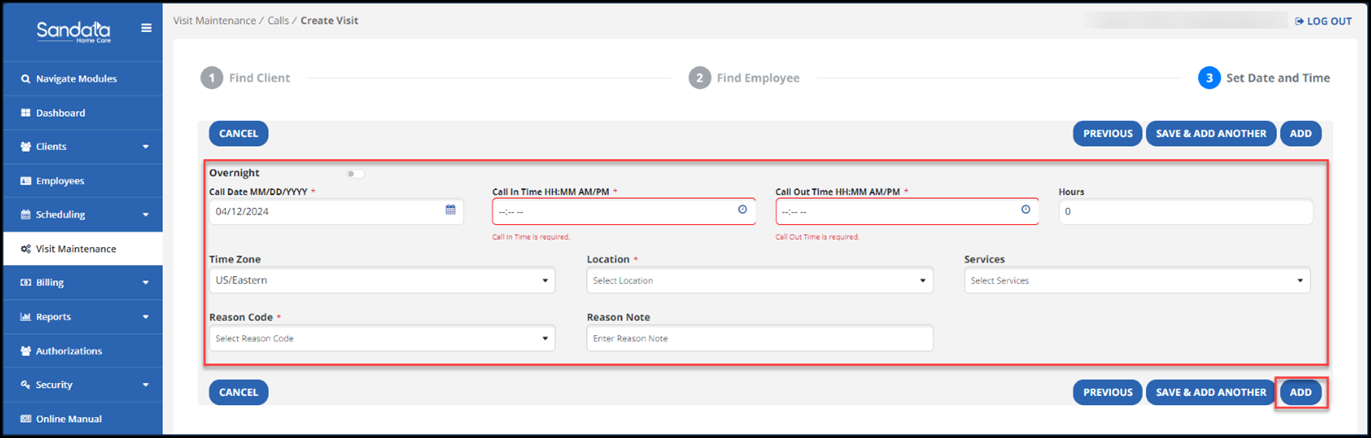
On the next screen, complete the required fields and enter information, including call Date and call times, location, and service, if available (if your program uses the Service field, it is now required for creating manual visits).
-
Next, enter the reason code and select the ADD button.
For programs that use reason note, the Reason Note field is limited to 256 characters.