Edit a Client Status
When a Client is brought into the system, or when a new Client is added, the default status is “pending.” The status must be edited to schedule visits for the Client. Complete the following steps to edit a Client's status.
-
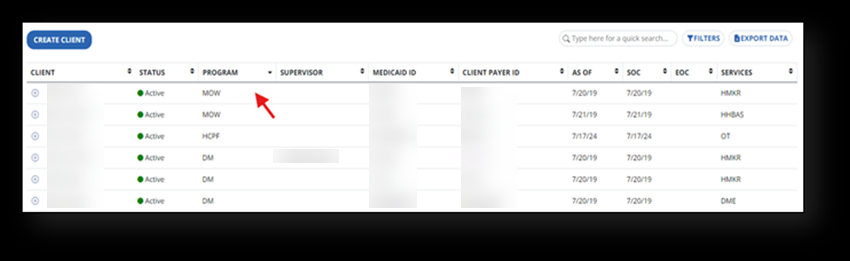
From the Client's module, select the Client by clicking in the blank space in the row of the client’s name to enter the Client's profile (do not select the plus sign to open the profile).
-
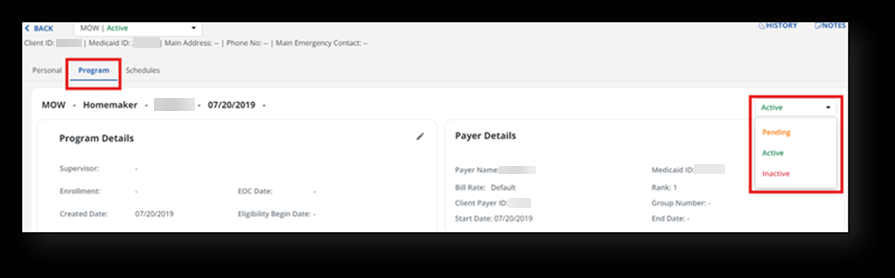
Inside the client's profile, select the Program tab and choose the correct status from the dropdown menu. The status options in the system are Pending, Active, and Inactive.
-
Complete the necessary fields.
When changing the status to Pending:
-
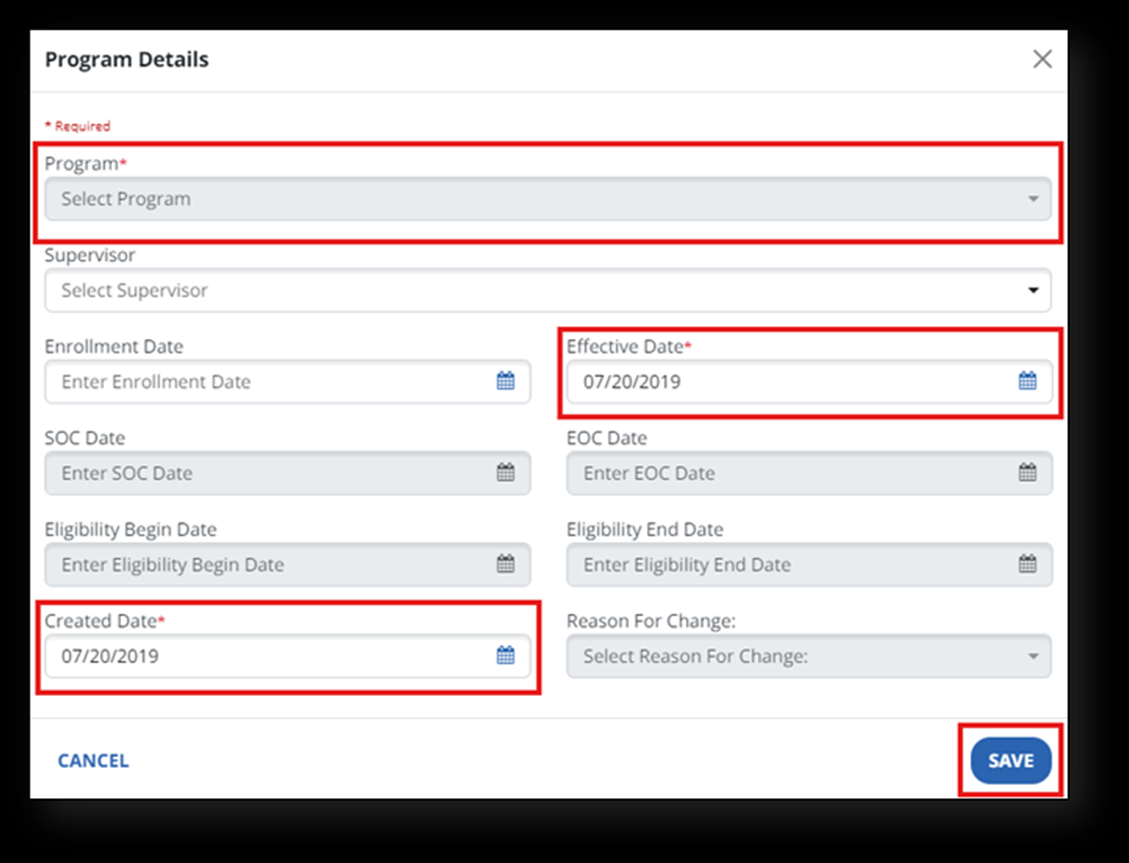
Select an option from the Program dropdown menu
-
Complete the Effective Date and Created Date fields. Include any other information that may not be required to have as many change details recorded. Select the SAVE button.
When changing the status from Inactive:
-
Select an option from the Program dropdown menu
-
Complete the Effective Date, Created Date, EOC Date, Created Date, and Reason for Change fields.
When changing the status to Active:
-
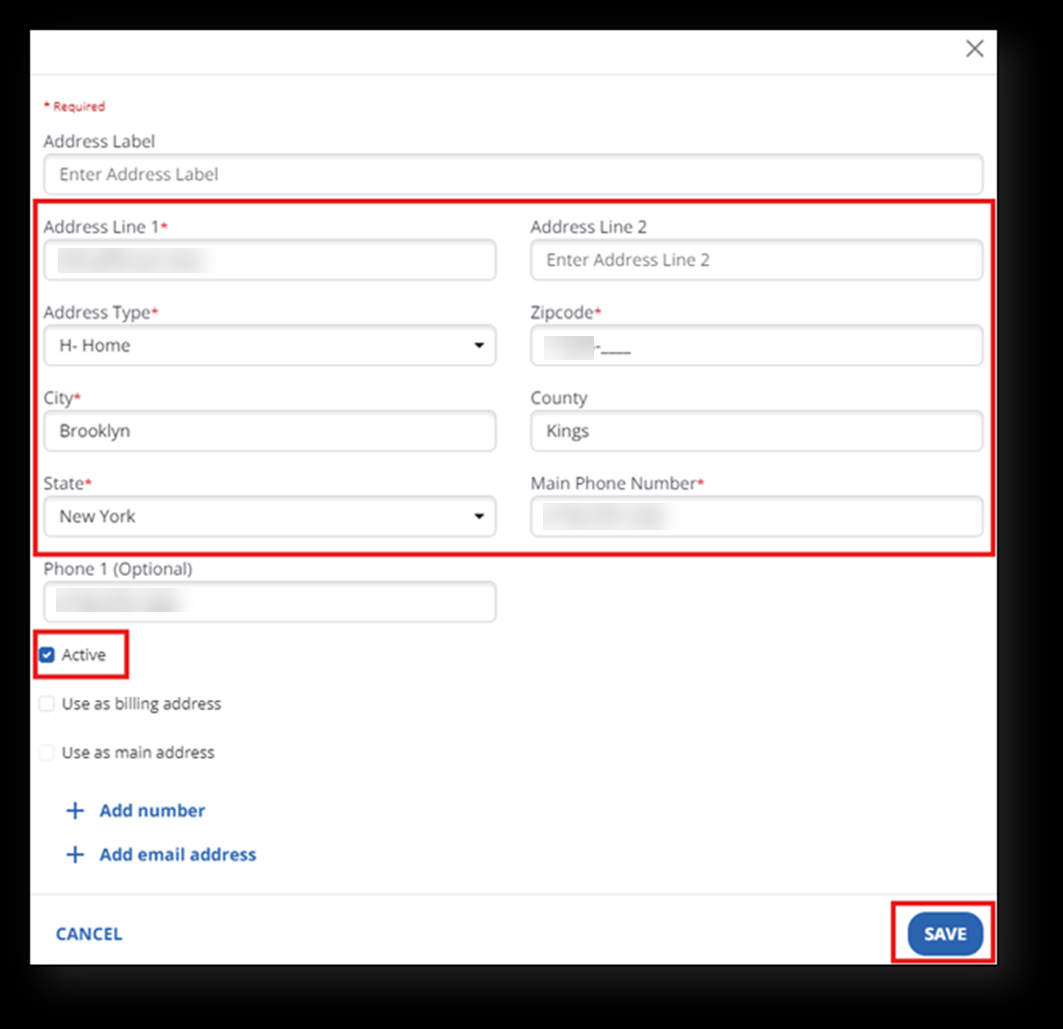
Complete the Address Line 1, Address Type, Zip Code, City, State, and Main Phone Number fields. Most of this information is already completed. This is a chance to verify the information.
-
Select the Active checkbox and select the SAVE button.
-