Add or Edit Recurring Schedule Templates
You can set up recurring schedules by using the Templates tab. There you can schedule each day of the week by time and employee. Using recurring schedules makes scheduling easy if you have Clients with a consistent schedule. To add or edit a recurring schedule template:
-
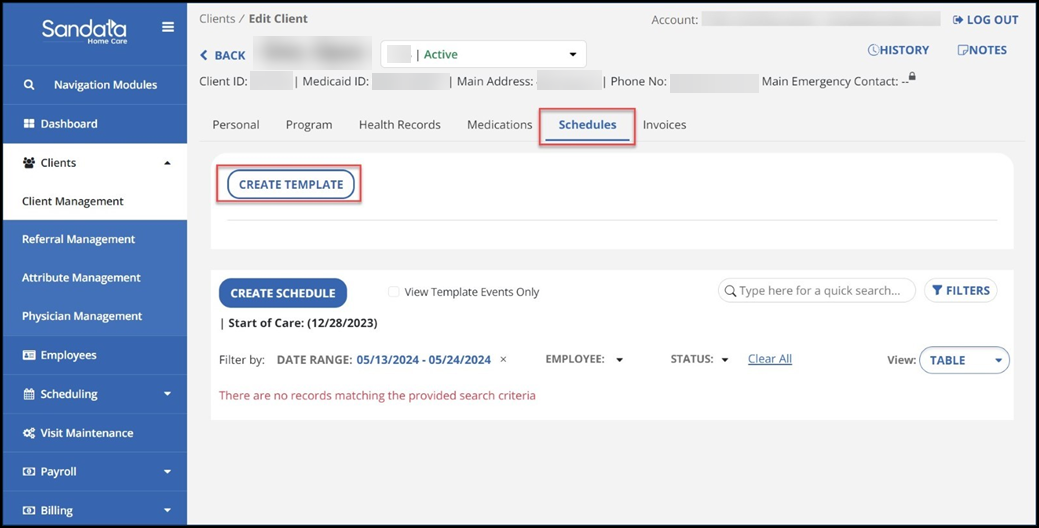
Go to the profile under Clients. Search for and open a Client's profile and select the Schedules tab.
-
Select the CREATE TEMPLATE button.
-
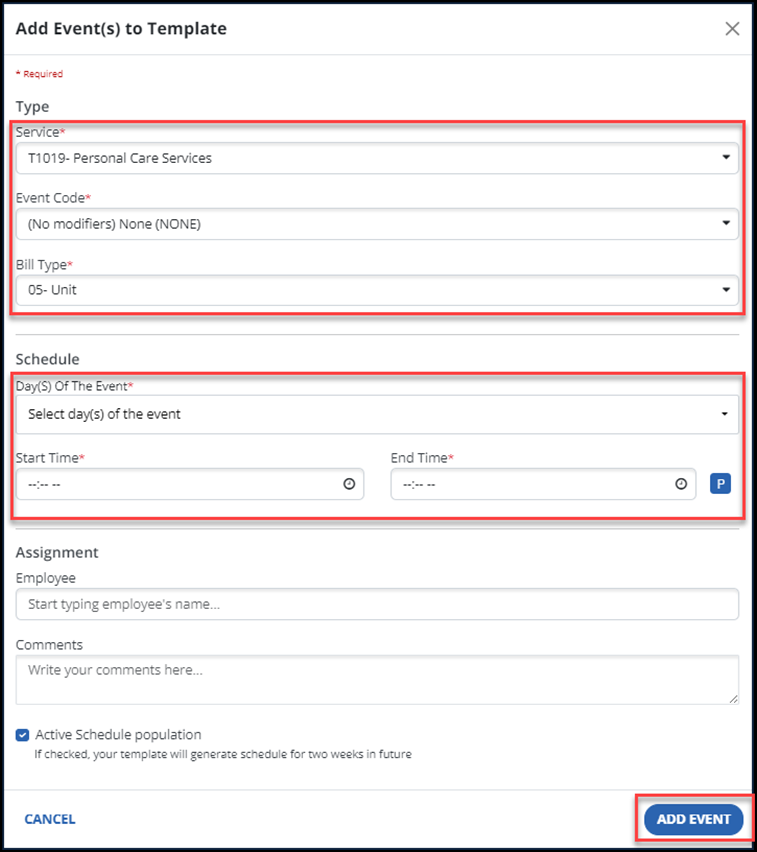
Choose the service to be provided during the visit, the event code, and bill type. Next, select the day(s) of the event and select the start time and end time. Notice that an employee does not have to be selected at this point in the process. An employee is not required for a template to be created.
-
Select the ADD EVENT button to generate the schedule template for two weeks into the future.
The schedules will be created for the following week and not the current week. For example, if you create a schedule template on Tuesday, the schedules will be created starting the following Monday.
-
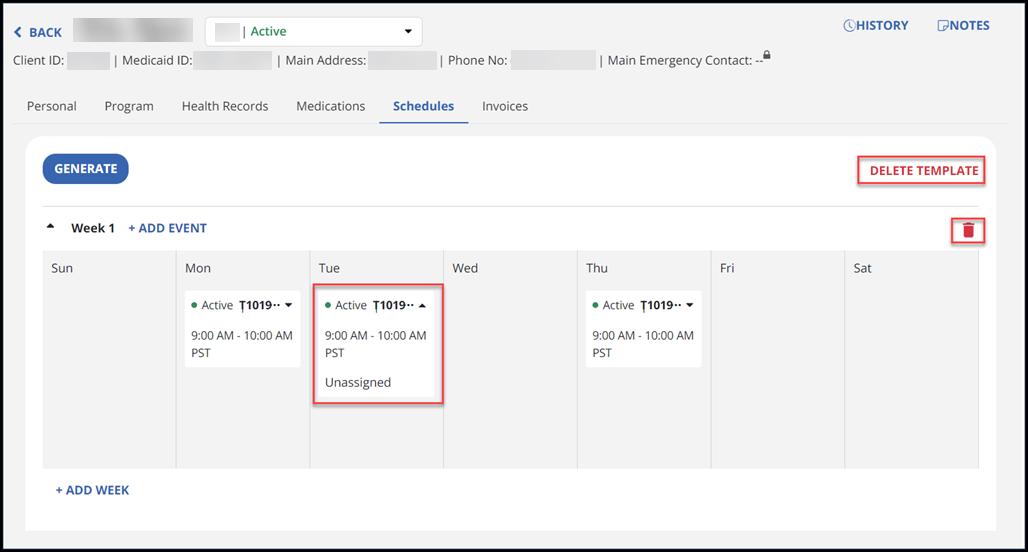
The event is now created as a template. To delete the entire template, select the DELETE TEMPLATE option. To delete a schedule you created for a week (i.e., week 1), select the trashcan icon
 .
. -
To expand a day’s schedule, select the arrowhead on the calendar date. You’ll notice an employee was not assigned (see Tuesday’s expanded schedule below).
-
Select the ADD EVENT option to add another service to be scheduled. Select the ADD WEEK option to create another week in the template. Select the GENERATE button to begin creating recurring schedules for this Client.
Be sure the template is under the correct day of the week column. For example, if a template is created under the Tuesday column, when the schedules are generated, that template creates schedules on Tuesdays.
-
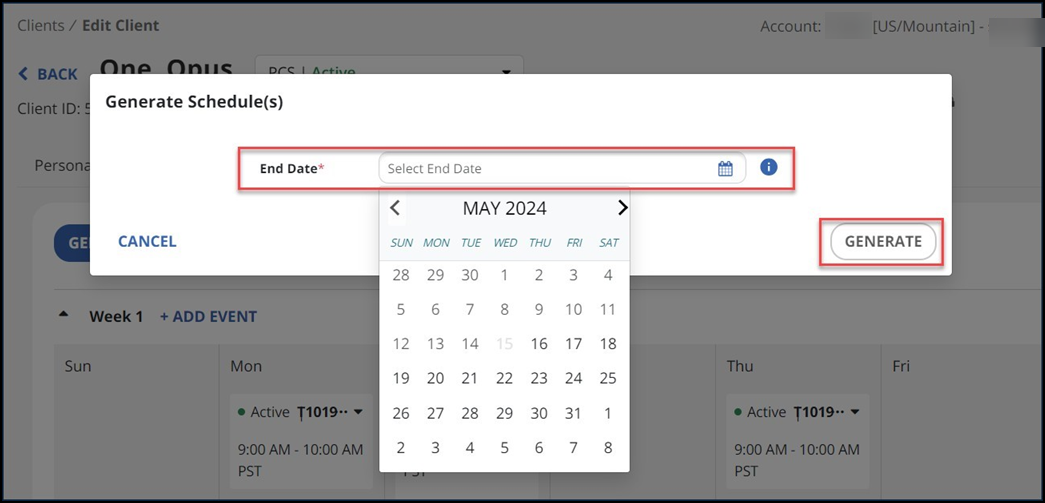
Then, choose a date from the End Date field for this schedule template. Once the end date is chosen, select the GENERATE button.
To edit a recurring schedule template, go to the Schedule feature.