Edit Client Profile
Edit an existing Client to make a change to a Client’s profile.
-
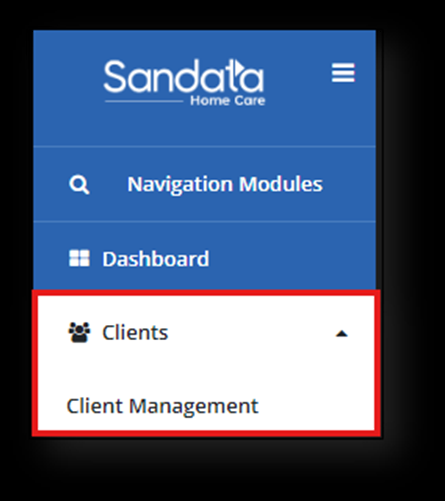
Select Clients to open the dropdown menu, then select Client Management.
-
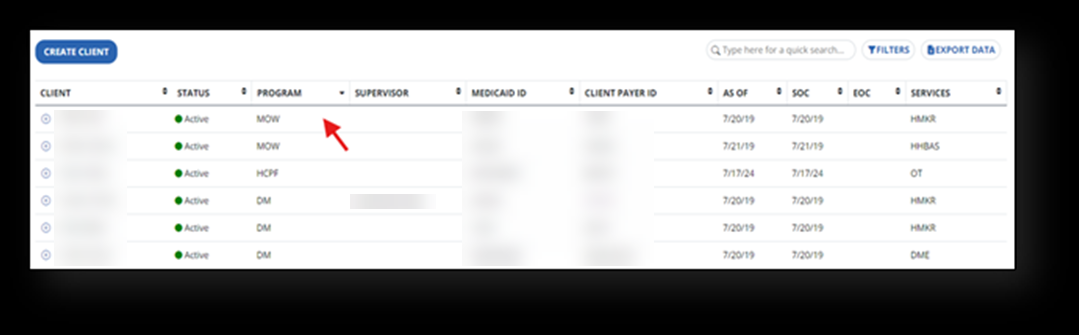
Select the Client by clicking in the blank space in the row of the Client’s name to enter the Client's profile (do not select the plus sign to open the profile).
-
Select the pencil icon
 , ADD CONTACT button, or three dots
  to make edits.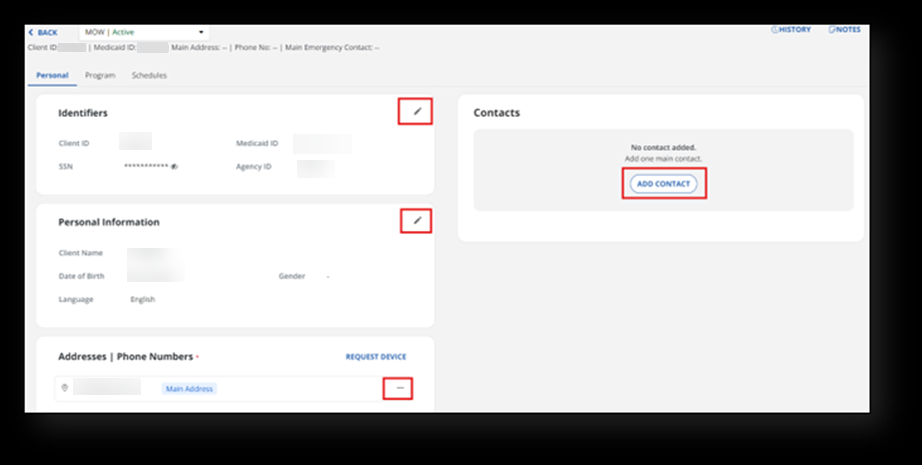
-
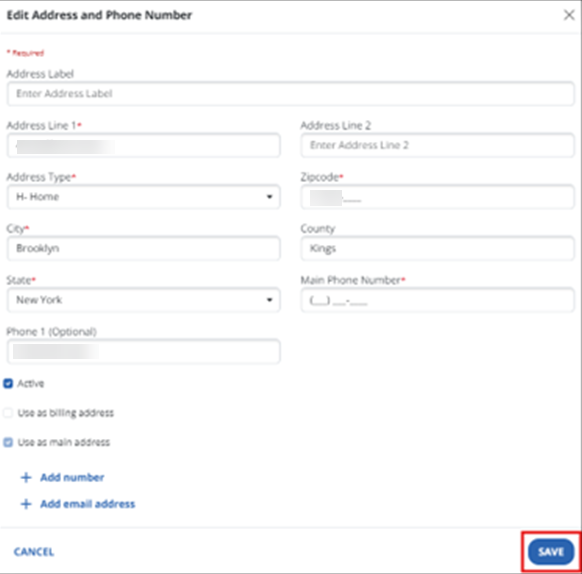
Edit the information and select the SAVE button.
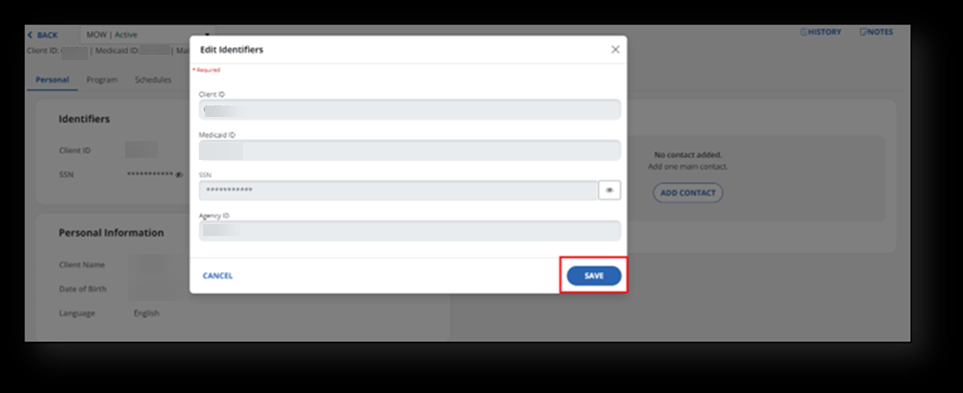
-
When editing an Address or Phone Number, select the three dots
, then select Edit.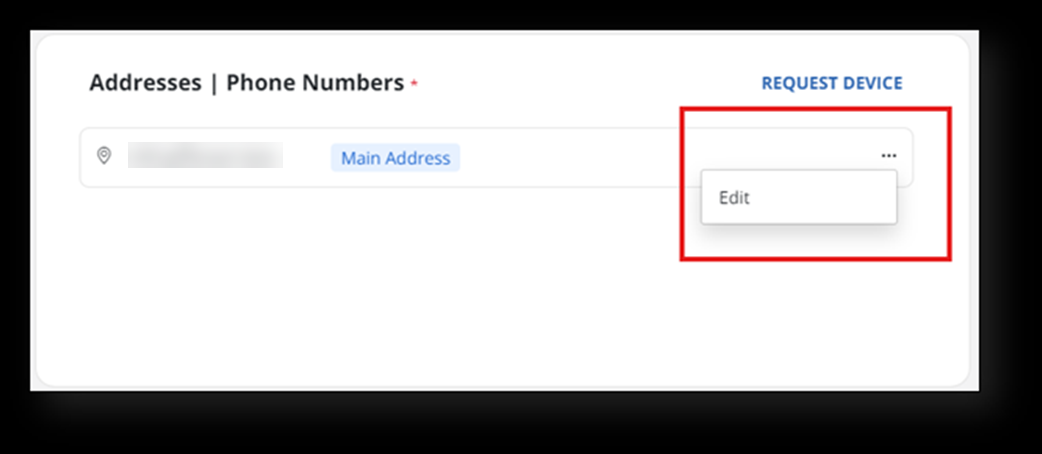
-
Make sure that an address is checked as the billing address. Next, update the information and select the SAVE button.