Create a New Client
Use the following steps to add a new Client to the system.
This option may not be available for programs that import Clients using a data feed.
-
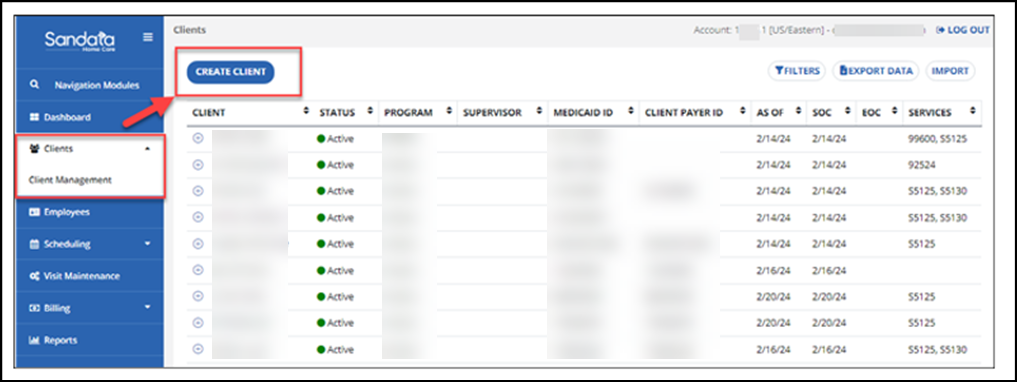
Go to the Client Management feature.
-
Select the CREATE CLIENT button to open the New Client window.
-
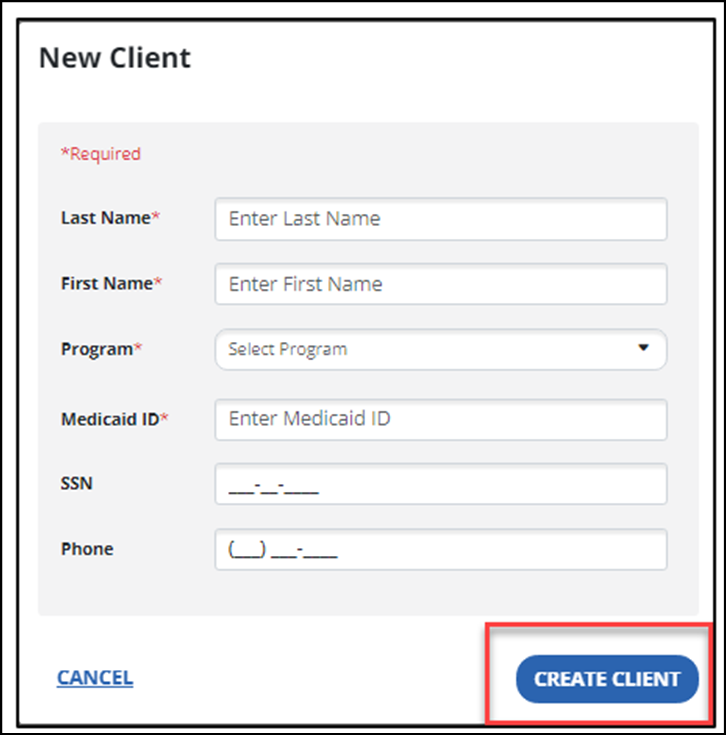
Enter the Client’s data. Fields with a red asterisk * are required. Next, select the CREATE CLIENT button.
-
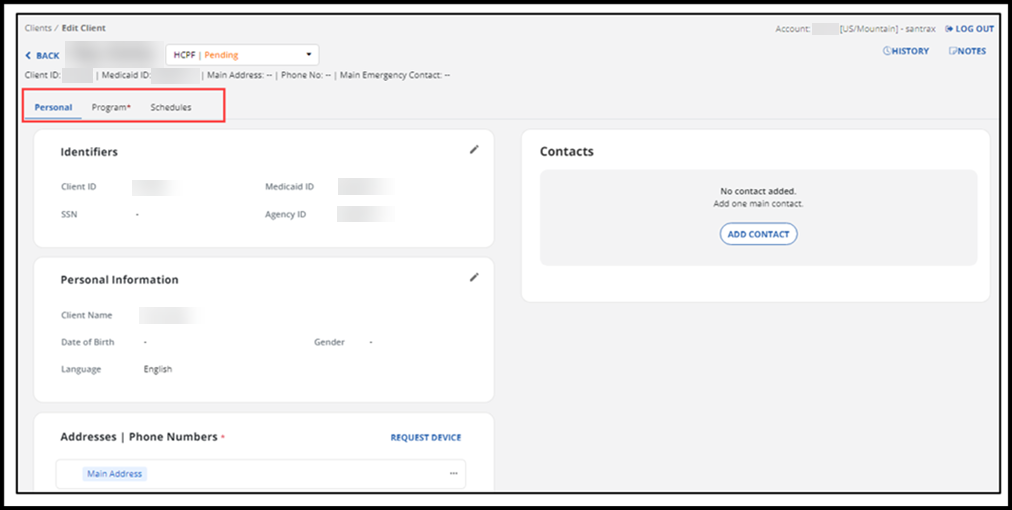
You are automatically brought to the Edit Client page's Personal tab. Complete or edit any Client information in the data cards you see on this tab.
-
Use the pencil icon to open a card and add personal information that wasn’t included when the Client was added, such as SSN, date of birth, gender, and language.
-
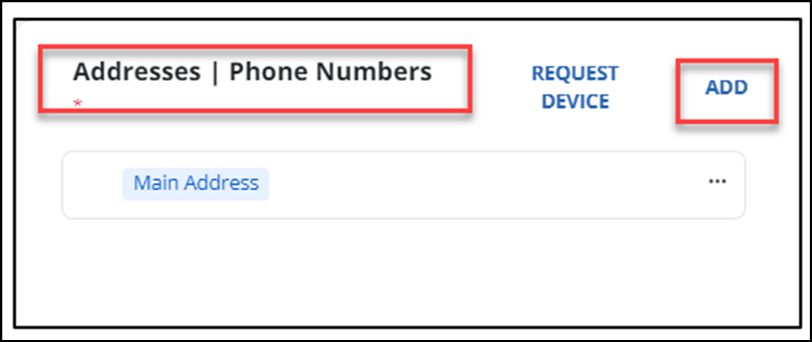
On the Addresses/Phone Numbers card, select ADD to add the Client’s address.
-
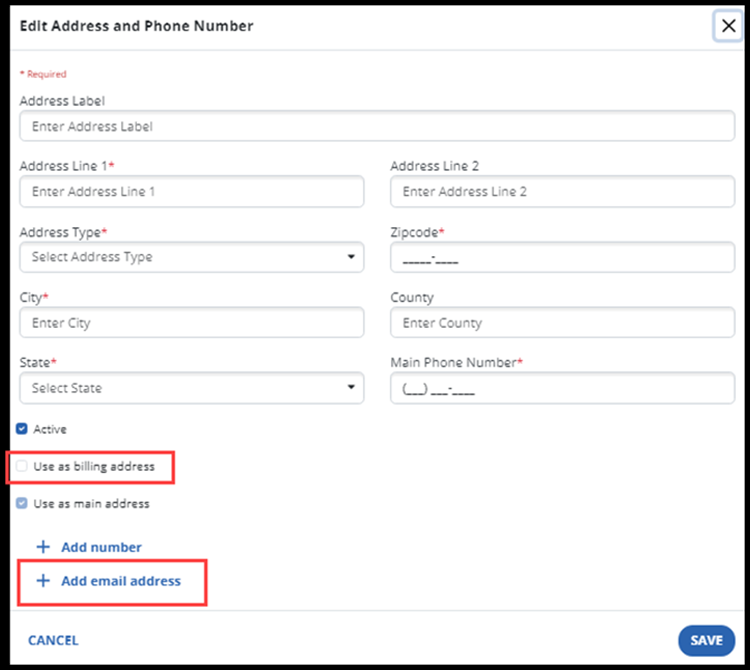
On the Add Address window, add the Client’s main address, phone number, and email address. It is important to check the Use as billing address checkbox or to add a separate billing address.
-
Notice the Add email address option that presents a field for you to add the Client’s email address. Select the SAVE button.
-
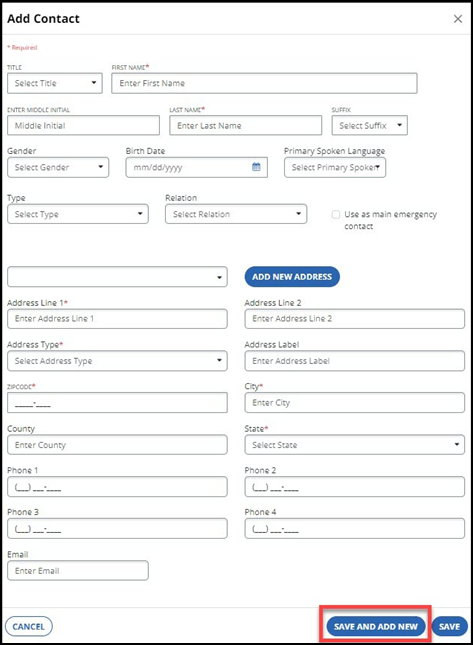
To add a contact for the Client, select Add Contact and fill in all required fields. When complete, select the SAVE button.
If a Client’s Caregiver is related to the Client, add them as a contact.