Add a Client from a Feed
Some state programs provide a file feed to Sandata to bring in Client information. This usually comes from the Medicaid Management Information System (MMIS). This means you cannot add your own Client information but will either receive it directly into your account or need to search for a Client to add them.
Some fields in a client’s profile may not be editable depending on your state program’s configuration. Search for clients who may have been automatically brought in before attempting to add specific clients. If attempting to add a client that has already been connected to your agency, you are informed that the client already exists.
Complete the following steps to add a Client from a feed.
-
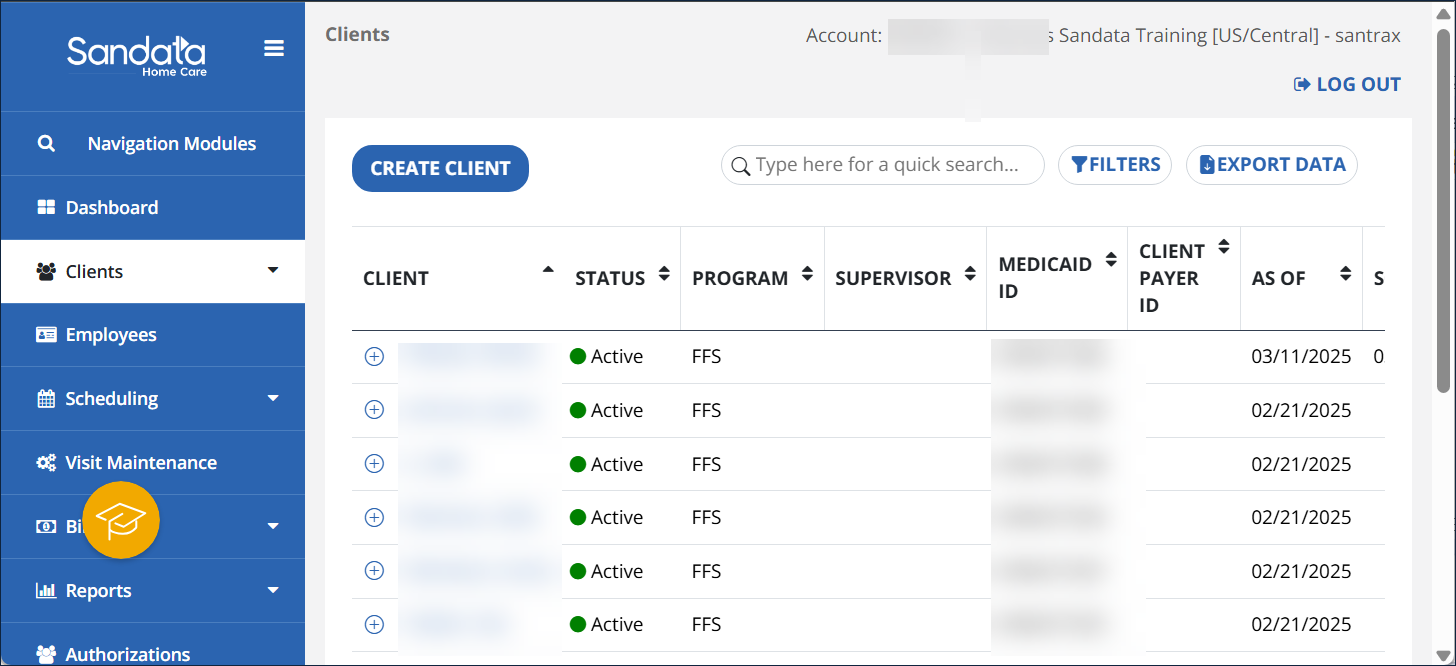
Go to the Client Management section of the Clients feature.
-
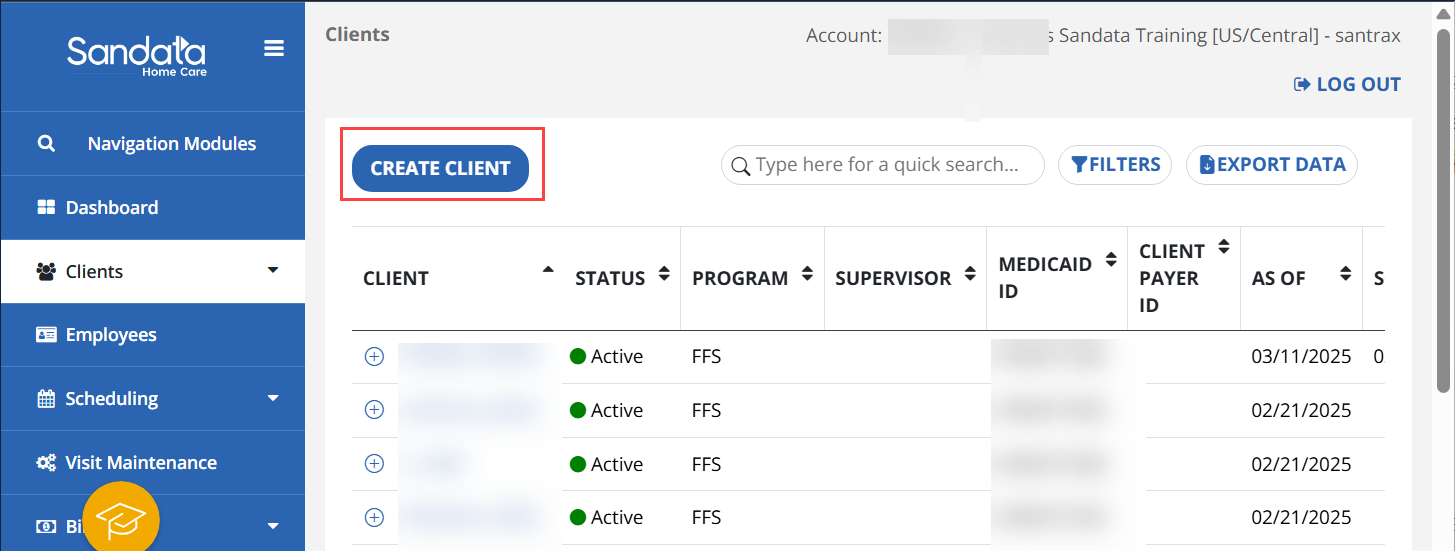
To add a Client from the file feed, select the Create Client button.
-
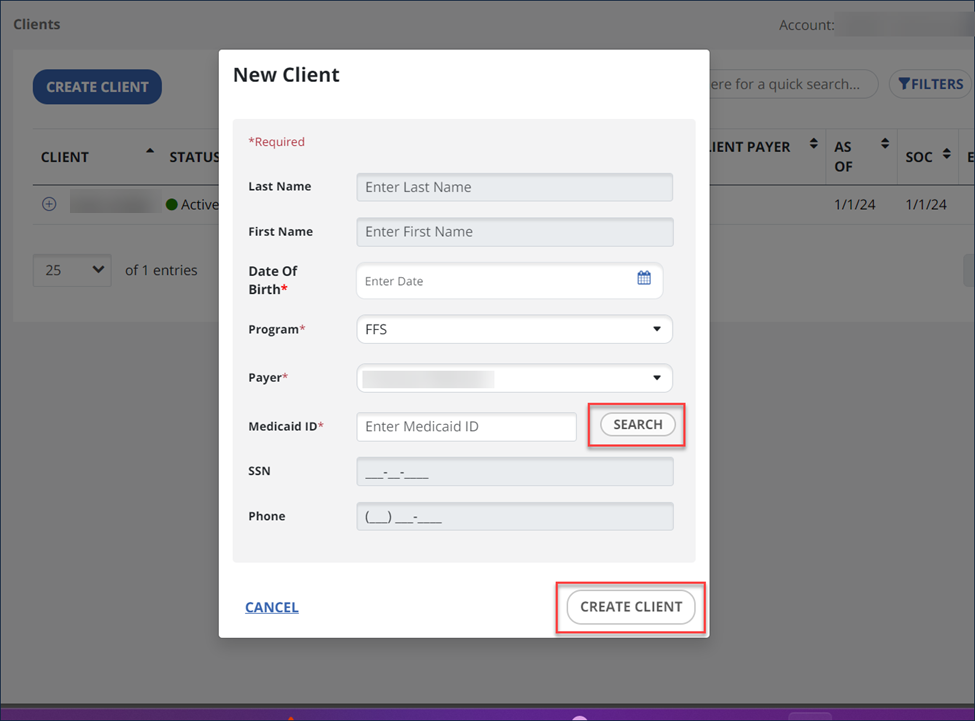
Complete the required fields on the form, marked with a red asterisk, and select the Search button. If the Client’s information is found in the file feed, it pulls the Client in, and you can then select the Create Client button. If the Client is not found, check the information you have submitted.
The required fields are based on your state’s program and may be different than what is shown below.
-
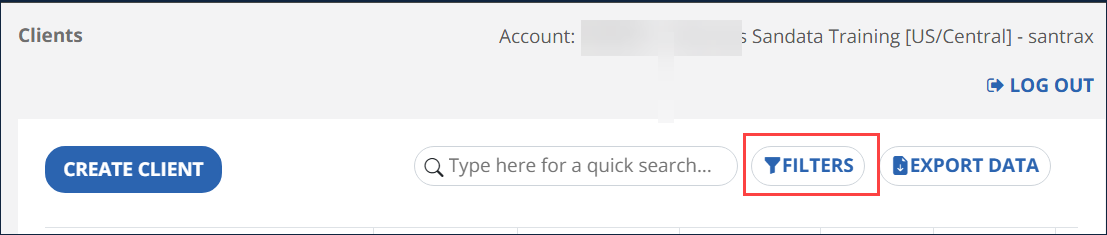
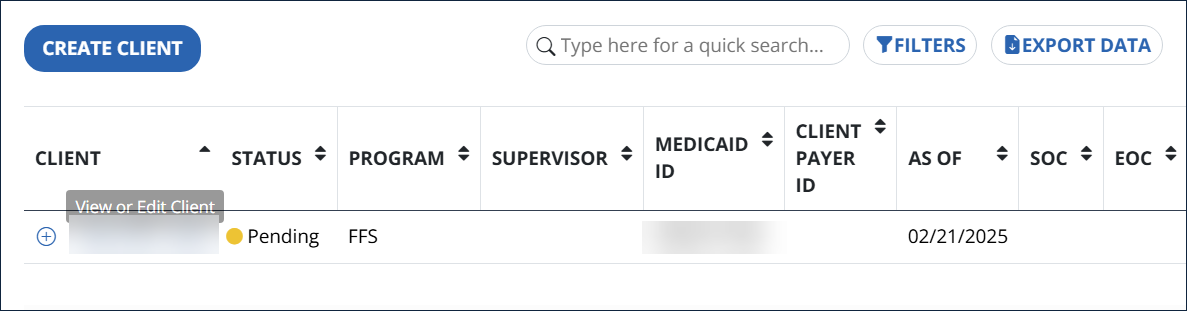
When Clients are automatically brought in, they are brought in with a Pending status. Select the Filters button to find Clients in pending status.
-
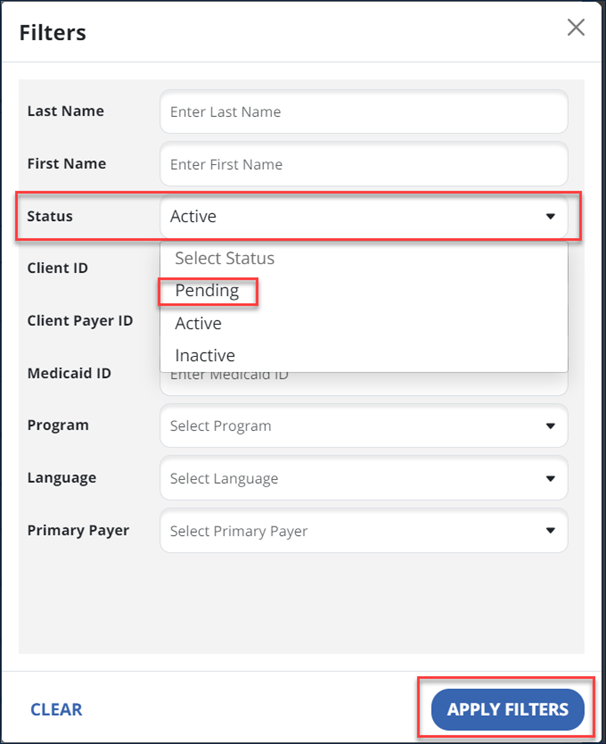
In the Status field on the Filters window, select Pending, then select the Apply Filters button.
-
Next, select a Client.
-
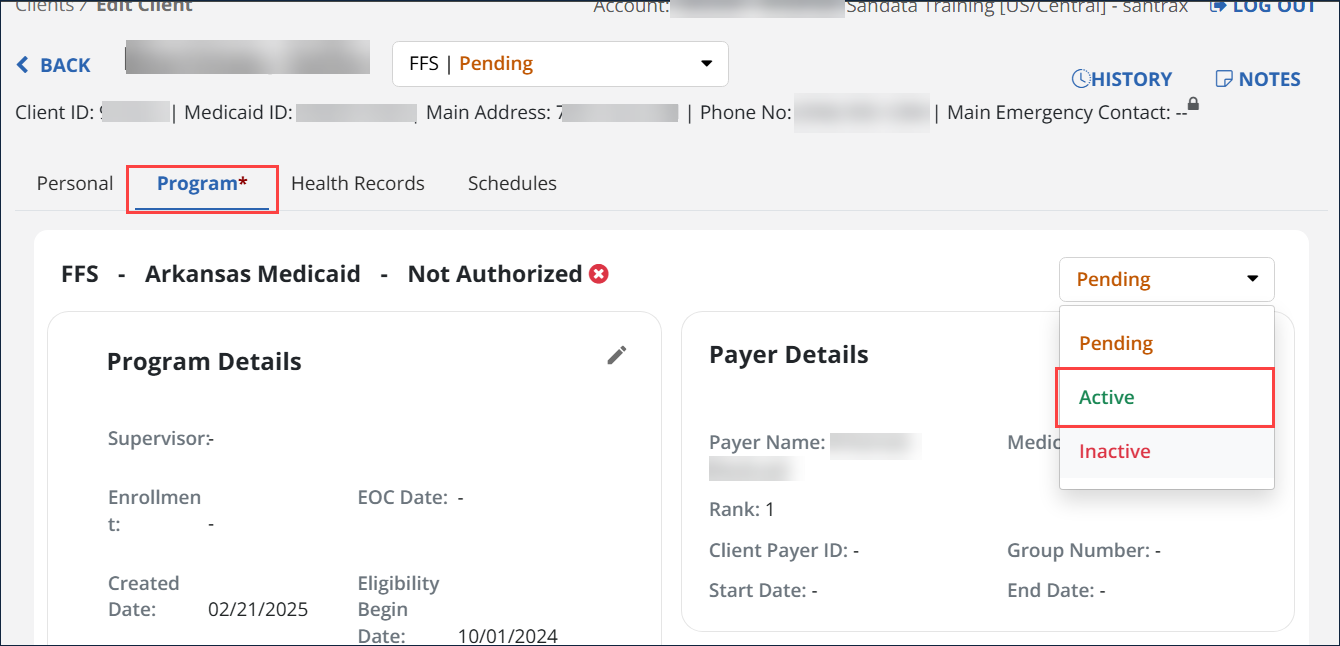
Go to the Program tab, and select the Status dropdown menu. Change the status from Pending to Active. The Client is now active, and you are able to capture visit data for them.