Update an Unknown Client
To update an unknown client:
-
Go to Visit Maintenance and search for and open a Visit.
Click the Edit
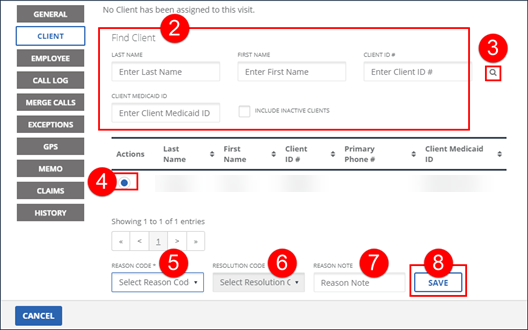
 icon, and then click the CLIENT button.
 -
Enter all applicable search criteria in the Find Client section of the screen. Select the INCLUDE INACTIVE CLIENTS checkbox to include clients with a status of Inactive in the search results.
-
Click the magnifying glass icon to search for a client.
-
Select a client.
-
Select the REASON CODE.
-
Select the RESOLUTION CODE.
-
Enter a REASON NOTE, if applicable. Use the REASON NOTE field to add additional information about the visit. Some REASON CODES require a REASON NOTE.
-
Click SAVE.
-
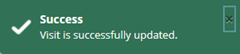
A notification of confirmation or error displays at the top of the screen.