Edit Call Times and Dates
If a visit has missing and/or incorrect dates or call in/out times, use the General tab of the Visit Details screen to manually enter the adjusted dates and/or times. In order to save a visit that has been modified, users may be required enter a REASON CODE and RESOLUTION CODE. REASON CODE and RESOLUTION CODE fields only display if the system is configured to support that functionality.
To adjust call times and dates:
-
Go to Visit Maintenance and search for and open a Visit.
Click the Edit
 icon, and then click the GENERAL button.
 -
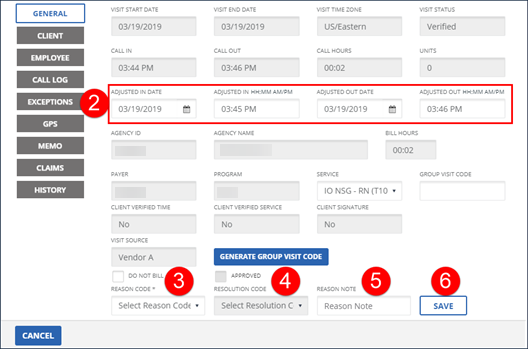
Enter/Select any applicable adjusted fields (ADJUSTED IN/OUT DATE, ADJUSTED IN/OUT time). Bill and pay hours automatically populate.
-
Select the REASON CODE.
-
Select the RESOLUTION CODE.
-
Enter a REASON NOTE, if applicable. Use the REASON NOTE field to add additional information about the visit. Some REASON CODES require a REASON NOTE.
-
Click SAVE.
-
A notification of confirmation or error displays at the top of the screen.