Manually Add and Remove Tasks
Depending on account set up, the service selected for the visit limits the tasks selection to that service.
To manually add or remove tasks:
-
Go to Visit Maintenance and search for and open a Visit.
Click the Edit
 icon, and then click the TASKS button.
 -
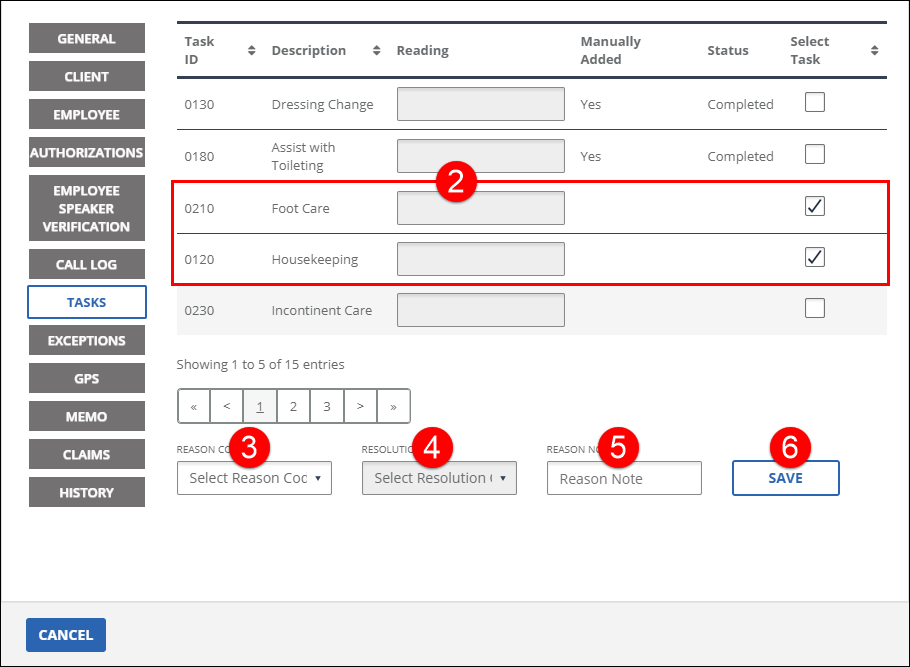
Select the checkboxes for each task that must be added to the visit. Deselect the checkboxes for each task that must be removed from the visit. Multiple tasks can be selected and added to the visit using the same reason and resolution codes. If a reason note is available for a task, it can be entered or dated here.
-
Select the REASON CODE.
-
Select the RESOLUTION CODE.
-
Enter a REASON NOTE, if applicable.
-
Click SAVE.
-
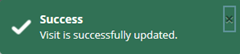
A notification of confirmation or error displays at the top of the screen.
The selected tasks are marked as complete and the Manually Added column displays Yes for any task users manually add to visits.