Add a Manual Call to an Existing Visit
The Merge Calls tab allows users to add a manual call if both the client and the employee on the visit are known. A manual call is captured like any other call, but is entered by an EVV system user. The system notes the user who created the manual call as well as the date and time the call was created. Depending on configuration, the available fields on this screen will change. Fill out all fields that apply to the account’s configuration. Manual Calls are saved with the Call Type Manual.
To add a Manual Call to an existing visit:
-
Go to Visit Maintenance and search for and open a Visit.
-
Click the Edit
 icon, and then click the CALL LOG button.
 -
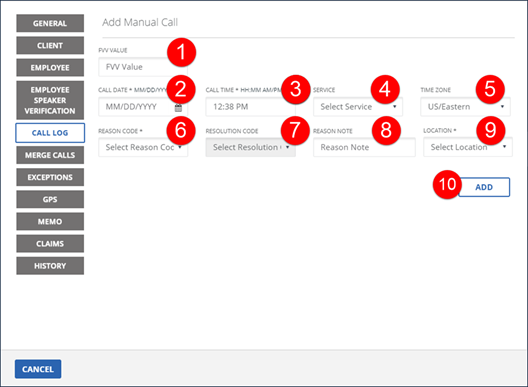
If an FVV device was used, enter the FVV Value.
-
Enter the CALL DATE. If an FVV Value is entered, call date is calculated based on the FVV value.
-
Enter the CALL TIME.
-
Select the SERVICE, if applicable. Skip if the service is represented on available call.
-
Select the REASON CODE.
-
Select the RESOLUTION CODE, if applicable. Skip if the service is represented on available call.
-
Enter a REASON NOTE, if applicable. Use the Reason Note field to add additional information about the visit. Some Reason Codes require a Reason Note.
-
Enter a LOCATION, if applicable. This field only displays if an account is configured to require a location when calling in for a visit. The value is this field is either Home or Community.
-
Click ADD.
A notification of confirmation or error displays at the top of the screen.