Edit a Plan of Care
To edit a Plan of Care:
-
Go to Plan of Care from the side navigation menu.
-
Search for a Plan of Care.
-
Click the Edit icon
 button for the appropriate client.
 -
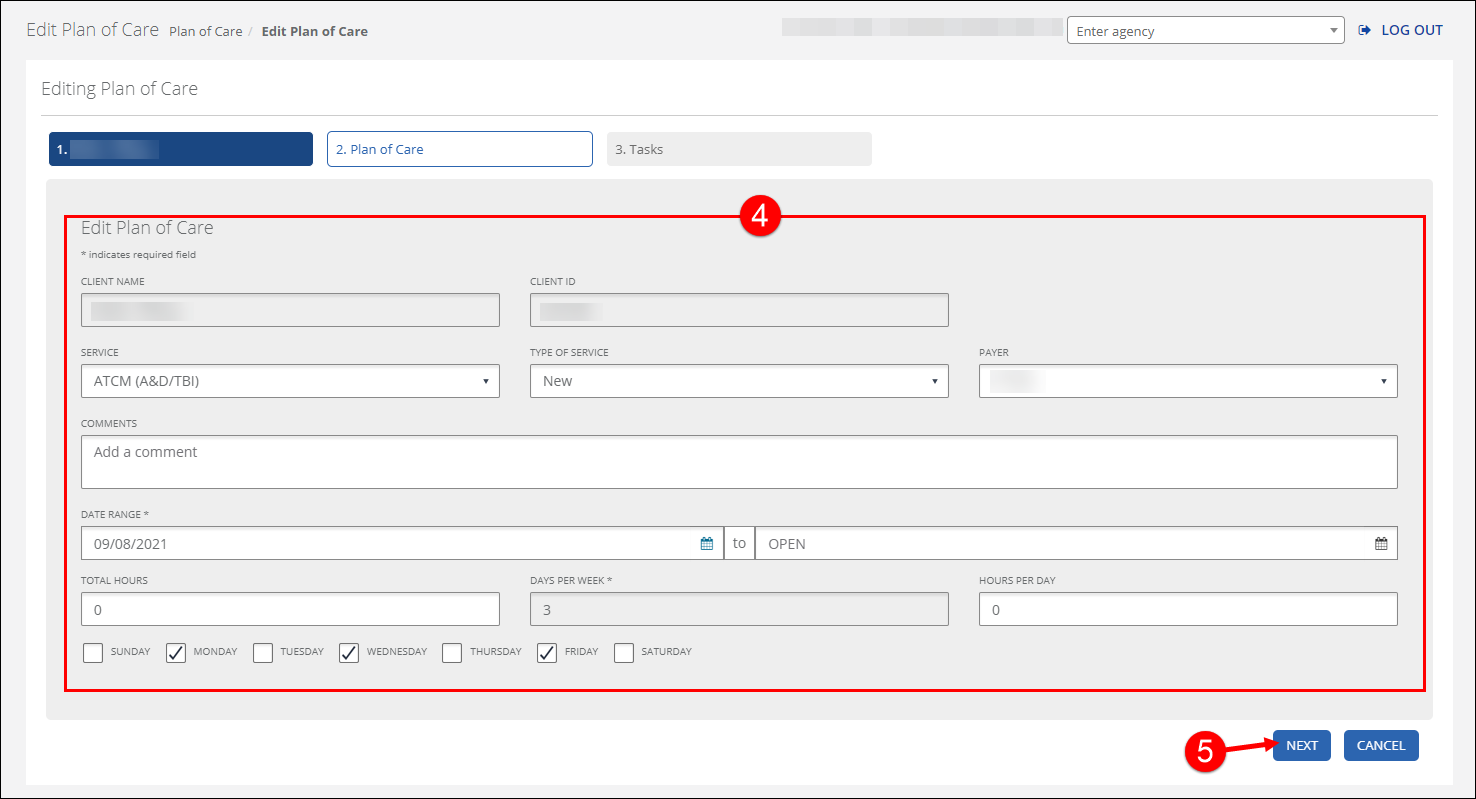
Modify the desired fields on the Plan of Care tab. The CLIENT NAME and CLIENT ID cannot be changed.
-
Click NEXT.
-
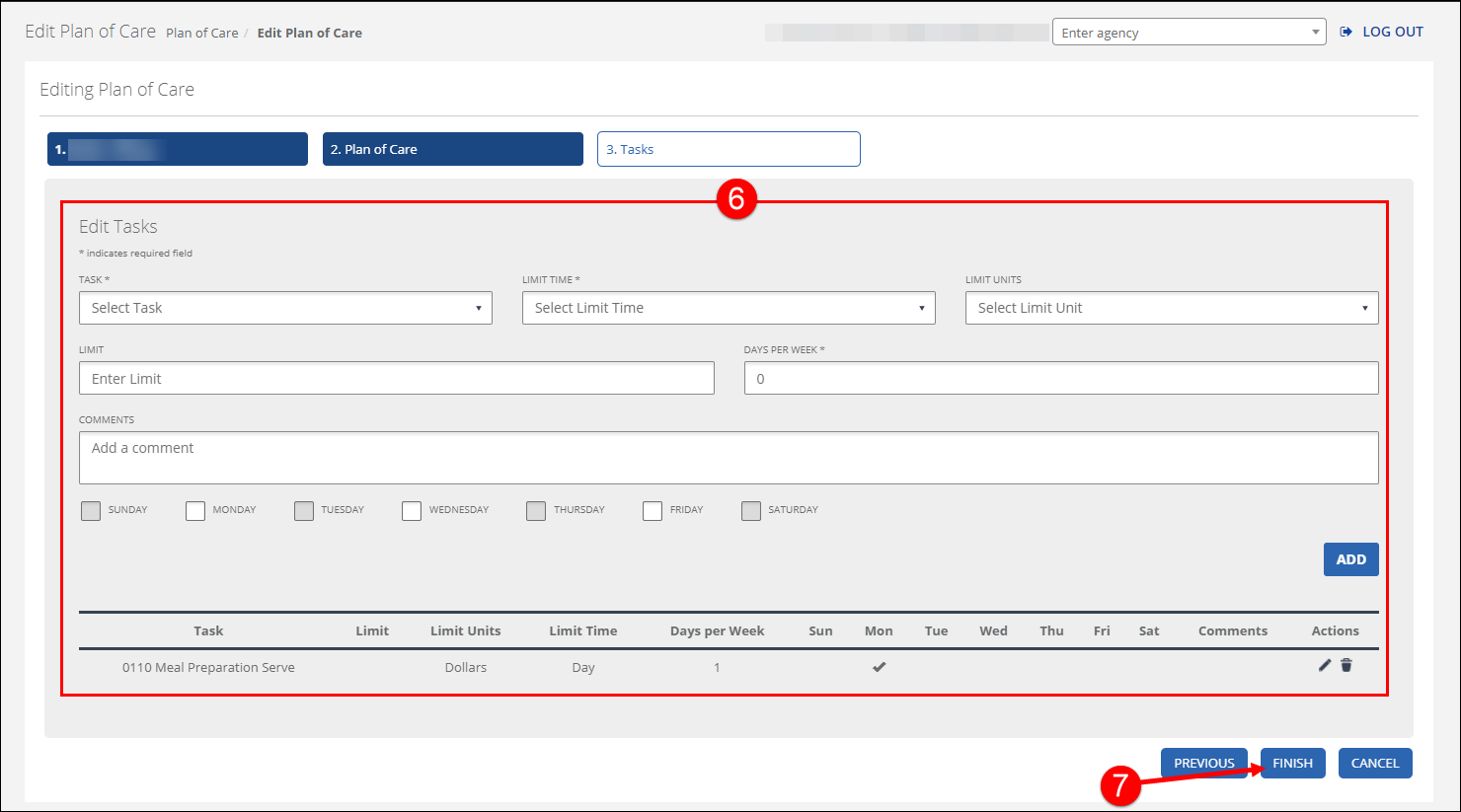
ADD, Edit
 , or Remove
  tasks.
The plan of care can be saved with no tasks or limit time entered.
-
Click FINISH.