Create a Plan of Care
Only one Plan of Care can be created per Client.
To create a Plan of Care:
-
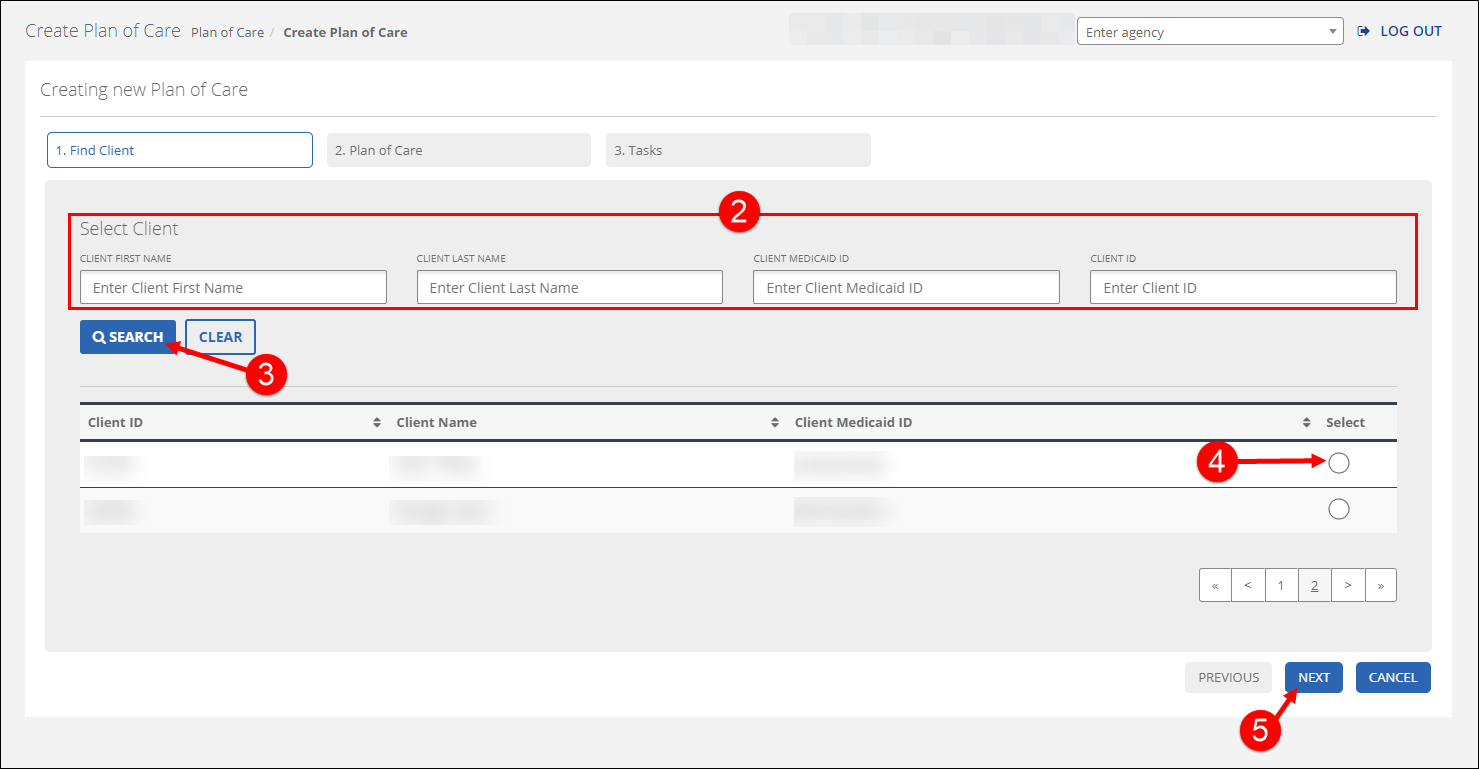
Go to Plan of Care from the side navigation menu and click the CREATE PLAN OF CARE button.
-
Enter the search criteria. Searching with no criteria entered displays a complete list of clients.
-
Click SEARCH.
-
Select the Client using the radio button in the Select column.
-
Click NEXT.
-
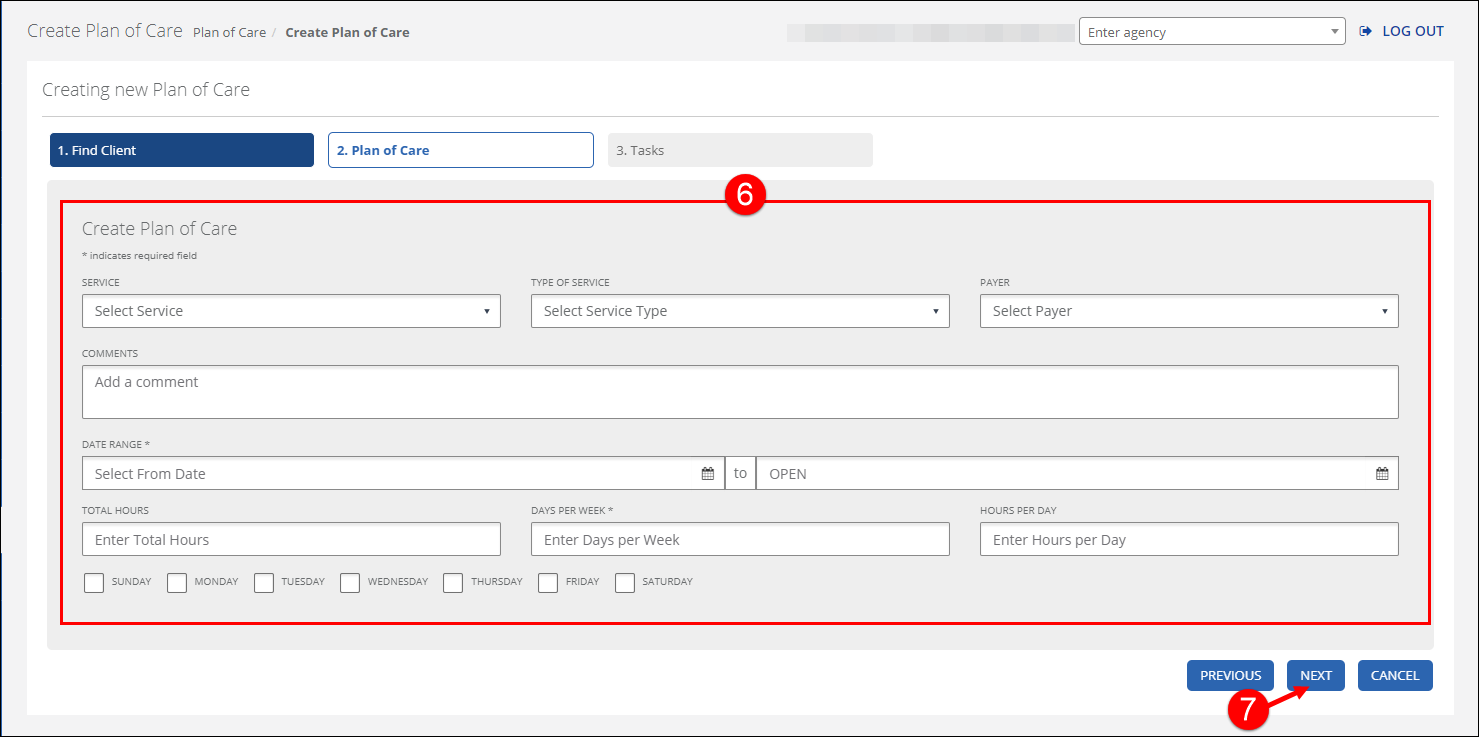
Enter/Select all applicable fields on the Plan of Care tab.
The DAYS PER WEEK field automatically populates based on the days of the week selected.
The TOTAL HOURS field automatically populates based on the HOURS PER DAY field and the days of the week selected.
For example: 6 HOURS PER DAY X 4 days selected= 24 TOTAL HOURS
-
Click NEXT.
-
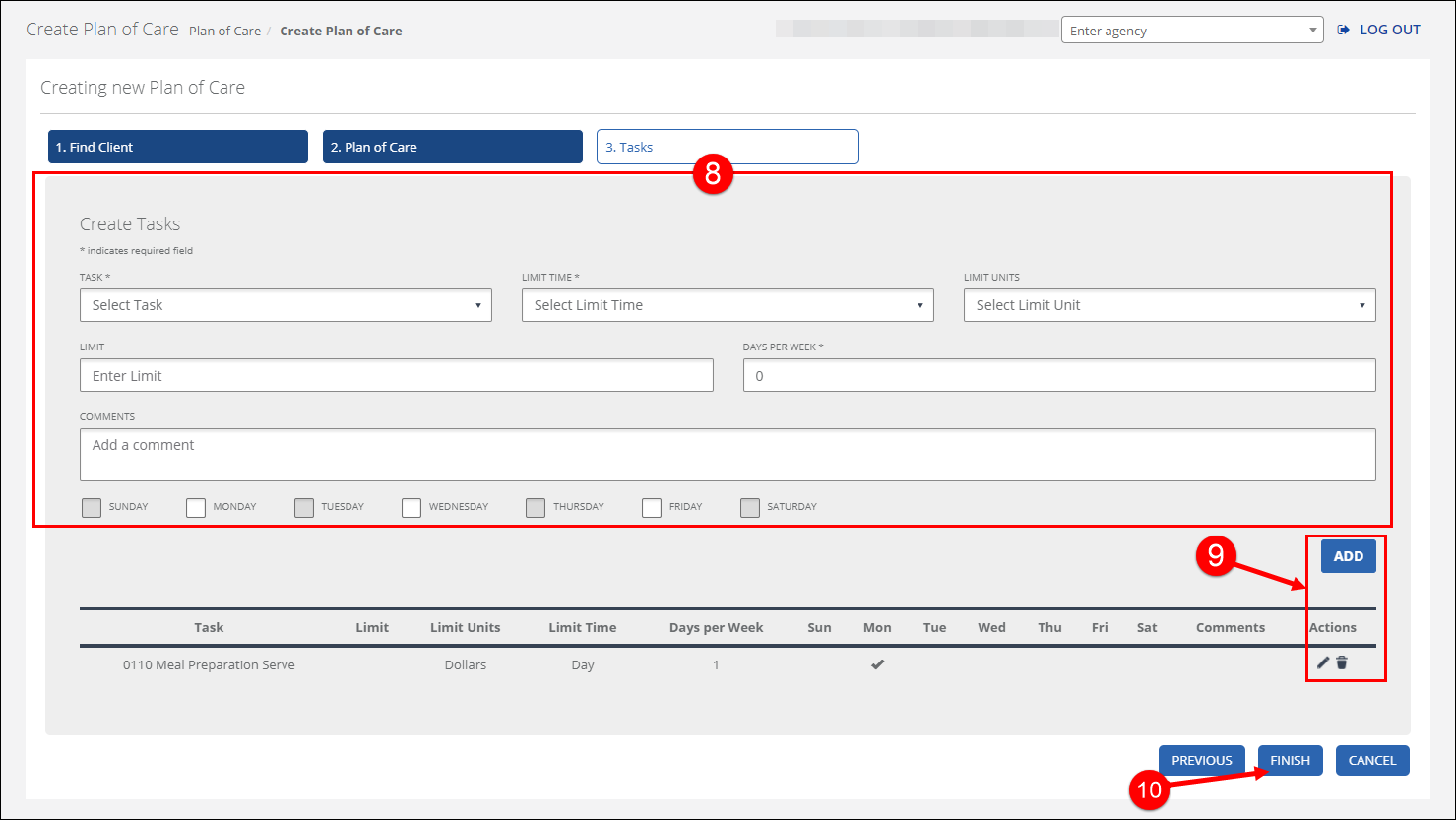
Enter/Select all applicable fields on the Tasks tab.
-
ADD, Edit
 , or Remove
  tasks.
The Plan of Care can be saved with no tasks or limit time entered.
-
Click FINISH.