Create a New Employee Profile
If social security number validation is not enabled, search to ensure there isn’t an existing profile before creating a new client profile. This prevents duplicate employee profiles.
To create a new Employee Profile:
-
Go to Data Entry > Employees and click the CREATE EMPLOYEE button.
-
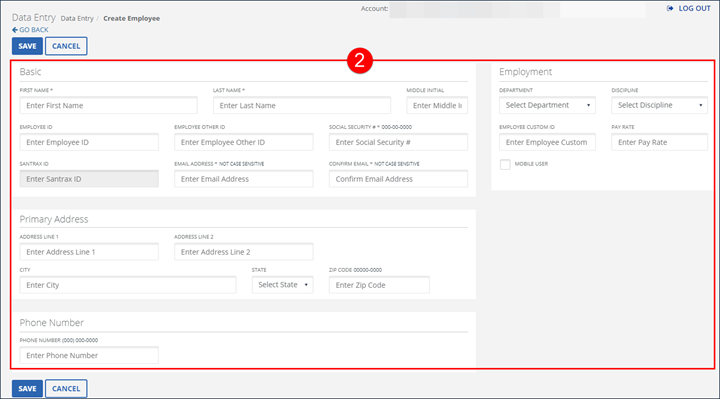
Enter/Select all applicable fields. Required fields are indicated by an asterisk * and vary based on configuration. At minimum all required fields must be populated.
-
Click SAVE.
-
Click OK on the Save Confirmation popup.
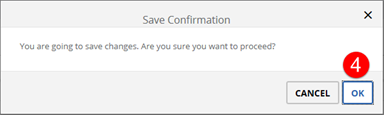
The Save Confirmation pop-up includes a notice if the MOBILE USER checkbox is not selected.
-
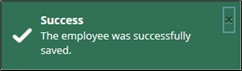
A notification of confirmation or error displays at the top of the screen.
Use the CREATE EMPLOYEE button at the top of the Edit Employee screen to create Employees consecutively without returning to the Employees screen.