Use the Bulk Upload Feature

Using an Excel file users can create an upload file containing either client and employee data. This file can be loaded into the Sandata EVV system to quickly add a large amount of client/employee records.
Including any employee or client in the Bulk Upload File that has already been manually entered into the system will overwrite their existing record. Leaving any field blank in the Bulk Upload File will also overwrite the existing field in the system.
To prepare a bulk upload:
-
Open the spreadsheet provided.
-
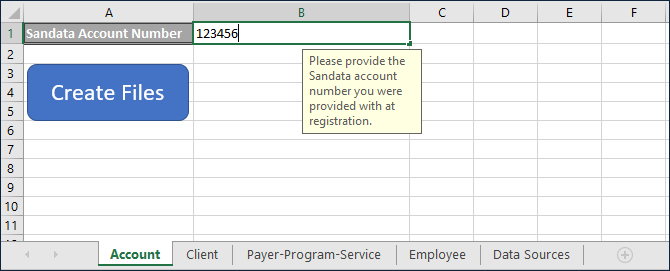
Enter the Sandata assigned account number on the Account tab.
-
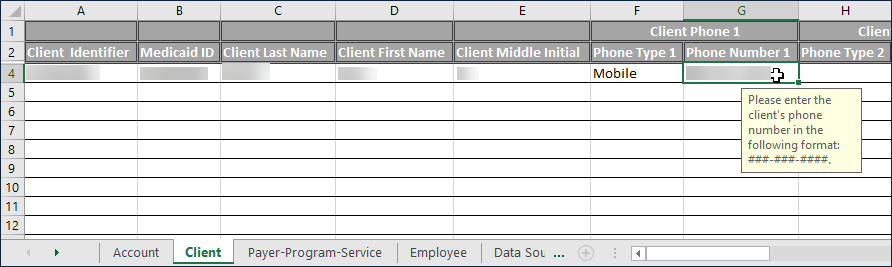
Click the Client or Employee tab.
-
Enter all client or employee information. Follow the requirements indicated by the tool tip.
-
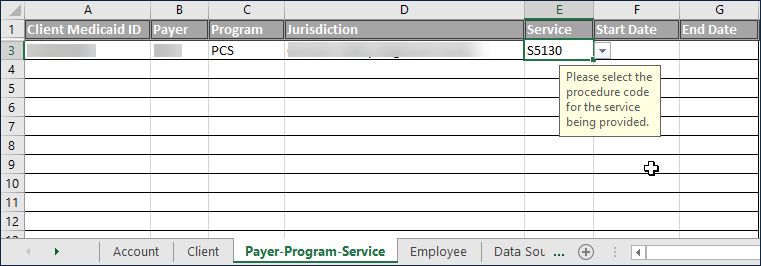
Click the Payer-Program-Service tab. This must be done for each client entered.
-
Enter the client information. Follow the requirements indicated by the tool tip.
-
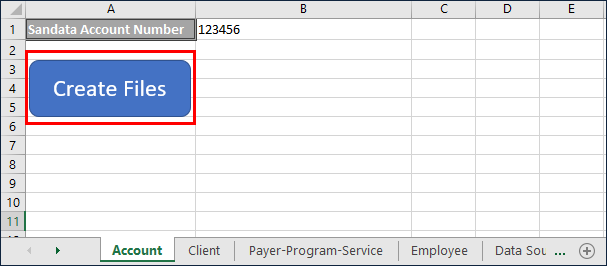
Click the Account tab.
-
Click Create Files.
-
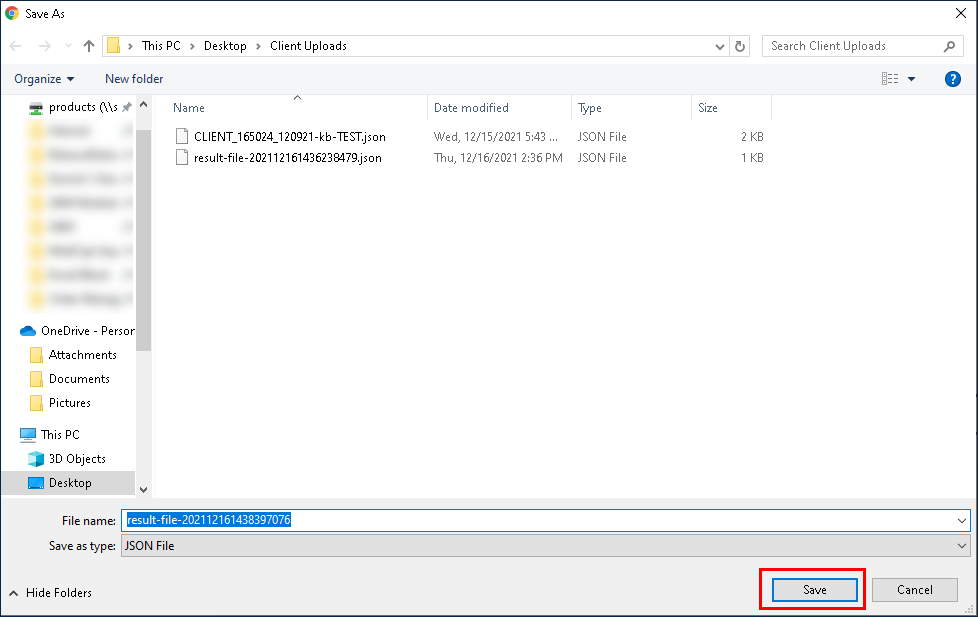
Select a location to save the Upload File and click OK.
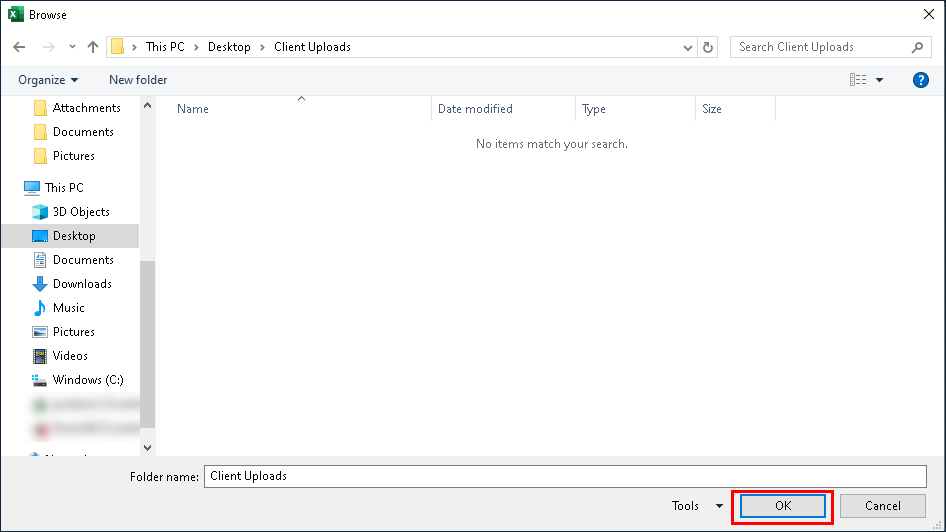
This creates a .JSON file that can be uploaded into the Sandata system.
The Bulk Upload module allows users to manually enter large amounts of client or employee data into the Sandata EVV system. Using a provided excel file, users can create an .JSON upload file containing client/employee data and load that file into the system. The system creates client and employee data for those clients/employees using the data in the upload file.
It is best practice to only use bulk upload during the initial data entry period, as the upload process overwrites the existing client/employee data in the system. When using Bulk Upload, it is recommended that users create a small upload file containing 1 or 2 employees to test the process.
To perform a bulk upload:
-
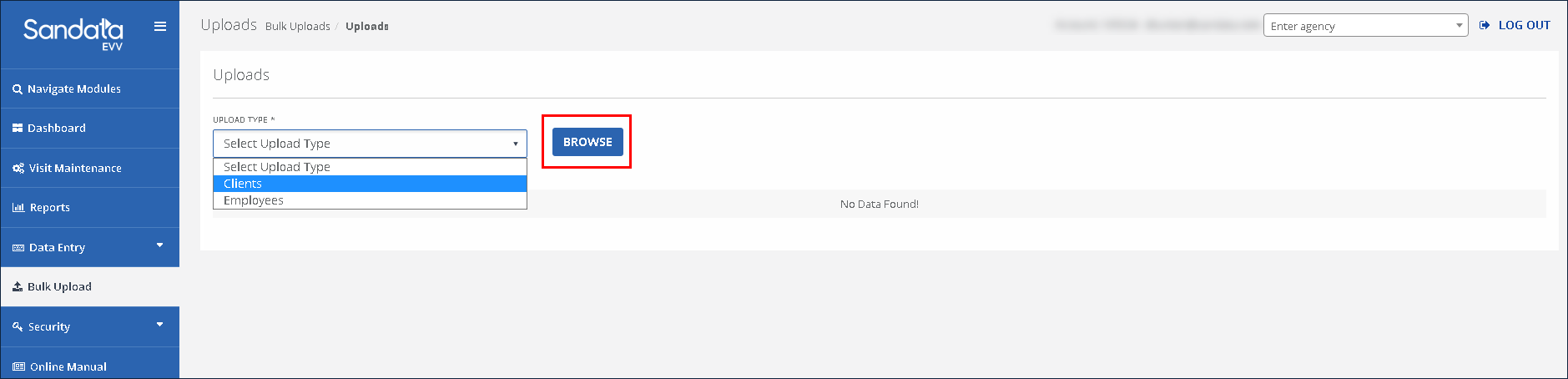
Go to the Bulk Upload screen.
-
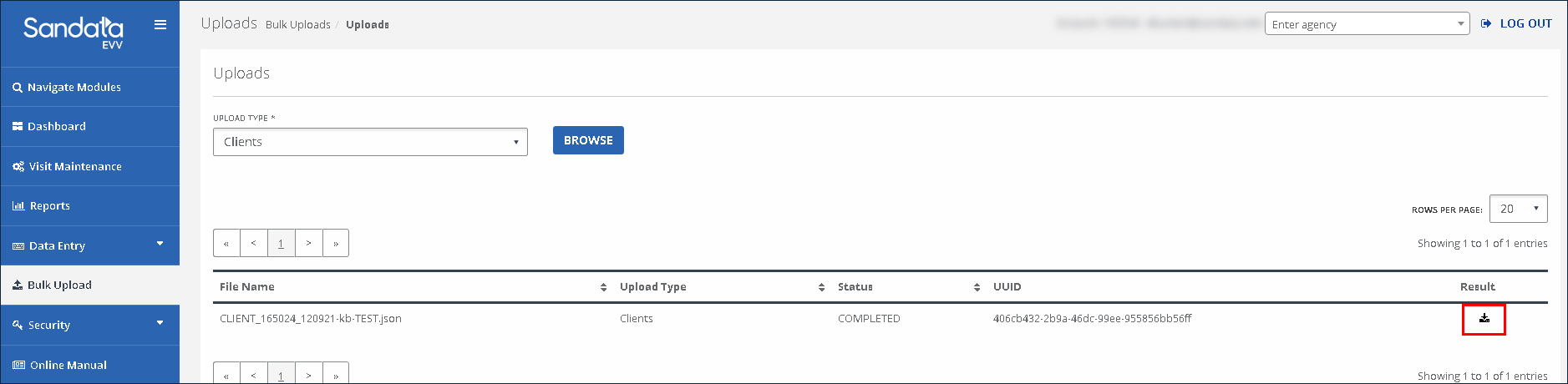
Use the dropdown to select an upload type and click Browse.
-
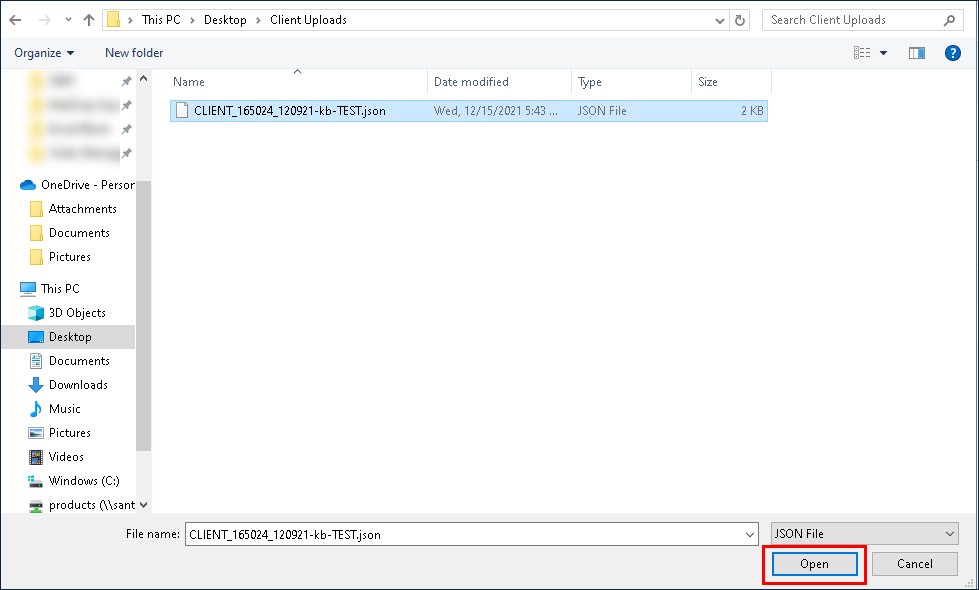
Locate and select the .JSON file to be uploaded. Click Open.
-
A Success window displays when the upload is completed.

-
Click the Download icon to save a copy of the result file. Users must save the result file, as it cannot be access after this screen is closed or navigated away from.
-
Click Save.