Sandata Aggregator Run Reports
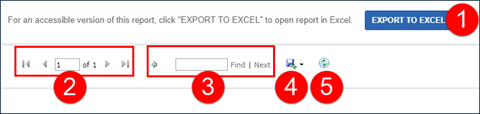
For accessibility, an EXPORT TO EXCEL button at the top of every report allows users to create an Excel output so they are not required to navigate through the default report output.

-
EXPORT TO EXCEL - This button produces an Excel version of the report. It is formatted to look like the online report with each page break appearing on a different page. It can be sorted, filtered and manipulated in Excel. Excel versions sometimes do not look exactly the same as the printed versions. Depending on the report, the Excel output changes to better accommodate the Excel format.
-
Page Navigation - This section displays the current page vs. the total number of pages. Go to a specific page by typing a number into the current page field and pressing <Enter>. The arrows can be used to navigate to the first, next, previous and/or last page.
-
Search Functionality - Allows you to find data on any page in the report. The Next button jumps to the subsequent instance of the search criteria within the document.
-
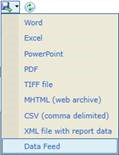
Export - The report can be exported into several formats:
Sandata validates exports to CSV, PDF and Excel. The output format can vary slightly from the default report output.
-
Refresh - Updates the displayed data with the current data that exists in the system.
-
Grouping Tab - Displays at the top of most reports and indicates what information is being used to group results. When the group changes, the new group begins on the next page of the report.
-
Column Header - Clicking a column's header, when the arrows are present, will sort the results in ascending/descending order based on that column's content.

-
Report Legend page - The last page of reports displays general information pertaining to the report including icons used.
Icon/Text Text 
Client ID on call

Secondary Mutual Client

Cluster

Multiple clients with the same phone

Exported

Unmatched Client/Phone

Mobile

FVV Parent

The value has been changed

Incomplete Call

FVV Call

FVV Attempt

Manual Call

Telephony Call

Employee Voice Recording

Client Voice Recording

Employee Speaker Verification - Pass

Employee Speaker Verification - Fail

Client Speaker Verification - Pass

Client Speaker Verification - Fail
-
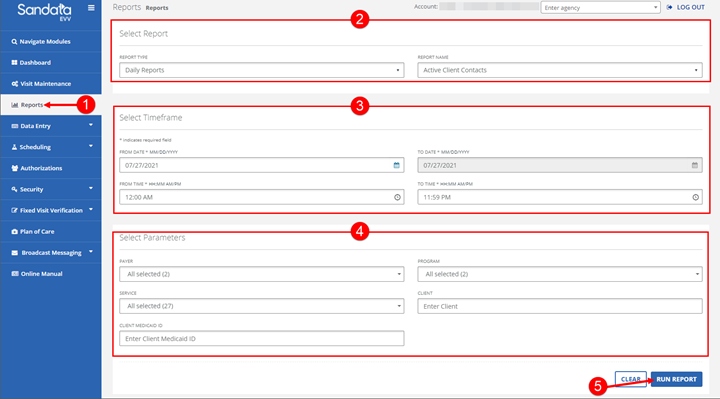
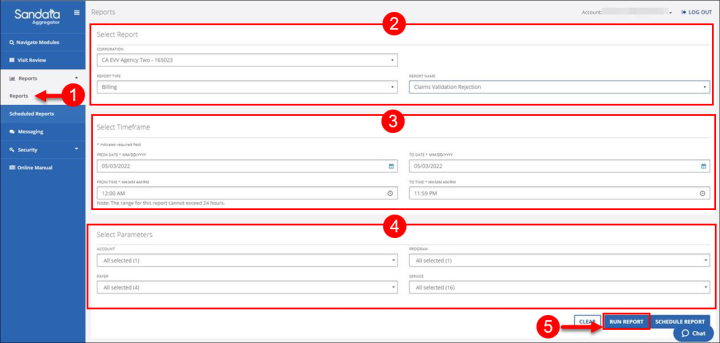
Go to the Reports screen. Reports > Reports.
-
Select the REPORT TYPE and REPORT NAME.
-
Enter/Select the applicable fields in the Timeframe section.
-
Enter/Select the applicable fields in the Select Parameters section.
-
Click RUN REPORT.
Reports run using longer date ranges or containing lots of data may require the selection of other parameters such as: Client, Employee or Supervisor to reduce the size of the report and ensure efficiency.
-
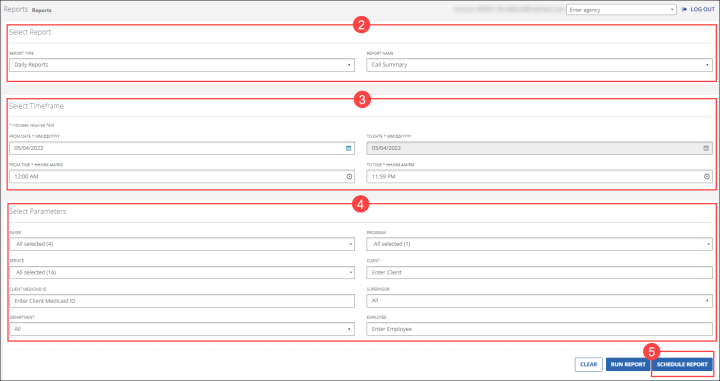
Go to the Reports screen. (Reports > Reports)
-
Select the REPORT TYPE and REPORT NAME.
-
Enter/Select the applicable fields in the Timeframe section.
-
Enter/Select the applicable fields in the Select Parameters section.
-
Click SCHEDULE REPORT.
Reports run using longer date ranges or containing lots of data may require the selection of other parameters such as: Client, Employee or Supervisor to reduce the size of the report and ensure efficiency.
-
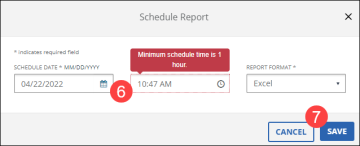
Enter/Select the month and time for the report to run. The minimum reports schedule time is 1 hour.
-
Select the format for the report to be output in. Click SAVE. Scheduled reports are available to download on the Scheduled Reports screen.