Staff Personal Screen
The Staff Personal screen contains all information relating to a Staff Member including contact information, scheduling, payroll and continuing information.
To view a Staff Member’s Profile, go to Main Menu > Staff and double click on a staff member’s name.
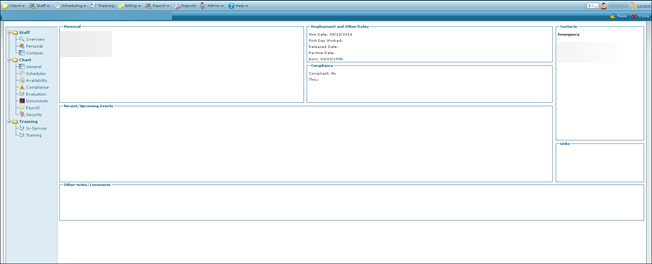

The Overview provides basic information about a staff member including contact details, hiring details and upcoming events.
|
Field |
Description |
|---|---|
|
Personal |
Displays staff member’s contact information including home address and phone number. |
|
Employment and Other Dates |
Displays staff member’s employment details including hire date and released date if applicable. |
|
Compliance |
Displays staff member’s compliance information including compliant number and through date. |
|
Contacts |
Displays staff member’s contact information including name and phone number. |
|
Recent / Upcoming Events |
Displays any upcoming events the staff member is associated with. |
|
Links |
Displays any connections that the staff member may have or be associated with. |
|
Other Notes / Comments |
Displays any notes associated with the staff member. |
The Personal section allows users to edit any information specific to the staff member. This includes a staff member’s home address, a photograph, clients excluded from being assigned to the staff member and specific attributes they may have such as languages spoken or special skills.
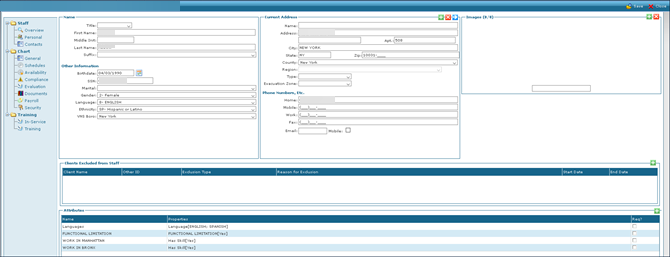
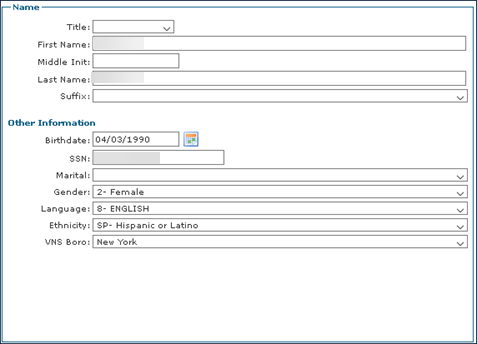
The Name area of the Personal section allows users to edit a staff member’s basic information.
|
Field |
Description |
|---|---|
|
Title |
Use this drop down to select a staff member’s title. |
|
First Name |
Use this field to edit the staff member’s first name. |
|
Middle Initial |
Use this field to edit the staff member’s middle initial. |
|
Last Name |
Use this field to edit the staff member’s last name. |
|
Suffix |
Use this drop down to select a staff member’s suffix. |
|
Birthdate |
Use this field to select the staff member’s birth date. |
|
SSN |
Use this field to edit the staff member’s social security number. |
|
Martial |
Use this drop down to select the staff member’s marital status. |
|
Gender |
Use this drop down to select the staff member’s gender. |
|
Language |
Use this drop down to select the staff member’s primary language. |
|
Ethnicity |
Use this drop down to select the staff member’s ethnicity. |
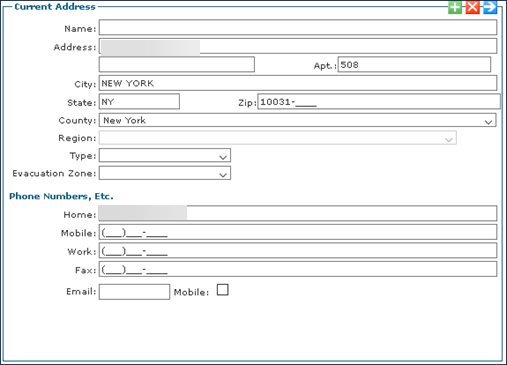
The Current Address area of the Personal section allows users to edit a staff member’s residential information. Multiple addresses can be entered and stored for each staff member.
|
Field |
Description |
|---|---|
|
Name |
Use this field to edit the name of the staff member’s address (Home, Office, etc). |
|
Address |
Use this field to edit the staff member’s street name and number. |
|
Apt |
Use this field to edit the staff member’s apartment number. |
|
City |
Use this field to edit the staff member’s city of residence. |
|
State |
Use this field to edit the staff member’s state of residence. |
|
Zip |
Use this field to edit the staff member’s zip code of residence.This auto populates the country, region, state, and city. |
|
County |
Use this drop down to select the staff member’s county of residence. |
|
Region |
Use this drop down to select the staff member’s region of residence. |
|
Type |
Use this drop down to select the staff member’s type of residence. |
|
Evacuation Zone |
Use this drop down to select the staff member’s designated evacuation zone. |
|
Home |
Use this field to edit the staff member’s home phone number. |
|
Mobile |
Use this field to edit the staff member’s cell phone number. |
|
Work |
Use this field to edit the staff member’s work phone number. |
|
Fax |
Use this field to edit the staff member’s fax number. |
|
|
Use this field to edit the staff member’s e-mail address. |
|
Mobile |
Select this check box to indicate that the staff member’s cell phone is an email to text address.This number is also used to set late and missed visit alerts. |
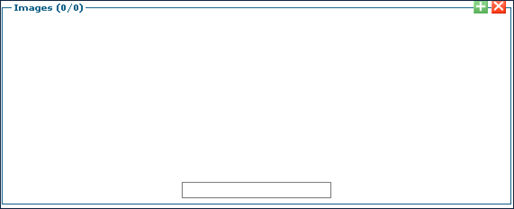
The Images area of the Personal section displays any pictures associated with the staff member. This can be an identification picture, badge or other associated image.
The Clients Excluded from Staff area of the Personal section displays all the relevant information for clients who should not be assigned to a particular staff member. This can be for a variety of reasons such as the staff member owns a pet that a client is allergic to.

|
Field |
Description |
|---|---|
|
Client Name |
Displays the client’s name. |
|
Other ID |
Displays the client’s alternate identification number. |
|
Exclusion Type |
Displays the exclusion type. |
|
Reason for Exclusion |
Displays the reason for the client’s exclusion. |
|
Start Date |
Displays the start date of the exclusion. |
|
End Date |
Displays the end date of the exclusion. |
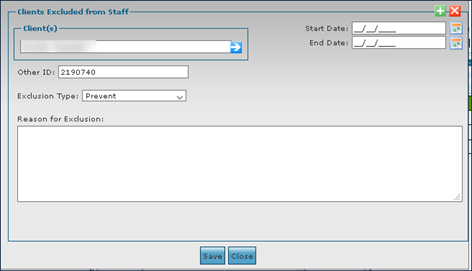
The Exclusions Window is used to select clients to exclude from a staff member’s schedule.
|
Field |
Description |
|---|---|
|
Client |
Use this drop down to select a client. |
|
Start Date |
Use this field to choose the start date of the exclusion. |
|
End Date |
Use this field to choose the end date of the exclusion. |
|
Other ID |
Displays the client’s other identification number. |
|
Exclusion Type |
Use this drop down to choose a type of exclusion. |
|
Reasons for Exclusion |
Use this field to edit the reasoning for excluding the client. |
The Attributes area of the Personal section displays any additional special skills or traits that the staff member may have. These can range from spoken languages to religious affiliations or working in a particular area and can be used to match with a client when scheduling.

|
Field |
Description |
|---|---|
|
Name |
Displays the attribute name. |
|
Properties |
Displays the description of the attribute. |
|
Req |
Displays if the attribute is required |
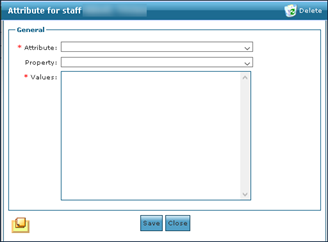
The Attribute Window is used to add an attribute to a staff member.
| Field | Description |
|---|---|
|
Attribute |
Use this drop down to select the attribute. |
|
Property |
Use this drop down to select a category of the attribute. |
|
Values |
Use this field to add any extra information about the attribute. |
|
Task Note |
Click this button to open the task notes window associated with the attribute. |
|
Delete |
Click this button to delete the attribute. |
The General section contains information about the staff member’s employing agency. This can range from supervisor details to hire dates to current employment status.
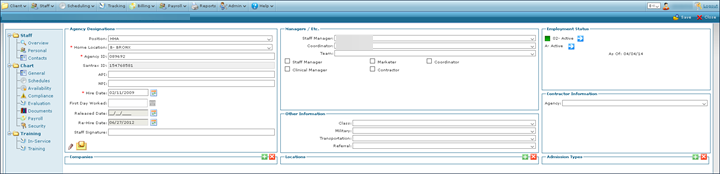
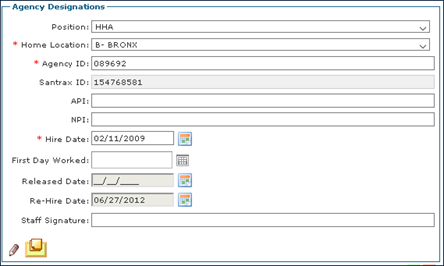
The Agency Designations area of the General section contains information detailing the staff member’s place of employment.
|
Field |
Description |
|---|---|
|
Position |
Use this drop down to select the staff member’s job category. |
|
Home Location |
Use this drop down to select the staff member’s primary office. |
|
Agency ID |
Use this field to enter the staff member’s agency identification number. |
|
Santrax ID |
Displays the staff member’s Santrax identification number. |
|
API |
Displays the staff member’s application programming interface number. |
|
NPI |
Displays the staff member’s national provider identification number. |
|
Hire Date |
Use this field to select the staff member’s hire date. |
|
First Day Worked |
Use this field to select the staff member’s first day worked. |
|
Released Date |
Use this field to select the staff member’s release date. |
|
Re-Hire Date |
Use this field to select the staff member’s re-hire date. |
|
Staff Signature |
Use this field to enter the staff member’s signature. |
|
Historian |
Click this button to open the staff member’s Historian window. |
|
Task Notes |
Click this button to open the staff member’s associated Task Notes. |
The Companies area of the General section is used to limit the staff member to visits for clients assigned to the company. A blank company means the staff member can be assigned to anyone.

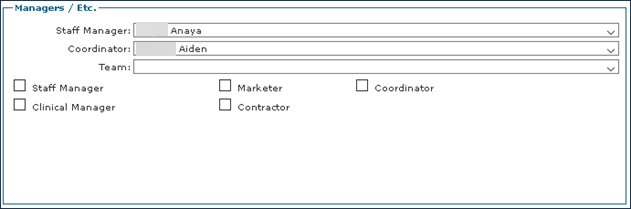
The Managers area of the General section contains information about the staff member’s supervisors at the agency, as well as their own role.
|
Field |
Description |
|---|---|
|
Staff Manager |
Use this drop down to select the staff member’s manager. |
|
Coordinator |
Use this drop down to select the staff member’s coordinator. |
|
Team |
Use this drop down to select the staff member’s team. |
|
Staff Manager |
Use this check box to indicate if a staff member is a Staff Manager. |
|
Clinical Manager |
Use this check box to indicate if a staff member is a Clinical Manager. |
|
Marketer |
Use this check box to indicate if a staff member is a Marketer. |
|
Contractor |
Use this check box to indicate if a staff member is a Contractor. |
|
Coordinator |
Use this check box to indicate if a staff member is a Coordinator. |
The Other Information area of the General section contains additional background information about the staff member.

|
Field |
Description |
|---|---|
|
Class |
Use this drop down to select the category of the staff member’s position. (full time / part time) |
|
Military |
Use this drop down to select the staff member’s veteran status. |
|
Transportation |
Use this drop down to select the staff member’s primary method of transportation. |
The Locations area of the General section is used to limit the staff member to visits for clients assigned to a location. A blank location means the staff member can be assigned anywhere.

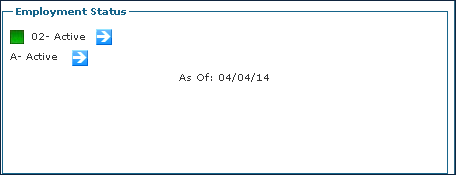
The Employment Status area of the General section contains information about the staff member’s current level of activity at the agency.
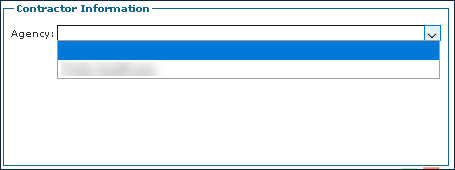
The Contractor Information area of the General screen contains information about the staff member’s associated assignment.
The Admission Types area of the General screen contains information about specific admission types that the staff member is qualified to handle. Nothing in this section indicates that the staff member can handle all admission types.
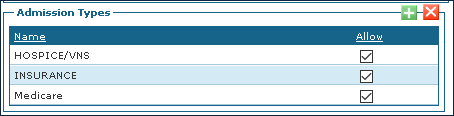
| Field | Description |
|---|---|
|
Name |
Displays the name of the Admission Type |
|
Allow |
Displays whether the staff can service clients of that admission type. |
The Schedules section contains the staff member’s work schedules. Past schedules can be viewed, new schedules can be added and other information can be reviewed or corrected as needed.
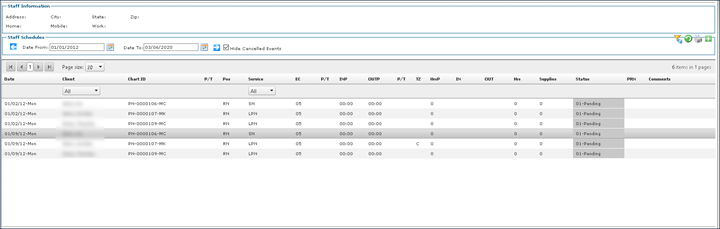
The Staff Information area of the Schedules section contains the residential details of the staff member.

|
Field |
Description |
|---|---|
|
Address |
Displays the staff member’s address. |
|
City |
Displays the staff member’s city of residence. |
|
State |
Displays the staff member’s state of residence. |
|
Zip |
Displays the staff member’s zip code of residence. |
|
Home |
Displays the staff member’s home phone number. |
|
Mobile |
Displays the staff member’s cell phone number. |
|
Work |
Displays the staff member’s work phone number. |
The Staff Schedules area of the Schedules section allows users to view a staff member’s schedule history, create new schedules and edit schedules as needed.

|
Field |
Description |
|---|---|
|
Date From |
Use this field to select a range starting with this date. |
|
Date To |
Use this field to select the end date in the range. |
|
Hide Cancelled Events |
Select this check box to hide any visits that were cancelled. |
|
Date |
Displays the date of the visit. |
|
Client |
Displays the name of the client. |
|
Chart ID |
Displays the client’s chart identification number. |
|
P/T |
Displays if the schedule is Permanent or Temporary.If the schedule was created from a template and was not changed it will be labeled “P” and if not from template or changed to not match the template, a “T.” |
|
Position |
Displays the staff member’s position. |
|
Service |
Displays the code of the service performed. |
|
EC |
Displays the event code of the visit. |
|
INP |
Displays the proposed in time |
|
OUTP |
Displays the proposed out time. |
|
TZ |
Displayed the schedule’s time zone. |
|
HrsP |
Displays the proposed duration of the visit. |
|
IN |
Displays the time the staff member In call time. |
|
OUT |
Displays the time the staff member Out call. |
|
Hrs |
Displayed the total number of hours of the visit based on the visit call times with rounding if applicable. |
|
Supplies |
Displays any supplies used during the visit. |
|
Status |
Displays the status of the visit. |
|
PRN |
Displays the PRN rate for the visit. |
|
Comments |
Displays any comments associated with the visit. |
|
OT / ABS Hours |
Displays OT / AB Hours entered during exception handling. |
|
Reason Code |
Displays the reason code for the visit. |
|
Reject Code |
Displays the reject code for the visit. |
The Availability section allows users to view when a staff member is available/unavailable for the week.
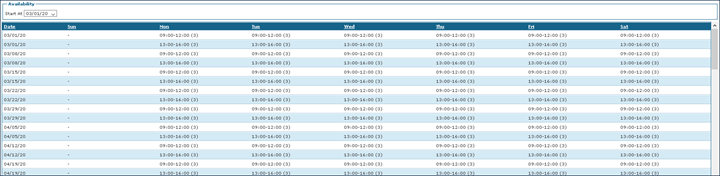
|
Field |
Description |
|---|---|
|
Start At |
Use this drop down to select the starting week for the range of availability/unavailability. |
|
Date |
Displays the date. |
|
Sun |
Displays a staff member’s availability/unavailability for Sunday. |
|
Mon |
Displays a staff member’s availability/unavailability for Monday. |
|
Tue |
Displays a staff member’s availability/unavailability for Tuesday. |
|
Wed |
Displays a staff member’s availability/unavailability for Wednesday. |
|
Thu |
Displays a staff member’s availability/unavailability for Thursday. |
|
Fri |
Displays a staff member’s availability/unavailability for Friday. |
|
Sat |
Displays a staff member’s unavailability for Saturday. |
The Compliance section allows users to view a staff member’s compliance documentation to confirm they are able to perform specific tasks or duties.

|
Field |
Description |
|---|---|
|
Show History |
Select this check box to view all compliance documentation. |
|
Show Non-Compliant Only |
Select this check box to view only non-compliant documentation. |
|
Name |
Displays the name of the documentation. |
|
Value |
Displays any customized completion values if configured. |
|
Effective |
Displays the starting date of the documentation’s compliance. |
|
Renewal |
Displays the date the documentation needs renewing. |
|
Comment |
Displays any notes about the compliance item. |
This Compliance Detail Window is used to edit or view further information associated with a compliance item.
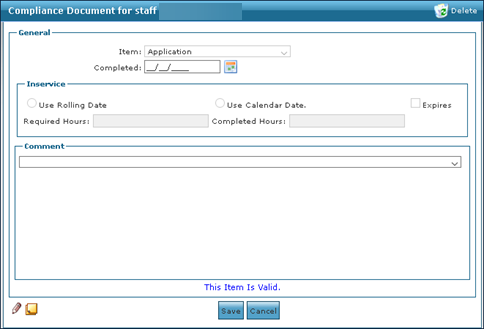
|
Field |
Description |
|---|---|
|
Item |
Use this drop down to select the category of the document. |
|
Completed |
Use this field to select the date of completion for the document. |
|
Use Rolling Date |
Select this option to choose a date that adjusts because of scheduling or holidays. |
|
Use Calendar Date |
Select this option to choose a specific date. |
|
Expires |
Select this check box to indicate a document can expire. |
|
Required Hours |
Displays the total number of hours required if necessary, for a certification. |
|
Completed Hours |
Displays the total number of hours completed towards a certification. |
|
Comment |
Use this drop down to select any comments associated with the document. |
|
Historian |
Click this button to view the document’s historian window. |
|
Task Notes |
Click this button to view the task notes associated with the document. |
The Evaluation section allows users to view information about a staff member’s attended inservices and any visits or days that may have been cancelled.
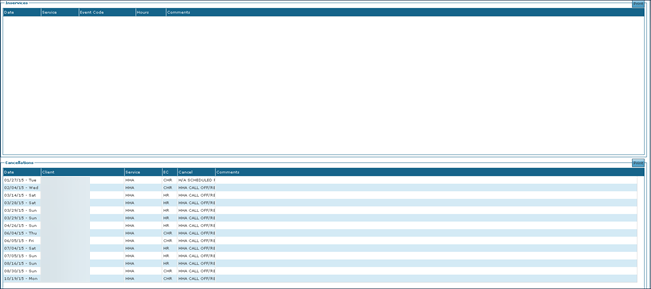
The Inservices area of the Evaluation section contains information related to continuing education trainings that the staff member has attended.

| Field | Description |
|---|---|
|
Date |
Displays the date of the inservice. |
|
Service |
Displays the category of the inservice. |
|
Event Code |
Displays the event code of the inservice. |
|
Hours |
Displays the total hours of the inservice. |
|
Comments |
Displays any comments associated with the inservice. |
The Cancellations area of the Evaluation section contains information related to cancelled visits associated with the staff member.
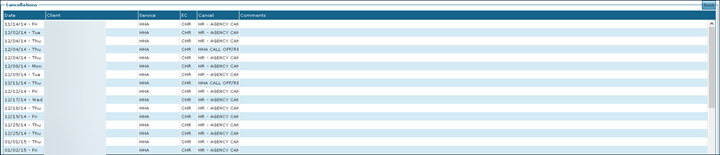
| Field | Description |
|---|---|
|
Date |
Displays the date of the cancelled visit. |
|
Client |
Displays the name of the client associated with the cancelled visit. |
|
Service |
Displays the service received by the client associated with the cancelled visit. |
|
EC |
Displays the event code of the cancelled visit. |
|
Cancel |
Displays the reason for the visit cancellation. |
|
Comments |
Displays any notes associated with the cancellation. |
The Payroll section contains information related to a staff member’s payrate, W4 information and benefits.
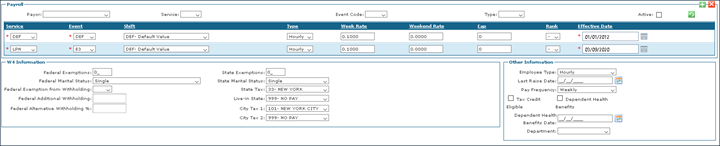
The Payroll area of the Payroll section contains information specific to a staff member’s rate of pay per service if different from the normal rates.

| Field | Description |
|---|---|
|
Payor |
Use this drop down to filter services by payer. |
|
Service |
Use this drop down to filter services by service |
|
Event Code |
Use this drop down to filter services by event code. |
|
Type |
Use this drop down to filter services by pay type. |
|
Active |
Select this check box to filter for active services. |
|
Service |
Use this drop down to edit the service’s task type. |
|
Event |
Use this drop down to enter or select the service’s event code. |
|
Shift |
Use this drop down to edit the service’s shift. |
|
Type |
Use this drop down to edit the service by type. |
|
Week Rate |
Use this field to enter the service’s week day pay rate. |
|
Weekend Rate |
Use this field to enter the service’s weekend pay rate. |
|
Cap |
Use this field to enter the service’s hour limit. |
|
Rank |
Use this drop down to edit the service’s priority level in relation to the cap. |
|
Effective Date |
Use this field to select the beginning date of the rate. |
The W4 Information area of the Payroll section contains information about a staff member’s tax withholdings and status.

|
Field |
Description |
|---|---|
|
Federal Exemptions |
Use this field to edit the staff member’s federal exemption amount. |
|
Federal Marital Status |
Use this drop down to select the staff member’s federal marital status. |
|
Federal Exemption from Withholding |
Use this drop down to select if the staff member has a federal exemption. |
|
Federal Additional Withholding |
Use this field to enter the staff member’s additional withholding amount. |
|
Federal Alternative Withholding % |
Use this field to enter the staff member’s additional withholding percentage. |
|
State Exemptions |
Use this field to edit the staff member’s state exemption amount. |
|
State Marital Status |
Use this drop down to select the staff member’s state marital status. |
|
State Tax |
Use this drop down to select the state the staff member is taxed under. |
|
Live-In State |
Use this drop down to select the staff member’s state of residence if different from the state tax. |
|
City Tax 1 |
Use this drop down to select the city the staff member is taxed under. |
|
City Tax 2 |
Use this drop down to select any other cities the staff member is taxed under. |
The Other Information area of the Payroll section contains information about a staff member’s payroll options and benefits.
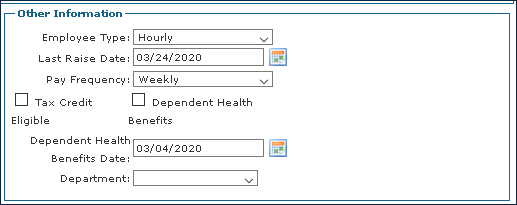
|
Field |
Description |
|---|---|
|
Employee Type |
Use this drop down to select the staff member’s category. |
|
Last Raise Date |
Use this field to select the date of the staff member’s last pay increase. |
|
Pay Frequency |
Use this drop down to select how often the staff member is paid. |
|
Tax Credit Eligible |
Select this check box to indicate if the staff member is able to receive a tax credit. |
|
Dependent Health Benefits |
Select this check box to indicate if the staff member has dependent health benefits. |
|
Dependent Health Benefits Date |
Use this field to select the date the staff member’s dependent health benefits begin. |
|
Department |
Use this drop down to select the staff member’s department. |
The Security section contains information about the staff member’s user privileges.
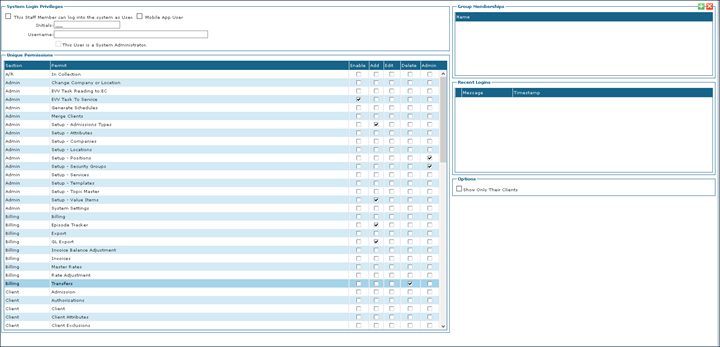
The System Login Privileges area of the Security section contains information related to the staff member’s system account and administrator access.

|
Field |
Description |
|---|---|
|
This Staff Member can log into the system as a User. |
Select this check box to indicate the staff member is able to access the system as a user. |
|
Mobile App User |
Select this check box to indicate the staff member uses the mobile application.A user cannot be a system user and a mobile user on the same profile. |
|
Initials |
Use this field to enter the staff member’s initials. |
|
Username |
Use this field to enter the staff member’s username.For mobile staff members, set their email address as the username. |
|
This User is a System Administrator |
Select this check box to indicate that this user has administrator privileges in the system. |
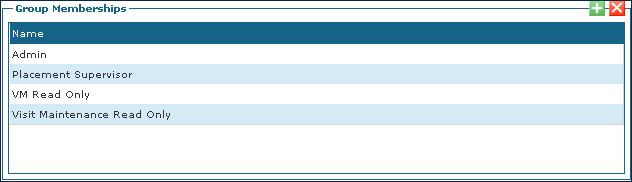
The Group Memberships area of the Security section contains any custom special categories that have been added to the staff member’s profile.
The Unique Permissions area of the Security section contains permissions that can be added to a staff member’s profile for access to various system tools.
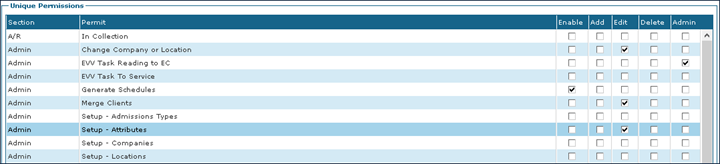
|
Field |
Description |
|---|---|
|
Section |
Displays the type of permission. |
|
Permit |
Displays the permission granted by the attribute. |
|
Enable |
Select this check box to give a staff member the ability to use the permission. |
|
Add |
Select this check box to give a staff member the ability to add items in the selected part of the system. |
|
Edit |
Select this check box to give a staff member the ability to edit items in the selected part of the system. |
|
Delete |
Select this check box to give a staff member the ability to delete items in the selected part of the system. |
|
Admin |
Select this check box to give a staff member administrative ability in the system. |
The Recent Logins area of the Security section contains information about recent date and times a staff member has logged in to use the system.
|
Field |
Description |
|---|---|
|
Message |
Displays messages associated with logging in such as “Login Successful” or “Invalid Password.” |
|
Timestamp |
Displays the date and timestamp of the login. |
The Options area of the Security section contains optional settings.

| Field | Description |
|---|---|
|
Show Only Their Clients |
Select this check box to limit the user to only seeing clients that are assigned to them as a manager or coordinator. |
The In-Service section contains information about all in-service training sessions that a staff member has attended.
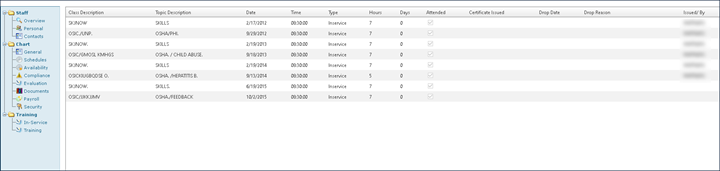
|
Field |
Description |
|---|---|
|
Class Description |
Displays the name of the in-service. |
|
Topic Description |
Displays the topic covered in the in-service. |
|
Date |
Displays the date of the in-service. |
|
Time |
Displays the time the in-service took place. |
|
Type |
Displays the category of the in-service. |
|
Hours |
Displays the total hours the in-service ran. |
|
Days |
Displays the number of days the in-service ran. |
|
Attended |
Displays if the staff member was marked attended. |
|
Certificate Issued |
Displays the date the in-service certificate was issued. |
|
Drop Date |
Displays the date the staff member dropped the in-service. |
|
Drop Reason |
Displays the reason the staff member dropped the in-service. |
|
Issued By |
Displays the agency that hosted the in-service. |
The Training section contains information about all regular training sessions that a staff member has attended.

|
Field |
Description |
|---|---|
|
Class Description |
Displays the name of the training. |
|
Topic Description |
Displays the topic covered in the training. |
|
Date |
Displays the date of the training. |
|
Time |
Displays the time the training took place. |
|
Type |
Displays the category of the training. |
|
Hours |
Displays the total hours the training ran. |
|
Days |
Displays the number of days the training ran. |
|
Attended |
Displays if the staff member was marked attended. |
|
Certificate Issued |
Displays the date the training certificate was issued. |
|
Drop Date |
Displays the date the staff member dropped the training. |
|
Drop Reason |
Displays the reason the staff member dropped the training. |
|
Issued By |
Displays the agency that hosted the training. |