Change a Staff Member's Employment Status
A staff member’s status is subject to change for a variety of reasons including firing, leave of absence, maternity leave or other situations.
When changing a staff member’s employment status, status progression is important.
Cancelled is for data entry errors or corrections, and only a staff member in Recruit status can be moved to Cancelled.
To change a status:
-
Go to Main Menu > Staff.
-
Locate and double click on the staff member using the search filters.
-
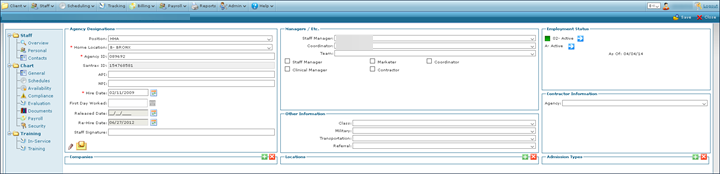
Click General.
-
Click Change Staff Status. This opens the Employment Status window.

-
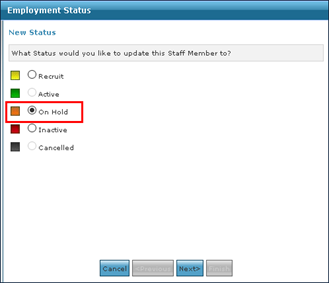
Select the staff member’s new status.
-
Click Next.
-
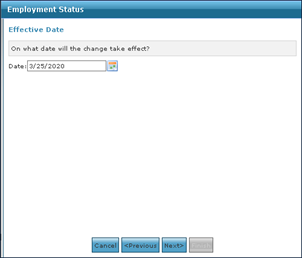
Select the starting date for the status change. The default value is set to the current date.
-
Click Next.
-
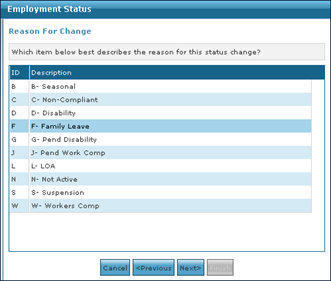
Select the reason for the status change.
-
Click Next.
-
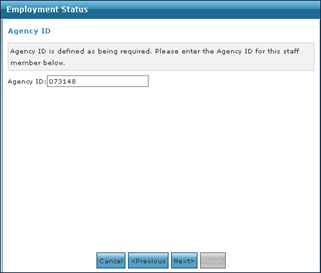
Enter the Agency ID number if required.
-
Click Next.
-
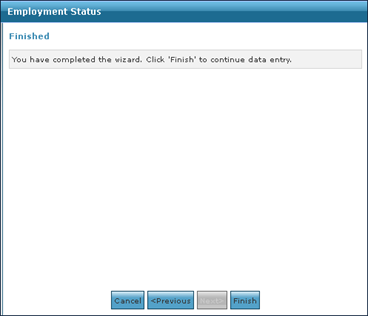
Click Finish.