Employee Registration Window
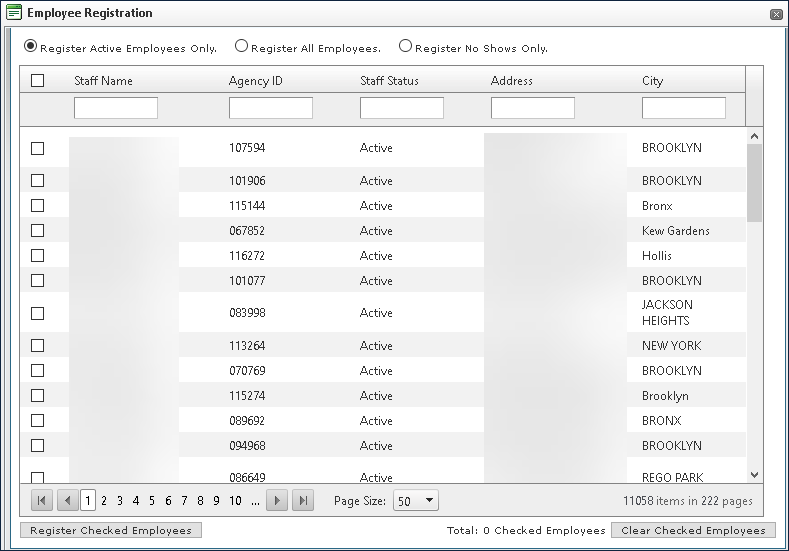
The Employee Registration window is used to add staff members to a class. Staff members can be located in the list or by using the search filters at the top. If a partial value is used, results that begin with the value are displayed.
To open the Employee Registration window, go to Main Menu > Training > Class Roster > Employee Registration.
|
Field |
Description |
|---|---|
|
Staff Name |
Use this field to filter staff by name. |
|
Agency ID |
Use this field to filter staff by agency identification number. |
|
Staff Status |
Use this field to filter staff by status. |
|
Address |
Use this field to filter staff by address. |
|
City |
Use this field to filter staff by city. |
|
Register Active Employees Only Register All Employees Register No Shows Only |
Use these radial buttons to mass select staff by category. |
|
Register Checked Employees |
Click this button to register any staff with a check box next to their name. |
|
Clear Checked Employees |
Click this button to remove deselect all staff. |