Scheduling Overview Screen
The Scheduling Overview screen displays schedules and visits created in Santrax Agency Management. From this screen, users can add, review, and mass edit schedules, and open the Schedule Detail screen.
To access the Scheduling Overview screen, go to Main Menu > Scheduling.
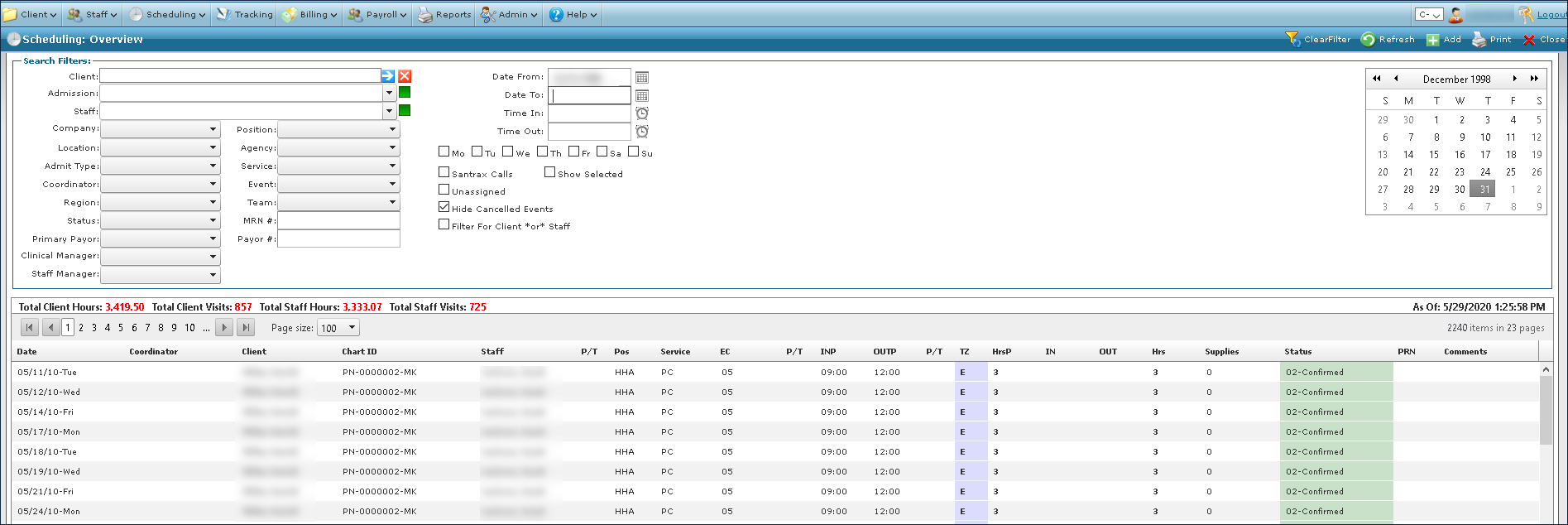
The Search Filters at the top of the screen allow you to narrow the Results List to meet specific criteria.

|
Field |
Description |
|---|---|
|
Client |
Use this field to filter schedules by the client’s admissions. |
|
Admission |
Use this field to filter schedules by a client’s specific admission. |
|
Staff |
Use this field to filter schedules by staff member. |
|
Company |
Use this drop down to filter schedules by company. |
|
Location |
Use this drop down to filter schedules by location. |
|
Admit Type |
Use this drop down to filter schedules by admission type. |
|
Coordinator |
Use this drop down to filter schedules by coordinator. |
|
Region |
Use this drop down to filter schedules by region. |
|
Status |
Use this drop down to filter schedules by status. |
|
Primary Payor |
Use this drop down to filter schedules by the primary payer. |
|
Clinical Manager |
Use this drop down to filter schedules by clinical manager. |
|
Staff Manager |
Use this drop down to filter schedules by staff manager. |
|
Position |
Use this drop down to filter schedules by position. |
|
Agency |
Use this drop down to filter schedules by agency. |
|
Service |
Use this drop down to filter schedules by service being performed. |
|
Event |
Use this drop down to filter schedules by the event code. |
|
Team |
Use this drop down to filter schedules by the assigned team. |
|
MRN # |
Use this field to filter schedules by medical record number. |
|
Payor # |
Use this field to filter schedules by payer number. |
|
Date From |
Use this drop down to select the beginning date in a range. |
|
Date To |
Use this drop down to select the ending date in a range. |
|
Time In |
Use this drop down to select the starting time in in a range. |
|
Time Out |
Use this drop down to select the ending time in a range. |
|
Mo |
Select this check box to filter schedules occurring on Mondays. |
|
Tu |
Select this check box to filter schedules occurring on Tuesdays. |
|
We |
Select this check box to filter schedules occurring on Wednesdays. |
|
Th |
Select this check box to filter schedules occurring on Thursdays. |
|
Fr |
Select this check box to filter schedules occurring on Fridays. |
|
Sa |
Select this check box to filter schedules occurring on Saturdays. |
|
Su |
Select this check box to filter schedules occurring on Sundays. |
|
Santrax Calls |
Select this check box to filter schedules with calls from field staff. |
|
Unassigned |
Select this check box to filter schedules without assigned field staff. |
|
Hide Cancelled Events |
Select this check box to remove cancelled events from the results list. |
|
Filter For Client or Staff |
Select this check box to include schedules matching either client or staff filters in the results. |
|
Show Selected |
Select this check box to show only visits that have been previously mass selected. |
The Results List displays all schedules matching the selected search criteria. By default, the Results List displays all events scheduled for the current day. A schedule can be opened by double clicking on it.

|
Field |
Description |
|---|---|
|
Date |
Displays the date of the schedule. |
|
Coordinator |
Displays the coordinator assigned to the client. |
|
Client |
Displays the client associated with the schedule. |
|
Chart ID |
Displays the chart id number of the client associated with the scheduled. |
|
Staff |
Displays the staff member associated with the schedule. |
|
Pos |
Displays the position of the staff member associated with the schedule. |
|
Service |
Displays the service being performed during the visit. |
|
EC |
Displays the event code of the scheduled visit.If there are multiple event codes, the results list displays the visit multiple times, once for each event code. |
|
INP |
Displays the proposed begin time of the scheduled visit. |
|
OUTP |
Displays the proposed end time of the scheduled visit. |
|
TZ |
Displays the time zone of the scheduled visit. |
|
HrsP |
Displays the proposed duration of the scheduled visit. |
|
IN |
Displays the actual begin time of the scheduled visit. |
|
OUT |
Displays the actual end time of the scheduled visit. |
|
Hrs |
Displays the actual duration of the scheduled visit. |
|
Supplies |
Displays the number of supplies associated with the scheduled visit. |
|
Status |
Displays the status of the scheduled visit. |
|
PRN |
Displays any PRN amounts associated with the scheduled visit. |
|
Comments |
Displays any notes associated with the scheduled visit. |
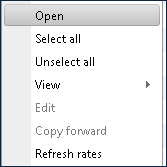
Multiple quick access options are available by right clicking on a schedule in the results list.
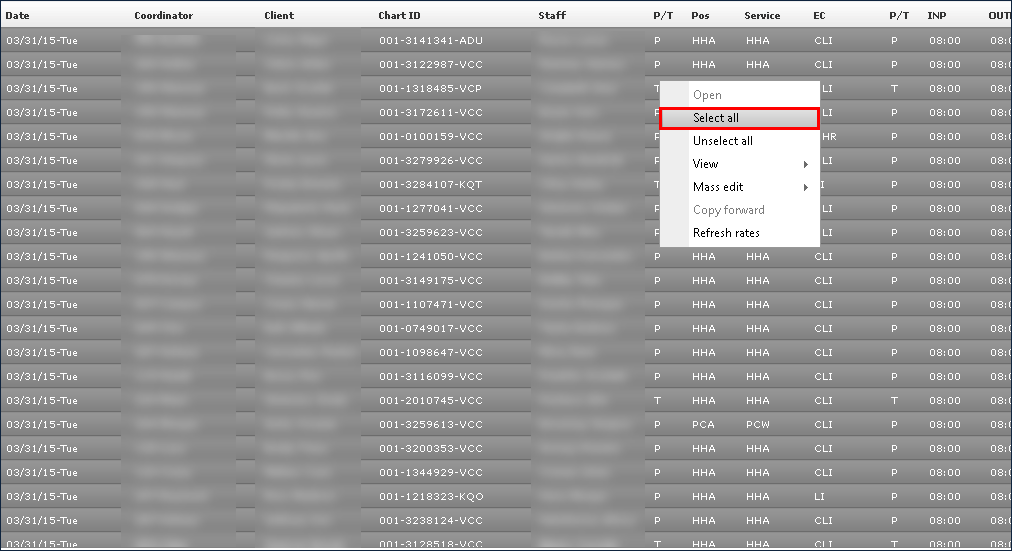
There are several options to select multiple schedules from the Results List. The Select All option highlights all schedules in the Results List. To select consecutive schedules, press and hold <Shift> and then select the first and last schedule. To select non-consecutive schedules, press and hold <Ctrl> and select the desired schedules. Selected schedules can be modified when mass editing.
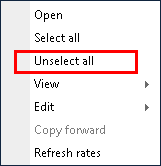
Unselect all deselects any items that have been selected in the Results List.