Mass Edit Schedules
The Mass Edit feature is used to make changes to different parts of a schedule including the Event Code, Staff Member, Times or Status. This feature is available from several screens such as Client Schedules and Scheduling Overview.
To Mass Edit schedules:
-
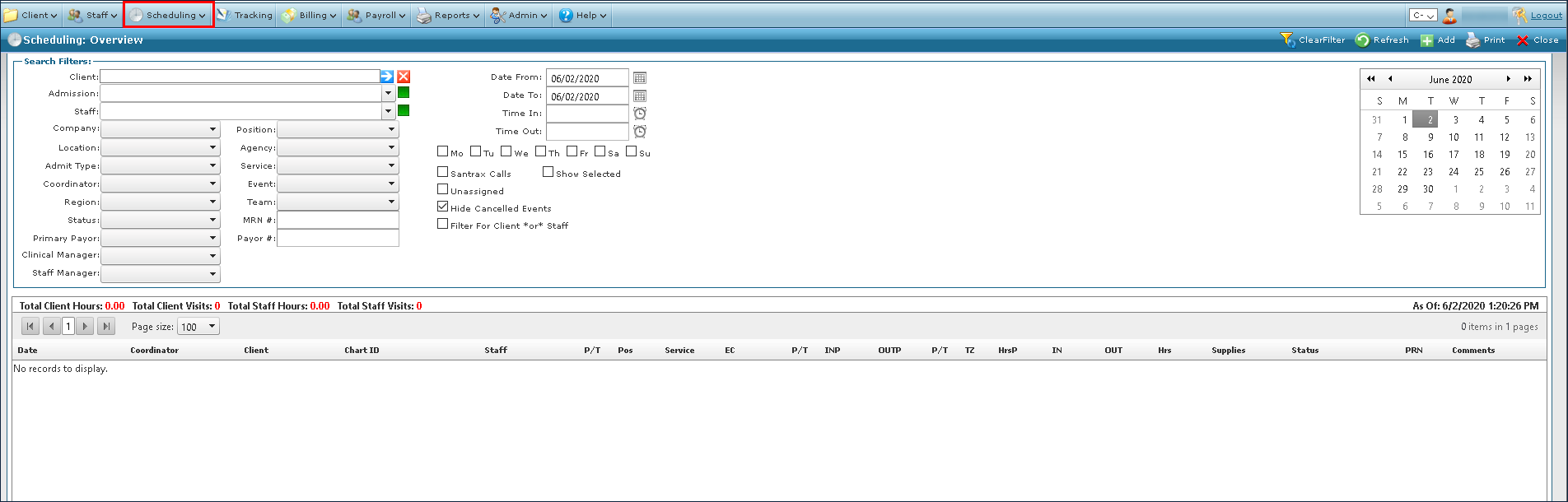
Go to Main Menu > Scheduling.
-
Choose the search filters matching the criteria for the schedule.

-
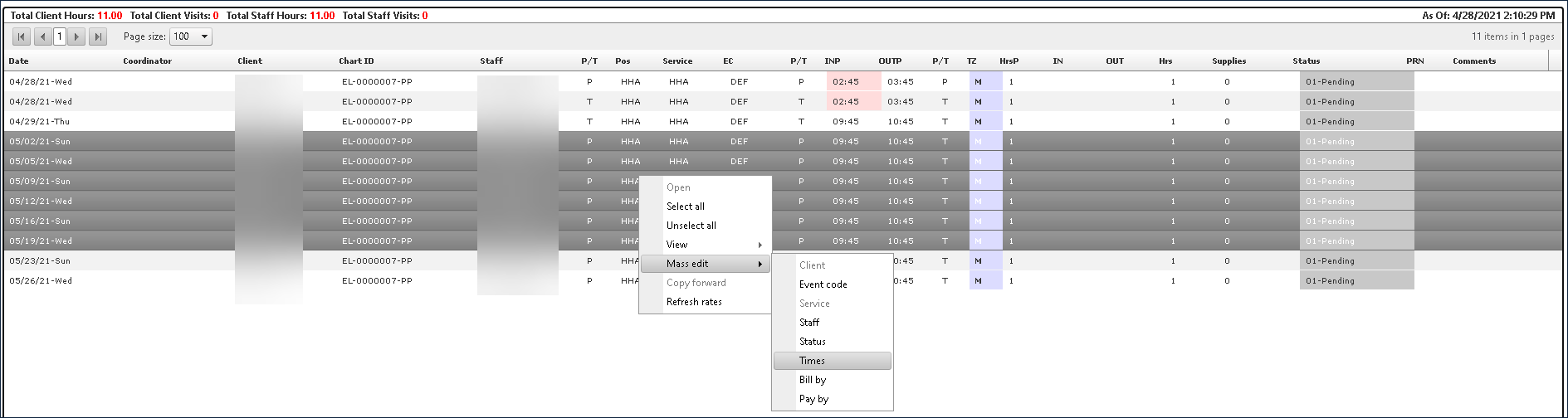
Select the desired schedules. Multiple schedules can be selected by pressing and holding <Ctrl> and clicking on the desired schedules or pressing and holding <Shift> and selecting the first and last schedule.
-
Right click on the schedules, click Mass Edit and select the schedule setting to be edited.
-
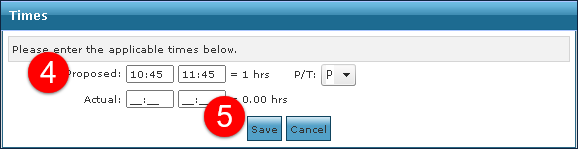
Enter the new changes, as necessary. Select P if the change is permanent to update the permanent schedule template for all schedules generated in the future.
-
Click Save.
Select a Reason Code, if required.