Schedule Detail Screen
The Schedule Detail screen provides all information pertaining to an event, such as the name of the client, the assigned staff member, type of service, supplies, etc.
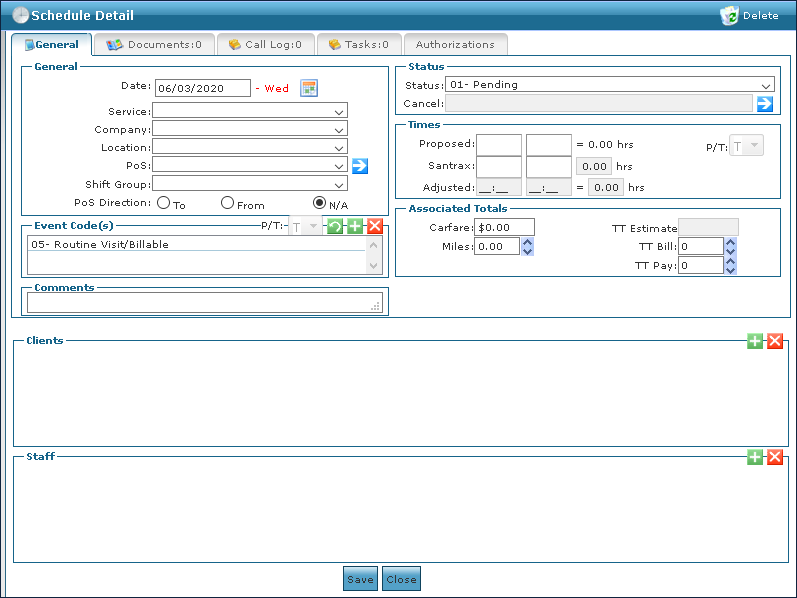

The General Tab contains the schedule and visit information for an event as well as additional details about the client and assigned staff member.
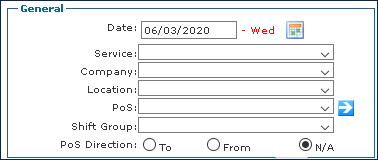
The General section on the General tab on the Schedule Detail screen contains basic information about the service including the date, associated company, and location.
|
Field |
Description |
|---|---|
|
Date |
Use this field to select the date of the schedule. |
|
Service |
Use this drop down to select the service being performed. |
|
Company |
Use this drop down to select the company associated with the schedule. This field may auto-populate and lock depending on the client. |
|
Location |
Use this drop down to select the client’s location. |
|
PoS |
Use this field to select the place of service for the schedule. |
|
Shift Group |
Use this drop down to select the shift this service takes place during. This is used when billing or payroll is different based on the time of day. |
|
PoS Direction |
Select this radial button to include directions to the service location. |
The Event Codes section of the General Tab on the Schedule Detail screen contains information about the event codes for a service being performed during a schedule.

The Status section of the General tab on the Schedule Detail screen contains information about the status of the schedule and any reason for cancellations.

|
Field |
Description |
|---|---|
|
Status |
Use this drop down to select the status of the schedule. |
|
Cancel |
Use this field to select a reason code if the status of the schedule is Cancelled. |
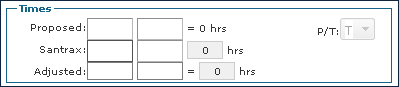
The Times section of the General Tab on the Schedule Detail screen contains information about the estimated and actual times a schedule occurred during.
|
Field |
Description |
|---|---|
|
Proposed |
Use this field to enter the scheduled time for the visit to occur. |
|
Santrax |
This field is automatically filled by calls coming in from field staff. Santrax times are required and may need to be manually entered to confirm visits if missing. |
|
Adjusted |
These fields are used to calculate time adjustments based on rounding rules. |
|
P/T |
Use this field to select if the schedule was generated from a permanent or temporary template. |
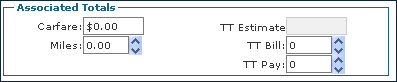
The Associated Totals section of the General Tab on the Schedule Detail screen contains information related to additional costs associated with a visit.
|
Field |
Description |
|---|---|
|
Carfare |
Use this field to enter the amount reimbursed for carfare. |
|
Miles |
Use this field to enter the number of miles traveled to perform a visit. |
|
TT Estimate |
This field displays the estimated travel time to perform a visit. This only applies when automatic travel time is enabled. |
|
TT Bill |
Use this field to enter the billable number of miles traveled to perform a visit. |
|
TT Pay |
Use this field to enter the payable number of miles traveled to perform a visit. |
The Comments section of the General Tab on the Schedule Detail screen contains any notes or additional information about adjustments or changes that have been made after the visit has occurred.

The Clients section of the Schedule Detail screen contains the client billing participant lines for clients receiving services during a schedule.
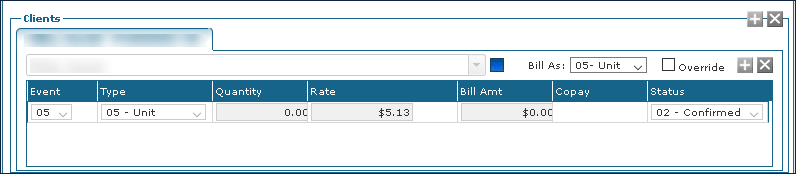
|
Field |
Description |
|---|---|
|
Bill As |
Use this field to select the bill type to bill the visit. |
|
Override |
Select this check box to edit any of the automatically generated amounts. Using the Override check box supersedes any attempt by the system to affect this after the edit. This option should only be used if there is no other choice. |
|
Event |
Displays the event code of the visit. |
|
Type |
Displays the billing type of the service. |
|
Quantity |
Displays the billing quantity based on the bill type. |
|
Rate |
Displays the rate per quantity based on the bill type. |
|
Bill Amt |
Displays the total billable amount for the service or based on the bill quantity and rate. |
|
Copay |
Displays the copay associated with the service. |
|
Status |
Displays the billing status. |
The Staff section of the Schedule Detail screen contains the staff pay participant lines for the staff assigned visit.
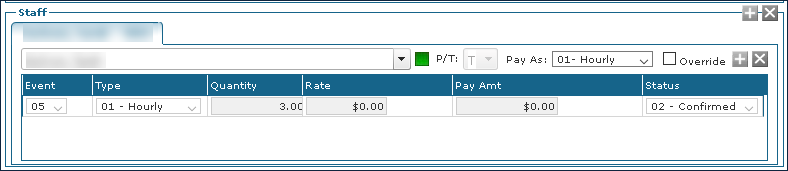
|
Field |
Description |
|---|---|
|
P/T |
Displays if the schedule is generated from a temporary or permanent template. |
|
Pay As |
Displays the unit type to pay for the visit. |
|
Override |
Select this check box to edit any of the automatically generated amounts. |
|
Event |
Displays the event code of the visit. |
|
Type |
Displays the billing type of the service. |
|
Quantity |
Displays the billable amount for the line. |
|
Rate |
Displays the rate per unit for the service. |
|
Pay Amt |
Displays the total payable amount for the service. |
|
Copay |
Displays the copay associated with the service. |
|
Status |
Displays the billing status. |
The Documents tab on the Schedule Detail screen stores documents specific to a schedule.
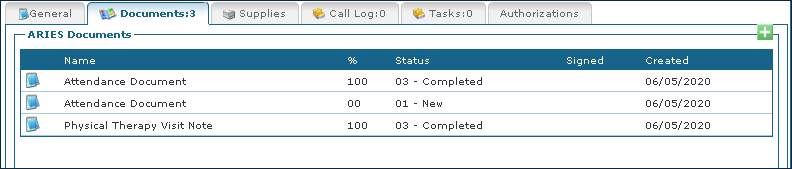
|
Field |
Description |
|---|---|
|
Name |
Displays the name of the document. |
|
% |
Displays the completion % of the document. |
|
Status |
Displays the status of the document. |
|
Signed |
Displays if the document has been signed. |
|
Created |
Displays the date the document was added to the schedule. |
The Supplies Tab on the Schedule Detail screen displays any supplies or materials needed for a visit.

|
Field |
Description |
|---|---|
|
Supply |
Use this drop down to select the name of the supply. |
|
Date |
Use this field to enter the date the supply was used on. |
|
Quantity |
Use this field to enter the amount of the supply that was used. |
|
Rate |
Use this field to enter the cost of the supply. |
|
Bill Amt |
Use this field to enter the billable cost of the supply. |
|
Bill Status |
Use this field to enter the status of the supply’s bill. |
The Call Log Tab on the Schedule Detail screen displays calls associated with the schedule.
When a call is received, the phone number or Sandata Mobile Connect (SMC) indicator from which the in-call and out-call have been received is displayed.
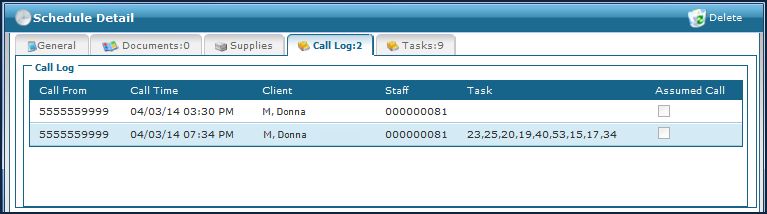
|
Field |
Description |
|---|---|
|
Call From |
Displays the number or SMC indicator that the schedule was called into from. |
|
Call Time |
Displays the date and time that the call occurred at. |
|
Client |
Displays the name of the client that the call came from, either via phone number or SMC indicator. |
|
Staff |
Displays the name of the staff member the call came from, either via phone number or SMC indicator. |
|
Task |
Displays the task numbers entered on the call or selected via SMC. |
|
Assumed Call |
Select this checkbox to indicate that this is a assumed call as part of the consecutive calling feature |
|
Service |
Displays the name of the service selected on the call if applicable. Most of the time service selection is not turned on on the phone lines or SMC. |
|
Call Location |
Displays the location the call occurred at. |
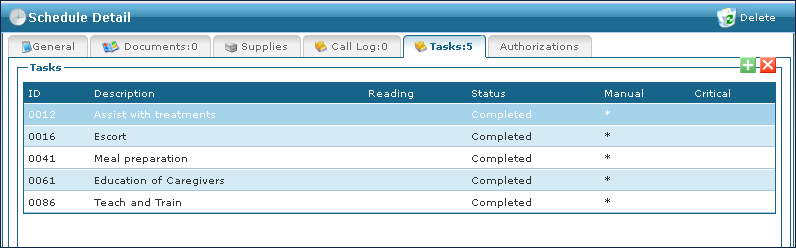
The Tasks tab on the Schedule Detail screen displays duties a staff member has completed during a scheduled visit.
|
Field |
Description |
|---|---|
|
ID |
Displays the task ID number. |
|
Description |
Displays the description of the task being performed. |
|
Reading |
Displays any reading required by the task, such as blood pressure or miles driven. |
|
Status |
Displays the status of the task. |
|
Manual |
Displays a * if the task was manually added to the visit by a staff member and not via call or SMC indicator. |
|
Critical |
Displays if the task is marked as critical and is required to complete the visit. |
The Late and Missed Visit Handling tab on the Schedule Detail Screen displays if the agency and the service provided is setup for Late and Missed Visit Handling. On this tab, missed visits can be made up, or explained why it was missed or late.
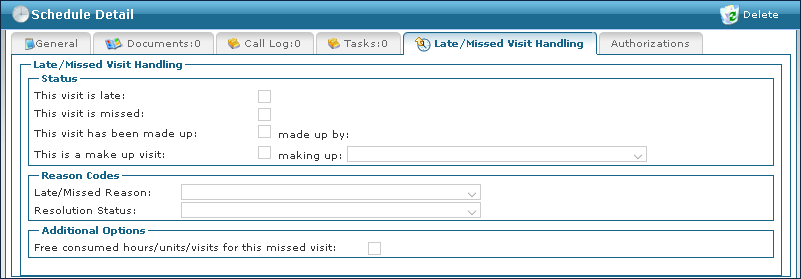
The Status section of the Late/Missed Visit Handling tab on the Schedule Detail screen contains basic information about how or if the visit is going to be made up.

|
Field |
Description |
|---|---|
|
This visit is late |
Select this checkbox to indicate that the visit is behind schedule. |
|
This visit is missed |
Select this checkbox to indicate that the visit was missed. |
|
This visit has been made up |
Select this checkbox to indicate that the visit has been made up. |
|
Made up by |
Displays the name of the staff member who made up the visit. |
|
This is a makeup visit |
Select this checkbox to indicate that the visit is being made up. |
|
Making up |
Displays the name of the staff member who is making up the visit. |
The Reason Code section of the Late/Missed Visit Handling tab on the Schedule Detail screen contains the reason codes for the visit being late or missed, as well as the follow up status.

|
Field |
Description |
|---|---|
|
Late/Missed Reason |
Use this drop down to select the reason why the visit was late or missed. |
|
Resolution Status |
Use this drop down to select the how the late or missed visit was resolved. |
The Additional Options section of the Late/Missed Visit Handling tab on the Schedule Detail screen contains additional methods that can be used to resolve a late or missed visit.

|
Field |
Description |
|---|---|
|
Free consumed hours / units / visits for this missed visit |
Select this check box to release any time taken up by a visit that missed without resolution. |