Schedule Confirmation Screen
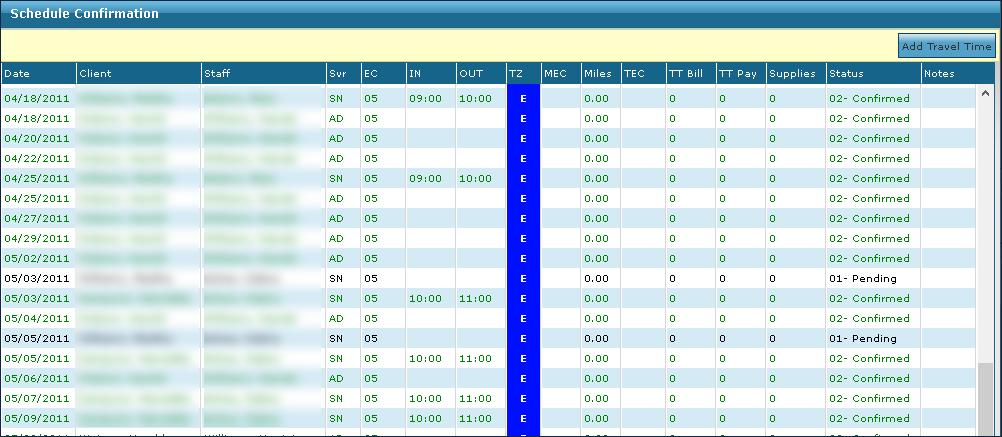
Schedules can be confirmed through the Schedule Confirmation screen.
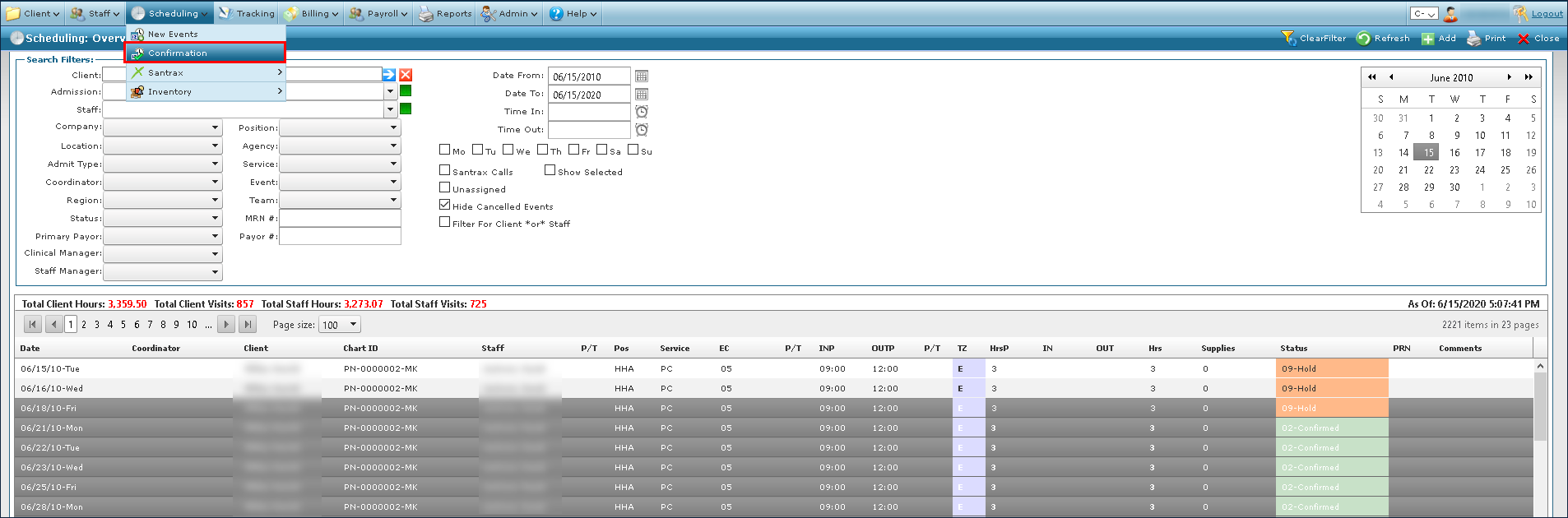
To access the Schedule Confirmation screen, go to Main Menu > Scheduling > Confirmation.
|
Field |
Description |
|---|---|
|
Add Travel Time |
Use this button to change the travel event code for the selected schedules. |
|
Date |
Displays the date of the schedule. |
|
Client |
Displays the client associated with the schedule. |
|
Staff |
Displays the staff member associated with the schedule. |
|
Svr |
Displays the service code associated with the schedule. |
|
EC |
Displays the event code associated with the schedule. |
|
In |
Displays the call in time of the schedule. |
|
Out |
Displays the call out time of the schedule. |
|
TZ |
Displays the time zone that the schedule occurs in. |
|
MEC |
Displays the minimum essential coverage |
|
Miles |
Displays the miles traveled for the visit associated with the schedule. |
|
TEC |
Displays the travel event code associated with the schedule. |
|
TT Bill |
Displays the billable travel time amount for the schedule. |
|
TT Pay |
Displays the payable travel time amount for the schedule. |
|
Supplies |
Displays the amount of any used supplies associated with the schedule. |
|
Status |
Displays the status of the schedule. |
|
Notes |
Displays any notes associated with the schedule. |