Create a Permanent Schedule
Before creating a permanent schedule, check the client’s profile to make sure a schedule has not already been created.
-
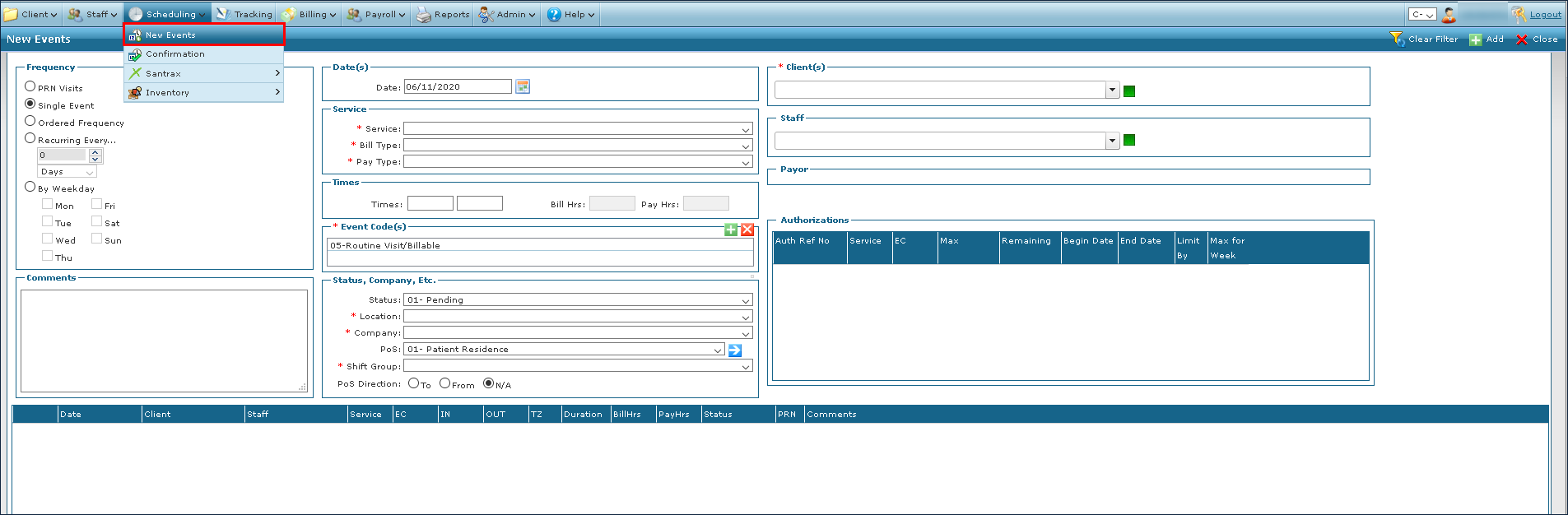
Go to Main Menu > Scheduling > New Events.
-
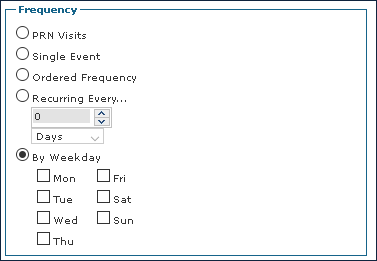
Select the Frequency of the event. Frequency is a required field and must be selected.
-
Add any comments or additional information to event.
-
Select the date(s) the event occurs on.

If the visit is Recurring or By Weekday, there are two date boxes which allow you to define the start and end dates of the event.

-
Select the service and type of visit.

The options in the Service and Type drop-down lists are Agency defined. The list of available Clients and Staff changes depending on the Service selected.
-
Enter the event time and billing information.

-
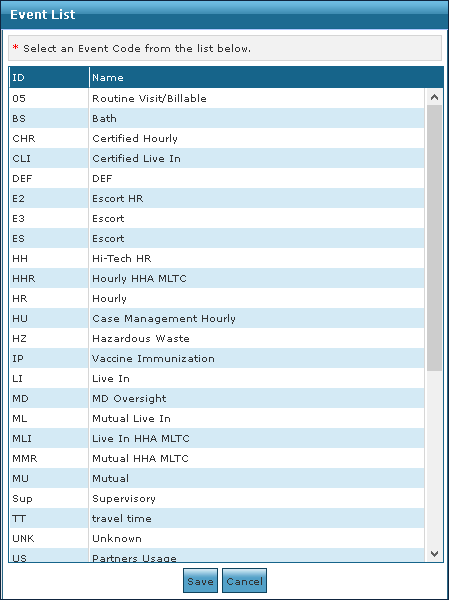
Select the event code.

-
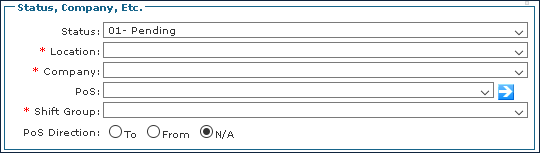
Select the status, company, location and additional information.
-
Select the client.

-
Select the staff member.

-
Click Add.
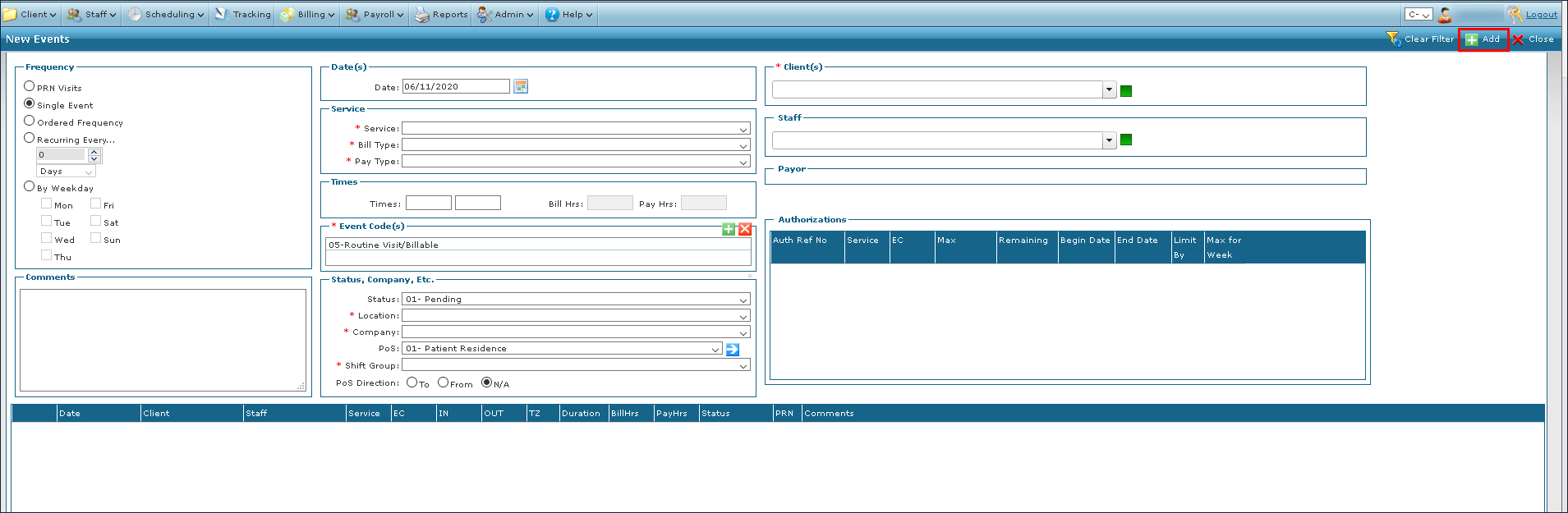
The Event is created and viewable in the Results.
-
Review the schedule for any conflicts or incorrect information.
-
Click Create as Permanent Schedule.

-
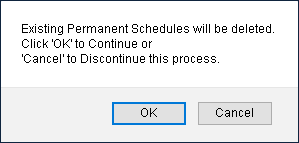
Click OK.
-
Click Commit to finalize the event. This updates the Permanent section of the client’s profile to reflect the changes.
