Training by Topic Report
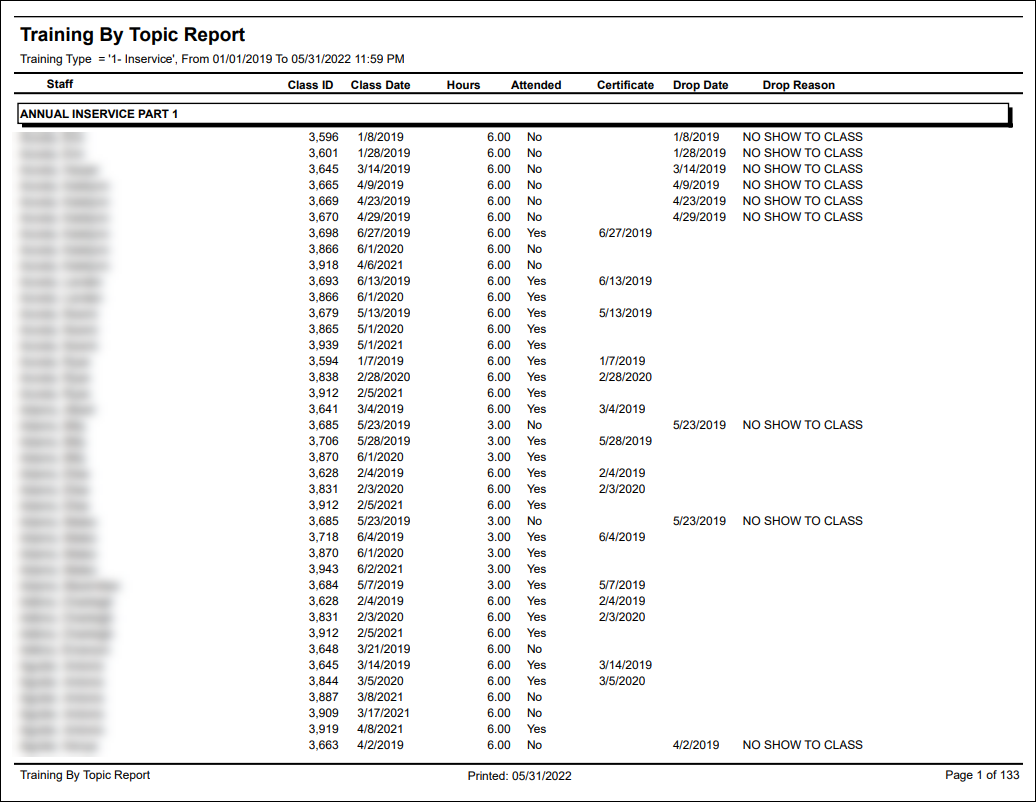
Description: This report displays the status of all staff members who have been assigned a class matching the selected filters. The report includes the staff member’s name, and the class information including if the staff member completed it or not.
Use: This report can be used to quickly reference all staff members assigned to a class and when they completed it.
Limitations: N/A
This report can be filtered by:
|
Field |
Description |
|---|---|
|
Location |
Use this dropdown to select the location. |
|
Team |
Use this dropdown to select the team. |
|
Manager |
Use this dropdown to select the manager. |
|
Position |
Use this dropdown to select the position. |
|
Staff |
Use this field to enter the staff member’s name.Entering a partial term returns all results matching the term. |
|
Staff Status |
Use this dropdown to select the staff member’s status. |
|
Coordinator |
Use this dropdown to select the coordinator. |
|
Class |
Use this dropdown to select the class. |
|
Topic |
Use this dropdown to select the class topic. |
|
Training Type |
Use this dropdown to select the training type. |
|
Attended |
Use this dropdown to select if the training was attended or not. |
|
Date From |
Use this field to select classes beginning on this date. |
|
Date To |
Use this field to select classes ending on this date. |
Each column of the report displays:
|
Field |
Description |
|---|---|
|
Staff |
Displays the staff member’s name. |
|
Class ID |
Displays the class ID. |
|
Class Date |
Displays the date that the staff member was assigned the class. |
|
Hours |
Displays the class length in hours. |
|
Attended |
Displays if the staff member attended the class. |
|
Certificate |
Displays the date that the staff member became certified. |
|
Drop Date |
Displays the staff member’s drop date. |
|
Drop Reason |
Displays the reason why the staff member dropped or was dropped from the class. |