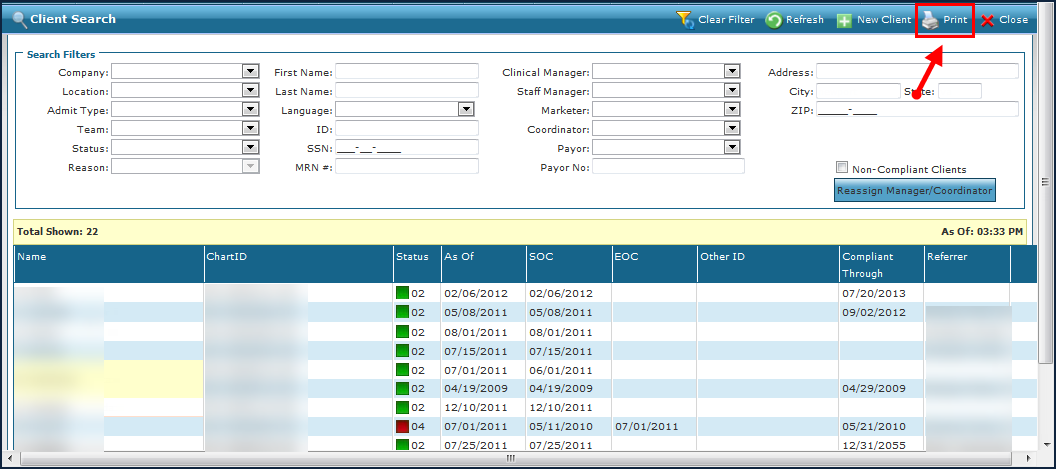
Sandata Agency Management 01-Client Search Window
From the Client Search window, users can add new Clients, reassign Coordinators or Managers and access Client admissions. Client information such as addresses, Physicians, diagnosis codes, authorizations, and documents are stored in the Client’s admission.
To launch the Client Search window, select Client under Main Menu > Client.
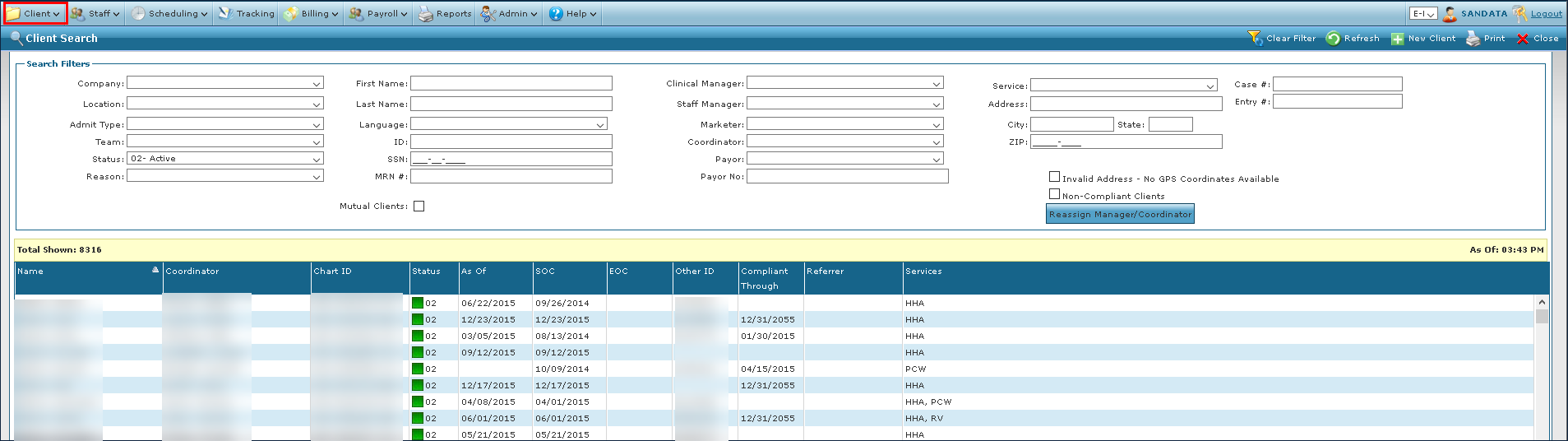

The Search Filters section of the Client Search window allows users to narrow the results list to display specific Clients.

|
Field |
Description |
|---|---|
|
Company |
Use this field to filter Clients by the associated company. |
|
Location |
Use this field to filter Clients by the associated location. |
|
Admit Type |
Use this field to filter Clients by the admission type. |
|
Team |
Use this field to filter Clients by the associated team. |
|
Status |
Use this field to filter Clients by the status. |
|
Reason |
Use this field to filter Clients by the reason associated with the status. |
|
First Name |
Use this field to filter Clients by first name. When a partial value is entered, the results list displays names that begin with the entered value. |
|
Last Name |
Use this field to filter Clients by the last name. When a partial value is entered, the Results List displays names that begin with the entered value. |
|
Language |
Use this field to filter Clients by their associated language. |
|
ID |
Use this field to filter Clients by identification number. |
|
SSN |
Use this field to Clients by their social security number. |
|
MRN # |
Use this field to filter Clients by MRN number. |
|
Mutual Clients |
Select this check box to filter for Clients that have the mutual Client option selected in their profile. |
|
Clinical Manager |
Use this field to filter Clients by the assigned Clinical Manager. |
|
Staff Manager |
Use this field to filter Clients by the assigned Staff Manager. |
|
Marketer |
Use this field to filter Clients by the assigned Marketer. |
|
Coordinator |
Use this field to filter Clients by their assigned Coordinator. |
|
Payor |
Use this field to filter Clients by Payer. |
|
Payor No |
Use this field to filter Clients by their Payer number. |
|
Service |
Use this field to filter Clients by assigned services. |
|
Address |
Use this field to filter Clients by their associated street address. When a partial value is entered, the results list displays addresses that include the entered value. |
|
City |
Use this field to filter Clients by their associated city. When a partial value is entered, the results list displays cities that include the entered value. |
|
State |
Use this field to filter Clients by their associated state. |
|
ZIP |
Use this field to filter Clients by their associated zip code. |
|
Invalid Address |
Select this checkbox to filter for Clients with addresses that could not be validated for GPS coordinates. |
|
Non-Compliant Clients |
Select this checkbox to filter for non-compliant Clients. |
|
Case # |
Use this field to filter Clients by case number. When a partial value is entered, the Results List displays case numbers that begin with the entered value. |
|
Entry # |
Use this field to filter Clients by entry number. When a partial value is entered, the Results List displays entry numbers that begin with the entered value. |
|
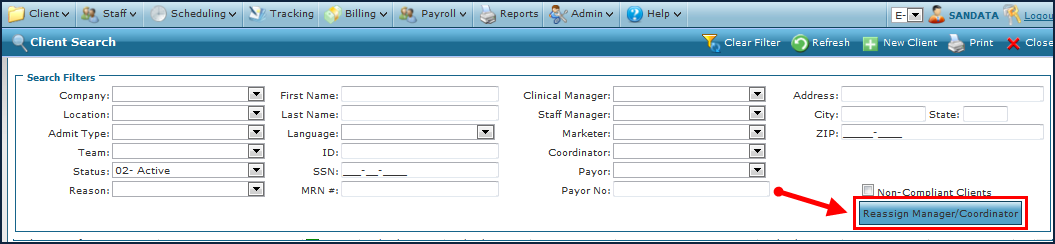
Reassign Manager/Coordinator |
Select this button to open the Reassign Manager / Coordinator wizard. |
The results list displays a list of Clients that match the criteria selected in the Search Filters section.

|
Field |
Description |
|---|---|
|
Name |
Displays the Client’s name. |
|
Coordinator |
Displays the Client’s associated Coordinator. |
|
ChartID |
Displays the Client’s Chart ID number. |
|
Status |
Displays the Client’s status. |
|
As Of |
Displays the effective date when the Client was added to the system. |
|
SOC |
Displays the Client’s start of care date. |
|
EOC |
Displays the Client’s end of care date. |
|
Other ID |
Displays the Client’s optional secondary ID number if available. |
|
Compliant Through |
Displays the date through which the Client is compliant. |
|
Referrer |
Displays the Client’s referral source. |
|
Services |
Displays the codes of all services the Client is receiving. |
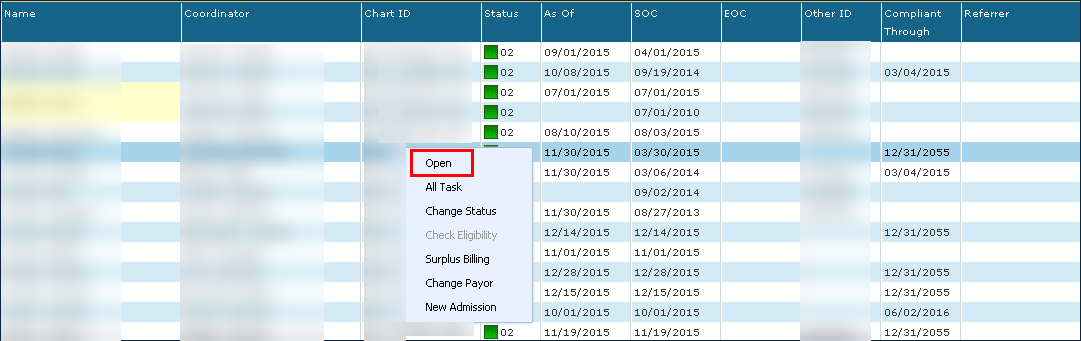
Double click or right-click and choose Open on any item in the results list.
-
Open the selected Client’s profile under Main Menu > Client > Client Profile.
-
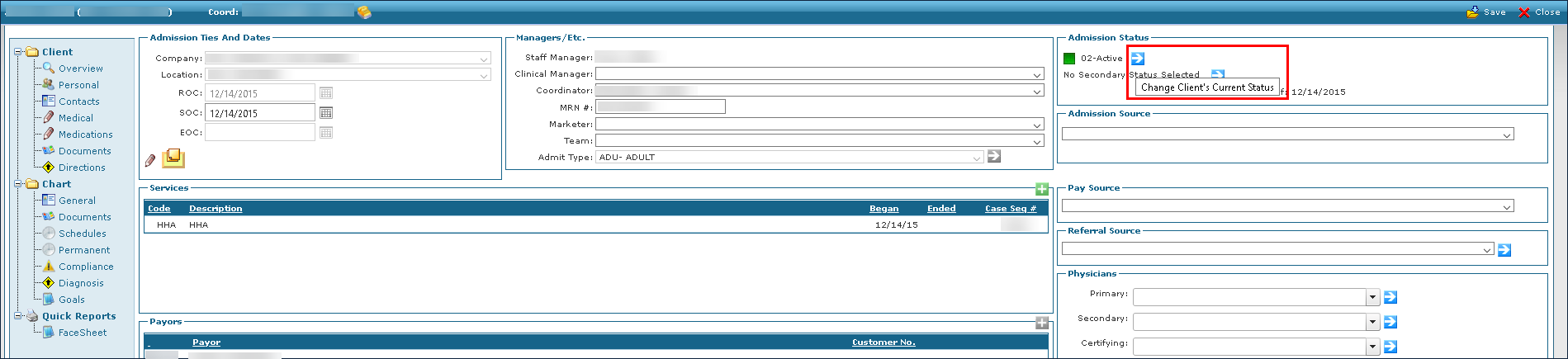
Select General.
-
Select the blue arrow next to Admission Status. section
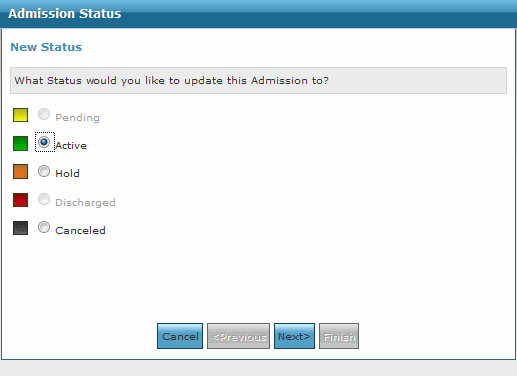
This opens the Admission Status Wizard.
-
Select the applicable status.
-
Select the Next button.
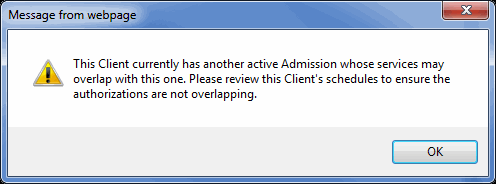
This message may appear if the Client has another admission. Select the OK button. When scheduling for this Client be sure that the admissions do not overlap. If admissions overlap for the same service, the units may be pulled from the incorrect authorization and can cause issues at the end of service.
-
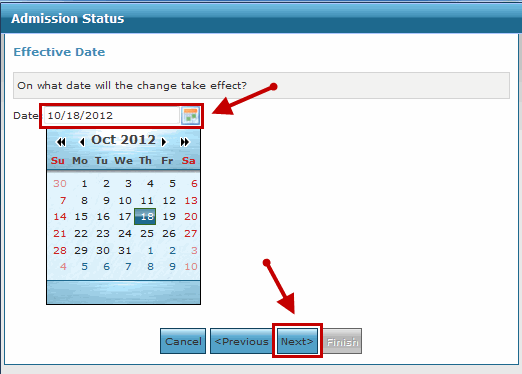
Select the calendar icon to open the calendar tool.
-
Select the effective date.
This marks the Client’s start of care date.
-
Select the Next button.
-
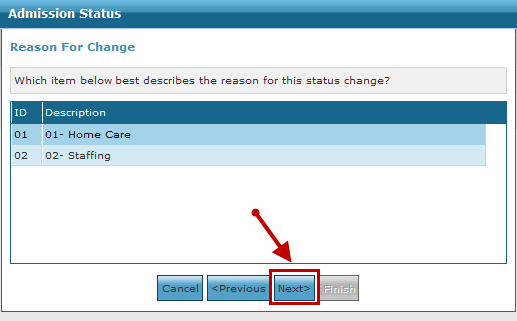
Next, select the reason for the change, if applicable.
-
Then select the Next button.
-
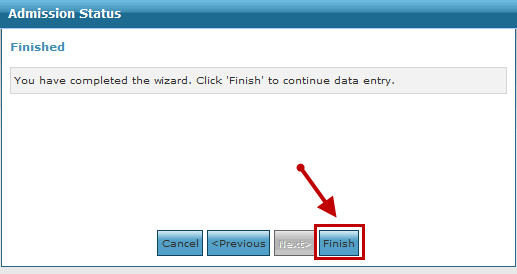
Select the Finishbutton.
-
Select Save.
The Client’s status is now updated.

Clients must maintain eligibility to continue receiving services from a selected Payer. This can vary from illness status to residency or current income. Client information should always be kept up to date as a change in eligibility can affect a Client’s ability to receive or even pay for care.
The eligibility functionality must be turned on in the Admin settings. For further assistance, contact the agency’s Implementation Manager.
Surplus billing is defined as prebilling a copay for a Client before the visit is performed. Medicaid may approve a Client for services and provide a designated dollar amount the Client is responsible for. The Client should be billed for this amount in advance of billing Medicaid for any services for the month, so that the bill to Medicaid is reduced by that amount. The charges the Client is responsible for are created separately and attached to the private pay (the Copay Payor) on the Client Payor.
Before generating a specific surplus billing, the setup steps are outlined in the handout titled Billing Surplus Setup.
Creating a surplus billing invoice for the same period as a previously existing surplus billing invoice will result in an Amount of $0.00. To generate a new/corrected surplus billing Invoice, both the Surplus and Payor Invoice must be canceled.
-
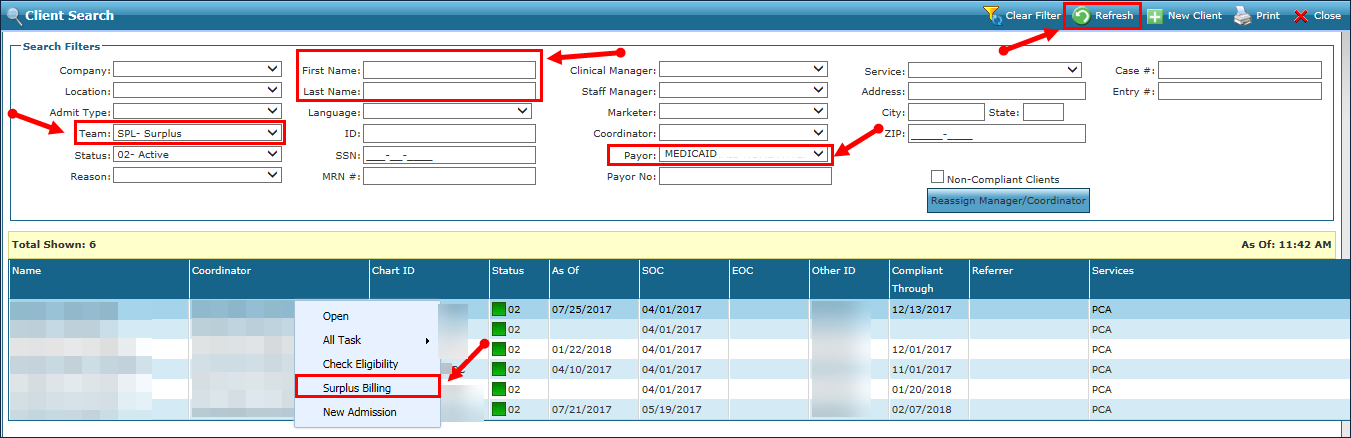
Go to the Client Search window under Main Menu > Client.
-
Select the applicable search filters to display the Client(s) using surplus billing.
-
Select Refresh.
-
Next, select the Client(s) from the search results.
-
Right-click to open a pop-up window.
-
Select Surplus Billing.
When generating surplus billing invoices for multiple Clients, make sure to only select Clients with the same Payor and service. Only Clients with the Payor and service selected in the Surplus Billing window are billed.
-
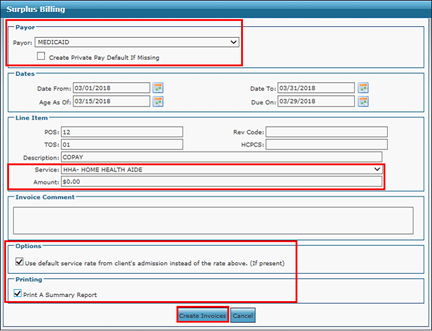
Enter the surplus billing information.
-
Payor: Select the Client’s standard Medicaid Payor; do not select the surplus private pay Payor. This field is mandatory.
-
The Create Private Pay Default If Missing checkbox should not be selected.
-
Dates: Select dates for all fields in the Date section.
-
Line Item: Select the Service and enter a default service rate of $0.00 in the Amount field. If there is no copay set at the Client admission level the amount entered in the Amount field will be default, the Service and Amount fields are mandatory.
-
Options: Select the Use default service rate from Client’s admission instead of the rate above (if present) checkbox.
-
Printing: Select the Print a Summary Report checkbox to view a summary report of the invoices created.
-
-
Select the Create Invoices button.
Ensure the copay rates are always up to date in the Client’s admission.
-
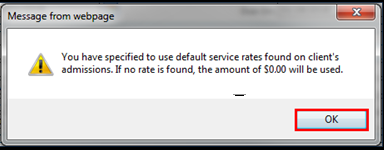
Select the OK button.
If the Print a Summary Report checkbox was selected a summary report displays. This report is divided by Payor. Each Client’s claim is listed under the private Payer.
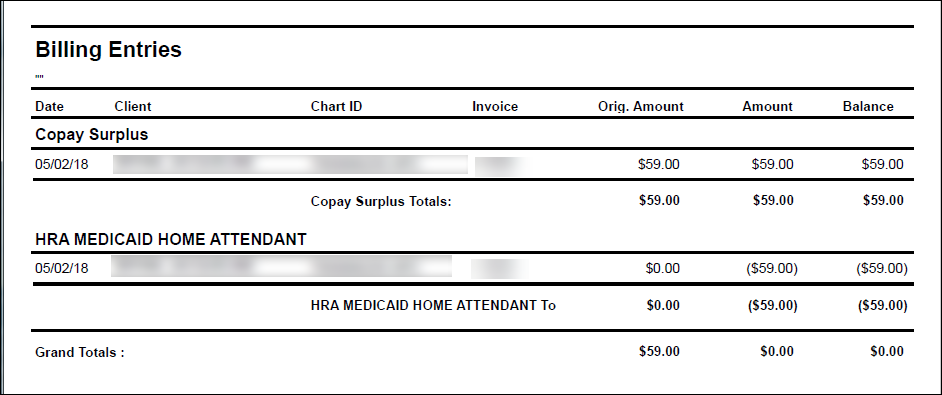
After the Billing Entries report is printed close the report and Surplus Billing window.
When it is necessary to add another Payer to a Client’s profile, users can transfer a balance or perform other billing tasks.
To change a Client's Payor:
-
Go to the Client Search page under Main Menu > Client.
-
Select the appropriate search criteria, then select Refresh.
-
Right click on the Client’s name.
-
Next, select Change Payor.
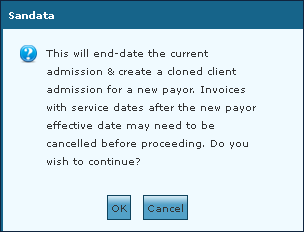
The following message appears.
-
Select the OK button.
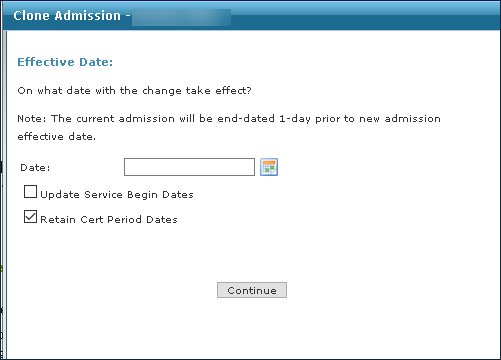
This opens the Clone Admission Wizard.
-
Select a date for the admission change to take effect.
Next, select the Update Service Begin Dates or the Retain Cert Period Dates checkboxes to retain or make additional changes to the date range of service.
-
Select the Continue button.
-
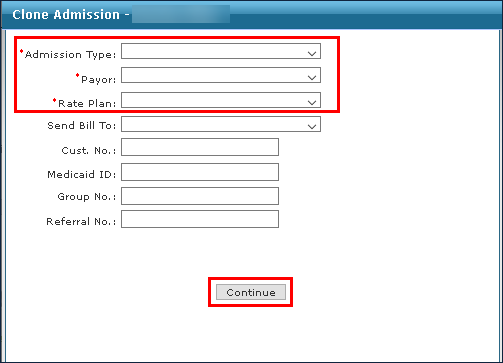
Enter the necessary information into the fields.
-
Next, select the Continue button.
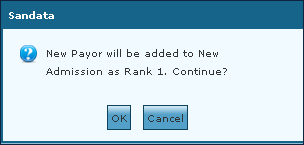
The following message appears.
-
Select the OK button.
-
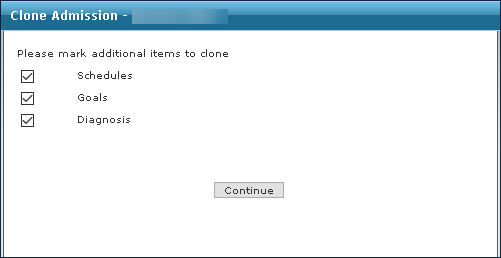
Select or deselect the necessary boxes for each field.
-
Next, select the Continue button.
-
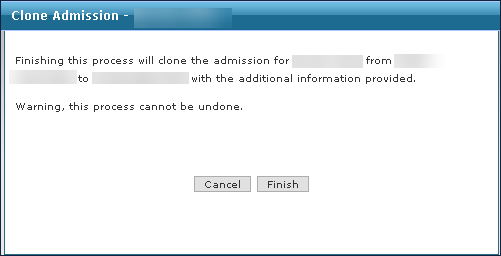
Then select the Finish button.
This completes the cloning process with the new Payer set as rank 1 in the cloned Client’s profile.
This feature allows users with the correct security permissions to reassign Managers and Coordinators assigned to Clients from the search page.
The Manager/Coordinator who is being assigned to the Client must already be in the system and assigned the position of Manager/Coordinator.
To reassign a Manager or Coordinator:
-
Select Reassign Manager/Coordinator in the Client Search window.
-
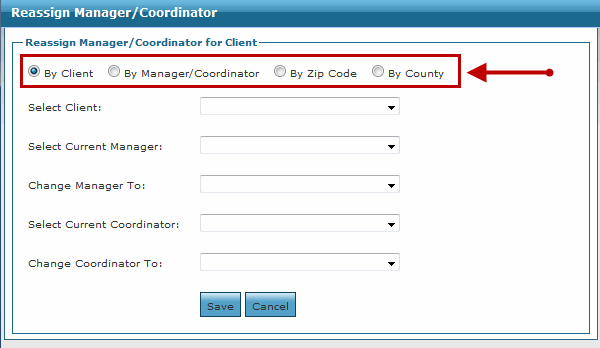
Next, choose the method of reassigning.
-
By Client: Reassign for a single client.
-
By Manager/Coordinator: Reassign all clients under the same manager or coordinator. This may be useful if a manager coordinator takes vacation time and is unavailable for an undetermined amount of time.
-
By Zip Code: Reassign all clients with both the same zip code and Manager/Coordinator. Selecting by region may be useful if a new Manager or Coordinator is hired and the current Coordinator/Manager's assigned area will be split between the two.
-
By County: Reassign all clients with both the same County and Manager/Coordinator. This may be useful for the same reason as in item (C).
-
-
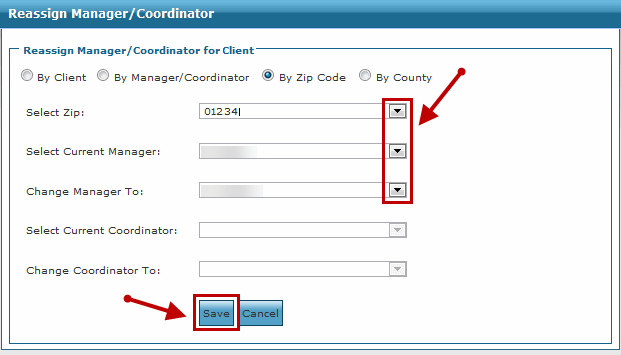
Select what will be reassigned; Select the zip code from the Select Zip dropdown, the current manager from the Select Current Manager dropdown, and the new Manager from the Change Manager To dropdown.
-
Then select the Save button.
At times it may be necessary to manually add a Client to the system.
To begin the process:
-
Go to the Client Search window under Main Menu > Client.
-
Select the New Client button.
This opens the New Client Wizard.
-
Next, enter the Client's personal information.
The only required field is the Last Name field. There are two possible Client types, Person (which is the default) and Company.
-
Select the Next button.
-
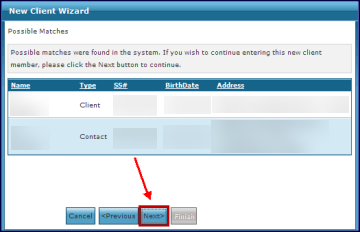
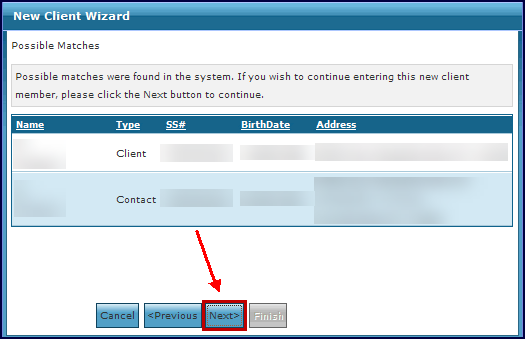
Then select an existing client.
If the system finds a Client with the same or a similar name as the one being entered, the system identifies and displays possible matches.
-
Select an existing Client from the possible matches and click the Next button, or for new clients make no selection and click the Next button.
-
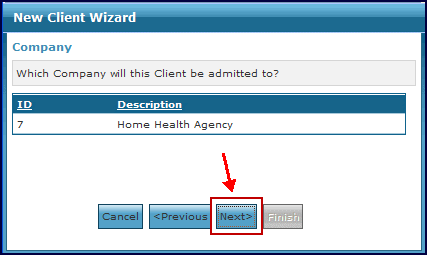
Select the name of the company that is associated with this Client and select the Next button.
-
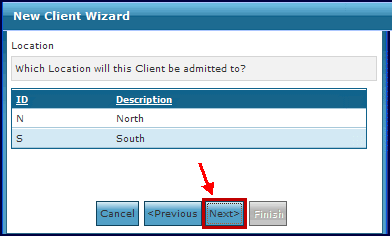
Select the name of the location that is associated with this Client and select the Next button.
-
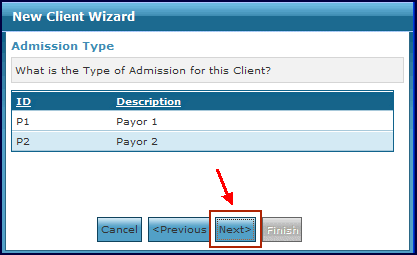
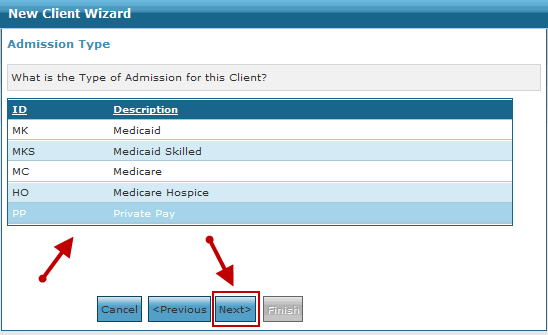
Then select the admission type that is associated with this Client and select the Next button.
-
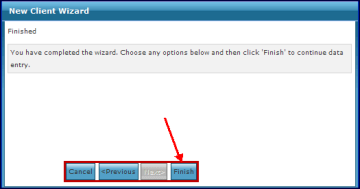
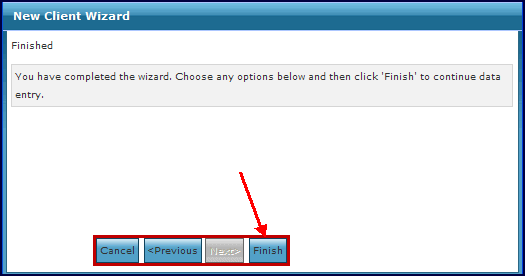
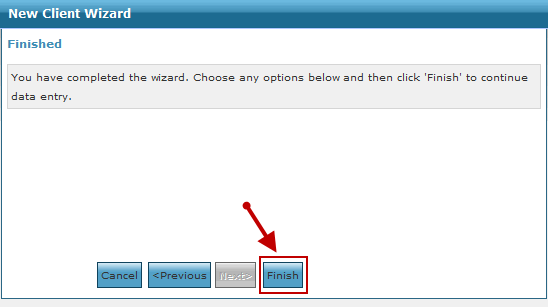
Select the Finish button.
Selecting the Cancel button at any point during the wizard closes the window and returns you to the Client Search window without saving.
Select the Previous button to revise any information entered (if necessary).
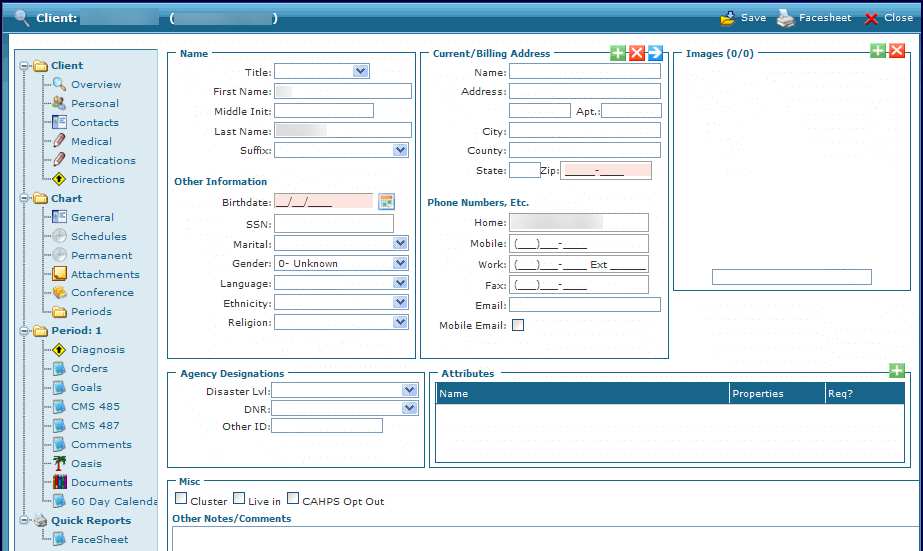
After completing the wizard, the system displays the personal tab of the new Client's profile. You must change the Client's status before the Client can be scheduled.
Occasionally it is necessary to manually add a new admission.
To begin the process:
-
Go to the Client Search window under Main Menu > Client.
-
Use the filters to locate the Client.
-
Next, right click on the Client’s name and select New Admission.
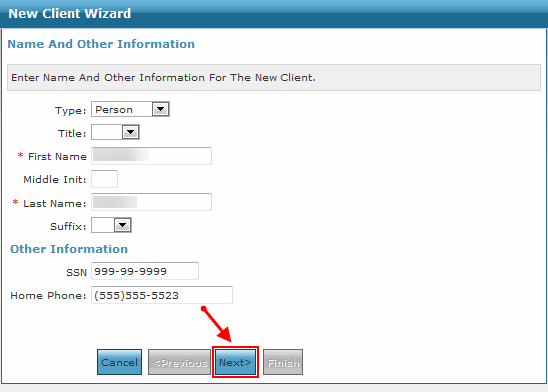
This opens the New Client Wizard.The first window should already be filled out with the Client's information. If the information is correct do not make any changes.

You cannot create a new admission for a locked Client.
-
Select the Next button.
-
Next, link the Client profile.
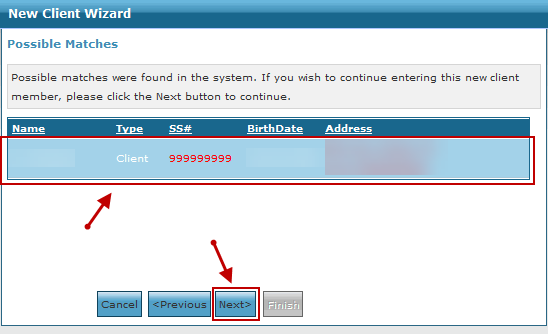
A Possible Matches message appears if no changes were made. To link the new admission with a previous admission, select the Client listed that is highlighted in blue, then select the Next button.
If you do not want to link the Client, select the Next button without selecting the Client. If you inadvertently selected a Client and do not want to link, select the Previous button then the Next button twice.
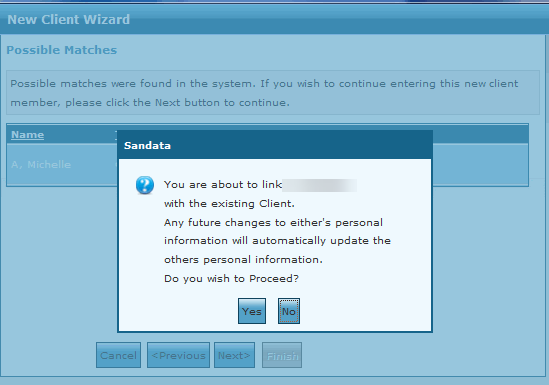
If you selected a Client, this message displays informing you that any changes to a Client's personal information updates in both admissions. Select the Yes button to confirm.
-
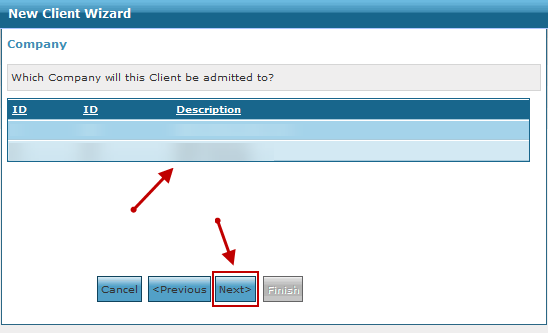
Select a company then select the Next button.
-
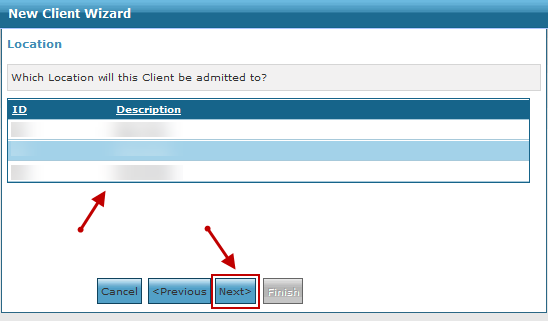
Select a location then select the Next button.
-
Next, select an admission type then select the Next button.
-
Select the Finish button.
To print a Client list:
-
Go to the Client Search window under Main Menu > Client.
-
Use the search filters to locate the selected Clients.
-
Select Print.
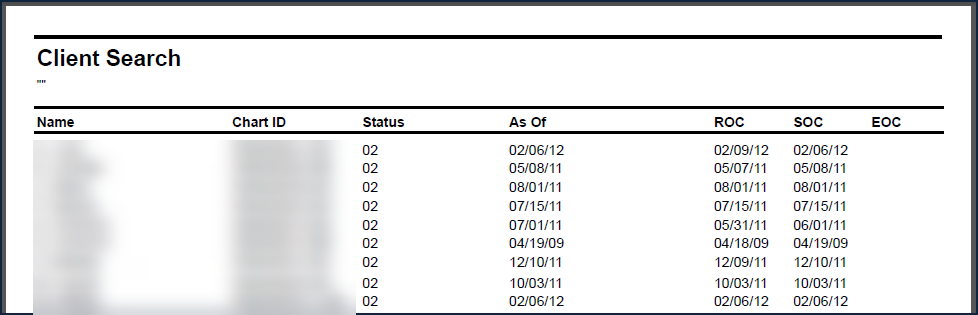
The Client Search report is generated as a PDF. From there, it can be saved, downloaded as a PDF or CSV, or printed.
The system prints the Clients as they are displayed in the Client search window results list. Sort the list to view the results in the desired order.