Sandata Agency Management 17-Electronic Remittance
The Electronic Remittance window can be used to download an electronic file, obtain remittance reports, or perform Medicare specific remittance.
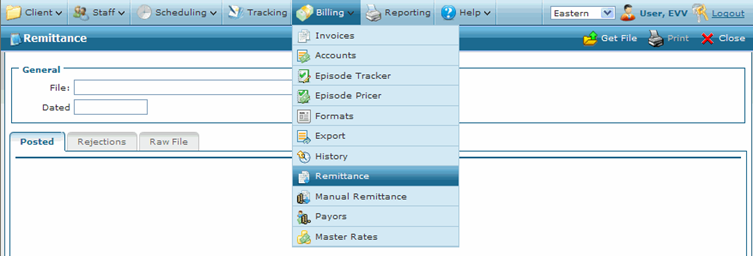
To open the Electronic Remittance window, select Remittance under Main Menu > Billing > Remittance.

General
The General section of the Remittance window contains the fields for export file names and dates.
|
Field |
Description |
|---|---|
|
File |
Use this field to search by file name. |
|
Dated |
Use this field to search by date. |
|
Get File |
Click this button to download an electronic file. |
|
|
Click this button to print the Remittance report. |
|
Export |
Click this button to export the downloaded electronic file. |
Use the Remittance window to upload an electronic file sent by an insurance company/Payer. The system automatically:
-
Applies the payments to the invoices.
-
Changes the status of invoices as needed.
Applies denial codes when available.
To process payer payments, it is necessary to download the file from the payer’s website before proceeding. Please note the location of the saved file before beginning electronic remittance.
To automatically download and process an electronic file:
-
Select Get File.

-
Next, select the file.
-
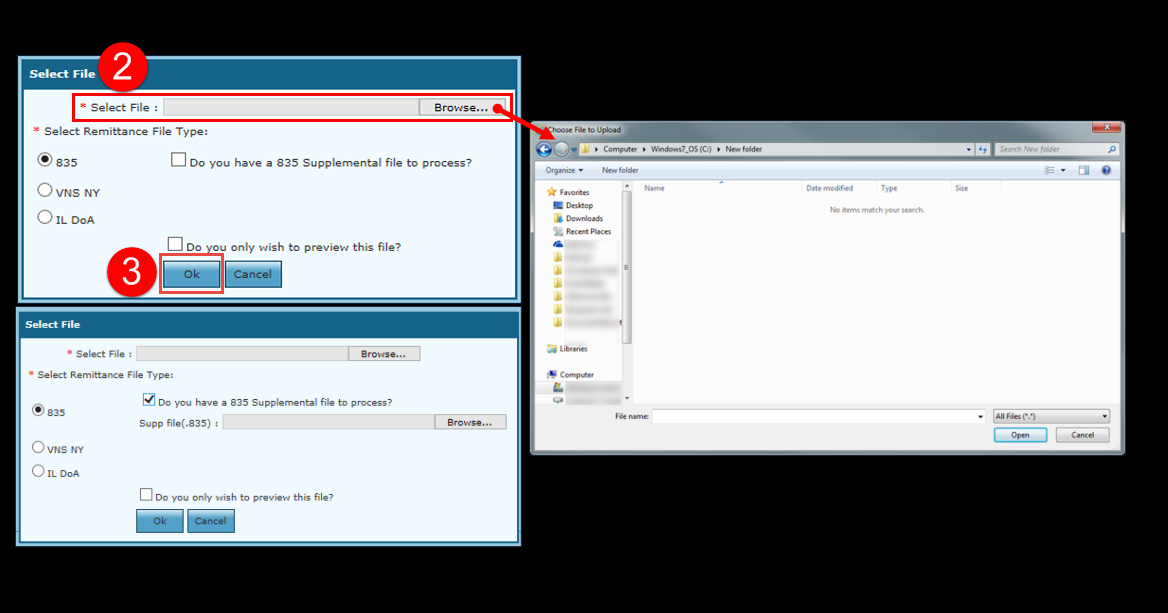
Enter the file path or select the Browse button to search for a remittance file to upload.
-
When using the Browse feature, a new window will open. Use this window to locate the file that contains payments to process and select it. Select the Open button to confirm the selection. To import an additional remittance file, select the Do you have a 835 Supplemental file to process checkbox.
The Do you have a 835 Supplemental file to process checkbox is used when there is an additional remit with the same remit ID that must be posted.
-
-
Select the OK button.
The system begins processing the file and applying the payments.
Select the Do you only wish to preview this file? checkbox to preview the report without processing the file.
-
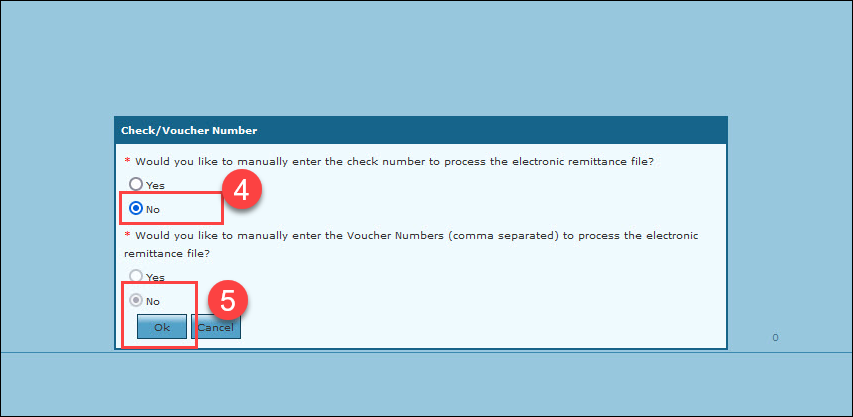
Choose the check/voucher number options.
Unless it is a special circumstance, these should have No selected.
-
Select the OK button.
-
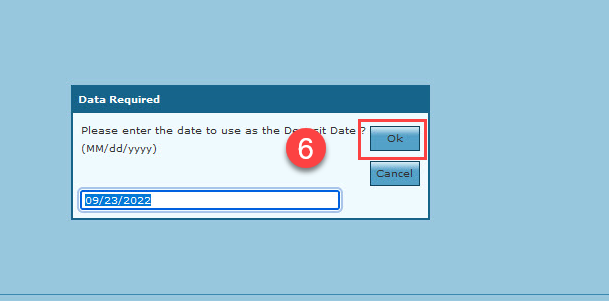
Enter the Deposit date.
Select the OK button.
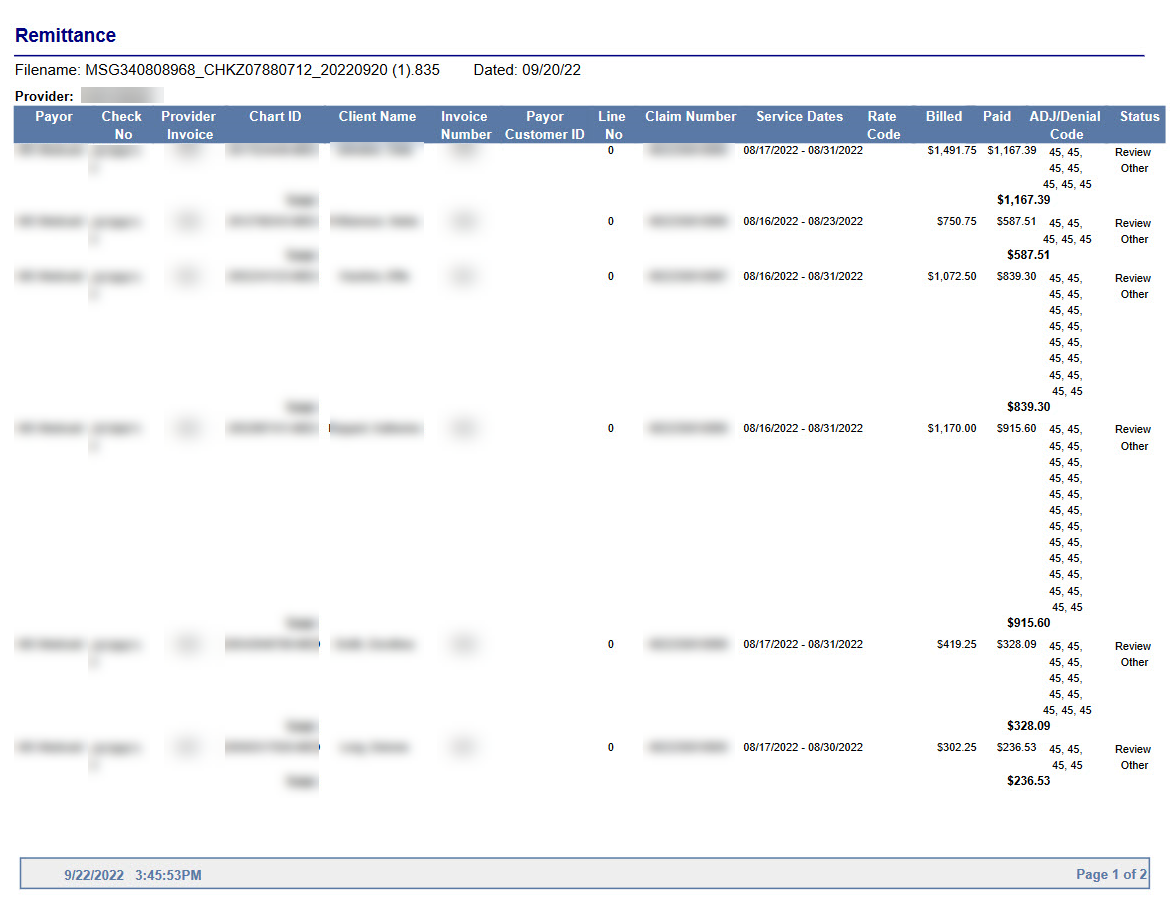
After uploading the remit file but before leaving the window, the Print button can be clicked to generate a remittance report in PDF form.
Select Export to get the same remittance report in an Excel (CSV) format.

When processing a Request for Advance Payment (RAP), the system applies a 32.2 Initial Payment to the invoice. The status changes to RAP Paid and the invoice balance is adjusted to reflect the payment.
When processing the final payment, the system posts a 32.8 Take Back and then 32.9 Final Payment. The status of the invoice changes to Bill Paid and the balance will be 0. If there is any difference in the billing amount and the payment, the system automatically posts an adjustment to that invoice based on pre-selected payment code settings.