Sandata Agency Management 15-Exports
The Billing Export window allows users to generate an electronic claim file that can be exported for Payers that are configured for electronic billing. This window displays all recorded confirmed billable invoices that have been invoiced based on the filters selected.
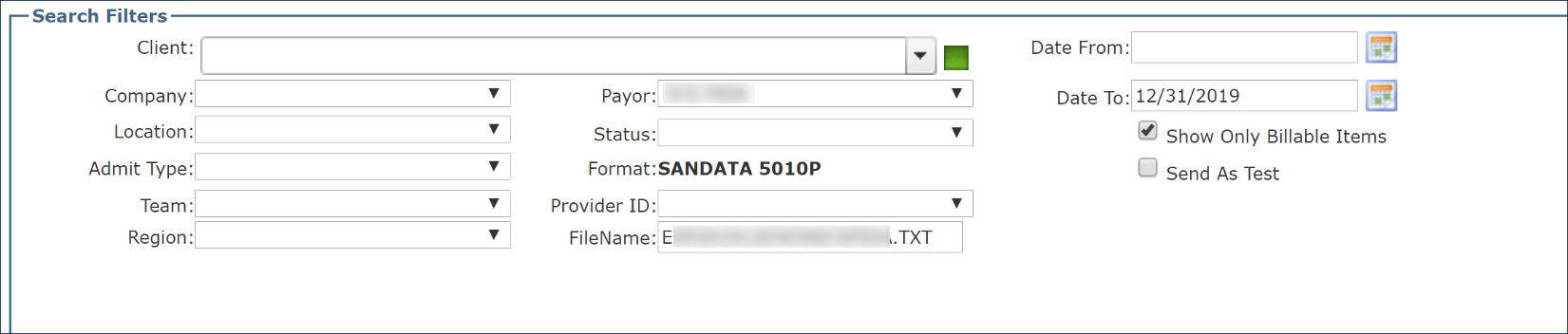
The displayed invoices are converted into a claim data file based on the selected Payer’s configuration. Only billable items should be included in an export file. Therefore, by default the Show only Billable Items option is selected.
If this option is unchecked, the screen will display invoices with any status. You should not export claims in any status other than Billable or Resubmit.
Export files are created by Payor. If the Payor is not selected, the window will display invoices by any filters selected, but an export file cannot be created until a Payor is selected from the dropdown menu. Once the Payor is selected, the electronic format used for that Payor is also set, and the file name that will be assigned to the export is displayed.
To access the Billing Exports window, select Exports under Main Menu > Billing > Exports.
Only Payors that are configured for electronic billing will be displayed in this menu; Payors that are configured for paper transport method will not be displayed and cannot be created as an export file.

To export an invoice:
-
Go to the Billing Export window under Main Menu > Billing > Export.
-
Use the filters to locate the invoice(s) to be exported.
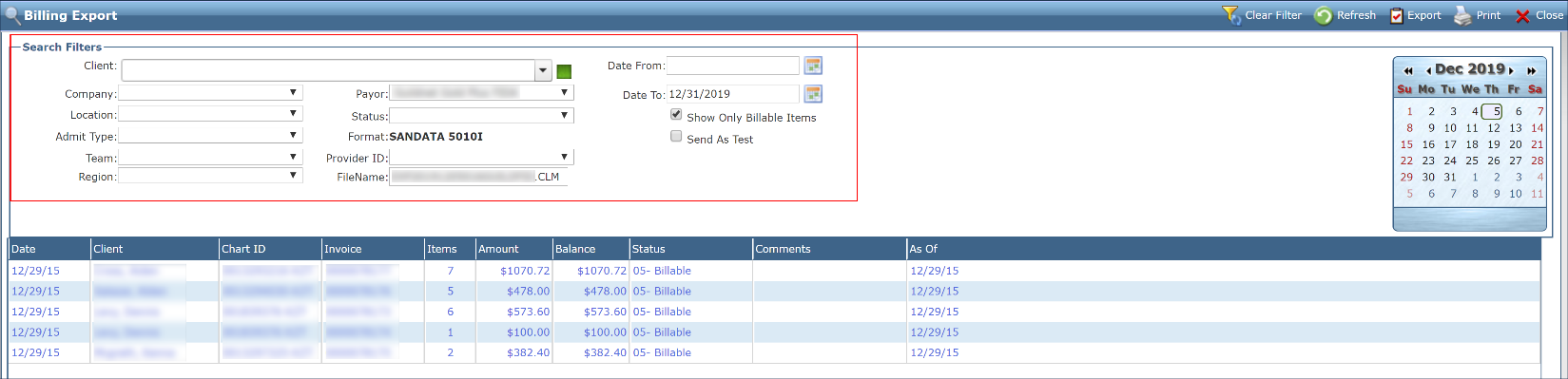
Leaving the Date From field blank displays all previously invoiced visits that have not yet been exported.
-
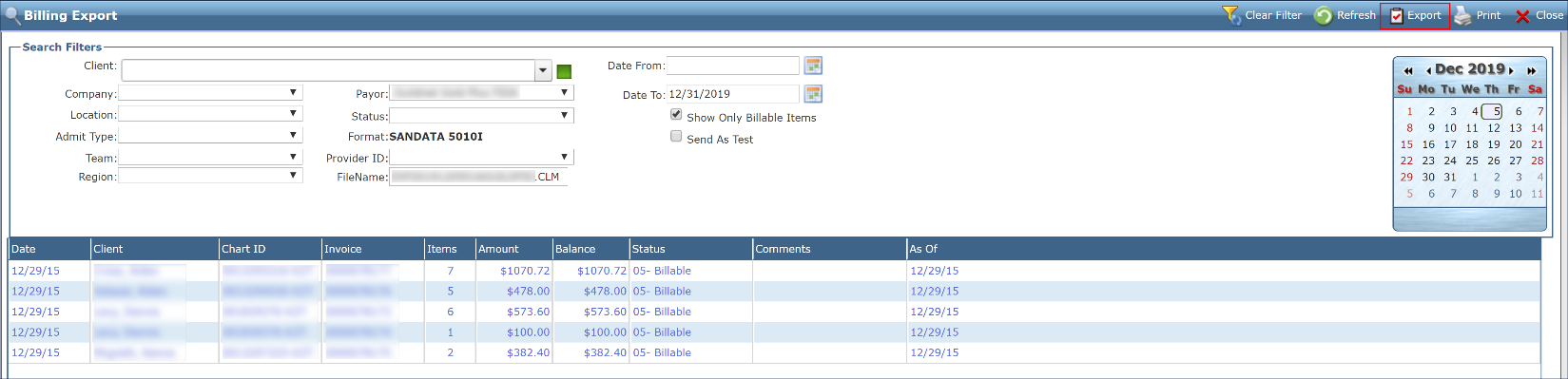
Select Export.
-
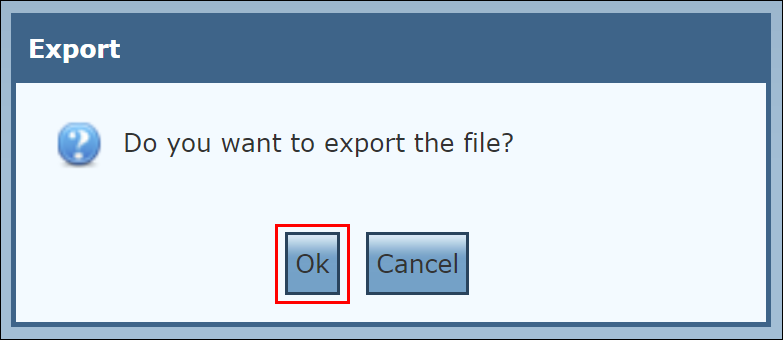
Select the OK button.
Items that previously displayed as Billable should now display as Bill Sent.
Filters
The Search Filters section allows you to narrow the results list to meet specific criteria.
|
Field |
Description |
|---|---|
|
Client |
Use this dropdown to filter invoices by client. If a partial last name is entered, possible matches display in the drop down. |
|
Company |
Use this dropdown to filter invoices by company. |
|
Location |
Use this dropdown to filter invoices by location. |
|
Admit Type |
Use this dropdown to filter invoices by admit type. |
|
Team |
Use this dropdown to filter invoices by team. |
|
Region |
Use this dropdown to filter invoices by region. |
|
Payor |
Use this dropdown to filter invoices by Payer. |
|
Status |
Use this dropdown to filter invoices by status. Only Billable or Resubmit should be selected for export. |
|
Format |
Displays the current format configured by the Payer. |
|
Provider ID |
Use this dropdown to filter invoices by the Provider id number. |
|
FileName |
Displays the file name as configured by the Payer. |
|
Date From |
Select this checkbox to filter invoices beginning with this date. |
|
Date To |
Select this checkbox to filter invoices ending with this date. |
|
Show Only Billable Items |
Select this checkbox to filter for only items that can be billed. This includes invoices in Resubmit status. |
|
Send As Test |
Select this check box to produce a downloadable test file for review. When selected, the export file does not mark the invoice as Bill Sent and adds a T to the export history for claim file. |
The Results List displays a list of invoices that match the criteria selected in the Search Filters.

|
File |
Description |
|---|---|
|
Date |
Displays the date that the invoice was created. |
|
Client |
Displays the name of the Client associated with the invoice. |
|
Chart ID |
Displays the chart id associated with the invoice. |
|
Invoice |
Displays the invoice number. |
|
Items |
Displays the number of line items included on the invoice. |
|
Amount |
Displays the original billed amount of the invoice. |
|
Balance |
Displays the current balance of the invoice. |
|
Status |
Displays the status of the invoice. Only invoices in Resubmit or Billable should be exported. |
|
Comments |
Displays any comments associated with the invoice. |
|
As Of |
Displays the date of the most recent invoice activity. |
To view a claim once it has been exported:
-
Go to the History window under Main Menu > Billing > History.
-
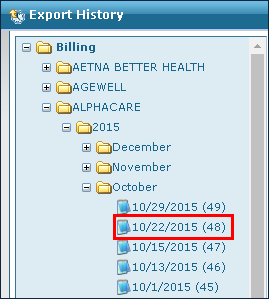
Use the folder structure to locate the export.
-
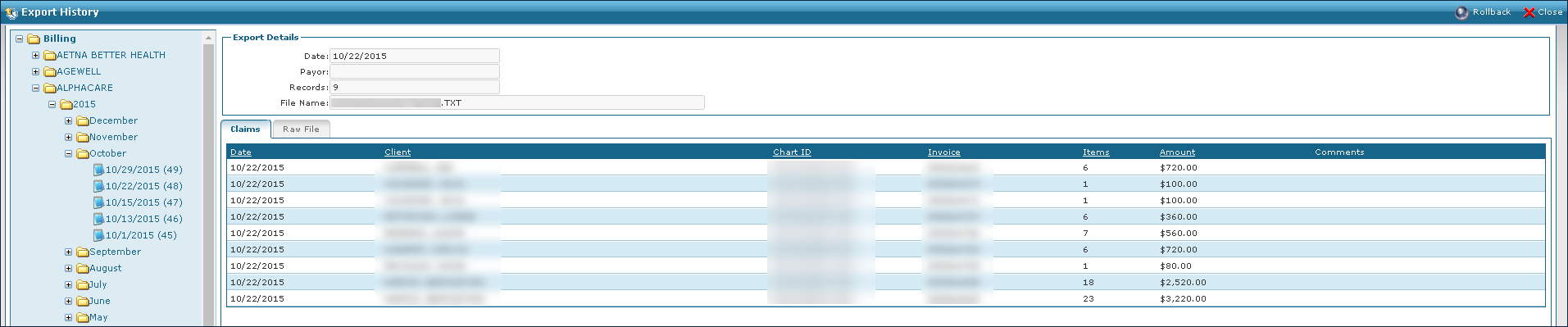
The export information is displayed in the Export Details.