Sandata Agency Management 14-Billing Resubmission
When an exported claim is rejected, it can be corrected and resubmitted for proper processing.

The process needed to correct and resubmit a claim varies depending on the reason for the rejection. The following processes can be used to fix and resubmit the claim:
-
Rollback Resubmission Process: Use this method when there is a structural issue with the file resulting in the entire Claim File not being processed.
-
Set to 05-Billable Resubmission Process: Use this method when an entire claim has been denied due to missing or incorrect data.
-
Voiding Line Items: Use this method when any portion of the claim has been paid but changes must be made to the invoice or if the entire invoice is paid but a line item must be changed.
-
Late Charge Resubmission Process: Use this method when a claim with the same Client, service, and date as a previously exported claim must be exported.
Only users with the appropriate security rights can perform billing resubmission.
Claims can be voided using the Payer’s standard void process.
Once a claim is exported, use one of the following to view the claim’s status:
-
Electronic Remittance: Upload the 835
-
Manual Remittance: Use the Payer Portal
Rejections result in a 999 rejection file. They represent issues with the data within the application that requires correction. Claim denials are available via Payer Portal or Explanation of Benefits (EOB). For additional information regarding denied claims, please contact the Payer.
The Rollback Resubmission process is used when there is a structural issue with the 837 claim file resulting in the entire claim file not exporting successfully.
-
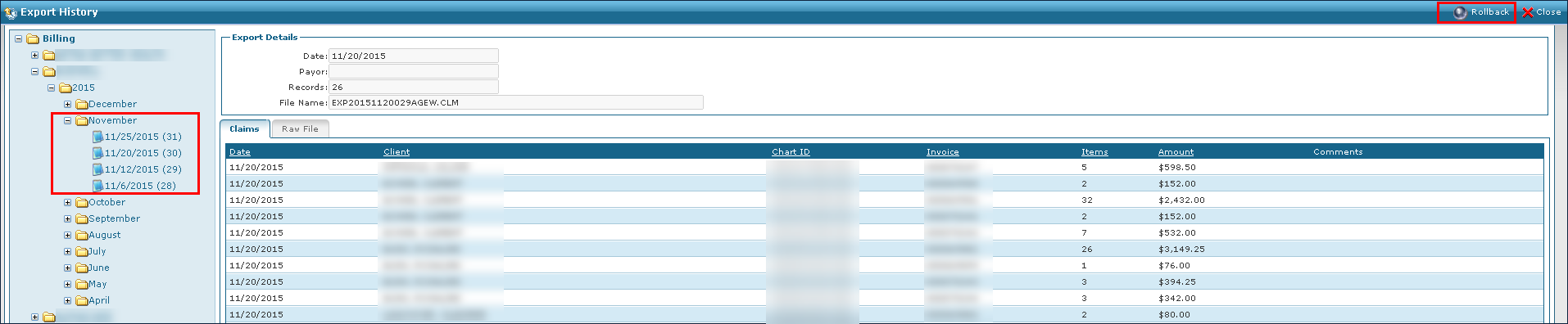
Go to the Export History window under Billing > History.
-
Locate the rejected claim.
-
Then select Rollback.
-
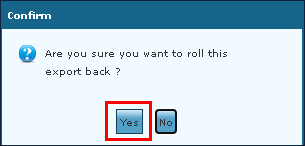
Select the Yes button.
-
Select the OK button.
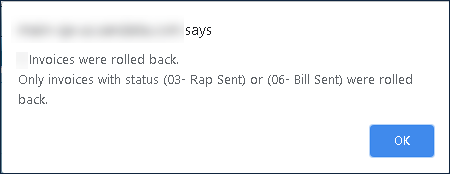
The invoices are now set to 05-Billable and can be exported again.
-
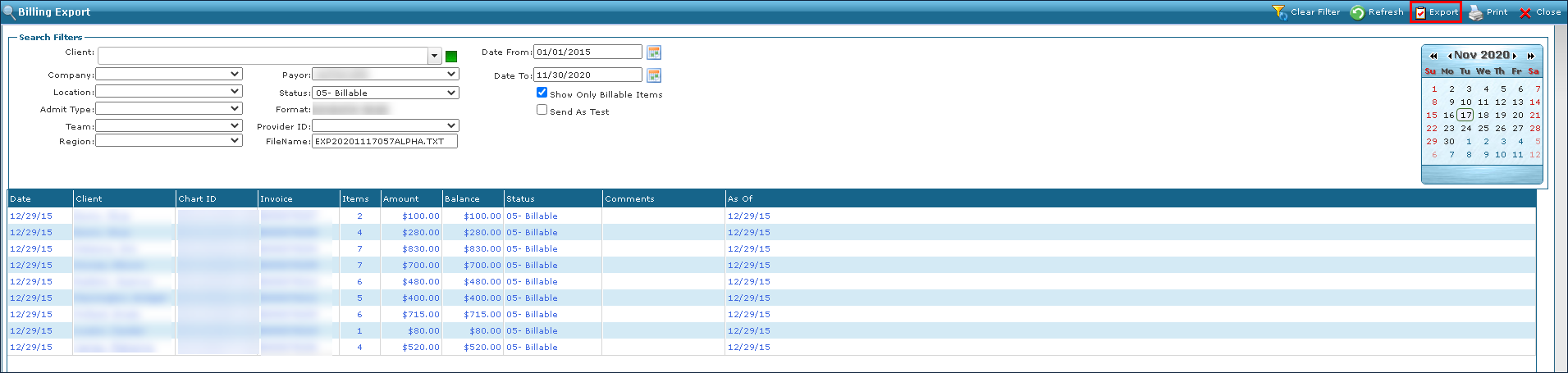
Next, go to the Billing Export window under Billing > Export.
-
Use the search filters to locate the invoices now set to 05-Billable.
-
Select Export.
Be sure to have a Payor selected when exporting.
-
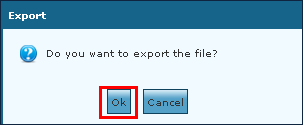
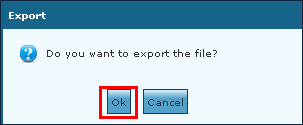
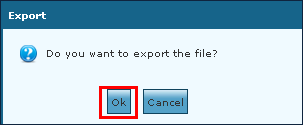
Select the OK button.
The exported file can be downloaded when ready.

The Set to 05-Billable Resubmission process is used when an entire claim has been denied.
Before using this process, verify that the entire claim was denied and that no part of the claim was accepted.
-
Go to the Invoices window under Billing > Invoices.
-
Use the search filters to locate the rejected invoice.
Double click on the invoice to open it.

-
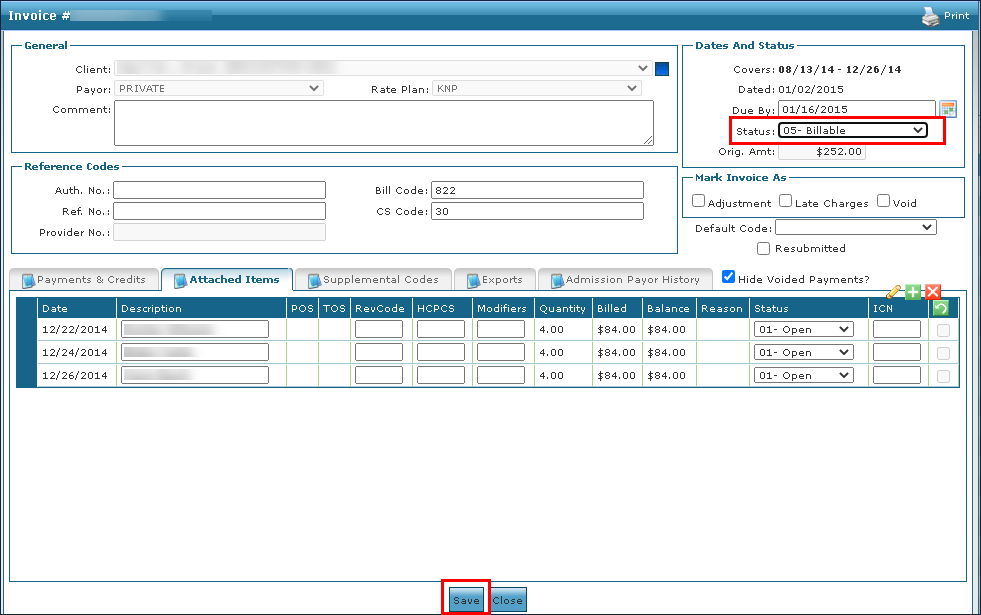
Make any corrections to the invoice as needed.
-
Set the invoice status to 05-Billable.
-
Select the Save button.
The invoice is now billable and ready to be included in the next export.
-
Repeat for any other invoices as needed.
-
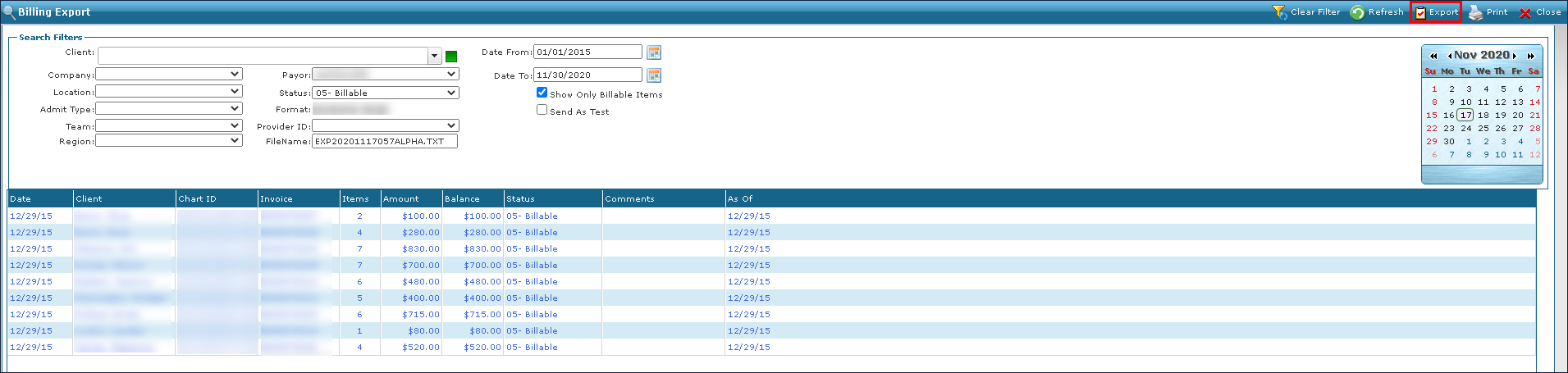
Go to the Billing Export window under Billing > Export.
-
Use the search filters to locate the invoices now set to 05-Billable.
-
Select Export.
Be sure to have a Payor selected when exporting.
-
Select the OK button.
The exported file can be downloaded when ready.

When a service line should not have been billed or was billed incorrectly and must be sent as a corrected claim, these services can be voided on the invoice and sent as an adjustment transaction.
This feature will allow individual service lines that are in a Bill Sent or Bill Paid status to be voided without requiring the payment to be removed and reposted. This feature is currently limited to non-x12 837 claim formats.
To void individual line items on a previously billed invoice:
-
Search for and open the desired invoice under Main Menu > Billing > Invoices.

-
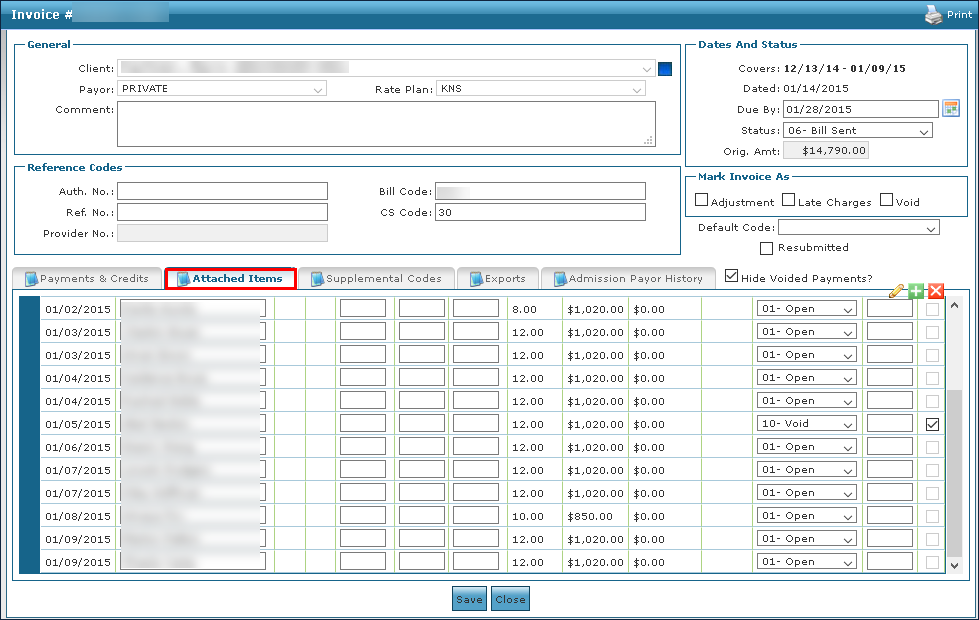
Select the Attached Items tab.
-
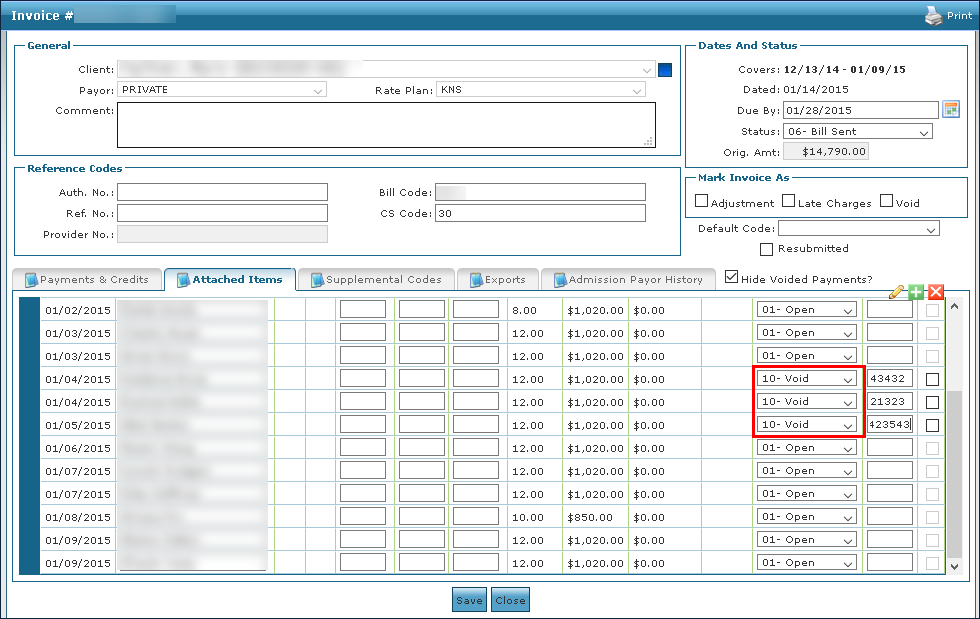
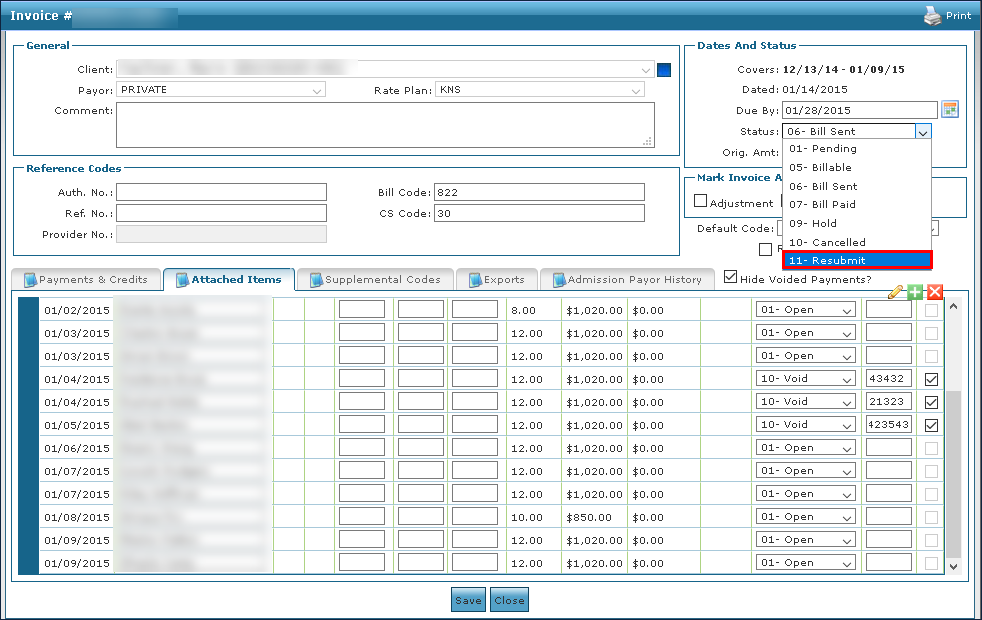
Change the status of all applicable line items to Void.
-
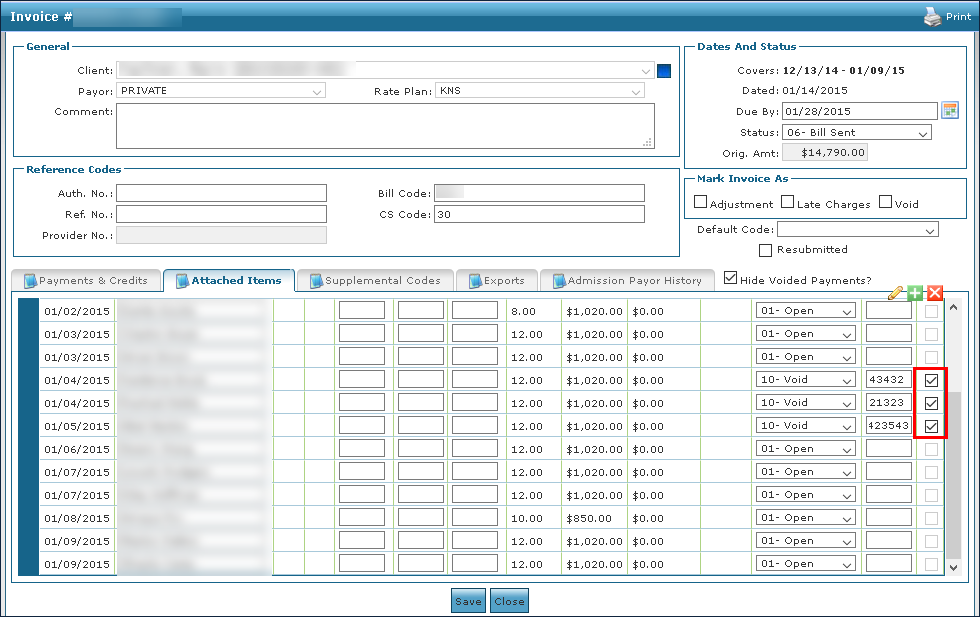
Select the corresponding checkbox to release the visit(s) back to Confirmed status if further action is needed to correct, cancel, or adjust the schedule.
If no further action is required, leaving the checkbox unselected will not return the schedule to billing review but will void the service line from the invoice.
If the invoice was previously in a Bill Paid status, voiding line items without removing the payment will return the invoice to a Bill Sent status when the changes are saved. Invoices in a Bill Paid status cannot be manually changed to Resubmit or Bill Sent status when a line item is not voided.
If the line item has been paid, make note of the ICN for the released schedules; this is needed for sending corrected invoices for processing as a resubmitted claim through the third-party interface.
-
Change the invoice Status to 11-Resubmit.
-
Select the Save button.
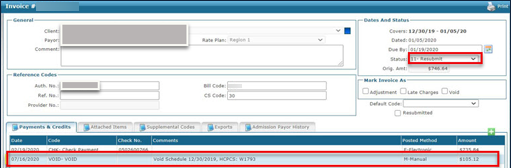
The void adjustment displays on the Payments and Credits tab with the date the void was performed, the date the visit was performed, the void amount, and the adjusted remaining balance on the invoice.
-
Re-export the updated invoice from the Export window for any remaining services that were not voided under Billing > Exports.
-
Make any required adjustments or changes for the applicable released visits.
-
Generate a new invoice for the voided visits, from the Billing Review window.
-
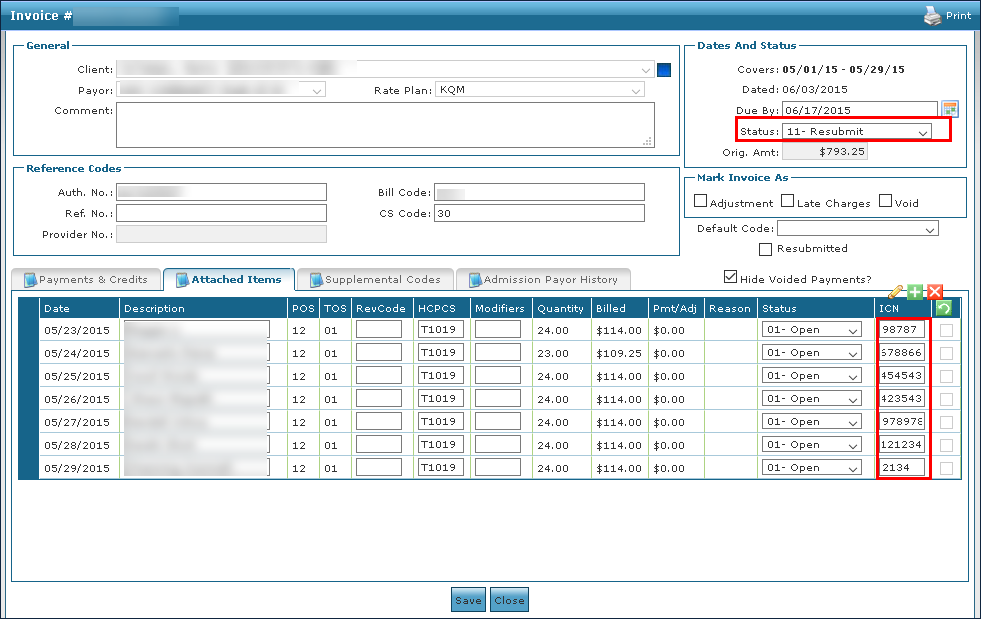
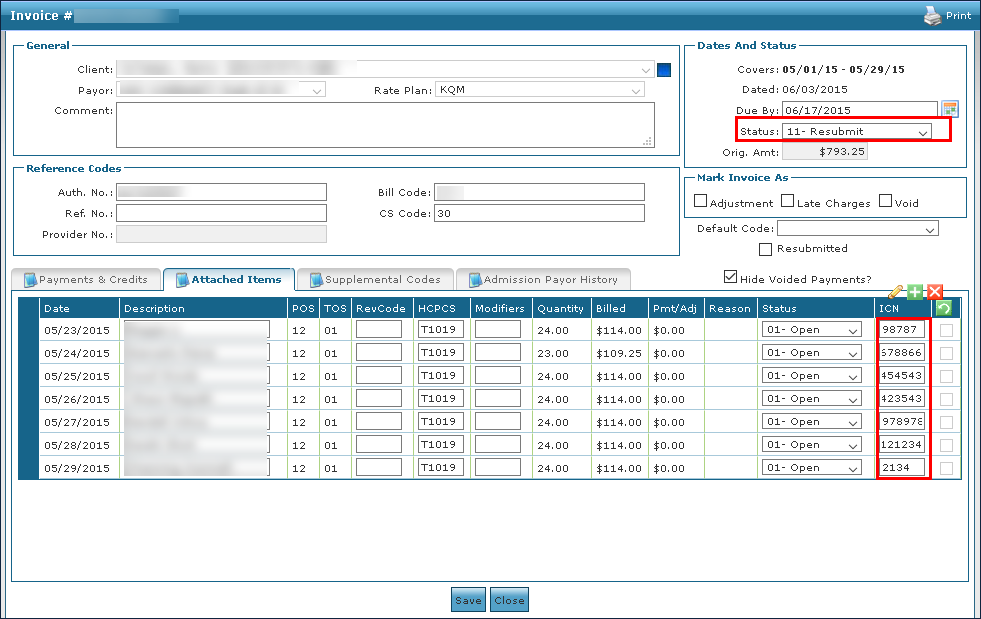
Add the ICN number from the previous invoice to the newly generated invoice, if applicable.
-
Change the status of the new invoice to 11 – Resubmit to send the new invoice as a correction for the previously voided service lines.
The ICN must be added and invoice status must be changed to Resubmit for these corrected invoices to be processed via a third-party interface as an adjustment transaction. If either is missing, the file will not be processed as an adjustment and may result in rejection.
-
-
Export the invoice with the corrected visits from the Billing Export window under Billing > Export.
The invoice Status should be 11 – Resubmit.
The Late Charge Resubmission process is used when a claim that has the same Client, service, and date as a previously exported claim needs to be exported due to a schedule with an exception.
Late Charge Resubmission Process (Proactive)
Remember to void the claims using the Payer’s void claim process. The claims cannot be voided in the Santrax Agency Management.
To complete the process:
-
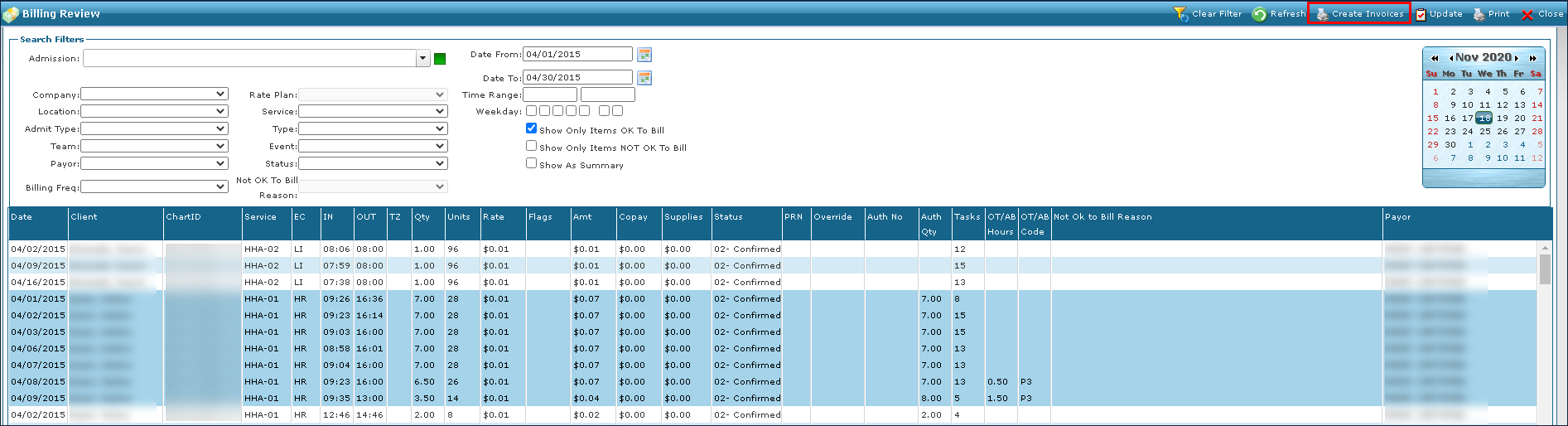
Go to the Billing Review window under Main Menu > Billing.
-
Use the filters to locate the visits to be billed.
-
Then select Create Invoices.
-
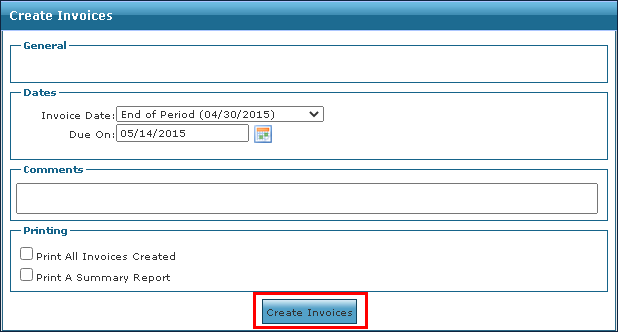
Select the Create Invoices button.
-
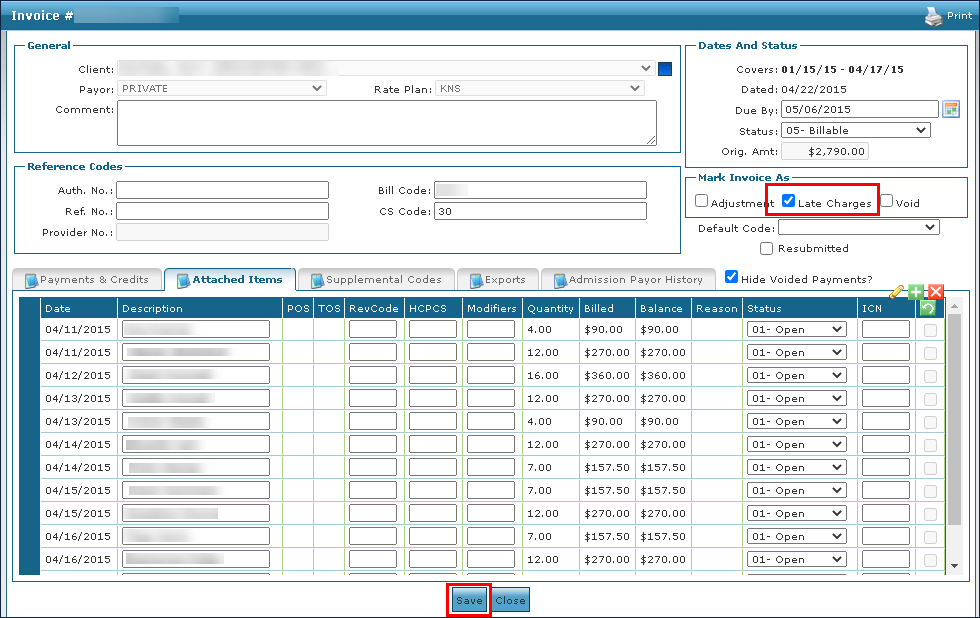
Go to the Invoices window under Main Menu > Billing > Invoices.
-
Use the filters to locate the invoice.
Double click on the invoice to open it.
-
Next, select the Late Charges checkbox.
Because the entire invoice is being resubmitted, any late charges apply to the entire invoice and not individual line items.
-
Select the Save button.
-
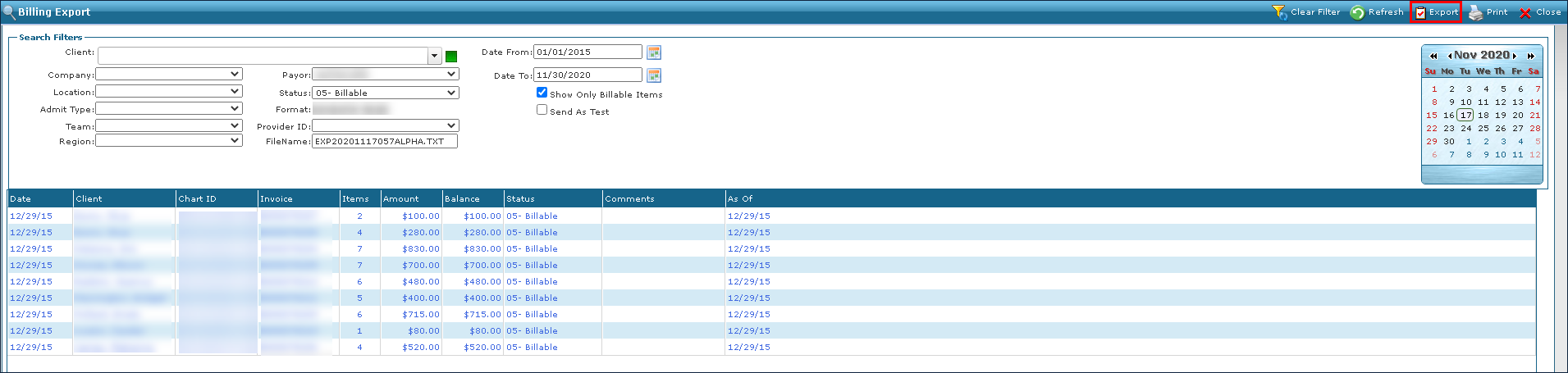
Next, go to the Billing Export window under Billing > Export.
-
Use the search filters to locate the invoice marked as Late Charge.
-
Select Export.
Be sure to have a Payor selected when exporting.
-
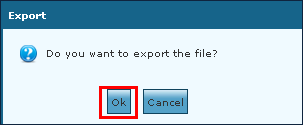
Select the OK button.
The exported file can be downloaded when ready.

Late Charge Resubmission Process (Retroactive)
To complete the process:
-
Go to the Invoices window under Billing > Invoices.
-
Use the filters to locate the invoice.
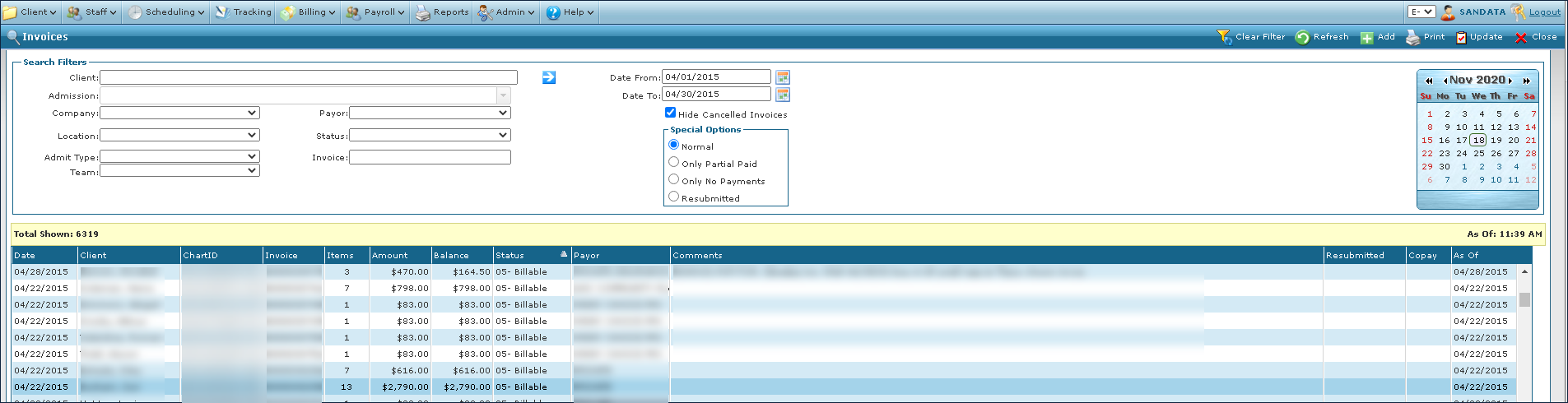
Double click on the invoice to open it.
-
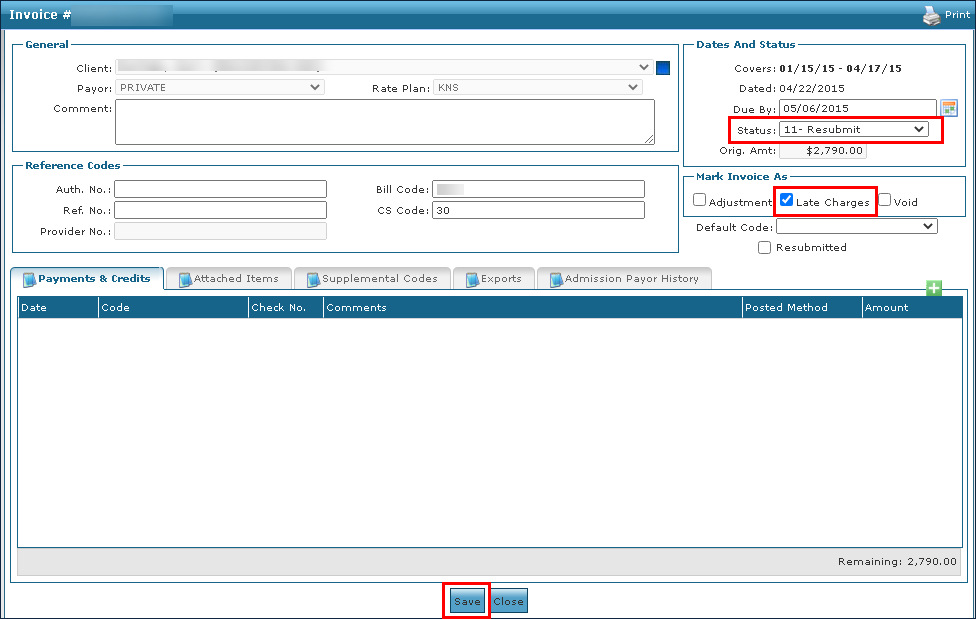
Change the invoice status to 11-Resubmit.
-
Select the Late Charge checkbox.
Because the entire invoice is being resubmitted, any late charges apply to the entire invoice and not individual line items.
-
Select the Save button.
-
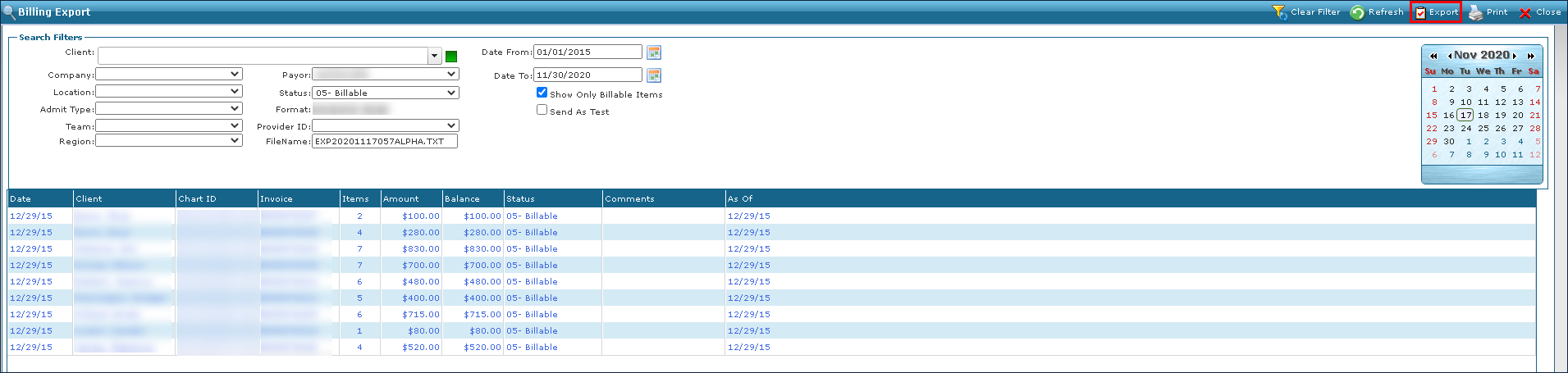
Go to the Billing Export window under Billing > Export.
Use the search filters to locate the invoice.
-
Select Export.
Be sure to have a Payor selected when exporting.
-
Select the OK button.
The exported file can be downloaded when ready.