Sandata Agency Management 13-Balance Adjustment
In certain situations, it may become necessary to adjust or write off an invoice due to changes or corrections to rates, copays, mistakes, or other events. These invoices can be adjusted in the Balance Adjustment window.
To access the Balance Adjustment window, select Balance Adjustment under Main Menu > Billing > Balance Adjustment.


The Invoice Filter section allows users to narrow the results list to meet specific criteria, described in the table below.

|
Field |
Description |
|---|---|
|
Payor |
Use this field to filter invoices by the associated payer. |
|
Date From |
Use these fields to filter for invoices that are dated within the selected range. |
|
Date To |
|
|
Max Balance |
Use this field to filter results based on the invoice’s balance. This amount must be greater than zero but cannot exceed $999.99. |
|
Show all kind of invoices |
Check this box to include invoices regardless of the status. |
|
Include Overpayments |
Check this box to include overpaid invoices. |
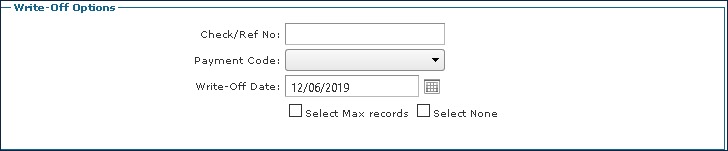
|
Field |
Description |
|---|---|
|
Check / Referral Number |
Use this field to enter a reference number for the adjustment. |
|
Payment Code |
Use this drop down to select the payment code for the adjustment. |
|
Write-Off Date: |
Use this field to date the adjustment. |
|
Select Max records |
Select this checkbox to select all invoices in the results list. |
|
Select None |
Select this checkbox to deselect the checkbox in the Select column for every invoice in the results list. |
The results list displays all invoices matching the selected criteria.

|
Field |
Description |
|---|---|
|
Date |
Displays the date of the invoice. |
|
Client |
Displays the name of the Client. |
|
ChartID |
Displays the ChartID of the Client. |
|
Invoice |
Displays the Invoice number. |
|
Items |
Displays the number of billed visits on the invoice. |
|
Original Amount |
Displays the original billed amount of the invoice. |
|
Amount |
Displays the current amount of the invoice. |
|
Balance |
Displays the current balance of the invoice. |
|
Status |
Displays the current status of the invoice. |
|
Payor |
Displays the Client’s Payer. |
|
Comments |
Displays any comments attached to the invoice. |
|
Select |
Select this checkbox to choose the invoices for adjustment. |
|
Payment Code |
Displays the payment code selected during adjustment. |
|
As Of |
Displays the most recent date of activity on the invoice. |
This process is not meant for invoices with a balance of more than $1000.00. Adjusting larger amounts must be done from the Manual Remittance feature or the Invoice Detail window.
-
Go to the Balance Adjustment window under Main Menu > Billing > Balance Adjustment.
-
Use the filters to locate the invoice(s).
-
Complete the Payor, Date From, and Date To fields.
Select Refresh.
-
Select the checkbox(es) for the desired invoice(s).
-
The Select Max Records and Select None checkboxes in the Write-Off Options section are used to select or deselect all records in the results list.
-
Enter a Check/Ref No to identify the adjustment.
-
Select the Payment Code type.
-
Next, enter a write-off date for the adjustment to be dated.
-
Then select Post Now.

Max Balance must be greater than zero. The Check/Ref No. field cannot be empty. The Payment Code dropdown must be selected.
-
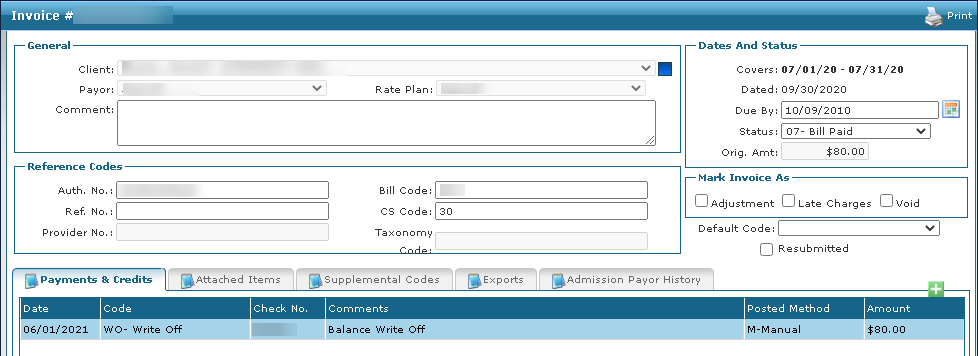
Go to the Invoice Detail window under Main Menu > Billing > Invoices > Search for and Open the Invoice.
-
Next, review the adjustment information.
-
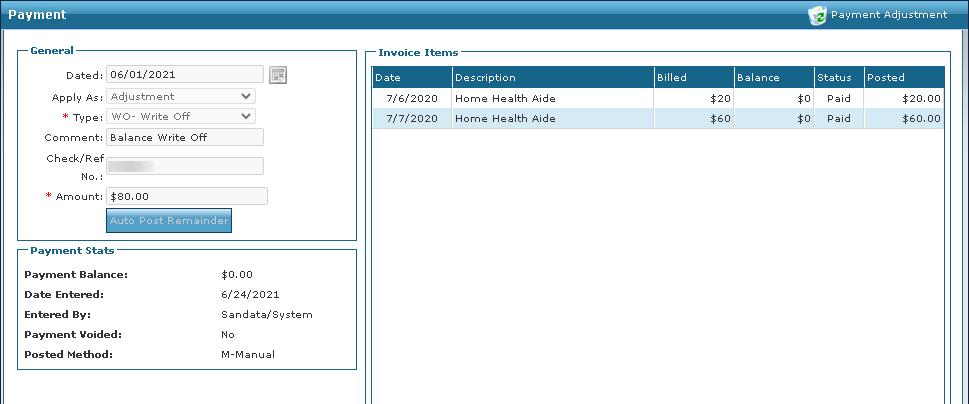
Double click the adjustment to review it in the Payment window.