Sandata Agency Management 12-General Ledger Window
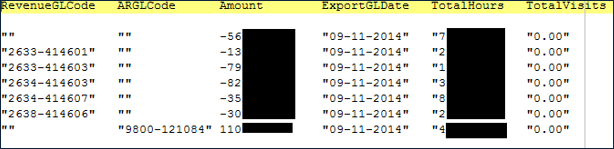
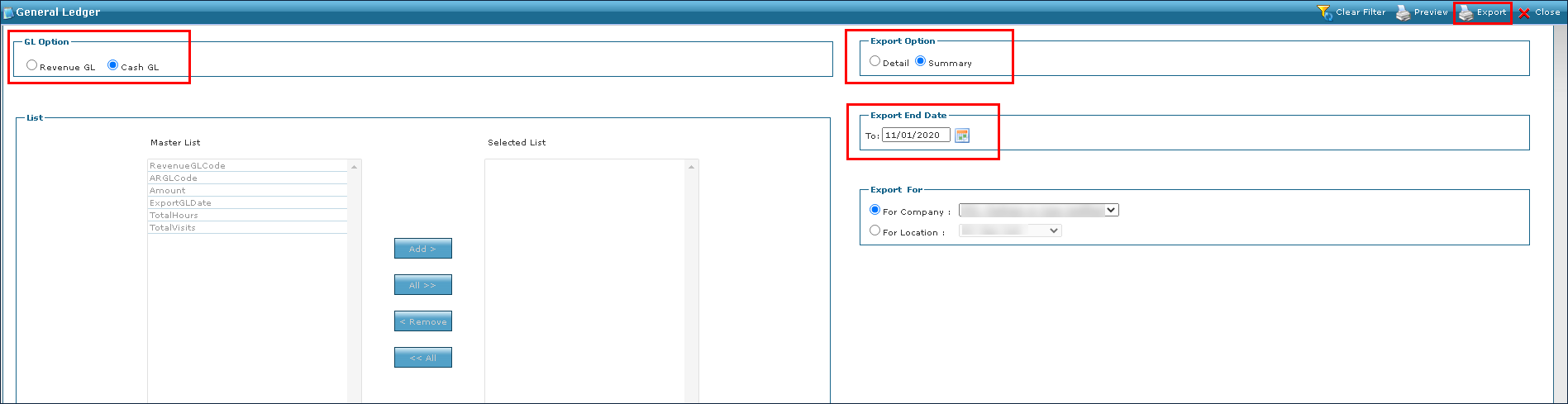
The General Ledger window can be used to preview and export standard Revenue and Cash account information for transactions assigned to the company or location. The Summary file is created according to preset specifications. Once exported, the file is available to be imported into the agency’s General Ledger system.
To access the General Ledger window, select GL Export under Main Menu> Billing > GL Export.
General Ledger functionality must be set up by an Implementation Specialist. To request this, please contact an Implementation Specialist to enable the feature and determine the structure of account numbers.
Preview and save a detailed version of both the revenue and cash general ledger before exporting summary versions for your general ledger system.
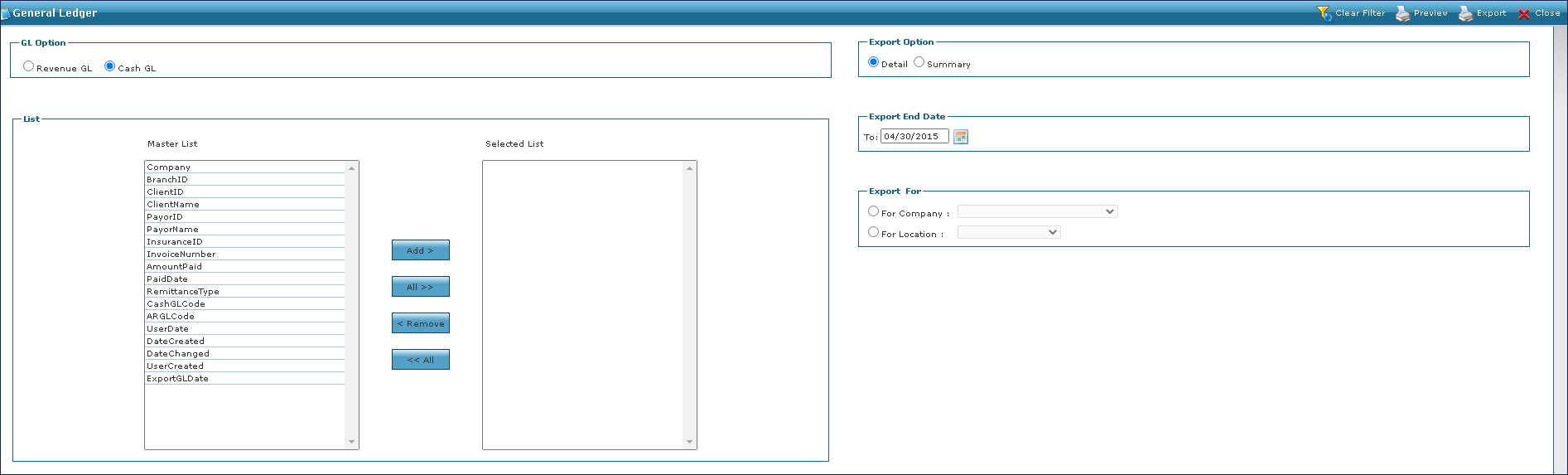

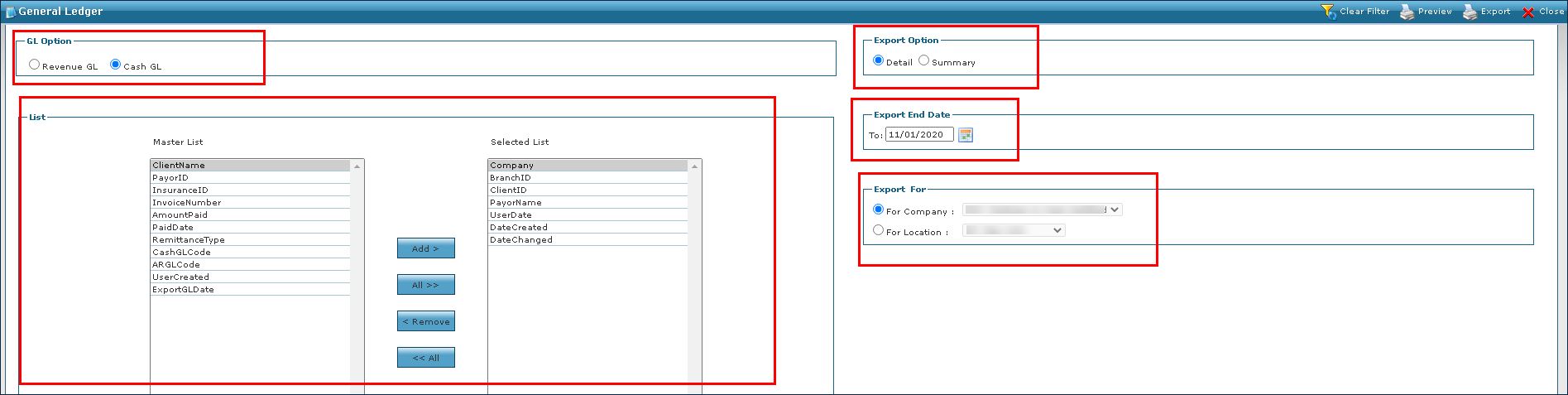
The GL Option option is used to determine if the export is going to revenue or cash-based.
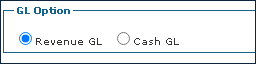
Two choices are available:
|
Field |
Description |
|---|---|
|
Revenue GL |
Use this radial to select revenue export. |
|
Cash GL |
Use this radial to select cash export. |
Export Option is used to determine if the export output is a detailed view or a broader summary view.
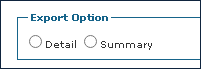
Two choices are available:
|
Field |
Description |
|---|---|
|
Detail |
Use this radial to select detail view output. |
|
Summary |
Use this radial to select the summary view output. |
The Export End Date option is used to select the last day of the export.
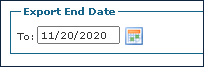
The field can be used as follows:
|
Field |
Description |
|---|---|
|
To |
Use this field to select the last date of the export. |
The Export For option is used to select the company or location receiving the export.
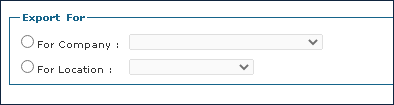
The fields can be used as follows:
|
Field |
Description |
|---|---|
|
For Company |
Use this radial and drop down to select the company name. |
|
For Location |
Use this radial and drop down to select the location. |
The List option contains all selectable fields for inclusion on the export.
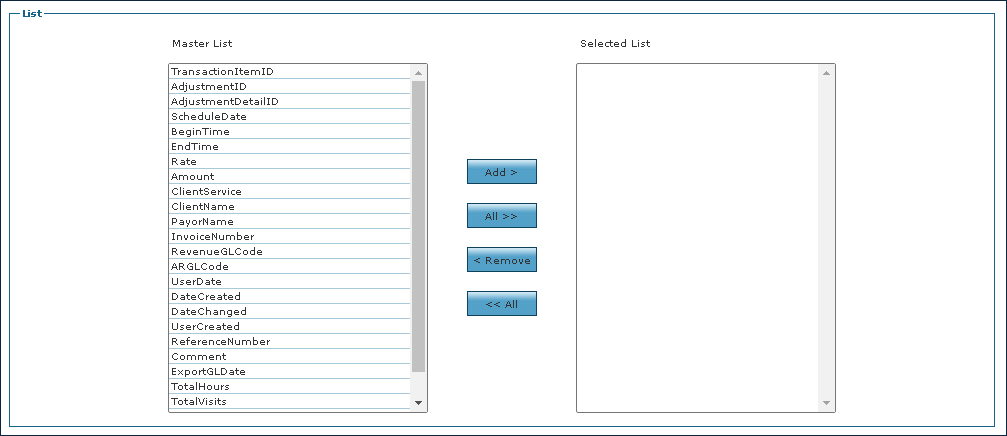
Each field can be used as follows:
|
Field |
Description |
|---|---|
|
Add |
Click this button to add the item to the selected list. |
|
All |
Click this button to add all items to the selected list. |
|
Remove |
Click this button to remove the selected item from the selected list. |
|
All |
Click this button to remove all items from the selected list. |
|
TransactionItemID |
Select this item to include the system generated ID associated with a transaction. |
|
AdjustmentID |
Select this item to include the system generated Adjustment ID number. |
|
AdjustmentDetailID |
Select this item to include the system generated Adjustment Posting ID number. |
|
ScheduleDate |
Select this item to include the scheduled date. |
|
BeginTime |
Select this item to include the start time of the scheduled visit. |
|
EndTime |
Select this item to include the end time of the visit. |
|
Rate |
Select this item to include the rate associated with the visit. |
|
Amount |
Select this item to include the dollar amount value. |
|
ClientService |
Select this item to include the service being performed. |
|
ClientName |
Select this item to include the Client’s name. |
|
PayorName |
Select this item to include the name of the Payer. |
|
InvoiceNumber |
Select this item to include the invoice number. |
|
RevenueGLCode |
Select this item to include the revenue general ledger account number. |
|
ARGLCode |
Select this item to include the Account Receivable General Ledger account number. |
|
UserDate |
Select this item to include the date of the visit. |
|
DateCreated |
Select this item to include the date the visit was created. |
|
DateChanged |
Select this item to include the date the visit was modified. |
|
UserCreated |
Select this item to include the date the user was created. |
|
ReferenceNumber |
Select this item to include the reference number. |
|
Comment |
Select this item to include any comments associated with the visit. |
|
ExportGLDate |
Select this item to include the date the General Ledger Export/Preview was exported. |
|
Total Hours |
Select this item to include the total hours for all included visits. |
|
TotalVisits |
Select this item to include the total amount of included visits. |
|
AdmitType |
Select this item to include the visit admission types. |
|
EventCode |
Select this item to include the visit event codes. |
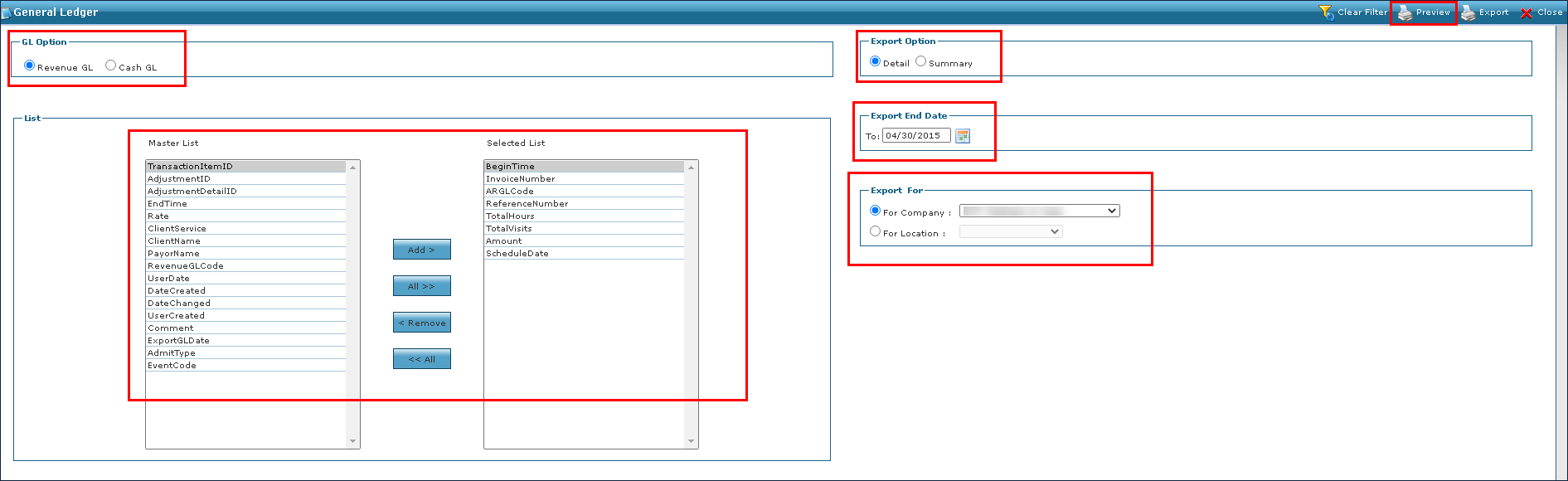
To preview and make a copy of a revenue general ledger export:
-
Go to the General Ledger window under Main Menu> Billing > GL Export.
-
Select Revenue GL for the GL Option.
-
Select Detailfor the Export Option.
-
Use the Master List option to select the outputs.
Next, select Add to select the outputs individually or select All to select each one.
-
Choose the final date of the export in the Export End Date option.
-
Choose the company or location from the dropdown for the Export For option.
-
Select Preview.
Select a download location for the sample report and select Save.
To preview and make a copy of a cash general ledger export:
-
Go to the General Ledger window under Main Menu> Billing > GL Export.
-
Select Cash GL for the GL Option.
-
Select Detail for the Export Option.
-
Next, use the Master List option to select the outputs.
Select the Add button to select the outputs individually or select the All button to select each one.
-
Choose the final date of the export for the Export End Date option.
-
Choose the company or location from the dropdown for the Export For option.
-
Next, select Preview.
Select a download location for the sample report and select Save.
To export a summary version of the Revenue General Ledger:
-
Go to the General Ledger under Main Menu> Billing > GL Export.
-
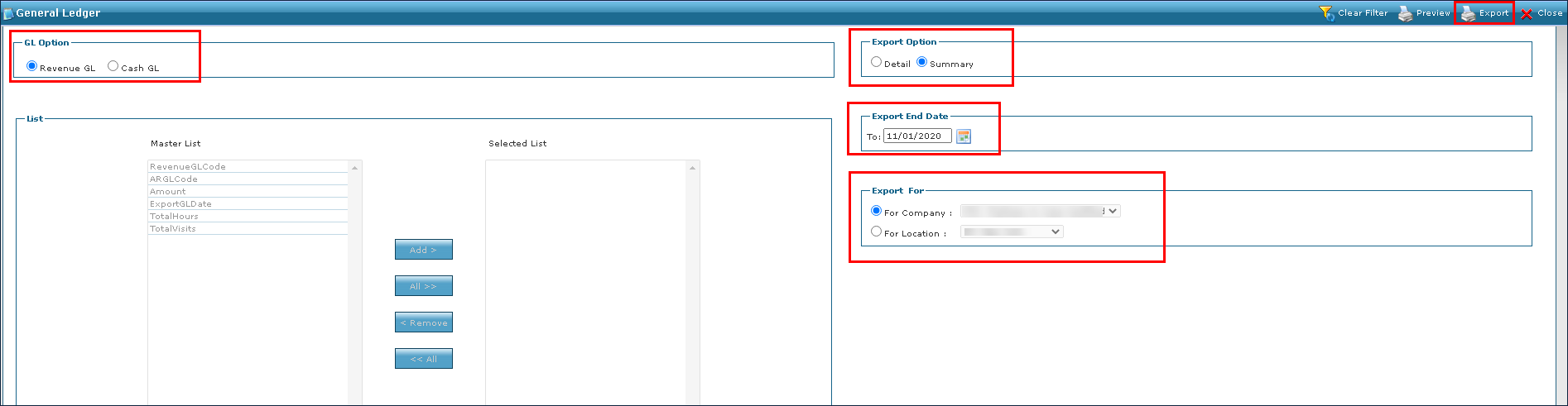
Select Revenue GL for the GL Option.
-
Next, select Summary for the Export Option.
-
Choose the final date of the export for the Export End Date option.
-
Choose the company or location from the dropdown for the Export For option.
-
Next, select Export.
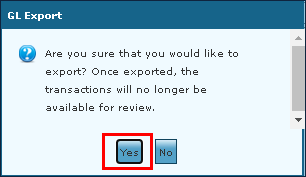
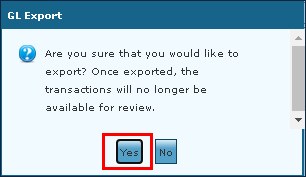
Once Export is selected, the records cannot be exported again. Attempting to export the records displays a "No data to export" message.
-
Select the Yes button.
To export a summary version of the Cash General Ledger:
-
Go to the General Ledger window under Main Menu> Billing > GL Export.
-
Select Cash for the GL Option.
-
Select Summary for the Export Option.
-
Next, choose the final date of the export for the Export End Date option.
-
Choose the company or location from the dropdown for the Export For option.
-
Select Export.
Once Export is selected, the records cannot be exported again. Attempting to export the records again displays a "No data to export" message.
-
Next, select the Yes button.