Sandata Agency Management 07-History Window
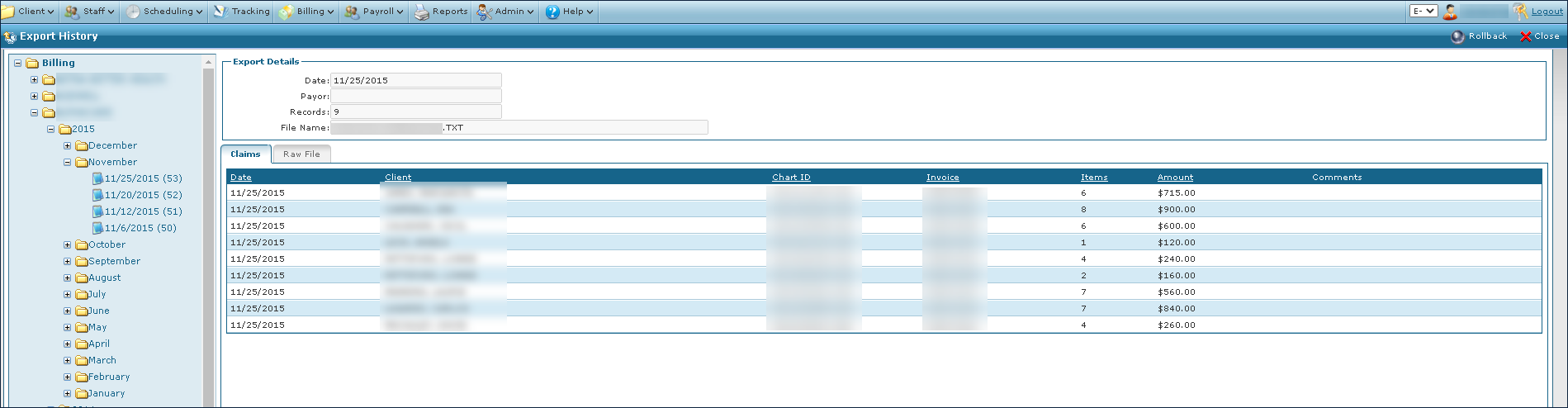
The History screen displays claims that have been exported to each Payor for an agency.
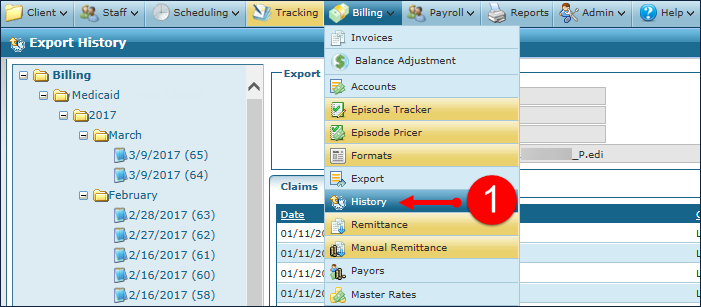
To access the Export History window, select History under Main Menu > Billing > History.


The folder hierarchy contains the destination folders for any exports created by the system. By default, Billing, Eligibility, CAHPS, OASIS and Payroll appear. Additional folders can be created by request through your implementation manager.
Click on the plus sign ( ) to expand the folder and access the billing hierarchy.
|
Field |
Description |
|---|---|
|
Billing |
Click this dropdown to view invoices exported for billing. |
|
Eligibility |
Click this dropdown to view 270 eligibility files that have been exported. |
|
Oasis |
Click this dropdown to view any exported Oasis assessments. |
|
Payroll |
Click this dropdown to view exported payroll. |
The Export Details contain identification information related to the exported file currently selected.

|
Field |
Description |
|---|---|
|
Date |
Displays the date the file was exported. |
|
Payor |
Displays the payer associated with the exported file. |
|
Records |
Displays the number of records contained in the exported file. |
|
File Name |
Displays the file name of the exported file. |
The Claims tab contains information relevant to the invoices within the exported file currently selected.

|
Field |
Description |
|---|---|
|
Date |
Displays the date that the invoice was exported. |
|
Client |
Displays the name of the Client associated with the invoice. |
|
Chart ID |
Displays the Chart ID of the client associated with the invoice. |
|
Invoice |
Displays the invoice number. |
|
Items |
Displays the number of items contained in the invoice. |
|
Amount |
Displays the billed amount of the invoice. |
|
Comments |
Displays any comments associated with the invoice. |
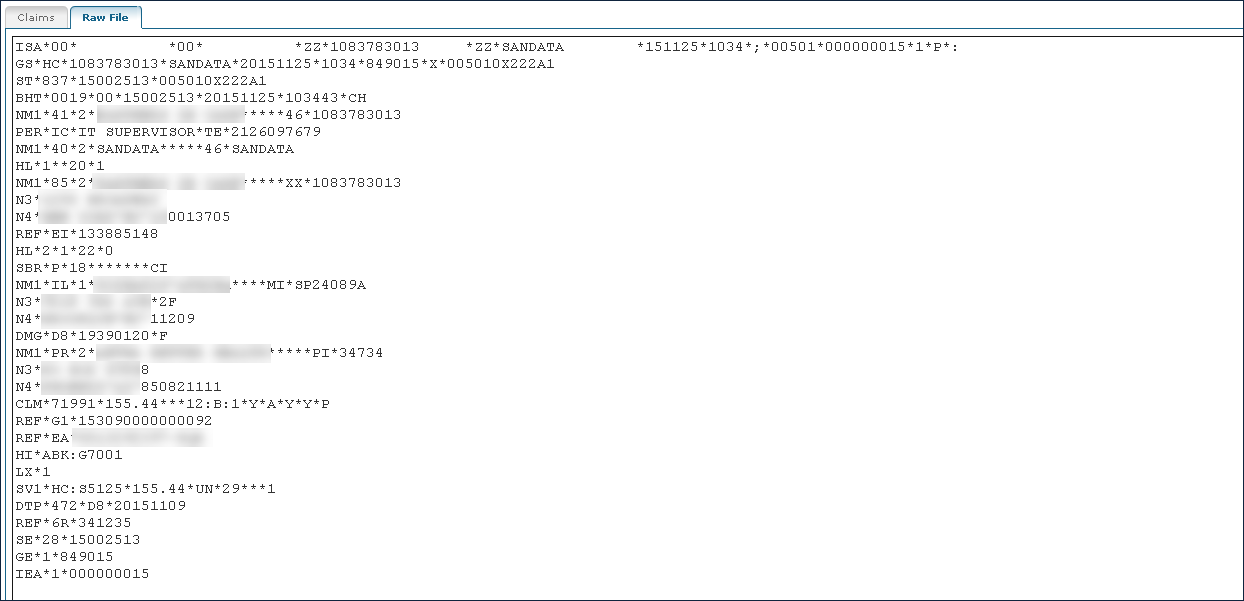
The Raw File tab contains the metadata information related to the exported file.
To view the Invoice Details, double click the appropriate invoice.
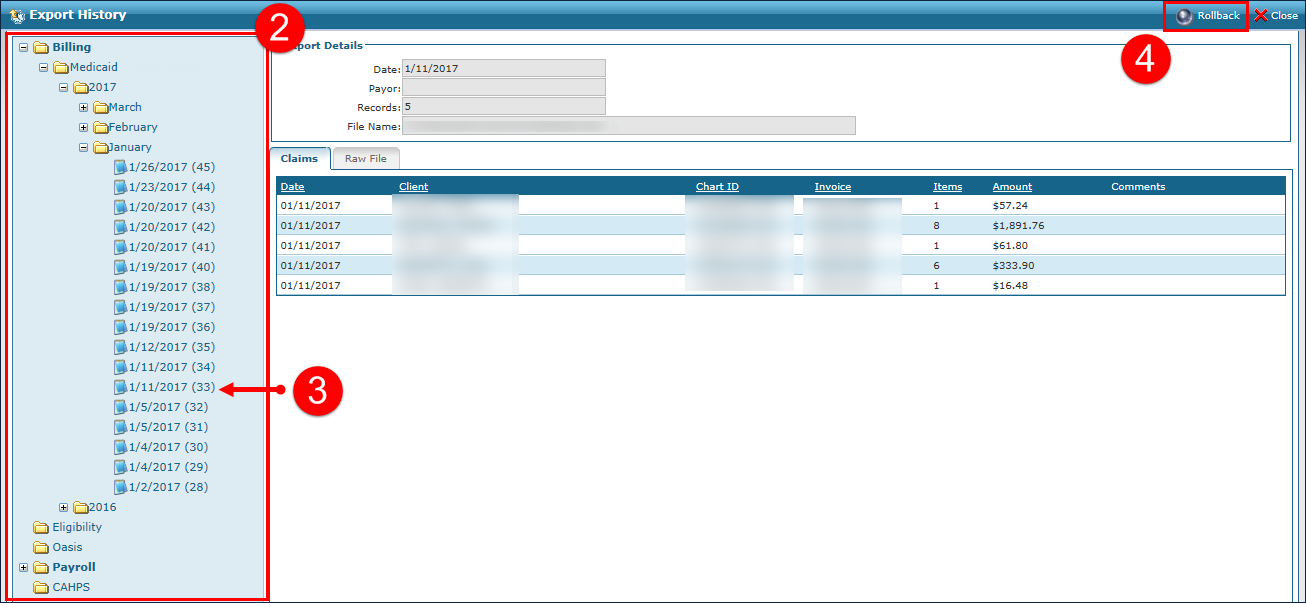
The Rollback button is used to correct all claims in an Export File when it has been rejected by a payer.
Rollback initiates a process that changes the status of the invoices in the selected export files from 06- Bill Sent to 05- Billable (in the Billing Export screen). This allows these claims to be re-exported. It is used when the provider needs to correct and re-submit claims that have been denied by the Payor.
-
Go to the Export History window under Main Menu > Billing > History.
-
Locate the rejected claims in the navigation panel.
Use the Collapse/Expand toggle, (+/-) next to the folder icons, to locate the rejected claims.
-
Select the desired file to display the claim’s details.
-
Select Rollback.
-
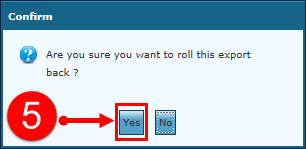
Select the Yes button to confirm the confirmation pop up.
-
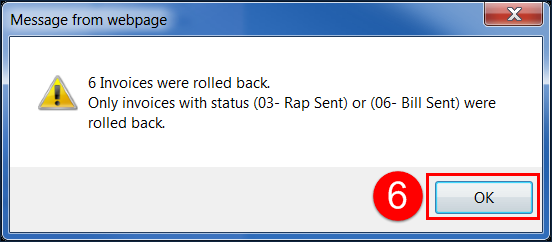
Select the OK button to acknowledge the notification listing the number of invoices and the status changes.
The related invoices are now set to a Status of 05- Billable and will be part of your next export cycle.
-
Cancel the original invoices and make any required adjustments/visit maintenance from the Schedule Detail window of the visit(s) related to the claim that has been rolled back.
-
Generate a new invoice, from the Billing Review window.
-
Export the applicable invoice(s), from the Billing Export window.