Sandata Agency Management 04-Accounts Window
The Accounts window is used to access Client accounts to review related payments, charges, adjustments, and account balances.
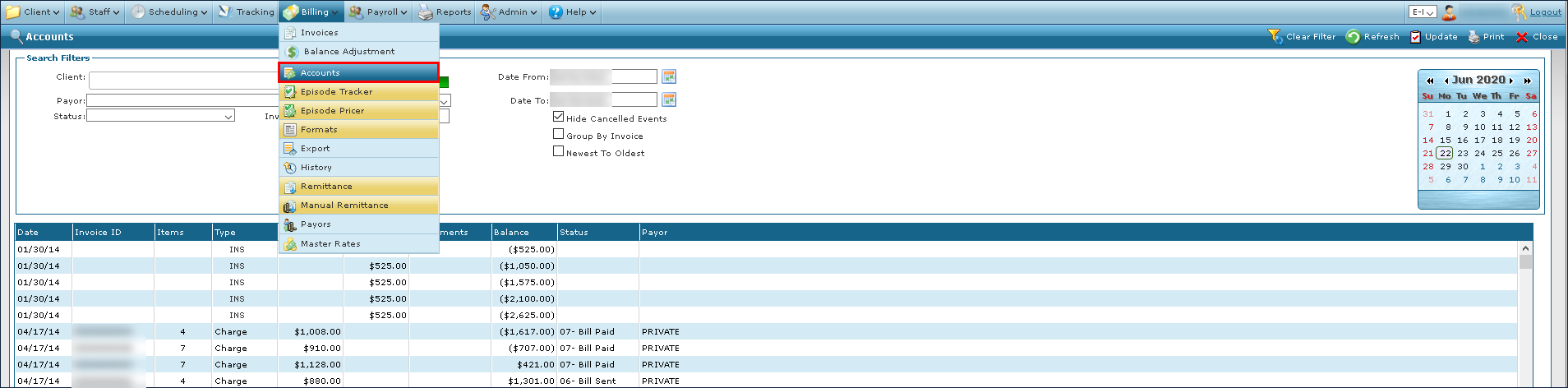
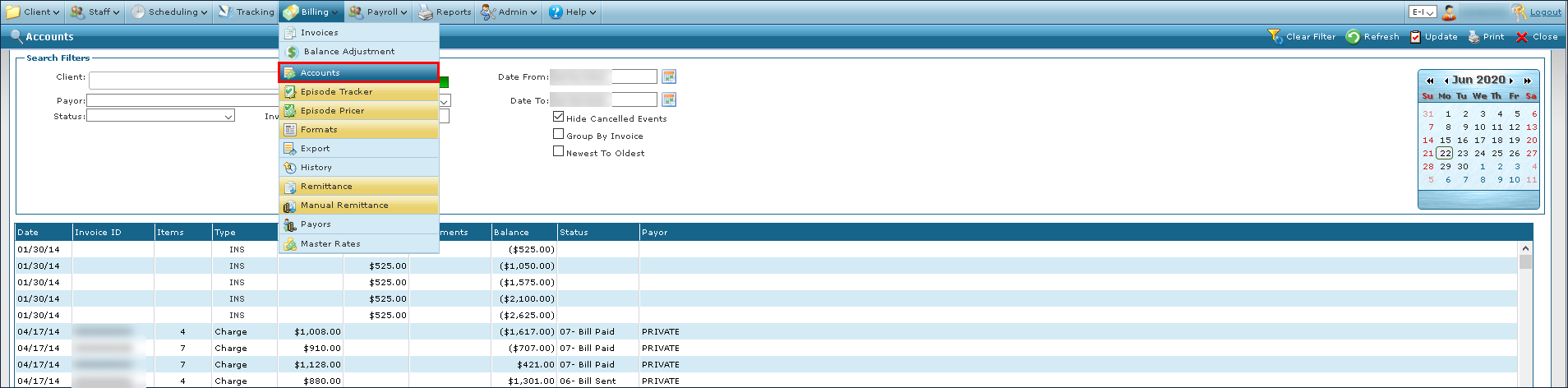
To access the Accounts window, select Accounts under Main Menu > Billing > Accounts.

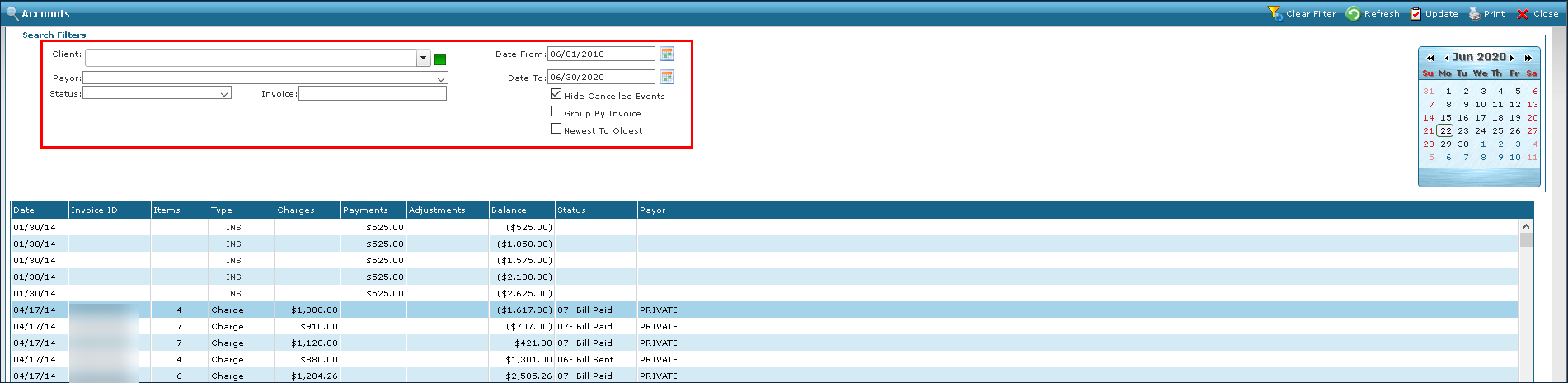
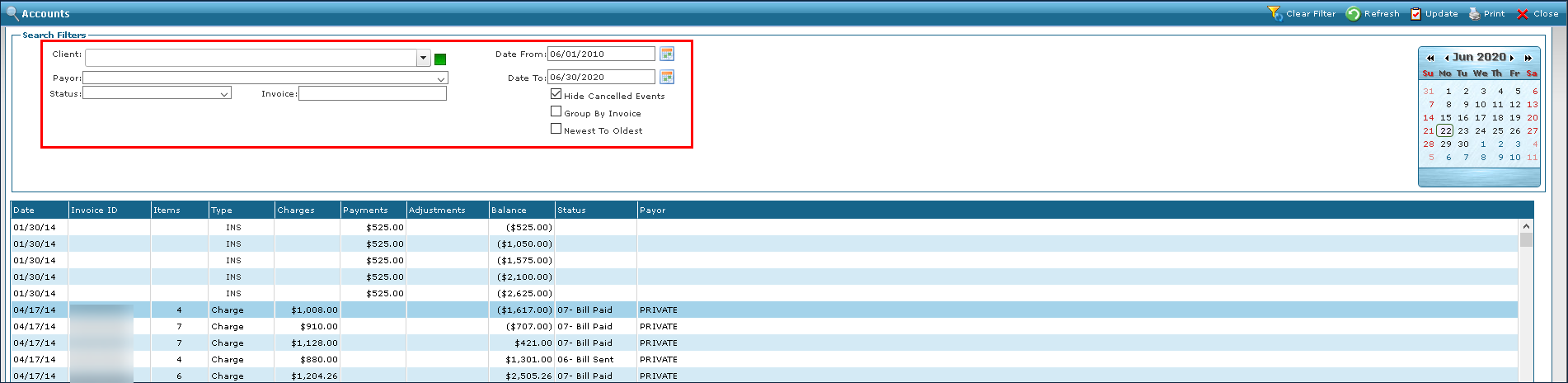
The Search Filters at the top of the screen allow users to narrow the Results List to meet specific criteria. It is possible to use a particular field as well as a combination of fields.

|
Field |
Description |
|---|---|
|
Client |
Use this field to filter results by the Client’s name. |
|
Payor |
Use this drop down to filter results by the payer. |
|
Status |
Use this drop down to filter results by invoice status. |
|
Invoice |
Use this field to filter results by invoice number. |
|
Date From |
Use this field to filter payments beginning on this date. |
|
Date To |
Use this field to filter invoices ending on this date. |
|
Hide Cancelled Events |
Select this checkbox to remove canceled events from the results list. |
|
Group By Invoice |
Select this checkbox to group the results by invoice. |
|
Newest To Oldest |
Select this checkbox to sort the results with the newest invoices first. |
The results list displays a list of invoices that match the criteria selected in the search filters. Invoices can be opened by double clicking them in the results list.

|
Field |
Description |
|---|---|
|
Date |
Displays the date of the invoice or payment or adjustment date for payments and adjustments. |
|
Invoice ID |
Displays the invoice identification number. |
|
Items |
Displays the number of items contained in the invoice. |
|
Type |
Displays the payment type on the invoice. |
|
Charges |
Displays the original billed amount on the invoice. |
|
Payments |
Displays the payment amount on the invoice. |
|
Adjustments |
Displays the adjustment amount on the invoice. |
|
Balance |
Displays the balance on the invoice. |
|
Status |
Displays the status of the invoice. |
|
Payor |
Displays the payer associated with the invoice. |
To add a payment to a Client’s account:
-
Go to the Accounts window under Main Menu > Billing > Accounts.
-
Use the filters to search for a Client.
-
Double click the invoice to open it.
-
Next, select the green plus (
 ) icon.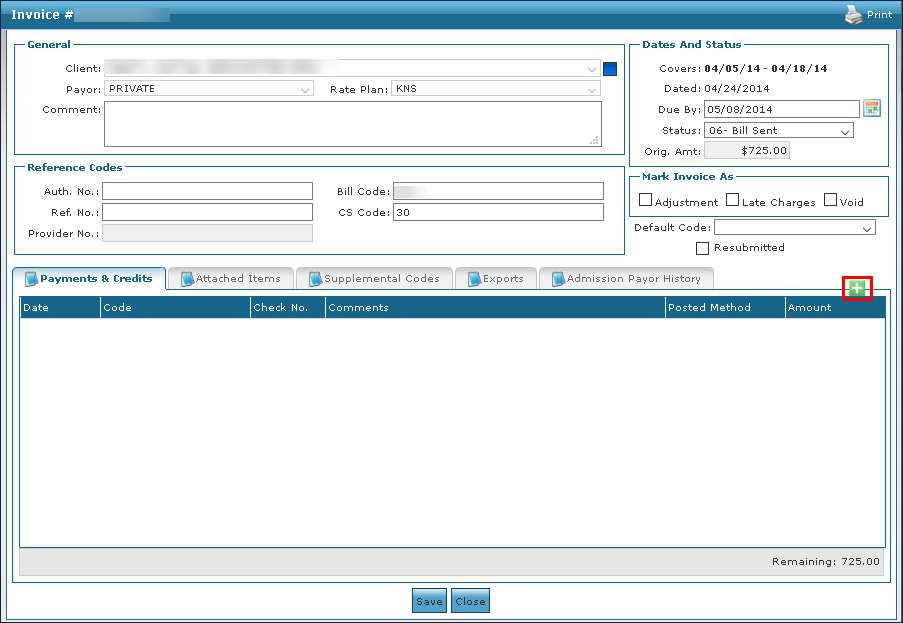
-
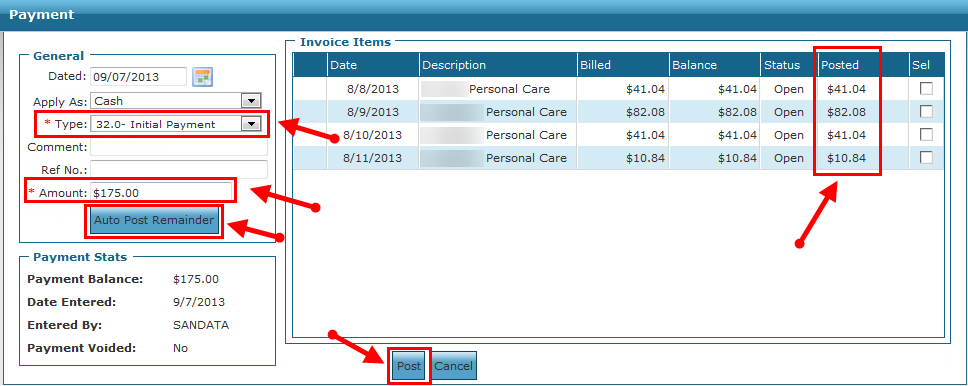
Select the payment type, enter the amount received, and then either:
-
Select Auto Post Reminder, to distribute the Amount posted to Invoice Items, in date order, until the Amount that was entered is exhausted, or
-
Enter the amount that is applied to each invoice item manually, using the Posted field column.
-
-
Enter comments and reference number(s) as required.
-
Select the Post button.
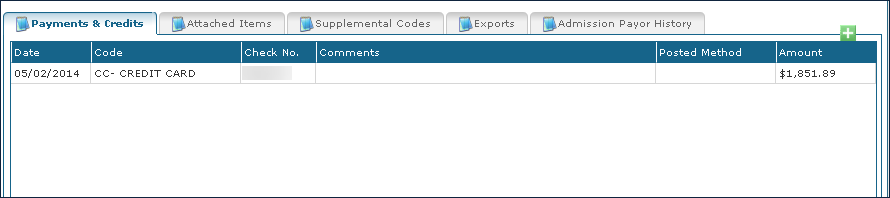
The payment is added to the invoice.
To void a payment on a Client’s account:
-
Go to the Accounts window under Main Menu > Billing > Accounts.
-
Use the filters to locate a Client.
-
Double click the payment or adjustment to be voided.

-
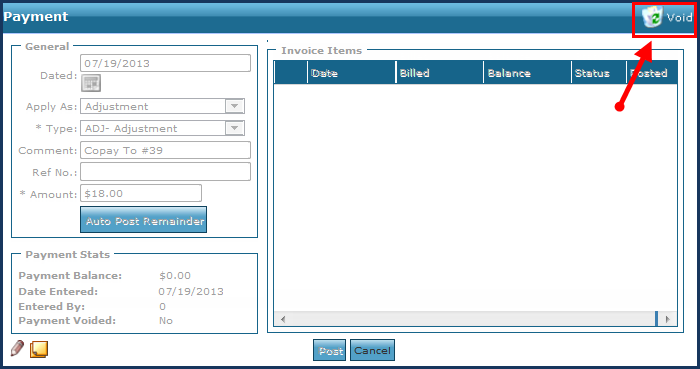
Select Void on the Payment Detail window.
-
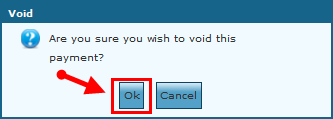
Select the OK button to void the payment.
-
Select the OK button on the confirmation message.